Why Your WebP Images Aren’t Showing in WordPress

You installed the plugin, enabled WebP, ran the bulk optimizer. The dashboard says everything’s converted. Then you open your site and the browser is still handing out the old JPEGs. Or nothing loads at all.
Frustrating, but almost always fixable. The thing is, WebP not showing up is hardly ever the format’s fault. It’s a delivery issue, something stuck between the converted file sitting on your server and the browser that’s supposed to display it. Below are the causes worth checking, roughly in the order that saves you the most time, each with its fix.
Quick Takeaways
- Creating WebP files isn’t the same as serving them. Most “not showing” problems hide in the delivery layer, not the conversion step.
- There are three delivery methods (.htaccess, <picture> tag, CDN), and each breaks differently. Knowing yours cuts the search in half.
- Caching trips up more people than anything else. Page cache, browser cache, CDN cache, any of them can keep feeding visitors the old format.
- Your server setup matters. Apache needs the right rewrite modules, Nginx skips .htaccess completely, and a few hosts quietly override what you set.
- Spend two minutes in the browser’s Network tab. It shows you what’s really being served, and that beats guessing every time.
First, confirm what’s actually happening
Don’t touch a single setting yet. Find out what the browser is receiving first, because this one check saves a lot of poking around in the dark.
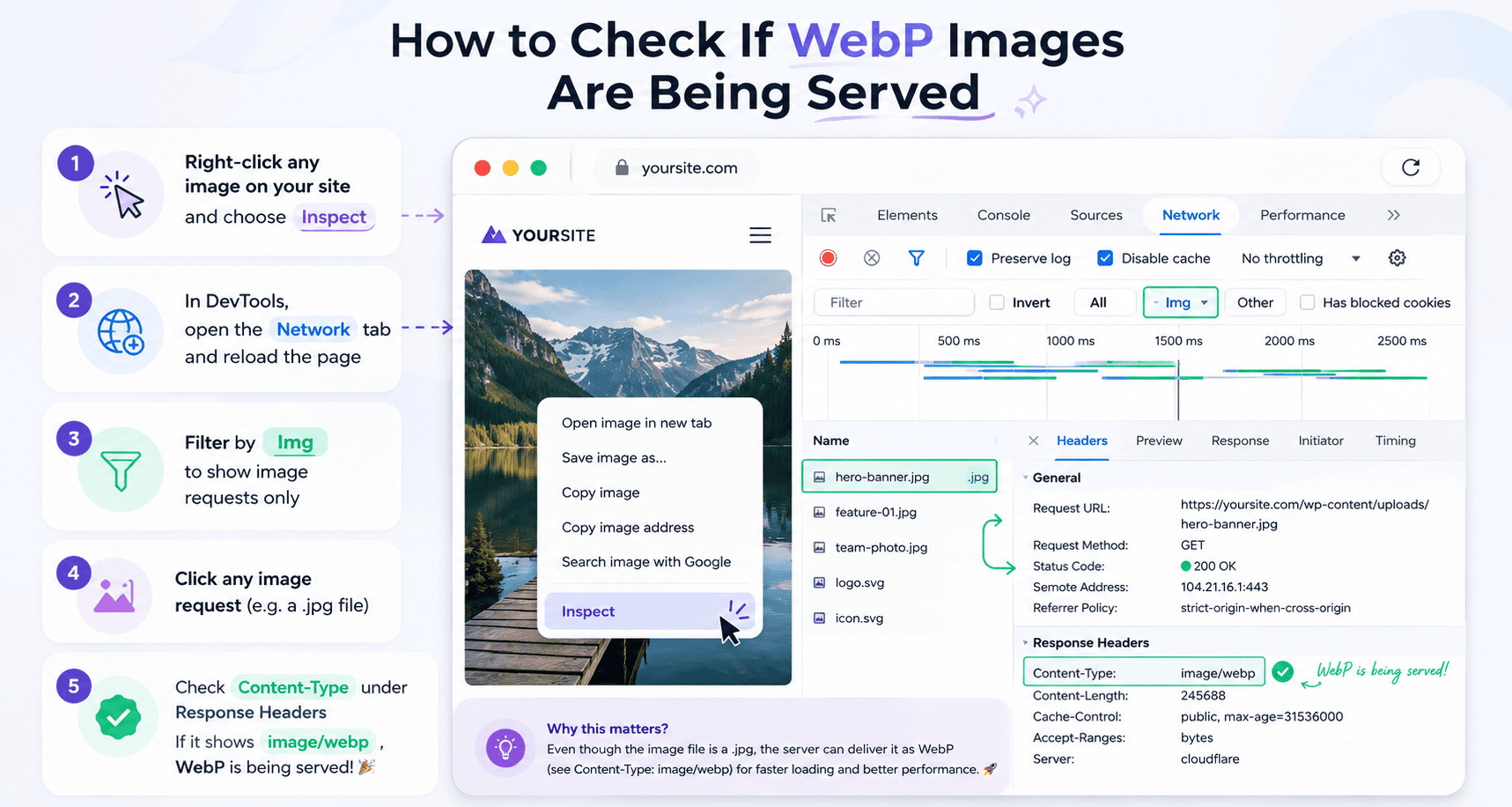
Right-click an image on your site and hit Inspect (or Inspect Element). Open the Network tab in the developer tools, reload the page, and filter by Img. Click any image request, then read the Content-Type under the response headers.
See image/webp? Then WebP is being served. What you took for a bug might just be that WebP looks almost identical to the JPEG, so there’s nothing obvious to see. See image/jpeg or image/png instead? Your WebP isn’t going out, and the rest of this guide explains why.
One more thing worth a look: is the WebP file even there? With the .htaccess or CDN method, the converted copy normally sits right beside the original, so photo.jpg gets a photo.webp next to it. No .webp file on disk means this is a conversion problem, not a delivery one. Skip down to the plugin settings section.
Caching is serving the old version
This is the most common reason. Everything converted fine, but some cache layer keeps dishing out the version from before you optimized.
Here’s the catch. A WordPress site usually runs several caches at once: a page cache plugin, caching at the server level, the browser’s own cache, and a CDN on top. Any single one of them can cling to the old HTML or the old image response.
So clear them, and clear them in this order:
- Purge your caching plugin. FastPixel, WP Rocket, W3 Total Cache, LiteSpeed Cache, whichever you run, flush the whole thing.
- Clear the CDN cache if you’ve got one. It may have stored the JPEG response out at the edge.
- Hard-refresh the browser. Ctrl+Shift+R on Windows, Cmd+Shift+R on Mac, that skips your local cache. An incognito window is even cleaner since it starts with nothing cached.
Quick trick: tack a fake query string onto the image URL, something like photo.jpg?v=2. If the WebP shows up now, you were staring at a cached response the whole time. Delivery works fine.
The .htaccess method isn’t being applied
Pick the .htaccess method (it’s the default on Apache) and ShortPixel drops in rewrite rules that spot WebP-capable browsers and swap the JPEG or PNG for the WebP on the fly. When that doesn’t happen, a handful of things tend to be the reason.
You’re not actually on Apache. This only works on Apache and LiteSpeed. Nginx never reads .htaccess files, so the rules go nowhere. Running Nginx? Switch over to the CDN delivery method.
The rewrite module is off. Everything hinges on mod_rewrite and mod_headers. Managed hosts usually have both on out of the box. A custom box or VPS might not. Check that they’re enabled, or just ask your host.
The rules got removed. A few security plugins and some hosts rewrite .htaccess and quietly drop ShortPixel’s block in the process. Open the file at your WordPress root and find the section between the ShortPixel markers. Gone? Toggle the .htaccess option off and on in settings to rewrite it. If it vanishes again, something is removing it on a schedule, and a different delivery method is the saner fix.
Check the Vary: Accept header too. Without it, proxies and CDNs cache the wrong version of an image. One browser gets WebP. The next gets JPEG. It goes inconsistent fast. ShortPixel adds the header itself, so trouble starts when a cache downstream strips it back out.
The picture tag method has a markup or theme conflict
The <picture> method rewrites the image HTML so the browser can pick the best format it handles. It runs on any server, which is exactly why it’s the safe fallback. The catch is that it has to parse and rewrite whatever your page spits out, and that’s where it stumbles.
When WebP won’t show with this method, look at these:
Your theme or page builder outputs images the rewriter can’t grab. Backgrounds set in inline CSS, images pulled in by lazy-load scripts through data-src, or markup hardcoded inside a builder, all of those slip right past the <picture> rewrite. Elementor and Divi are repeat offenders. And CSS background images? Those can’t go through <picture> at all.
A second optimization plugin is rewriting the same HTML. Two plugins both reaching for the image output will trip over each other and cancel out. Pick one delivery layer and disable the rest.
Check the rendered source through View Page Source or the Elements panel and look for the actual <picture> element wrapping your images. A bare <img> tag with no <picture> around it and no WebP source means the rewrite never reached that image. There’s your culprit.
CDN delivery isn’t configured or is caching wrong
With the CDN method, your images come off a global network in whatever format suits each visitor, and the format choice plus resizing all happen at the edge. That’s why it’s the go-to for sites with a worldwide audience.
When WebP won’t show through the CDN:
Using ShortPixel’s CDN delivery method means image requests should run through the CDN domain instead of your origin server. Checking that is the fastest way to tell whether CDN rewriting is even kicking in.
- Make sure the CDN is on and the URLs got rewritten. In the Network tab, image URLs should point at the CDN domain, not yours. Still pointing home? The rewriting isn’t active.
- The CDN cache might be holding an old copy. Same as any cache, purge it from the ShortPixel Dashboard once you’ve changed things.
- A second CDN in front can double-cache. Run Cloudflare on top of a CDN delivery layer and the outer one can cache in a way that ignores the format negotiation entirely. Purge both, and confirm the outer CDN honors the Vary: Accept header.
The plugin settings aren’t what you think
Sometimes the conversion never really finished, or it ran for a format you didn’t mean to use.
If you’re on ShortPixel Image Optimizer, head to Settings > ShortPixel > WebP/AVIF and check:
- “Create WebP Images” is genuinely ticked. Easy to switch on AVIF and assume WebP tagged along, or the other way round.
- A delivery method is picked. Generating the WebP files accomplishes nothing by itself; you still choose how they go out (.htaccess, <picture>, or CDN).
- Bulk optimization actually completed. Open Media > Bulk ShortPixel. A stalled run or a backlog leaves some images with an original but no WebP yet. Kick it off again and let it run to the end.
And remember, the originals stay put as backups on purpose. The JPEG sitting on disk is meant to be there. The WebP lives next to it rather than replacing it.
AVIF is being served instead (and that’s fine)
Quick sanity check, because this one trips people up constantly. Turn on both WebP and AVIF and ShortPixel serves whichever the visitor’s browser handles best. Modern Chrome or Firefox pulls AVIF, not WebP. So image/avif in the Network tab is not a bug.
That’s the format cascade doing its job: AVIF first, WebP next, JPEG or PNG as the last resort. If you went looking for WebP and found AVIF instead, nothing is broken. The browser simply received the better-supported format available to it. Still deciding which to lean on? Our AVIF vs WebP comparison lays out the trade-offs.
A step-by-step troubleshooting flow
When you’re deep in it, walk this in order and you’ll corner almost any case.
- Network tab, reload, read Content-Type. WebP or AVIF, you’re done. JPEG or PNG, keep going.
- Hard-refresh in incognito. Knocks out the browser cache on the spot.
- Purge every cache: page cache plugin, server cache, CDN. Test again.
- Check the .webp file exists beside the original. Missing means it’s a conversion problem, so review plugin settings and rerun the bulk job.
- Find your delivery method in settings, then match it to its failure mode:
- .htaccess: On Apache? Rules present? mod_rewrite on?
- <picture>: Element in the rendered source? Any builder or lazy-load clash?
- CDN: URLs rewritten to the CDN? Cache purged?
- Switch off other image or optimization plugins for a moment. Clashes are common. WebP popping up once they’re off points straight at the conflict.
- Swap delivery methods as a test. If .htaccess is at war with your server, the CDN delivery method runs nearly everywhere and confirms the conversion side is fine.
When it’s not your config at all
Some of these aren’t really errors:
- You’re checking in an old browser or editor. A few legacy browsers and older desktop image viewers can’t render WebP. The site’s serving it correctly; the tool just can’t open it. Try current Chrome or Firefox.
- The difference is just subtle. A well-tuned WebP looks nearly the same as the JPEG. Expecting a dramatic shift? You won’t see one. The payoff is in file size, not how it looks. Confirm by checking the size in the Network tab rather than trusting your eyes.
Wrapping up
Nearly every “WebP won’t show” case comes down to delivery or caching, not a failed conversion. The Network tab gets you to the answer quickest, telling you in seconds whether WebP is reaching the browser. From there it usually lands on one of three things: caching, a delivery method that doesn’t fit your setup, or a plugin stepping on another. Work through the steps above in order and you’ll usually identify the cause pretty quickly.
On ShortPixel Image Optimizer, the WebP generation, browser detection, and fallback delivery run on their own. When something does go sideways, it almost always traces back to caching, server configuration, or a delivery method that wasn’t quite set up right.
FAQs
Why are my WebP images not showing after I enabled them?
Usually because something’s still serving the old format. Check the Content-Type in your browser’s Network tab, then clear every cache you’ve got: page cache plugin, CDN, browser. If the JPEG keeps coming through, the problem is your delivery method, whether that’s .htaccess, <picture> tag, or CDN.
How do I check if WebP is being served on my site?
Right-click an image, choose Inspect, open the Network tab, reload. Click an image request and read the Content-Type header. image/webp (or image/avif) means it’s working. image/jpeg or image/png means it isn’t.
Why does my server ignore the WebP .htaccess rules?
The .htaccess method only runs on Apache and LiteSpeed. Nginx doesn’t read .htaccess at all, so it skips the rules. On Nginx, use the <picture> tag or CDN delivery method instead. On Apache, double-check that mod_rewrite and mod_headers are both enabled.
Should I use WebP or AVIF on WordPress?
Both, ideally. ShortPixel serves AVIF to browsers that support it, then falls back to WebP, then to JPEG or PNG. So if the Network tab shows AVIF instead of WebP, that’s expected, the browser’s just getting the better-compressed one.
Try ShortPixel on WordPress for free!
Easily optimize your pictures and generate WebP/AVIF in bulk using ShortPixel Image Optimizer.