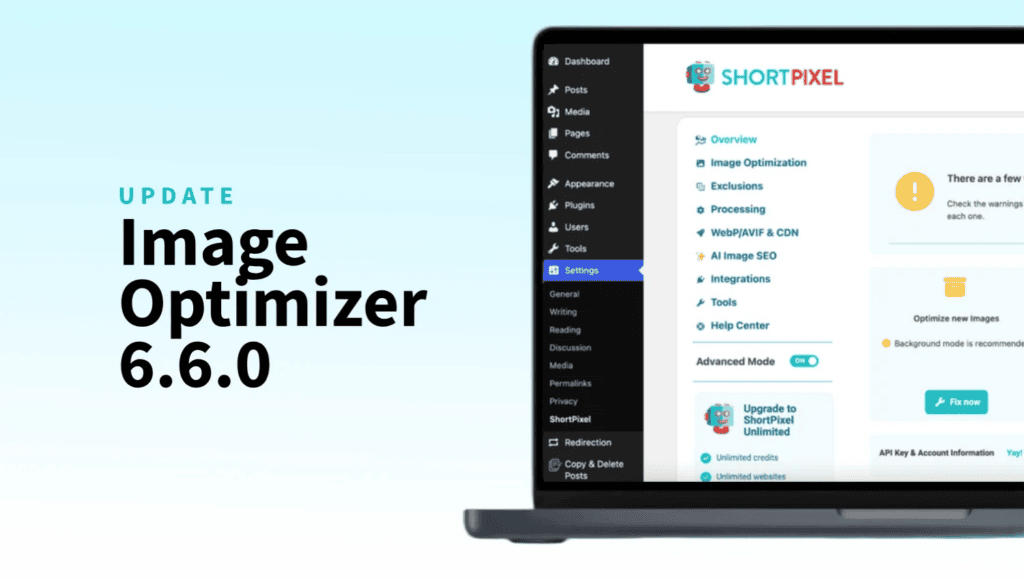
ShortPixel Image Optimizer 6.6.0 Update: MCP and AI Image Renaming for WordPress

IMG_4821.jpg. DSC00023.JPG. screenshot-final-2.png. Sound familiar? Your Media Library is probably full of them.
Renaming images is one of those SEO tasks everyone agrees is a good idea and nobody wants to do. Doing it by hand takes forever, and one wrong move leaves broken images all over your site.
With version 6.6.0, ShortPixel Image Optimizer also has an AI Image Renaming tool! AI writes an SEO-friendly filename for each image, you can rename images yourself, and ShortPixel updates the image files, Media Library metadata, and references across your WordPress content for you. That includes sites running WP Offload Media, WPML and Polylang.
This is also the first release built with a comprehensive automated test suite: about 2,600 automated tests plus browser tests, checking the same workflows and integrations introduced in this release.
Why image filenames matter
Google’s image SEO guidelines recommend descriptive filenames, like my-new-black-kitten.jpg instead of IMG00023.JPG. For sites with thousands of images, they even suggest “automating the naming of the images.” That’s exactly the kind of job AI renaming in ShortPixel Image Optimizer is built for.
Let’s keep expectations realistic, though. Google says a filename only gives it light clues, and it names alt text as the most important image attribute. That’s why renaming in 6.6.0 works hand in hand with the AI alt text from AI Image SEO. It’s not meant as a ranking trick on its own.
AI SEO-Friendly Filenames
When Image SEO runs, AI now proposes a descriptive filename alongside the alt text and caption, and ShortPixel renames the image to it. For example, IMG_4821.jpg can become red-leather-hiking-boots.jpg (illustrative example).
The feature is off by default. You’ll find these options in the AI Image SEO section of the settings:
- Update image filename with an SEO-friendly one: The master switch. Turn it on to let AI rename your images.
- Limit filename to N characters: Keep names short. The default is 30, and you can go up to 200.
- Additional context for filename generation: Give the AI a hint, like your brand or product line. Up to 500 characters.
- Always add before / after filename: Add a fixed prefix or suffix to every generated name.
- Prefer keeping current filename if relevant: Already-good names are left alone.
Renaming the file without breaking your site
Renaming a file is easy. Renaming it without breaking anything is the hard part. A rename in ShortPixel updates:
- the original file, every thumbnail size, and the WebP and AVIF versions
- ShortPixel’s backup copies, so restoring the original still works
- the attachment’s metadata in the Media Library
- every reference in published posts, pages and custom fields, including Elementor and WPBakery layouts
And if the image is open in the block editor, its block refreshes to the new URL in place.
Built-in caution
When AI renaming runs automatically, it skips images that are already used in published content. That way, your live URLs never change behind your back. New uploads are always eligible.
Want to rename an image that’s already in use? That’s what the manual option is for.
Rename any image yourself
Sometimes you’d rather pick the name. Open any image from Media > Library. WordPress’s read-only File name line is now an editable File Name field with a Change Filename button. Type a name, click, done.
It runs the same rename engine as the AI feature. Thumbnails, WebP and AVIF, backups, metadata, references in content, and the WP Offload Media, WPML and Polylang handling are all covered. There are two differences:
- It renames images that are already in use. The automatic AI rename skips those. The manual one renames them and rewrites the references in every published post and page.
- No AI involved. The rename happens entirely on your site, on any image, whether or not AI data was ever generated for it.
A few guard rails keep you out of trouble:
- The file extension can never change.
- Folder paths are stripped from what you type.
- Names shorter than 3 characters are refused.
- A rename that would overwrite an existing file is stopped.
One thing to keep in mind: ShortPixel doesn’t add automatic redirects. If search engines have already indexed an image, renaming it changes its URL. A tooltip on the field reminds you of that.
Rename WordPress images with WP Offload Media, WPML and Polylang support
Lots of WordPress sites keep their media in the cloud or run in more than one language. Those were the sites that assumed renaming was off-limits. Not anymore.
- WP Offload Media: The files are renamed in the cloud bucket too, not just locally, and the Media Library keeps serving them.
- WPML: Translated attachments that share one image stay on one file, all pointing to the new name. AI alt text goes only into posts of the matching language.
- Polylang: Translated attachments that share one image stay in sync with the new name.
- Other offload plugins (such as S3-Uploads, Infinite Uploads and Stack): The rename option is hidden because ShortPixel can’t safely rename the remote file through those integrations.
To our knowledge, ShortPixel is the only WordPress plugin that combines AI-generated SEO filenames with WP Offload Media support (renaming your files in cloud storage, not just on your server), plus WPML and Polylang for translated media.
More control over AI data
Renaming comes with a few safety features that make working with AI data less nerve-racking:
- Alt text modes: When writing AI results into posts, choose between Don’t modify post content, Fill only where alt is missing (the safe default) or Overwrite existing alt/caption. Human-written alt text is never touched by default.
- Live block editor updates: AI alt text, captions and new filenames show up in an open block editor without a reload.
- Undo AI: Revert AI alt text and captions for a single image or in bulk. Anything you edited by hand after the AI run stays as it is.
- Re-apply AI data: Write stored AI results back into posts, one image or in bulk, with no new API calls and no credits used.
Built on about 2,600 automated tests
Compatibility promises are only worth something if they’re checked. That’s why 6.6.0 is the first ShortPixel release built with a comprehensive automated test suite. The tests live in the plugin’s public GitHub repository and run automatically on every change.
- Unit tests (2,122): Individual plugin components behave as expected.
- Integration tests (392): Real optimization, AI and rename flows against a real WordPress install.
- Compatibility tests (69): The plugin runs with the real partner plugins installed, including WP Offload Media, WPML, Polylang, WooCommerce, NextGen Gallery, Elementor, Yoast SEO and WPBakery.
- Multisite tests (27): Network installs and network-admin permissions.
- Browser tests (~70 scenarios × 3 browsers): Real clicks in Chrome, Firefox and Safari’s engine (WebKit), plus screenshot comparisons of the settings and bulk screens.
The suite has already paid off. The browser tests caught a Safari-only bug in the onboarding tour before release, one that nobody had reported.
Fixes you’ll notice
Most of the fixes in this release were found by the new test suite, and a few came from your reports. The highlights:
- Bulk AI alt text now reaches every image. In a bulk Image SEO run, only the first image’s alt text was updated inside post content. Now every image is updated. Thanks to everyone who reported this one!
- Block editor images no longer break when an AI field is switched off.
- Settings save alongside the Calendly embed plugin (“EMC”). Before, every save could fail silently. Thanks again to the users who reported it!
- The onboarding tour works in Safari.
There are about 40 smaller fixes on top of these. You’ll find them all in the changelog here.
Also new in 6.6.0
- MCP Support: Through the WordPress Abilities API (WordPress 6.9+), AI assistants connected over MCP can check status, optimize, run bulk jobs, and generate or undo Image SEO. Admin permission checks still apply.
- Better multisite support: Network settings save correctly, and site-wide tools like removing backups are limited to network admins.
- More reliable connections: API and download connections default to HTTPS, and the plugin works on hosts without the cURL extension.
- PHP 8.5 ready: Tested on PHP 7.4, 8.3 and 8.5.
Update now
Head into your WordPress admin, go to Plugins, and update ShortPixel Image Optimizer to the latest version. If you have automatic updates enabled, you might already be running it.
Once you’re on the new version, take a few minutes to:
- Switch on Update image filename with an SEO-friendly one in the AI settings, and add your brand context.
- Choose how AI alt text is written into your posts. The default only fills in what’s missing.
- Try Change Filename on an image that’s been bugging you for years.
Let’s add more features together
Your feedback shapes what we build next. Got an idea or a request? Drop it on our feedback board, vote on features, and help us keep making ShortPixel better.