JPG to WebP: Why Converting Your Images Is a Smart Move (And How to Do It)

If you’re still serving JPG images on your website, you’re leaving performance gains on the table. WebP, Google’s modern image format, has matured from an experimental technology into a production-ready standard that can significantly improve your site’s speed and user experience.
In this guide, we’ll explore why converting JPG to WebP is worth your time, and show you exactly how to make the switch, whether you prefer online tools or want to automate the process directly in WordPress.
Why convert JPG to WebP?
Dramatic file size reduction
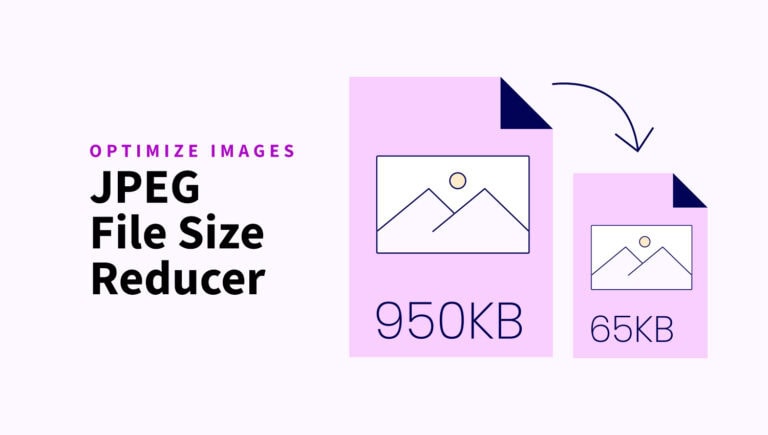
The most compelling reason to switch from JPG to WebP is the file size savings. WebP delivers the same visual quality as JPG but with files that are typically 25-35% smaller or even 70-80% smaller when using ShortPixel. For high-traffic websites, this translates to significant bandwidth savings and faster load times.
Real-world example: A 500 KB JPG photo often compresses to just 300-350 KB as a WebP or even less when using ShortPixel, with no perceptible quality loss.


Better performance and SEO
Google’s Core Web Vitals have made page speed a ranking factor. Smaller images mean faster Largest Contentful Paint (LCP) scores. When your images load faster, your entire page performance improves, and studies show that even a one-second delay in page load time can reduce conversions by 7%.
Universal browser support
Browser support for WebP is now nearly universal, with over 92% of web users on compatible browsers including Chrome, Firefox, Edge, Safari, and Opera. The days of worrying about fallbacks are largely behind us.
More than just compression
Unlike JPG, WebP supports transparency (alpha channel) and even animation, making it a versatile replacement for PNG and GIF files as well,often with even greater file size savings.
How to convert JPG to WebP online
If you have a handful of images to convert or want to test WebP before committing, ShortPixel Online Optimizer is the quickest solution.
Using ShortPixel Online Optimizer
- Visit the ShortPixel Online Optimizer at shortpixel.com/online-image-compression
- Configure your settings first: Click on “Settings” and check the “Generate WebP” option
- Choose your compression level: Lossy (recommended for photos), Glossy (balanced), or Lossless
- Upload your JPG files (drag and drop or click to browse) – compression starts automatically
- Download your converted WebP files individually or as a zip archive
Pro tip: The online optimizer can process up to 50 images at once, making batch conversion effortless. Alternatively you could use the Archive Optimizer which can optimize and generate WebP for thousands of images within an archive.
Converting JPG to WebP in WordPress
For WordPress sites, automating WebP conversion is the smartest approach. The ShortPixel Image Optimizer plugin handles everything automatically, you’ll never have to manually convert or optimize images again.
Setting up ShortPixel Image Optimizer for automatic WebP conversion
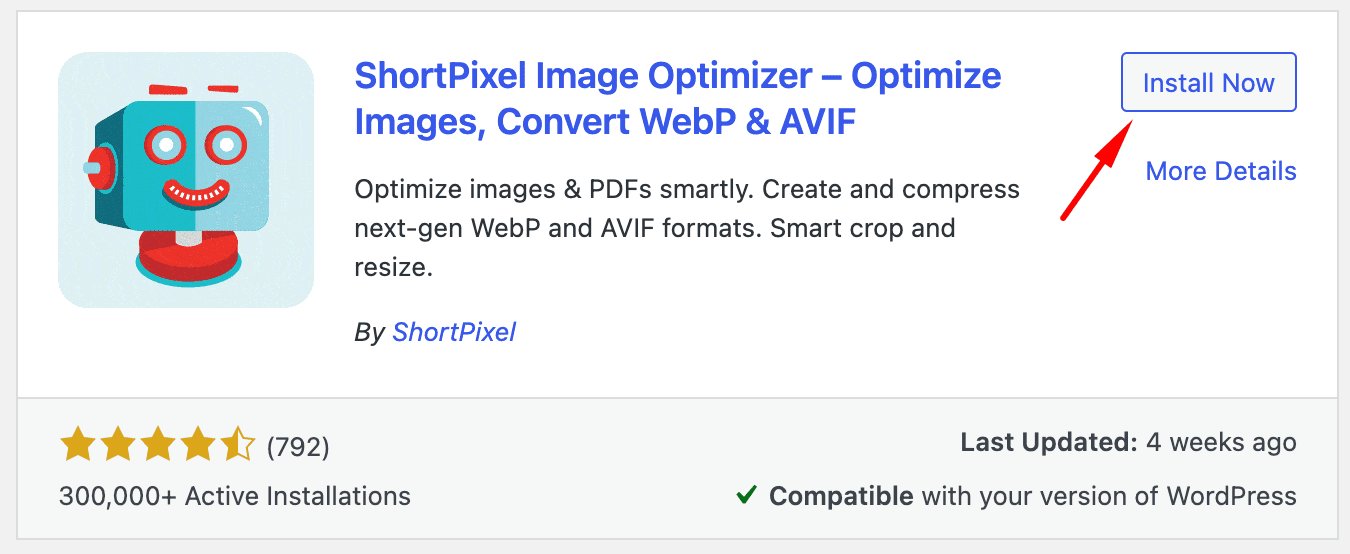
Step 1: Install the plugin
- Log into your WordPress dashboard
- Navigate to Plugins > Add New
- Search for “ShortPixel Image Optimizer“
- Click Install Now and then Activate
Step 2: Configure WebP settings
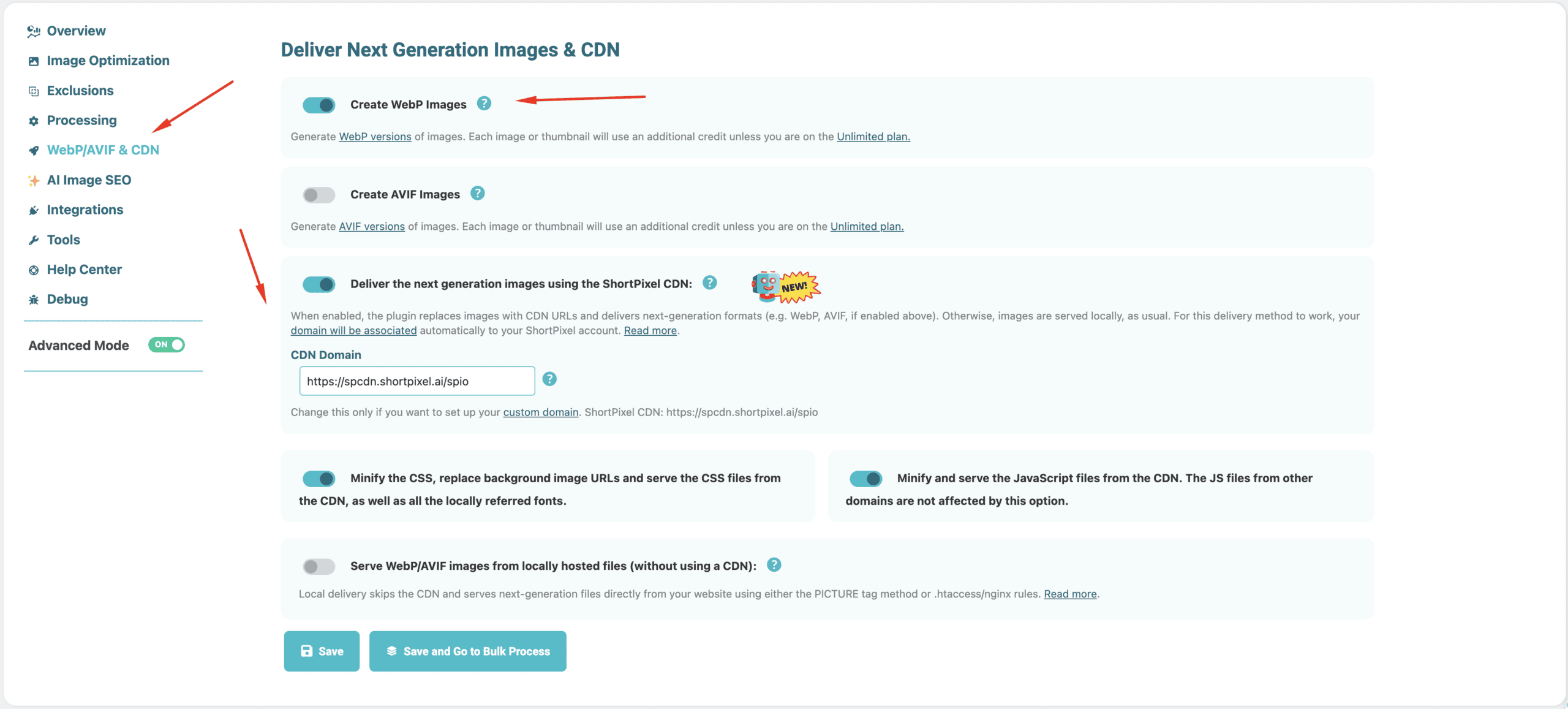
- Go to Settings > ShortPixel > WebP/AVIF
- Select “Create WebP Images”
- Choose your delivery method:
- Using .htaccess (recommended for Apache servers)
- Using the CDN delivery method (highly recommended for international websites)
- Using <picture> tags (works on all servers)
Step 3: Bulk optimize existing images
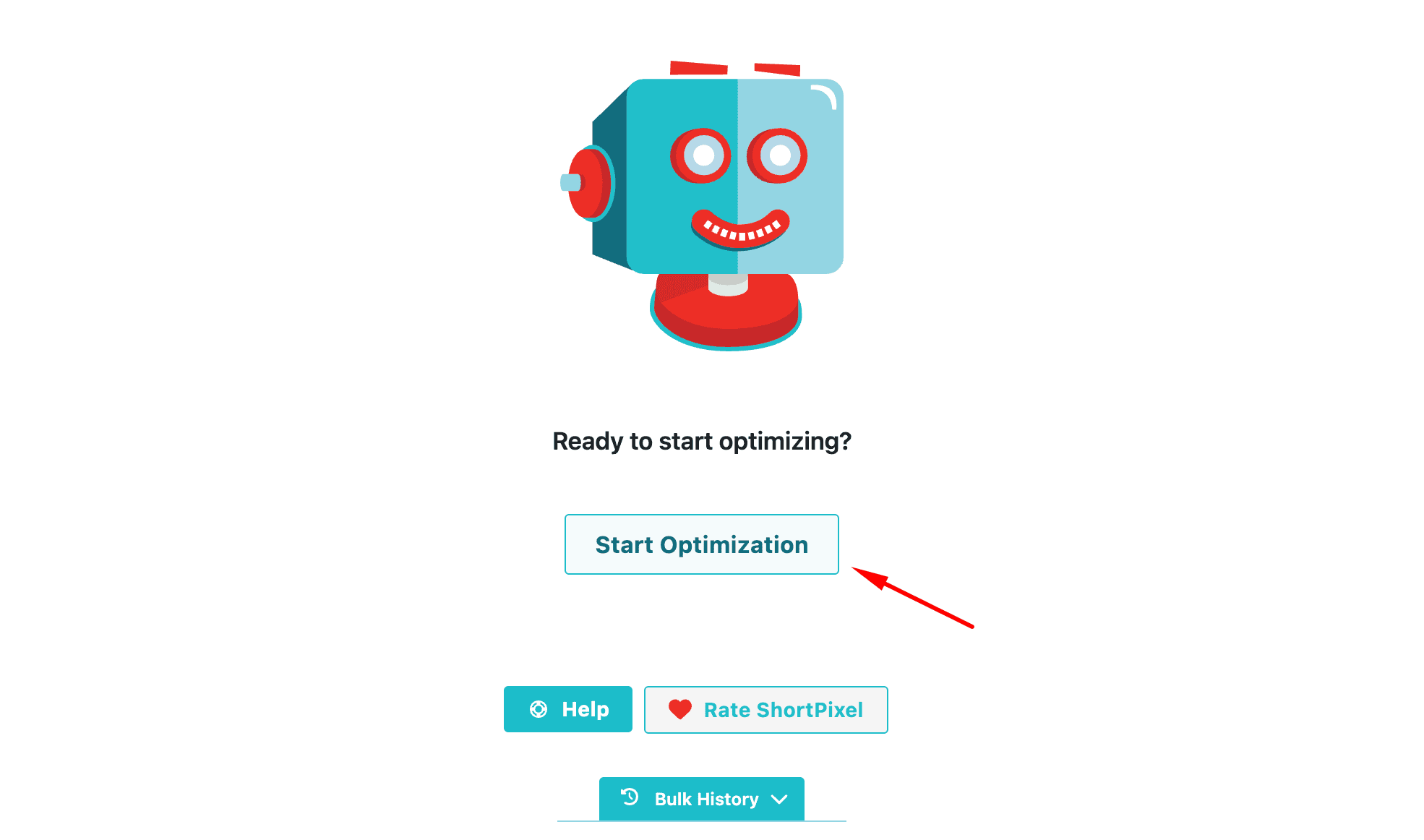
- Go to Media > Bulk ShortPixel
- Click “Start Optimizing” to convert all existing JPGs to WebP
- The plugin processes images in the background, converting them to WebP while preserving the original JPGs as backup
Step 4: Verify WebP delivery
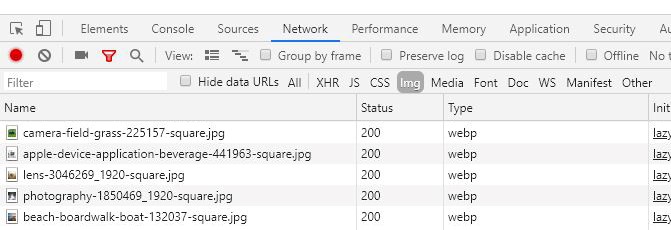
After optimization, verify that WebP images are being served:
- Right-click on an image on your website
- Select “Inspect” or “Inspect Element”
- In the developer tools, check the Network tab
- Look for .webp extensions or confirm the Content-Type is image/webp
Best practices for WebP conversion
Keep your originals
Always maintain backups of your original JPG files. ShortPixel automatically keeps backups, allowing you to restore images if needed.
Test visual quality
While WebP typically maintains excellent quality, spot-check your converted images, especially for product photos where color accuracy matters, images with fine text, or graphics with gradients.
Monitor performance improvements
After converting to WebP, check your site’s performance using Google PageSpeed Insights, GTmetrix, or Chrome DevTools. You should see measurable improvements in load times and Core Web Vitals scores.
Combine with other optimizations
For maximum performance, pair WebP with ShortPixel’s other features and plugins:
- FastPixel to cache and accelerate all your pages
- CDN delivery for faster global delivery
Conclusion
Converting JPG to WebP delivers measurable improvements in page speed, user experience, and potentially even your search rankings. With file sizes 25-35% or 70-80%(with ShortPixel) smaller and near-universal browser support, there’s little reason to stick with JPG-only images.
The best part? With ShortPixel, the conversion process is virtually automatic. Install the plugin, enable WebP, and let it handle the rest. Your visitors, and your server, will thank you.Ready to make the switch? Try ShortPixel’s online optimizer for free, or install the WordPress plugin to automate WebP conversion across your entire site.
Try ShortPixel on WordPress for free!
Easily resize your pictures and cut down pixels fast using ShortPixel Image Optimizer.