How to Fix “Image Elements Do Not Have Explicit Width and Height” in WordPress


If you’ve ever tested a WordPress site with PageSpeed Insights or Lighthouse, you’ve probably run into this warning:
“Image elements do not have explicit width and height.”
It’s one of those issues that’s easy to ignore. The page usually looks fine once everything finishes loading, and nothing seems obviously broken. Still, this warning keeps coming back, especially on WordPress sites, and it often correlates with poor Cumulative Layout Shift (CLS) scores.
In this article, we’ll look at why this issue appears so often on WordPress, why the usual fixes don’t scale well, and how ShortPixel Adaptive Images approaches the problem differently using its Alter width and height feature.
Quick Takeaways
- Missing width and height attributes cause layout shift as images load
- Layout shift negatively impacts CLS and user experience
- WordPress generates image markup dynamically and inconsistently
- Manual fixes don’t scale on real-world WordPress sites
- ShortPixel Adaptive Images adjusts image dimensions automatically
- No manual content editing or theme changes required
Why this warning matters: layout shift and CLS
Browsers start rendering pages before all assets finish loading. Images are often downloaded after text and layout elements are already visible.
When an image doesn’t have width and height defined, the browser can’t reserve space for it. The layout is built without that image, then recalculated once it loads. Content moves. Text jumps.
That movement is called layout shift, and Google measures it using Cumulative Layout Shift (CLS). Even a single large image loading late can noticeably affect both user experience and Core Web Vitals scores.
Why WordPress sites run into this so often
On WordPress, missing image dimensions are rarely just a simple oversight.
Most images are generated automatically by the block editor, page builders, galleries, sliders, or dynamic widgets. Each tool outputs markup differently, and not all of them include width and height attributes consistently.
Legacy content adds another layer of complexity. Posts created before WordPress 5.5 or imported from other platforms often lack reliable image metadata. Fixing this manually across large sites isn’t realistic, especially when page builders regenerate markup and theme updates can overwrite changes.
At that point, automation stops being a nice-to-have and becomes essential.
Why classic fixes don’t scale in WordPress
The traditional recommendation is to add width and height attributes to every <img> tag. That works in theory, but WordPress sites quickly hit limitations.
Common challenges include:
- markup generated dynamically by page builders
- images injected via JavaScript (sliders, carousels)
- large libraries of legacy content
- theme and plugin updates that overwrite changes
Even if you fix today’s images, tomorrow’s content can bring the same issue back.
A different approach: fixing layout shift at delivery level
Instead of trying to repair HTML after it’s generated, ShortPixel Adaptive Images focuses on how images are delivered to the browser.
Images are resized automatically based on the visitor’s device, optimized on the fly, and delivered through a global CDN. This improves performance, but it also creates predictable layout behavior.
The key idea is simple:
if the browser knows the dimensions of the image it’s about to receive, it can reserve the correct amount of space before loading finishes.
How ShortPixel Adaptive Images handles image dimensions
Modern websites rarely serve the same image to every visitor. Mobile phones, tablets, desktops, and high-DPI screens all need different image sizes.
Static width and height attributes based on the original upload don’t always match the image that’s actually delivered. That mismatch is a common source of layout instability.
ShortPixel Adaptive Images aligns declared image dimensions with the delivered image, not just the original file, reducing this mismatch automatically.
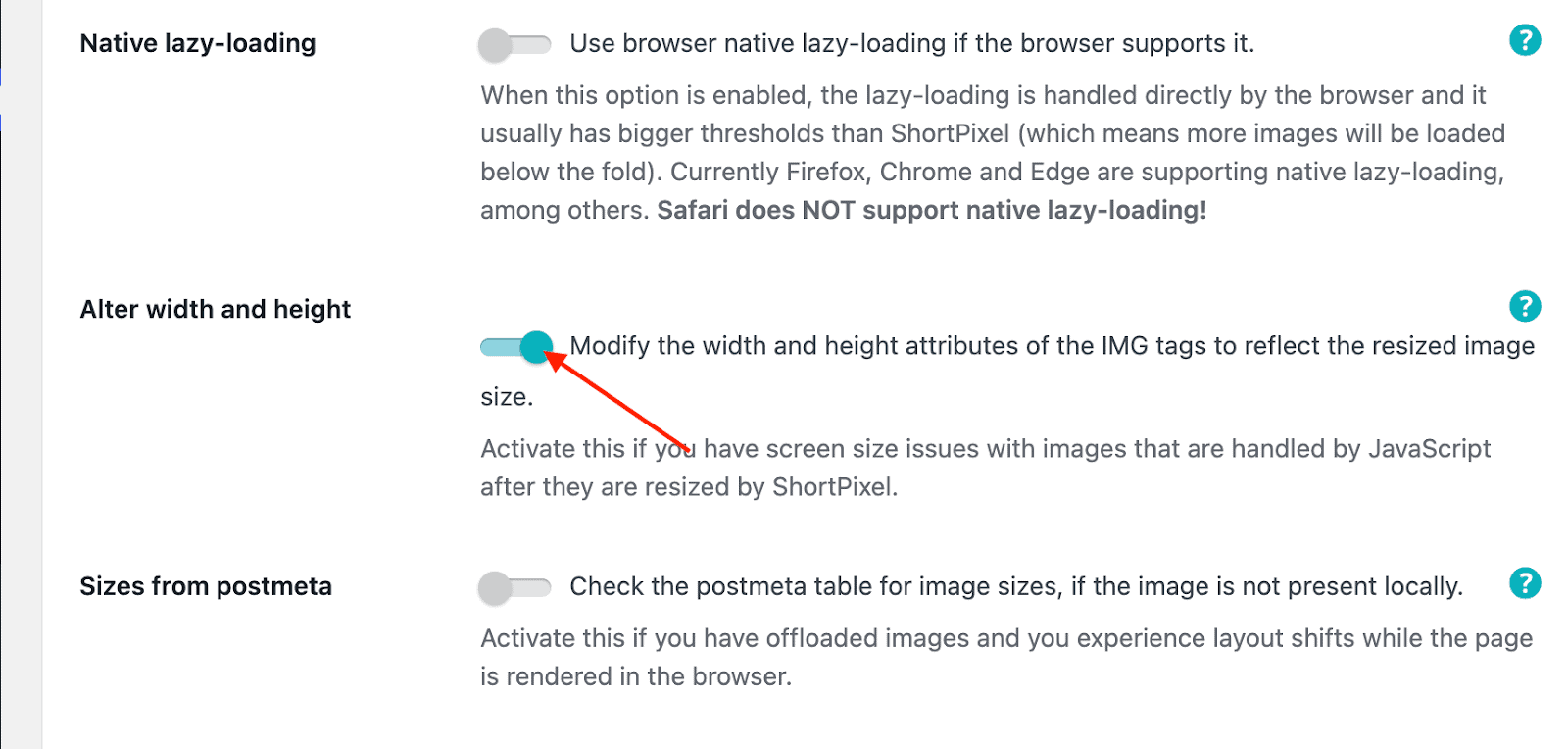
What “Alter width and height” does
The Alter width and height option directly addresses this warning.
When enabled, it:
- adjusts width and height attributes to match the image delivered to each visitor
- allows the browser to reserve the correct amount of space early
- reduces layout shift without editing posts or templates
It doesn’t solve every possible CLS issue, ads, embeds, and fonts can still cause shifts, but it removes one of the most common and controllable causes.
How the process works in practice
Imagine a hero image uploaded at 2400×1600 pixels.
With adaptive delivery enabled:
- a mobile visitor receives a 400×267 px image
- a tablet receives an 800×533 px image
- a desktop visitor receives a 1200×800 px image
In each case, the HTML is updated with matching width and height values. The browser reserves the correct space before the image loads. When it appears, it fits perfectly. No layout shift.
Same original image. Different delivered sizes. Stable layout for every visitor.
How to enable “Alter width and height” in WordPress
Enabling the feature takes less than a minute and requires no code changes.
- Install ShortPixel Adaptive Images from the WordPress plugin directory
- Go to Settings > ShortPixel AI
- Open the Behavior tab
- Enable Alter width and height
- Save your changes
There’s no need to edit existing posts, regenerate images, or modify your theme.
What results you can expect
After enabling Alter width and height, many WordPress sites see:
- reduced CLS caused by images
- more stable above-the-fold rendering
- fewer warnings about missing image dimensions
- less need for manual fixes
For WordPress sites with large image libraries or heavy use of page builders, this approach removes one of the most common CLS issues without adding ongoing maintenance work.
Pricing and testing the feature
ShortPixel Adaptive Images includes a free plan with 500 MB of CDN traffic per month, enough to test the feature on low-traffic sites.
For larger sites, the Unlimited plan starts at $9.99 per month(or $8.33 per month when paid yearly), with one-time credit packages available from $19.99. This makes it easy to evaluate the impact before committing.
When this approach makes the most sense
This solution is especially effective for:
- WooCommerce stores with many product images
- content-heavy blogs
- sites built with page builders
- agencies managing multiple WordPress sites
- international audiences that benefit from CDN delivery
In these cases, delivery-level fixes scale far better than manual markup changes.
Why you might still see warnings sometimes
Even with everything configured correctly, some audit tools may still report warnings due to:
- third-party embeds or ads
- cached test results
- images excluded from processing
Always retest after clearing caches and use incognito mode for more reliable results.
FAQs
Do width and height attributes break responsive design?
No. Browsers use these attributes to calculate aspect ratio, not fixed display size. CSS still controls how images scale.
Does this fix all CLS issues?
No. Alter width and height reduces image-related CLS, but other elements may still need optimization.
Do I still need width and height in my HTML?
If your theme already outputs correct dimensions, keep them. Adaptive delivery provides a scalable fallback when markup is inconsistent.
Does lazy loading change anything?
Lazy loading improves performance, but it works best when combined with correct image dimensions.
Final thoughts
“Image elements do not have explicit width and height” is a common warning on WordPress because image markup is generated dynamically and inconsistently.
Manual fixes work in limited scenarios, but they don’t scale for modern WordPress sites with page builders, legacy content, and large image libraries.
For WordPress sites that rely heavily on images and dynamic layouts, fixing layout shift at delivery level is often the most practical approach. ShortPixel Adaptive Images was built specifically for this scenario, making it easier to improve layout stability and Core Web Vitals without touching existing content.
Ready to fix “Image Elements Do Not Have Explicit Width and Height”?
Try ShortPixel for free and see how you can keep both quality and small file sizes.