7 Common Causes of Blurry WordPress Images


You’ve uploaded high-quality images to your WordPress site, but when you view them on the frontend, they look… blurry. Soft. Pixelated.
Not at all like the sharp originals you worked so hard to create.
Frustrating, right?
Blurry WordPress images are one of the most common complaints from site owners, and the problem usually isn’t the images themselves – it’s how WordPress, your theme, or your plugins are processing them.
In this guide, we’ll walk through the most common causes of blurry images in WordPress and show you exactly how to fix each one.
Whether it’s WordPress default compression, theme settings, plugin conflicts, or sizing issues, you’ll know exactly what to check and how to restore your images to their intended quality.
Quick Takeaways
- WordPress automatically compresses uploaded JPEGs to 82% quality, which can cause visible blurriness.
- Themes and page builders often resize images incorrectly, creating soft or pixelated versions.
- Multiple optimization plugins can compress images repeatedly, degrading quality with each pass.
- Uploading images that are too small and then displaying them larger causes pixelation.
- Browser caching and CDN issues can serve old, lower-quality versions of images.
- Disabling WordPress default compression, adjusting plugin settings, and uploading properly-sized images typically solve blurriness issues.
Understanding how WordPress handles images
Before we dive into solutions, it helps to understand what happens when you upload an image to WordPress.
When you upload an image to WordPress, it doesn’t just save the original file. It automatically generates multiple image sizes like thumbnail, medium, and large, plus any custom sizes added by your theme or plugins.
This helps with performance and responsive design, since visitors get images sized for their screen instead of a huge original file.
The catch is compression. Since WordPress 4.5, JPEG images are automatically compressed to 82% quality on upload, and this applies to both the original image and all generated sizes. While this works fine for many images, it can cause visible quality loss in photos with fine details, gradients, or text.
On top of that, themes, page builders, optimization plugins, and CDNs may apply even more processing, which can further degrade image quality.
Common causes of blurry WordPress images
Let’s break down the specific culprits behind image blurriness and how to identify which one is affecting your site.
1. WordPress default JPEG compression (82% quality)
This is the most common cause. WordPress automatically reduces JPEG quality to 82% when you upload images. While this helps with file sizes, it’s often too aggressive for high-quality product photos, hero images, or photography portfolios.
How to check: Upload a high-quality JPEG, then download it from your media library. Compare the file size and visual quality to your original. If it looks noticeably softer or shows compression artifacts, WordPress compression is the culprit.
The fix: Disable WordPress default compression by adding this code to your theme’s functions.php file or a custom plugin:
add_filter('jpeg_quality', function($arg){return 100;}); add_filter('wp_editor_set_quality', function($arg){return 100;}); 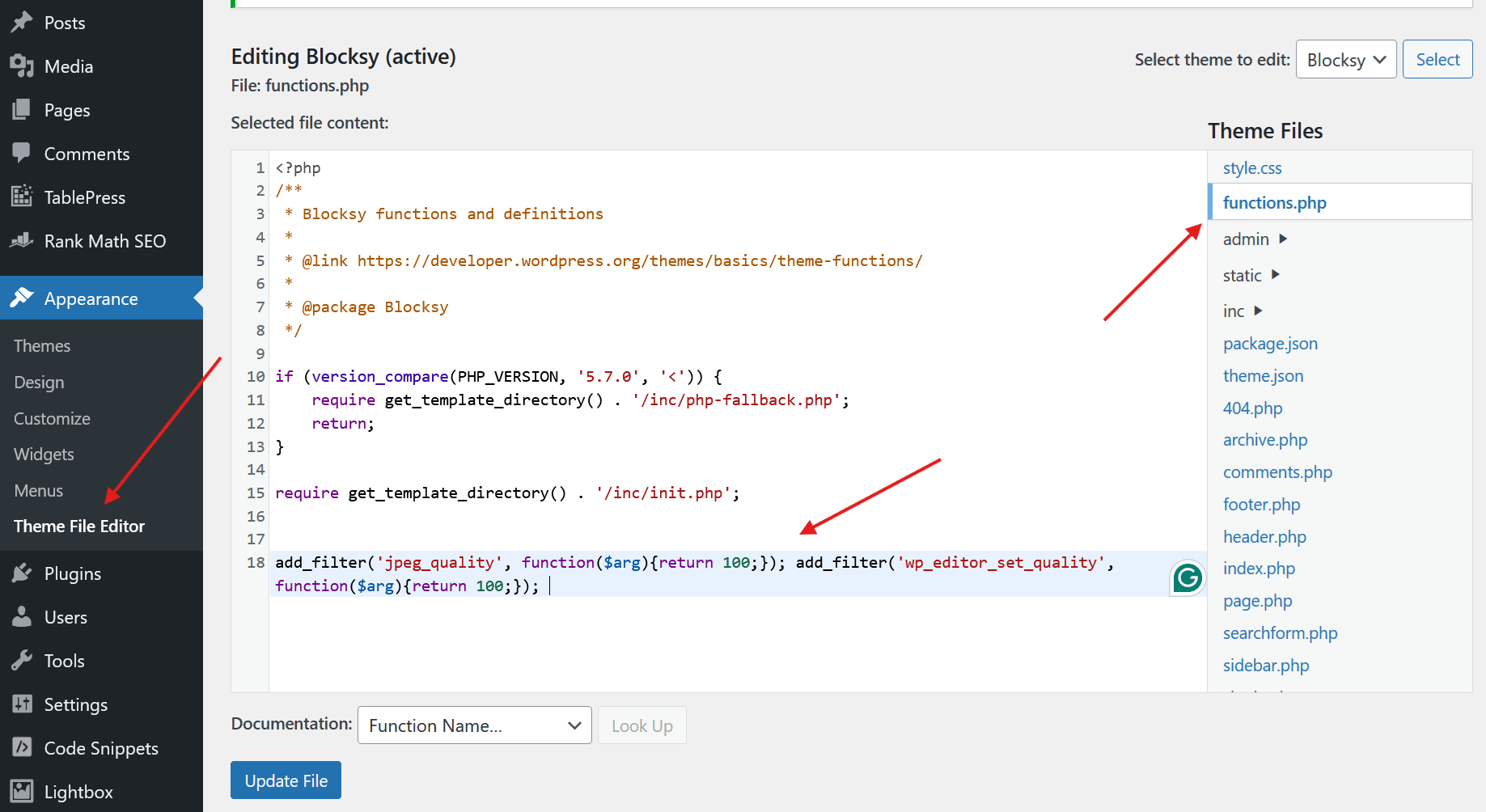
This sets JPEG compression to 100% (no compression). You can also use values like 95 or 90 if you want some compression but better quality than the default 82%.
Important: This only affects newly uploaded images. Existing images were already compressed during upload and won’t improve. You’ll need to re-upload them or use a plugin to regenerate thumbnails after setting the filter above.
2. Theme or page builder image resizing
Many WordPress themes and page builders can apply their own image processing.
They might resize images, add filters, or generate additional thumbnail sizes with different compression settings.
This can sometimes produce soft, blurry results, especially when scaling images significantly.
How to check: Temporarily switch to a default WordPress theme like Twenty Twenty-Four. If your images suddenly look sharper, your theme or page builder is the issue.
The fix:
- Check your theme settings for image quality or compression options. Many premium themes include these controls in their customizer or theme options panel.
- In page builders, avoid using automatic image sizes. Instead, upload images at the exact dimensions you need and set them to display at 100% or their native size.
- Disable any theme features related to “image optimization” if they’re degrading quality.
- Contact your theme developer for specific guidance on preserving image quality.
3. Image optimization plugins over-compressing
Image optimization plugins like ShortPixel, Smush, Imagify, or EWWW Image Optimizer are fantastic for reducing file sizes and improving site speed.
But if they’re configured too aggressively, they can cause blurriness.
Here’s a common scenario: WordPress compresses your image to 82% during upload.
Then your optimization plugin further compresses it again with lossy compression. If you’re using multiple plugins or running optimization twice, you’re compressing an already-compressed image, which compounds quality loss.
Tip: An exception is ShortPixel Image Optimizer, which uses smart compression algorithms to analyze each image and apply optimization only when it actually improves the file. If the image is already well-compressed, it will apply minimal optimization.
How to check: Restore a backup copy of your original images before compression (if your plugin allows it), clear your cache, and check if image quality improves. If it does, the plugin settings are too aggressive.
The fix:
- Switch to a less aggressive compression level. For example, in ShortPixel, use Glossy instead of Lossy for images where quality matters. Glossy provides excellent file size reduction while maintaining visual quality.
- Use lossless compression for critical images like logos, product photos, or hero images where every detail matters.
- Never run multiple optimization plugins simultaneously. Pick one and stick with it to avoid double-compression.
- If you’ve already optimized images with too much compression, restore the originals (most plugins keep backups) and re-optimize with better settings.
4. Uploading images that are too small
This is a common mistake: uploading an image that’s 800px wide, then your website displays it at 1200px.
When browsers scale images up beyond their native resolution, they have to interpolate pixels, which makes the image look blurry. No amount of compression settings can fix this – the image simply doesn’t have enough pixel data.
How to check: Right-click on a blurry image on your site and select Inspect. Check the display size in the HTML by hovering over the URL of the image, then check the container size on the left side of the screen (you need to hover over the image element). If the display size is larger than the actual file size, you’ve found the problem.
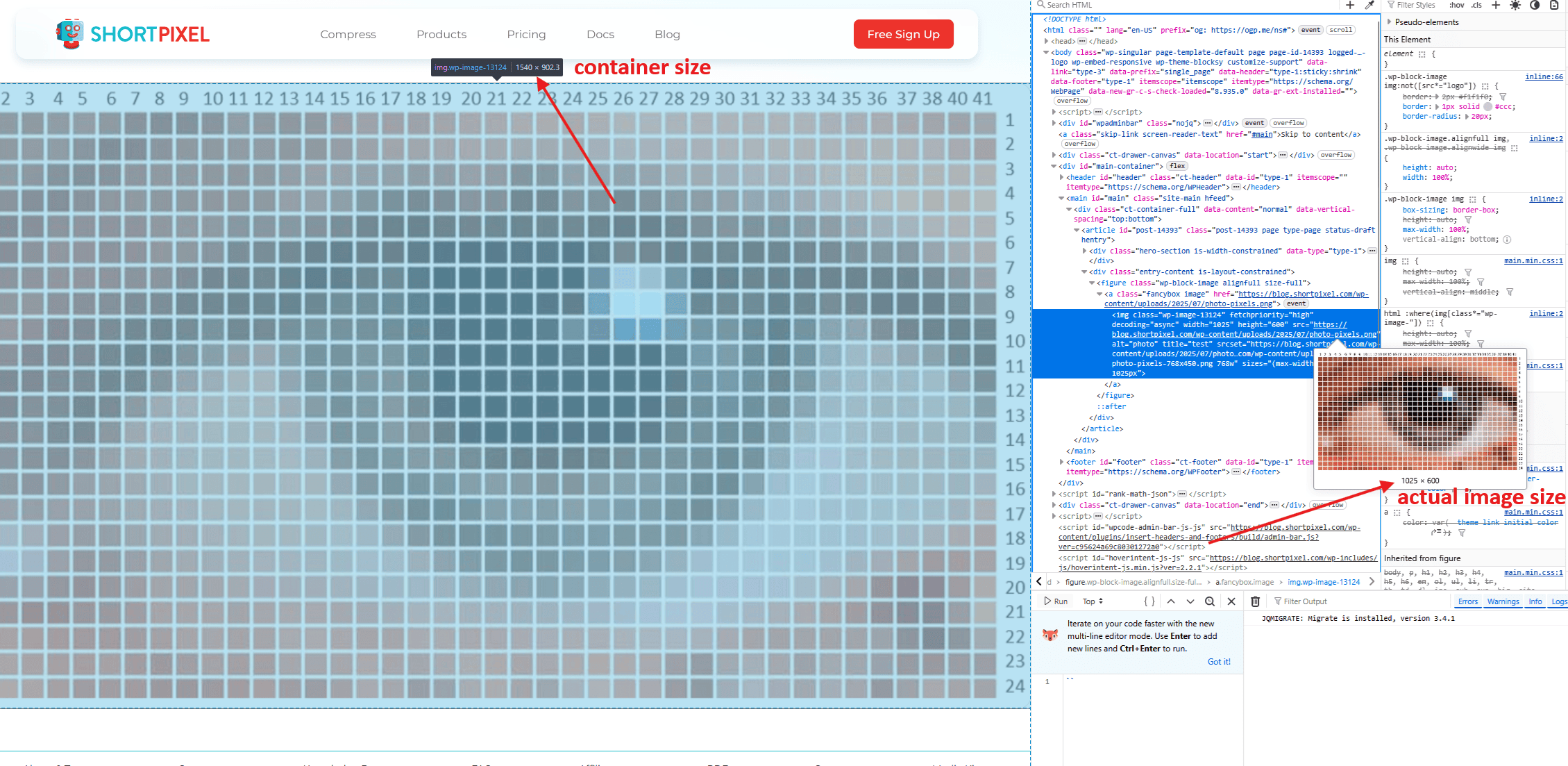
The fix:
- Upload images at least as large as the maximum size they’ll be displayed. 2x the size for Retina display.
- Use responsive images with srcset attributes (WordPress does this automatically for images added through the block editor) to serve appropriately-sized versions to different devices.
5. Browser caching or CDN serving old versions
Sometimes your images aren’t actually blurry – your browser or CDN is just showing you an old, cached version that was compressed with previous settings.
After you fix compression settings or re-upload images, visitors might still see the old blurry versions until you clear the cache.
How to check: Open your site in an incognito/private browsing window or clear your browser cache completely. If images look better, caching is the issue.
The fix:
- Clear your WordPress caching plugin cache (FastPixel, WP Super Cache, W3 Total Cache, WP Rocket, etc.).
- Clear your CDN cache if you’re using services like Cloudflare, StackPath, or KeyCDN.
- Clear your browser cache and test in incognito mode.
6. PNG images being converted to JPEG
Some optimization plugins and themes automatically convert PNG images to JPEG to reduce file sizes.
This makes sense for photographic PNGs, but causes problems for images with transparency, text, or sharp edges.
JPEG doesn’t support transparency and uses lossy compression that’s not ideal for graphics, logos, or screenshots with text.
How to check: Upload a PNG with transparency or sharp graphics. If it appears with a white background or looks blurry/artifacted, it’s being converted to JPEG.
The fix:
- Disable PNG to JPEG conversion in your optimization plugin settings.
- Use PNG for logos, graphics, screenshots, and images requiring transparency.
- Use JPEG for photographs and images with complex colors where transparency isn’t needed.
- Convert PNG to WebP or PNG to AVIF, which offers better compression than both PNG and JPEG while supporting transparency.
7. Retina/high-DPI display issues
Images might look fine on standard displays but blurry on retina screens (MacBooks, high-end monitors, modern smartphones) because these displays have pixel densities 2x-3x higher than standard screens.
An image that’s 1000px wide looks sharp on a standard 1920px monitor. But on a retina display with the same physical screen size, that monitor actually has 3840 pixels horizontally, so the 1000px image gets scaled up and looks soft.
How to check: View your site on a retina display device (newer MacBook, iPhone, iPad, high-end Android phones). If images look blurry there but sharp on standard displays, this is the issue.
The fix:
- Upload images at 2x their display size. If an image displays at 800px wide, upload it at 1600px wide.
- Use responsive images with srcset to serve 2x versions to retina displays automatically.
- WordPress generates 2x versions for some image sizes automatically. Check your theme documentation to see if it supports retina images.
- Plugins like Perfect Images can help generate and serve retina versions automatically.
Step-by-step: diagnosing your blurry image problem
Not sure which issue is affecting your site? Follow this diagnostic process:
Step 1: Check the actual image file
Right-click a blurry image on your site and open it in a new tab. This shows you the actual file WordPress is serving.
If it looks blurry here, the problem is with the file itself (WordPress compression, plugin compression, or wrong size uploaded).
If it looks sharp here but blurry on your page, the problem is display-related (CSS, theme, or retina issues).
Step 2: Compare to your original
Open the original image file you uploaded (from your computer, not from WordPress).
Compare it side-by-side with the version from Step 1.
If they look different, WordPress or a plugin compressed it during upload or processing.
Step 3: Check image dimensions
Note the actual dimensions of the file (visible in the browser tab or file properties). Then inspect the image element on your page to see what size it’s being displayed at.
If the display size is larger than the file size, that’s your problem – you need to upload a bigger image.
Tip: By default, WordPress defines a big image threshold (2560px on the longest side). Images larger than this are automatically scaled down to 2560px on upload, and WordPress serves the scaled version instead of the original to improve performance.
Step 4: Disable plugins one by one
Temporarily deactivate your image optimization plugin, caching plugin, and any other plugins that touch images.
Clear your cache and check if the quality improves.
Reactivate them one at a time to identify the culprit.
Step 5: Switch themes temporarily
Activate a default WordPress theme like Twenty Twenty-Four.
If images suddenly look better, your theme is applying unwanted processing.
Step 6: Test on multiple devices and browsers
Check your site on desktop, mobile, retina and non-retina displays.
If images look blurry only on certain devices, you’ve got a responsive images or retina issue.
Using ShortPixel to maintain image quality
ShortPixel is particularly well-suited for maintaining image quality while optimizing file sizes – precisely what you need to avoid blurry images.
Here’s why it works well for this problem:
Three compression levels with different priorities
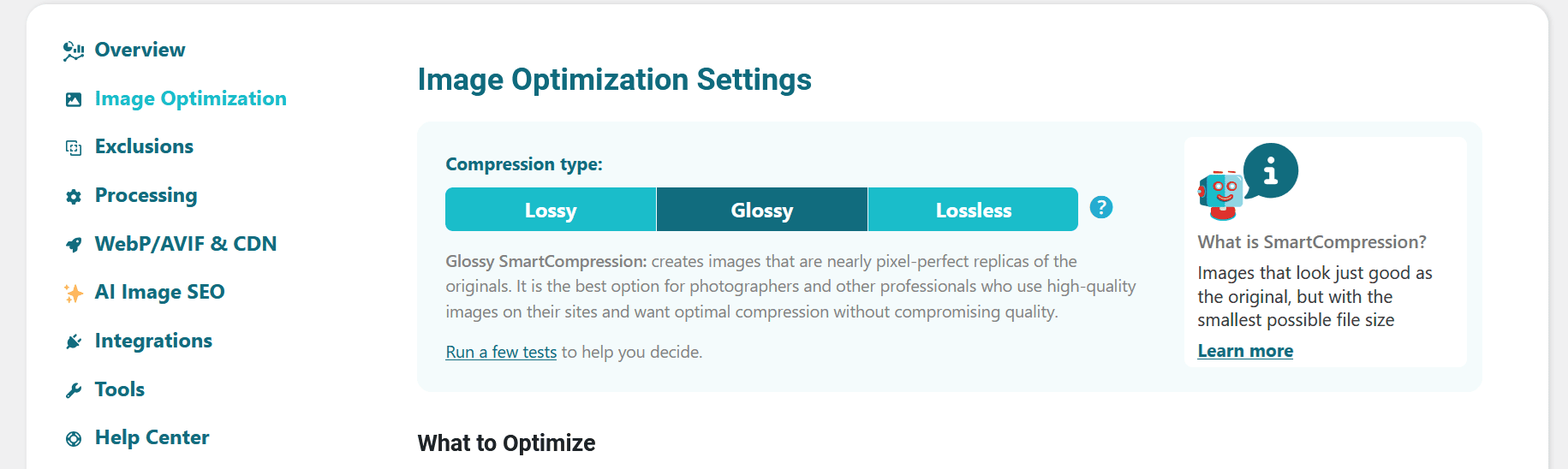
- Lossy: Maximum compression, smallest files (good for non-critical images)
- Glossy: Balanced compression that preserves details (recommended for most images)
- Lossless: Zero quality loss (for images where every pixel matters)
The Glossy mode is the sweet spot for most WordPress sites – it maintains sharp details and accurate colors while achieving 50-70% file size reduction.
Backup originals automatically
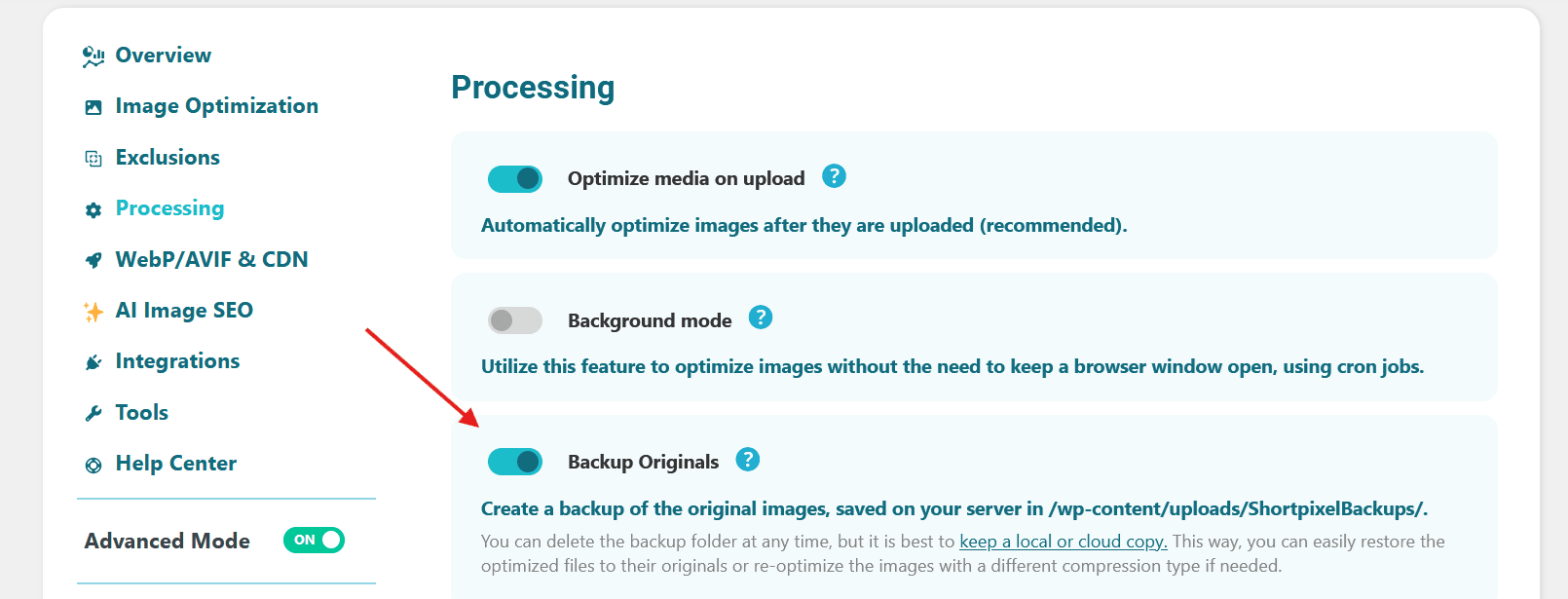
ShortPixel keeps uncompressed backups, so if you’re not happy with the results, you can restore originals and re-optimize with different settings.
Smart processing
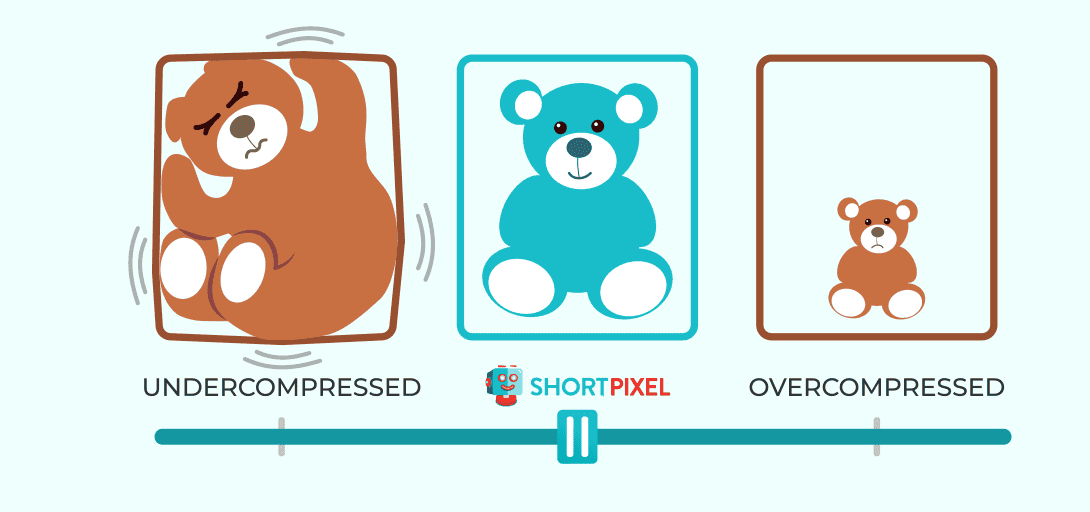
Unlike aggressive compression that treats all images the same, ShortPixel’s algorithm adapts to each image’s characteristics, preserving important details while removing only unnecessary data.
WebP and AVIF support
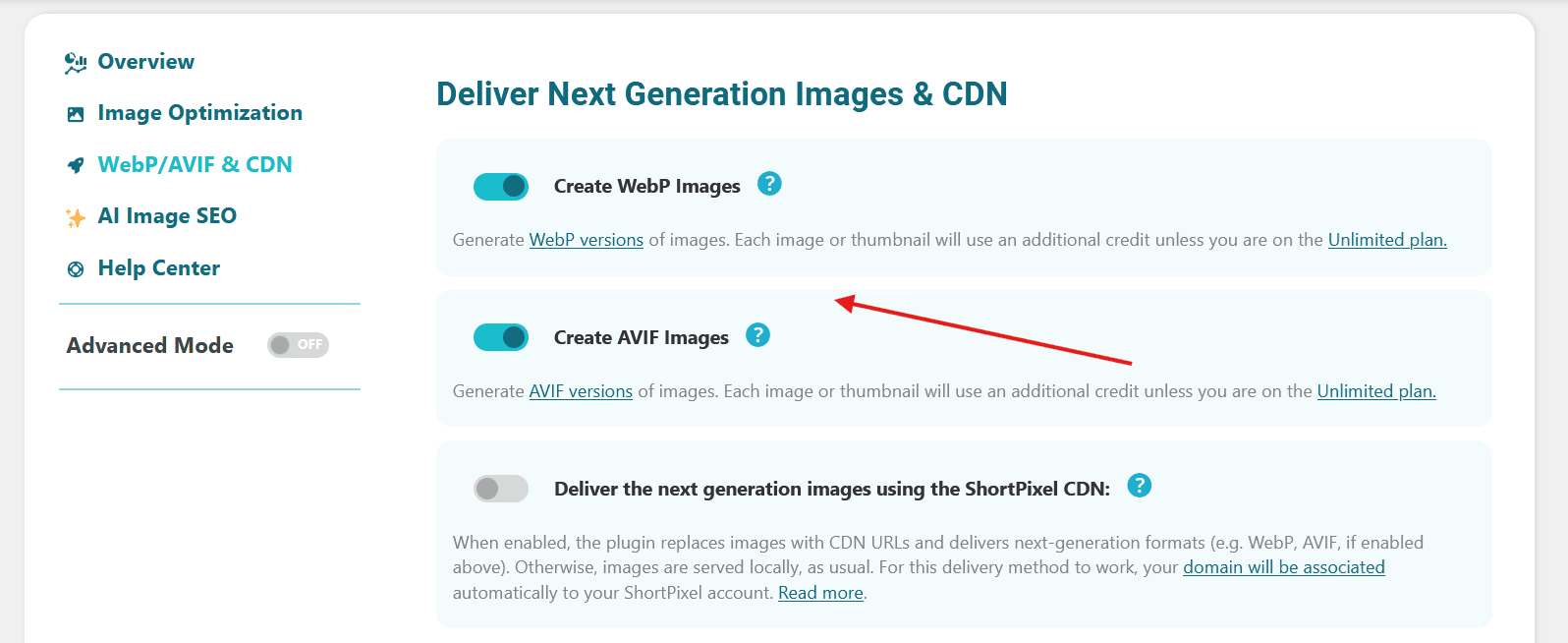
Automatically generates modern format versions that offer better compression than JPEG/PNG while maintaining quality, solving the blurriness problem and improving site speed simultaneously.
To configure ShortPixel for optimal quality
- Install the ShortPixel Image Optimizer plugin
- In Settings > ShortPixel > Image Optimization, choose Glossy compression
- Enable WebP and AVIF generation for modern browsers
- Disable “Resize large images” unless you specifically want automatic resizing
- Run bulk optimization on existing images
This configuration gives you the best balance of file size reduction and visual quality, preventing the blurriness issues that come from over-aggressive compression.
Ready to prevent WordPress images from going blurry?
Try ShortPixel for free and see how you can keep both quality and small file sizes.
FAQs
Why are my images blurry after uploading to WordPress?
WordPress automatically compresses JPEG images to 82% quality during upload, which can cause visible blurriness. Additionally, image optimization plugins, themes, or page builders might apply further compression or resize images with low-quality algorithms. To fix this, increase WordPress JPEG quality to 90-100%, adjust plugin compression settings, and ensure you’re uploading images at appropriate sizes.
How do I stop WordPress from compressing my images?
Add this code to your theme’s functions.php file: add_filter(‘jpeg_quality’, function($arg){return 100;}); This sets JPEG compression to 100% (no compression). You can also use values like 95 or 90 for some compression with better quality than the default 82%. Remember this only affects new uploads – regenerate thumbnails for existing images.
What image size should I upload to WordPress?
Upload images at least as large as they’ll be displayed, preferably 2x larger to support retina displays. For hero images, use 2800px wide. For content images, 1600-2000px wide. For thumbnails, match your theme’s requirements. Never upload smaller images and expect WordPress to scale them up – this causes pixelation and blur.
Can image optimization plugins make images blurry?
Yes, if configured too aggressively. Lossy compression can degrade image quality, especially if applied on top of WordPress’s existing 82% compression. Use balanced settings like ShortPixel’s Glossy mode, which preserves visual quality while reducing file size. Always keep backups and test results before bulk-optimizing your entire library.
Why do my images look blurry on mobile but not desktop?
Modern smartphones have high-DPI retina displays that require 2x-3x larger images to look sharp. An image that looks fine on a standard desktop monitor appears blurry on a retina phone screen. Upload images at 2x their display size and ensure your theme uses responsive images with srcset attributes to serve appropriately-sized versions to different devices.
How do I fix blurry images that are already uploaded?
First, fix the root cause (WordPress compression, plugin settings, etc.). Then either re-upload the original images or use a plugin like Regenerate Thumbnails to recreate all image sizes with your new settings. If you used an optimization plugin, restore from backups and re-optimize with less aggressive compression. For images that are too small, you’ll need to upload larger versions.