Ultimate WordPress Performance Checklist: Faster Site, Better Conversions


Your WordPress site needs to be fast. Not just “fast enough.” It needs to be lightning fast.
Slow sites kill conversions. They frustrate users and send them running straight to your competition.
Google’s Core Web Vitals prove it. Speed is now a primary, non-optional ranking factor. If your site drags, you are losing out.
This checklist is your simple, no-fluff guide to a rapid website. We’ll cover every performance pillar you need to master.
We will also put a special focus on the biggest speed killer on the internet: your images.
Quick takeaways
- Start with solid hosting and a lightweight theme; they define your site’s maximum possible speed.
- Keep plugins lean and high quality by auditing regularly, deleting unused ones, and avoiding outdated options.
- Optimize images through proper resizing, compression, next-gen formats like WebP and AVIF, lazy loading, and a global CDN.
- Improve performance through caching, minification, file combination, and deferring non-critical CSS/JS.
- Monitor results regularly with PageSpeed Insights, focus on Core Web Vitals, prioritize mobile speed, and reduce third-party requests.
Build on a rock-solid foundation
Performance begins at the ground level. Your hosting and your theme set the hard limit for how fast your site can ever be.
Stop using cheap, overcrowded shared hosting. Seriously.
Shared hosting means your site shares resources like CPU and RAM with potentially hundreds of other sites. If one site has a traffic spike, your site slows down. This is known as the “noisy neighbor” problem.
You need to invest in a managed WordPress hosting provider.
This dedicated environment is specifically optimized for the platform. They allocate superior resources and tune their stack using technologies like NGINX and the latest version of PHP (PHP 8.x).
This focus directly impacts your Time to First Byte (TTFB), which is the crucial metric measuring server response time. Your TTFB needs to be under 200ms to be considered fast.
Managed hosts don’t just focus on speed. They handle the complex maintenance:
- Server-level caching: Built-in caching mechanisms (like Varnish or Redis) that are often faster than plugin-based solutions.
- Daily backups: Automatic, off-site backups you can restore with a single click.
- Enhanced security: Web Application Firewalls (WAF) and real-time malware scanning.
This shift moves your site from a slow, shared neighborhood to a dedicated, high-performance environment. The stability and security alone justify the slightly higher cost.
Select a lightweight theme
You must say goodbye to feature-bloated “multipurpose” themes. They are a major cause of performance lag, even if you have great hosting.
Why? The issue is theme bloat.
These themes are designed to appeal to everyone, so they come packed with dozens of pre-installed demos, custom sliders, animations, and heavy CSS/JavaScript files. The problem is that the code for these features often loads on every page, even if you never use them.
This unused code significantly increases your page size and the number of HTTP requests the browser must make. This directly hurts your speed scores, especially on mobile.
Your strategy should be mobile-first and performance-first.
Choose a modern, minimalist framework that is built with clean, efficient code. These themes load faster because they have a minimal footprint, sometimes adding less than 10kb to your total page weight.
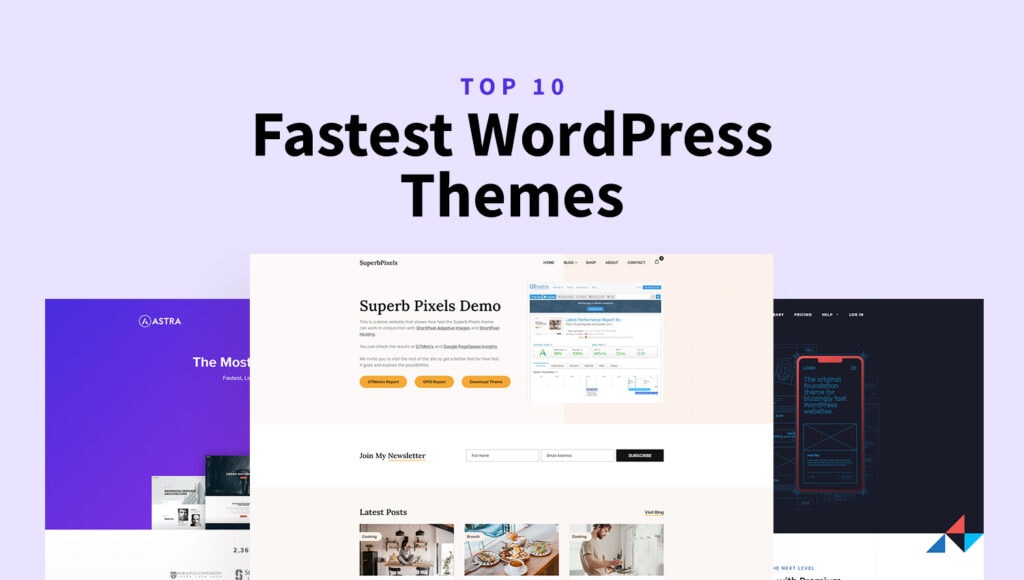
Look for fast theme options such as Astra, GeneratePress, or Hello Elementor. They consistently score well in speed tests because they rely heavily on the native WordPress block editor (Gutenberg) or simple page builder functionality.
They allow you to build up functionality using lightweight plugins only when necessary, keeping the core code clean and fast.
Tame your plugins
Let’s dispel a common myth: there is no magic number for plugins. A quality website might run 20 plugins, while a complex e-commerce store might run 50 or more.
The real metric is quality over quantity. One poorly coded or outdated plugin will do more harm than fifty well-maintained, optimized ones.
Plugins introduce three major risks to your site:
- Performance drag: Every active plugin adds code and potentially more HTTP requests or extra database queries. Front-end plugins, like complex sliders or social feeds, are the worst offenders.
- Security risk: This is the most critical issue. Over 90% of WordPress vulnerabilities are traced back to plugins. If a plugin is abandoned by its developer, its known security flaws become permanent backdoors for hackers.
- Conflicts: When plugins are not designed to work together, they clash. This can lead to broken functionality, error messages, or even a full site crash (the dreaded White Screen of Death).
Perform a regular, aggressive plugin audit.
If a plugin is deactivated, delete it entirely. Deactivating leaves the code files on your server; deleting removes the risk and cleans up the file system.
Be selective. When choosing new plugins, look for:
- Multipurpose plugins: Look for a single plugin that can handle multiple tasks, reducing the overall count.
- Active maintenance: Check the “Last Updated” date on the WordPress repository. If it’s over six months old, avoid it.
- High ratings: Choose options with a high number of active installs and a strong 4.5-star-plus rating.
Image optimization
Here is a fact: images are the single largest component on most websites. They frequently account for over half your page size.
You cannot ignore image optimization and expect a high score.
Resize images before uploading
Never upload a massive 2000px wide photo if it only displays at 800px on the screen.
Crop and resize your images first. This is the first, most important step. Set the physical dimensions of the image to the maximum size it will ever be viewed at.
Check out our article on the hidden cost of hero images for more details about this.
Compress the images
After resizing, you must compress the file size. ShortPixel Image Optimizer uses powerful algorithms to cut file size drastically without a visible drop in quality.
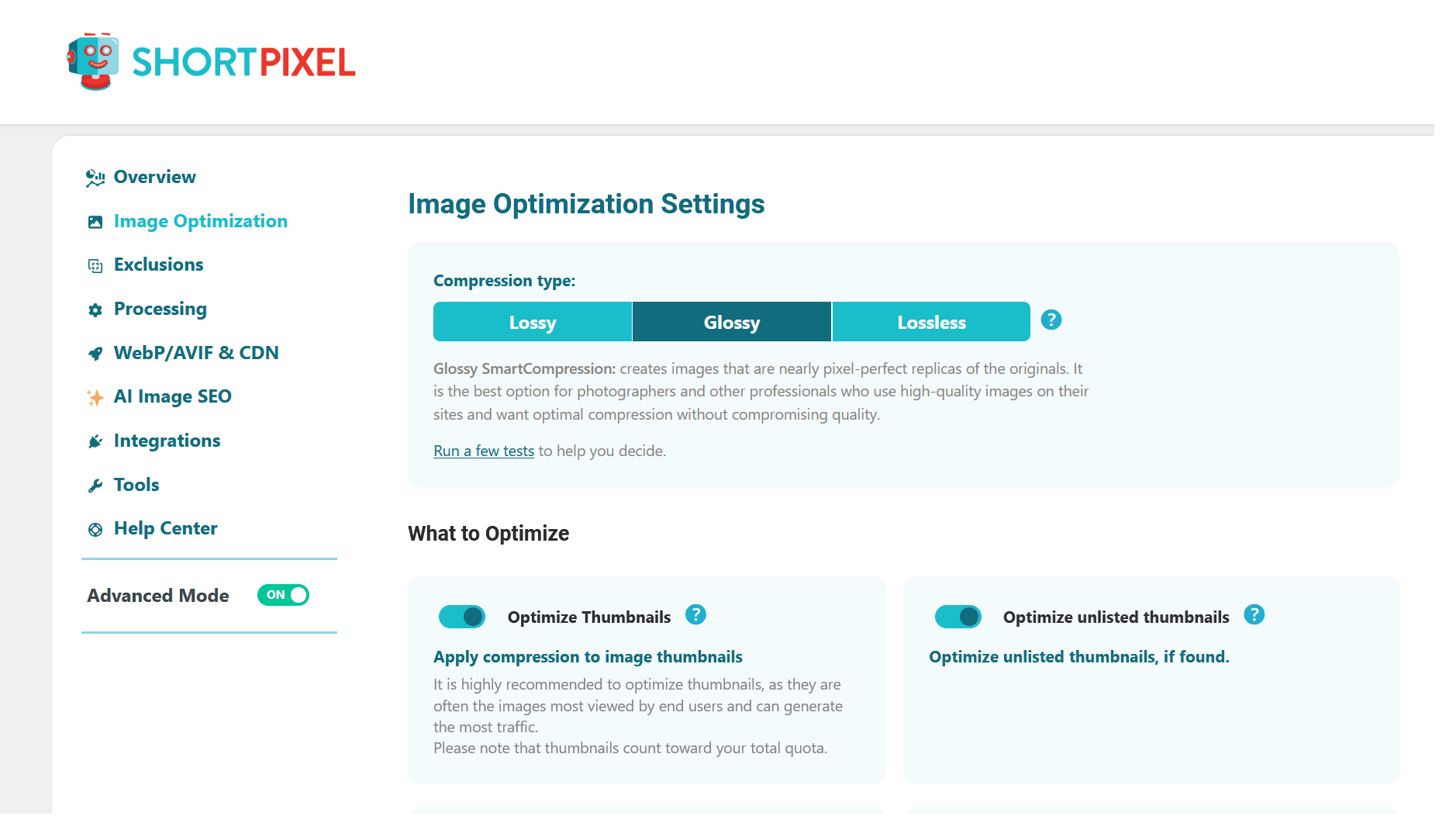
Choose the right compression option for your content:
- Lossy: Our recommendation for maximum reduction. This is perfect for most blogs and business sites.
- Glossy: This option is great for photographers or designers who need the highest quality look but still want significant file reduction.
- Lossless: This preserves 100% of the image quality, but the file size savings are minimal.
Try ShortPixel on WordPress for free!
Easily resize your pictures and cut down pixels fast using ShortPixel Image Optimizer.
Leverage next-gen formats
The older JPEG and PNG formats are simply too large for modern web standards. They are inefficient for speed and bandwidth.
You must transition to WebP. This modern format delivers file sizes 25% to 34% smaller than comparable JPEGs at the same visual quality.
ShortPixel handles this conversion automatically. The plugin generates next-gen versions of your images during optimization.
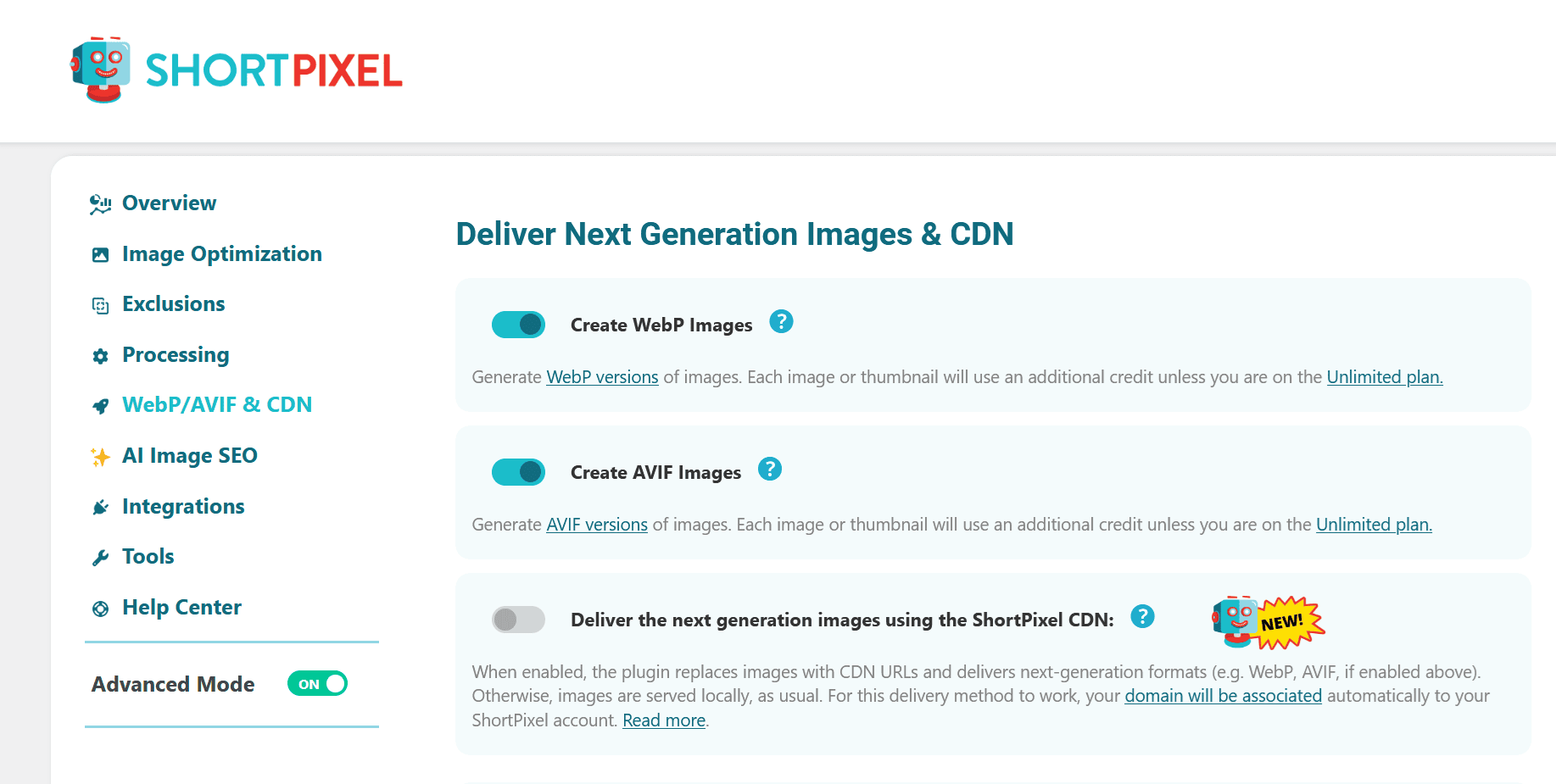
It then uses conditional serving. This means the plugin checks the visitor’s browser and instantly serves the smaller next-gen files if supported. If not, it serves the optimized JPEG/PNG counterpart. This ensures automatic speed with maximum compatibility.
Looking ahead, the AVIF format offers even greater compression. ShortPixel also supports this cutting-edge format.


To dive deeper into the differences and potential savings: AVIF vs WebP: Which Modern Image Format Is Better?
Implement lazy loading
Lazy loading is a powerful, simple optimization that gives an immediate performance boost.
The concept is to defer loading images that are “below the fold” until the user scrolls them into view. The browser loads only the critical content first.
This instantly reduces the initial page load time and dramatically improves the key speed metric, Largest Contentful Paint (LCP).
WordPress includes native lazy loading, but it can sometimes be too aggressive. It might lazy-load the hero image above the fold, hurting your LCP score.
This is why a dedicated solution is often better. There are plenty of high-quality plugins that handle lazy loading for images and other media.
Look for a plugin that allows you to exclude images from lazy loading. You must ensure your main banner or hero image loads immediately for the best speed audit results.
Use a global CDN for delivery
To serve your perfectly optimized images globally at peak speed, you need a Content Delivery Network (CDN).
A CDN is a network of servers around the world that cache and deliver your static files (like images) from the location geographically closest to the visitor. This drastically reduces latency and load time.
ShortPixel Image Optimizer includes an optional built-in global CDN specifically for serving the next-gen WebP and AVIF image files. This is a simple, effective solution for delivering your compressed images quickly.
For users needing more comprehensive speed control, ShortPixel offers two specialized alternatives:
- ShortPixel Adaptive Images (SPAI): This dedicated plugin goes beyond simple CDN delivery. It resizes images on the fly based on the visitor’s device and viewport, ensuring the absolute smallest file size is served for that specific screen.
- FastPixel: This is a full-site acceleration solution. It serves images from a CDN like SPAI but also includes features for page optimization, CSS/JS minimization, and caching.
If you are happy with your current CDN or caching solution, SPIO’s basic CDN for next-gen formats is perfect. If you want the full power of on-the-fly image resizing and optimization, try FastPixel or SPAI.
Master your code and caching
Your media files are under control. Now, let’s get the rest of your site’s engine running at peak efficiency.
Implement aggressive caching
Caching is the backbone of speed optimization. You need several layers working together; it’s an all-out assault on slow load times.
This tiered system prevents WordPress from having to run complex PHP and database queries for every visitor, serving content instantly instead.
You must stack these layers:
- Server-side caching: This is the fastest layer, managed by your host using tools like Varnish, NGINX, or LiteSpeed. It catches the request before it even fully hits WordPress, which is essential for achieving a rock-bottom Time to First Byte (TTFB). Reason why I mentioned above that choosing a good host is important.
- Plugin-level page caching: This is managed within WordPress by tools like FastPixel or LiteSpeed Cache. These plugins generate a static HTML file of your page. Subsequent visitors are served this static copy, bypassing the main WordPress execution process.
- Object caching: For dynamic sites, this is crucial. It uses in-memory systems like Redis or Memcached to store frequent database query results. This dramatically reduces database load and speeds up content generation.
- Browser caching: This is client-side. It tells the visitor’s browser to store static assets (CSS, JS, images) locally, making repeat visits load almost instantly from their hard drive.
By implementing these layers, you transform your site into a lightning-fast content machine.
For a comprehensive guide to understanding and implementing a robust caching strategy, read more here: WordPress Caching 101: Unlock The Potential Of Lightning-Fast Websites.
Minify, combine, defer
Once caching is set up, the next step is cleaning up your code.
The browser has to download and parse every line of CSS and JavaScript before rendering the page, which means less code equals faster loading.
This optimization process involves three key actions:
- Minification: This is the process of removing unnecessary characters from code files. Things like whitespace, line breaks, and comments, without changing how the code functions. The result is a lighter file that the browser can process faster.
- Combination: This merges multiple small CSS files into one larger file, and does the same for JavaScript. The goal is simple: dramatically reduce the number of HTTP requests the visitor’s browser has to make to your server. Fewer requests mean a faster initial connection time.
- Deferral (Critical CSS): This is the advanced step. You prioritize loading only the Critical CSS needed to render the visible portion of the page (above the fold). Everything else, like code for content below the fold, is loaded after the page is visually complete. This prevents assets from “render-blocking” the initial display, which is vital for a high Largest Contentful Paint (LCP) score.
You need an optimization tool that handles all three processes intelligently. Many modern caching plugins include these features, but they require careful configuration and extensive testing to avoid breaking your site’s layout.
To simplify this complex task, you can choose an all-in-one performance suite like FastPixel. This type of service automatically handles all these aspects, allowing you to optimize your code without manual file editing.
Optimize your database
Over time, your WordPress database becomes a magnet for clutter.
This buildup of unnecessary data is called database bloat, and it forces the database server to work harder and longer to retrieve the essential information it needs to display your pages.
The clutter accumulates from several sources:
- Old post revisions: Every time you save a draft or update a published post, WordPress saves a complete copy. A single popular post can easily generate hundreds of revisions, all sitting in the database.
- Trash and spam: Deleted comments, posts sent to the trash, and spam comments never automatically leave the database unless purged.
- Expired transients: These are temporary, cached records used by themes and plugins. While helpful initially, they often expire and are left behind, cluttering the tables.
This extra data increases the size of the database tables. When a query is run, the server must search through a larger table, slowing down the data retrieval process.
You must periodically clean and optimize your database tables. Faster database queries translate directly into faster page generation times (a better TTFB).
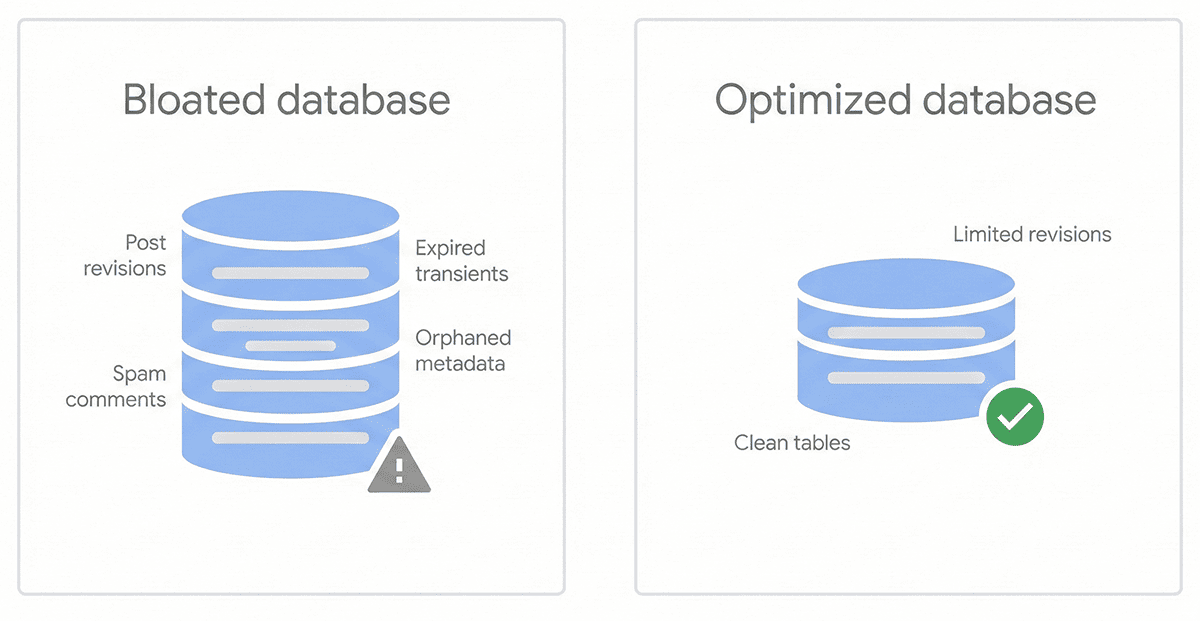
The simplest way to handle this is by using a database cleaner plugin. These tools can safely perform several critical actions:
- Limit the number of post revisions stored.
- Delete all trash and spam comments.
- Remove expired transients.
- Defragment and optimize the tables, essentially tidying up the storage structure.
The result is a leaner, more responsive database that serves data to your server and caching layers much faster.
Continuous monitoring and user experience
Optimization is not a one-time setup. It is an ongoing ritual.
If you stop auditing your site, updates to plugins, new content, or third-party scripts will eventually drag your performance back down.
Run regular speed audits
You can’t fix what you don’t measure. You must make performance testing a routine part of your monthly maintenance.
The best tools for objective, actionable data are PageSpeed Insights and GTmetrix.
PageSpeed Insights is the industry standard. It gives you a score from 1 to 100 and focuses directly on the metrics Google uses for ranking. The most valuable data here is the Core Web Vitals scores.
Pay very close attention to your Core Web Vitals (CWV):
- Largest Contentful Paint (LCP): Measures loading speed. Your goal is under 2.5 seconds. High LCP usually points to heavy images or slow server response time.
- Interaction to Next Paint (INP): Measures interactivity and responsiveness. Your goal is under 200 milliseconds, ensuring a smooth user experience when they click or navigate.
- Cumulative Layout Shift (CLS): Measures visual stability. Your goal is under 0.1. This prevents elements from shifting around unexpectedly while the page loads.
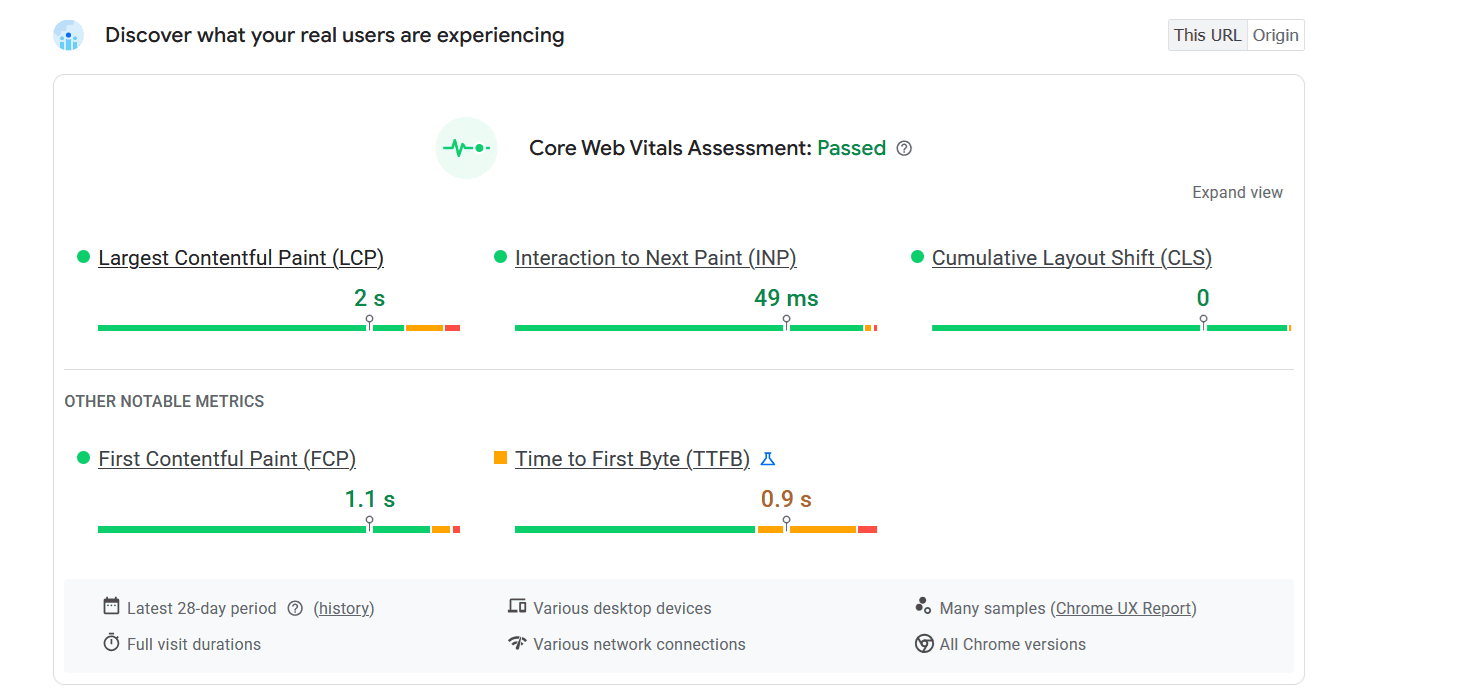
Optimizing your site for a good CWV score improves user engagement and conversion rates.
Prioritize mobile performance
Mobile performance is arguably your most important metric.
With a majority of web traffic coming from mobile devices, Google uses mobile-first indexing. This means your mobile site speed and user experience determine your ranking.
Mobile devices face greater challenges: slower connection speeds and weaker processors. A large, unoptimized image that loads fine on a desktop will kill performance on a mobile connection.
If your site is slow on a phone, you are losing business. A study by Think With Google found that the probability of a bounce increases by 32% when page load time increases from 1 second to 3 seconds.
Limit external requests
Does your site pull in resources from outside servers? These are known as third-party requests.
Think Google Fonts, embedded YouTube videos, or social media widgets.
Every external request adds two types of latency:
- Connection latency: The browser must first establish a new connection with that third-party server.
- Execution latency: If the third-party server is slow, the entire page can be held up while it waits for that external script to download and execute.
You must be ruthless:
Self-host assets: Instead of loading Google Fonts from an external server, download the files and serve them from your own domain. This eliminates the external network request entirely.
Audit and remove: Ask yourself if that script is truly critical to your core business goal. The fastest script is the one you don’t load at all.
Defer or delay: If you must keep a script, use optimization tools to load it with the async or defer attributes, or delay it until the main page content has finished loading.
Conclusion
A fast WordPress site isn’t a luxury. It’s the foundation of a better user experience, stronger rankings, and higher conversions.
When you combine solid hosting, a clean theme, smart plugin management, proper image optimization, and well-tuned caching, you create a site that feels instantly responsive on any device.
Keep monitoring your Core Web Vitals, stay disciplined with audits, and trim anything that slows you down.
With a consistent routine and the right tools, your site stays lean, quick, and ready to convert every visitor who lands on it.