How to Properly Add WordPress Image Captions

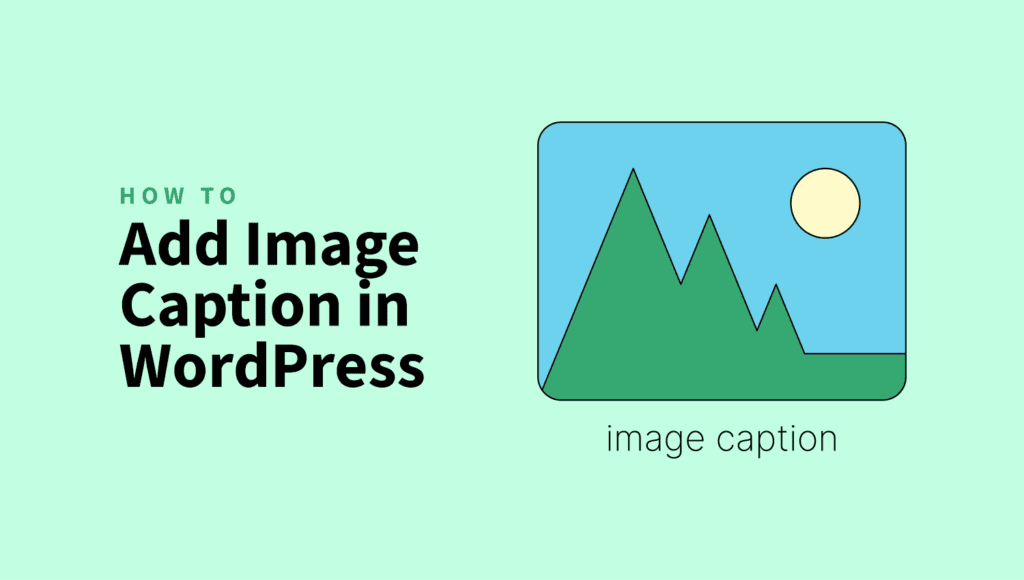
You may struggle to add compelling WordPress image captions that complement visuals and boost SEO performance.
Adding a WordPress image caption is often overlooked, yet posts with relevant images get a staggering 94% more views. Captions add depth, context, and SEO value to your visuals.
These brief snippets of text help search engines understand your content better. This means you get better SEO results.
In this guide, we’ll share tips on adding, editing, and optimizing WordPress image captions for a better user experience.
Quick Takeaways
- Image captions boost SEO by providing context and helping search engines understand your content.
- They improve user engagement and accessibility, making images more relatable and informative.
- Use ShortPixel Image Optimizer to automatically generate captions.
- Captions can be easily added and edited in both the Block and Classic Editors in WordPress.
- Custom CSS and plugins allow you to customize the look and feel of captions.
WordPress image captions at a glance
Have you ever scrolled through a WordPress post and felt the images needed a voice? Maybe a captivating photo lacked context, or you weren’t sure exactly what you were looking at.
That’s where the under-appreciated WordPress image caption swoops in. Not using descriptive titles and captions is a common SEO mistake you should avoid.
WordPress image captions aren’t just a fancy label. They help search engines index your content better, improving your SEO ranking.
You might think, “Hang on, aren’t image captions the same as alt text?” Well, not quite. While they contribute to better accessibility and SEO, they serve different purposes.
WordPress image alt text is an invisible attribute that describes the image for visually impaired users and search engines. In contrast, captions are visible snippets that enhance the user experience for everyone.
Image captions are easy to implement, whether using the Block Editor, Classic Editor, or even advanced techniques like shortcodes or custom CSS.
Try ShortPixel
Free to generate up to 100 captions for your WordPress images!
Why is the WordPress image caption not showing?
If you’re staring at your published post, wondering why your carefully curated captions aren’t showing up, you’re not alone. Here are some of the most common culprits behind the disappearing act:
Missing caption field
Sometimes, the issue is as simple as the photo caption field being hidden or removed from the image upload interface.
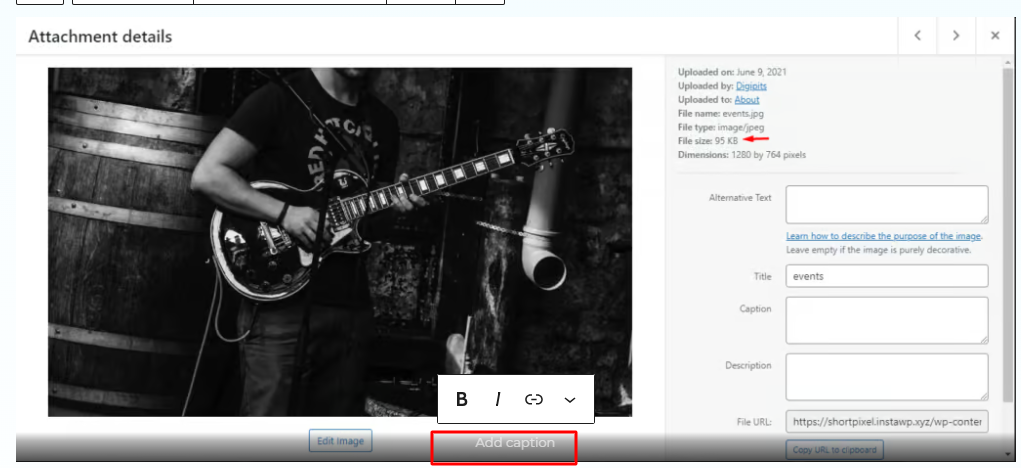
Certain WordPress themes or plugins might result in the image caption not showing, intentionally or unintentionally omitting this field.
It’s like trying to tell a story without words, your visuals are left without the supporting narrative they deserve.
Theme compatibility issues
Not all themes are created equal. Some may have compatibility issues when it comes to displaying captions.
If you recently changed themes and your captions are suddenly missing, it could be because they are not styled correctly by the new theme.
These styling conflicts can cause captions to appear distorted, misplaced, or not show up at all.
An easy way to check if this is the cause is to temporarily switch (Appearance > Themes) to a default WordPress theme , such as Twenty Twenty-Five, and see if the captions appear correctly.
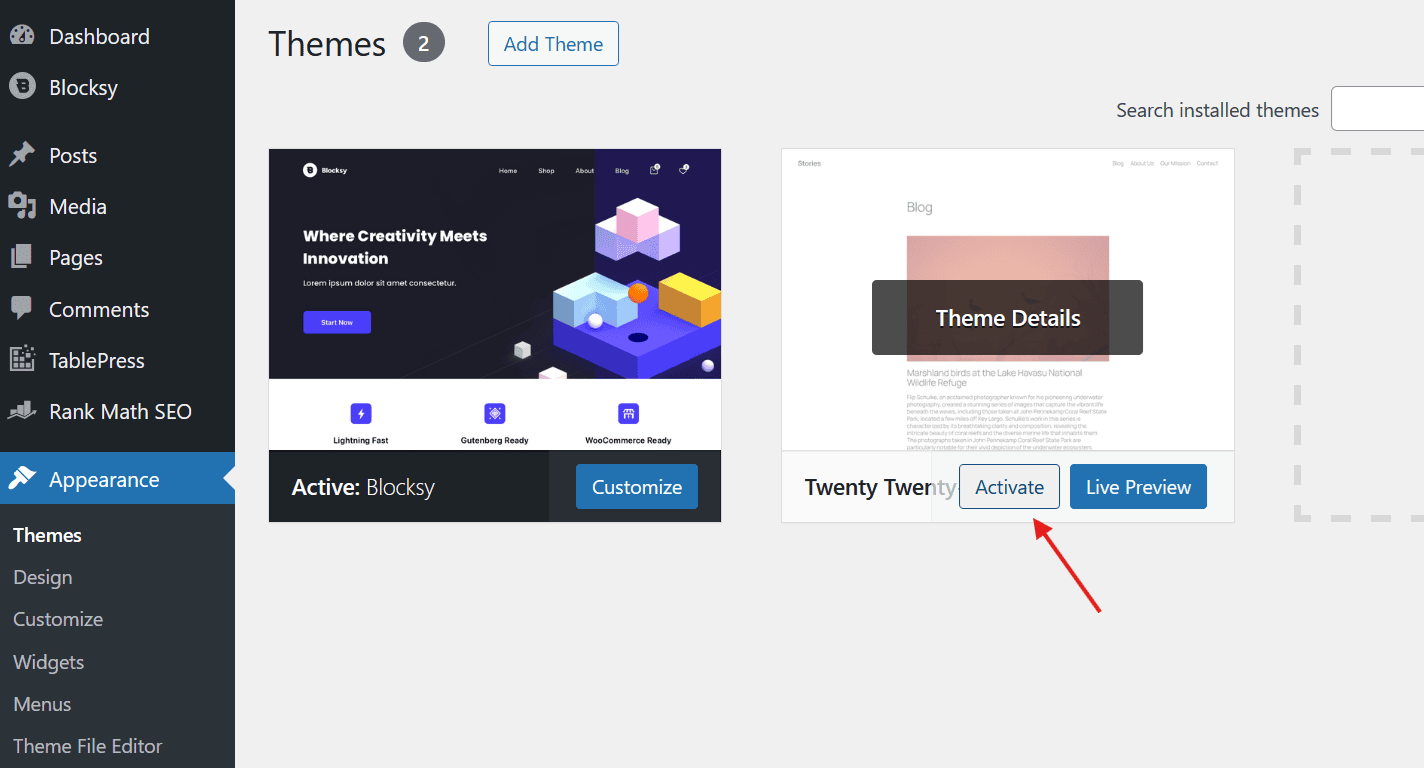
If they do, you may need a developer to tweak the current theme to resolve the issue.
Conflicting plugins
WordPress plugins add functionality and enhance your site’s capabilities.
However, when plugins start meddling with how images are displayed or handled, they can inadvertently interfere with the display of image captions.
Try disabling all your plugins, and check if your captions reappear. If they do, re-enable them one by one to see which one causes the problem.
Tip: While troubleshooting, remember to clear your website’s cache.
Adding image captions in WordPress
Automatically using ShortPixel
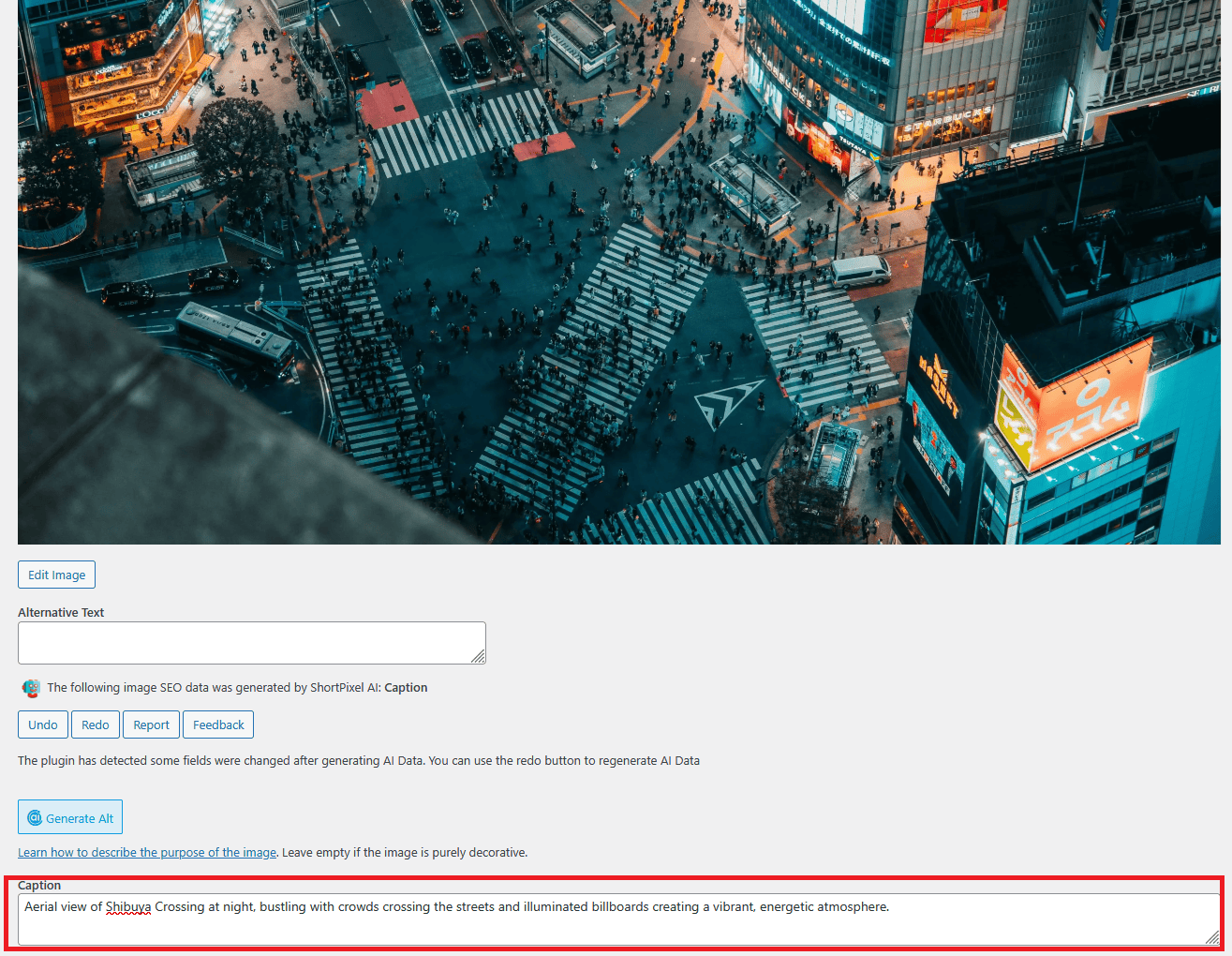
If you want image captions without doing the work manually, ShortPixel can handle this for you.
Quick setup:
- Install and activate ShortPixel Image Optimizer.
- In your WordPress dashboard, go to Settings > ShortPixel.
- Navigate to AI Image SEO.
- Toggle on Enable AI Image SEO.
- Toggle on Generate image caption.
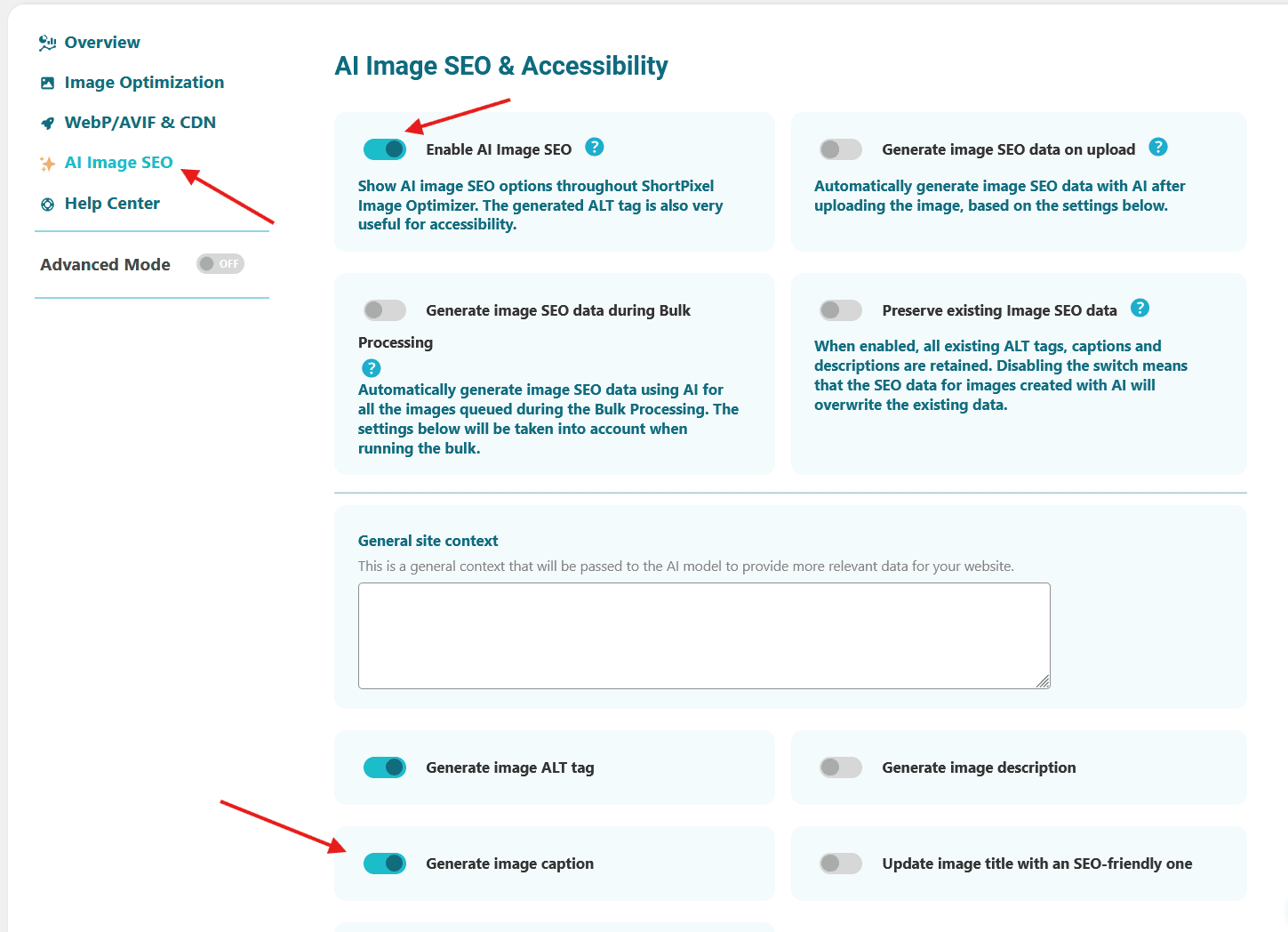
- Optionally, enable how captions are created: automatically on upload and/or via bulk processing. You can also generate them manually for each image.
That’s it. Once enabled, ShortPixel will generate image captions for you, so you don’t have to stress about adding them manually.
Using the Block Editor
Adding captions to your images in WordPress with the block editor is super simple. Here’s how:
Click the “+” icon in the editor and choose “Image.” Insert the image to your page/post.
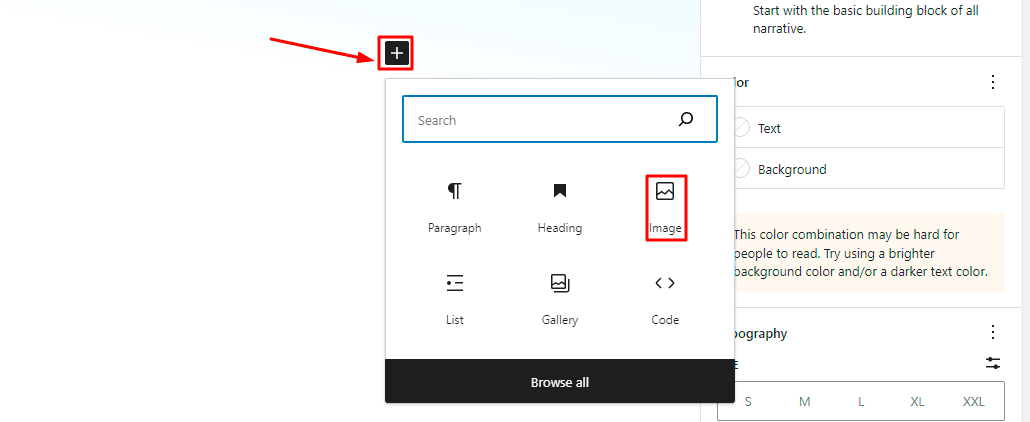
Click the image to select “Add caption” option. That’s your spot for adding a caption.

For galleries, it’s similar:
Click “+” and choose “Gallery.”
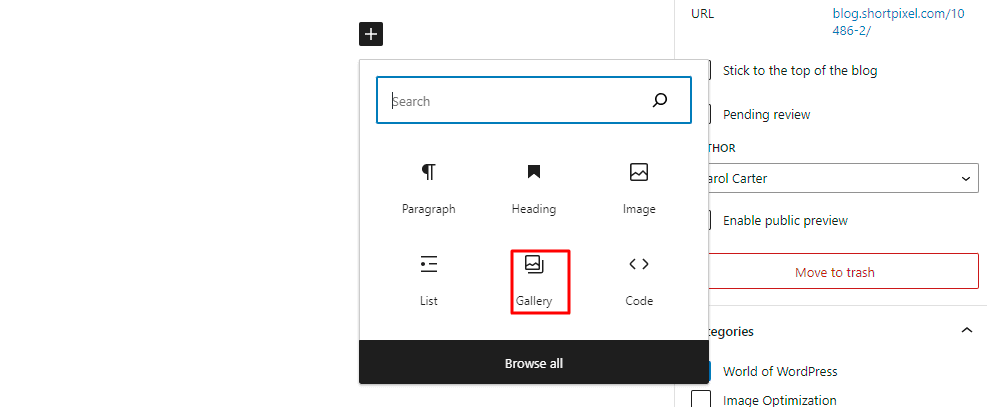
Upload and pick your images from the WordPress Media Library.
You’ll see a box for typing the caption after selecting an image from the library.
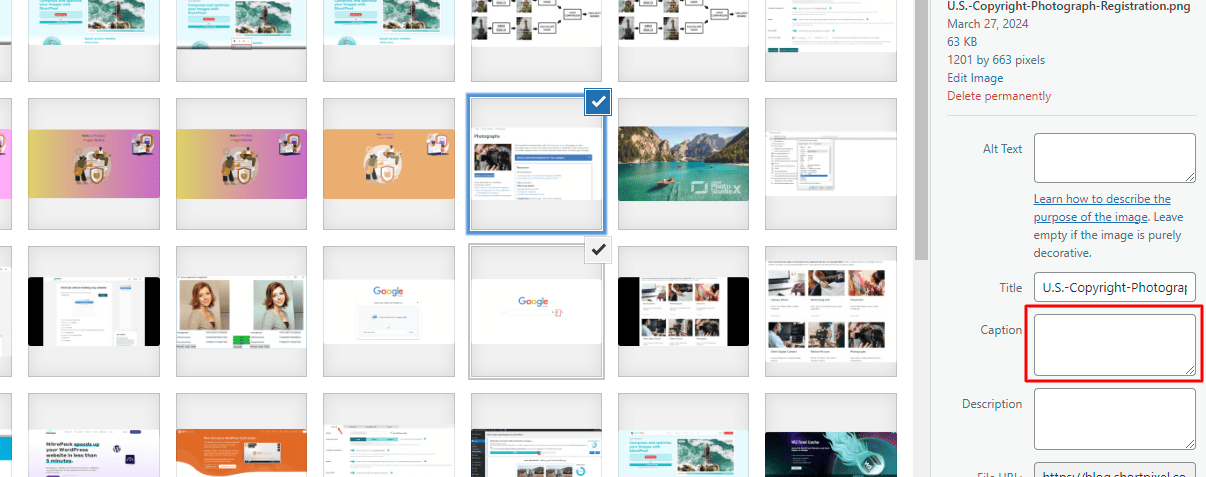
Click “Create a new gallery” to finalize.
Using the Classic Editor
The steps are somewhat different if your WordPress site runs on the classic editor.
Go to one of your posts, and click “Media Library“.
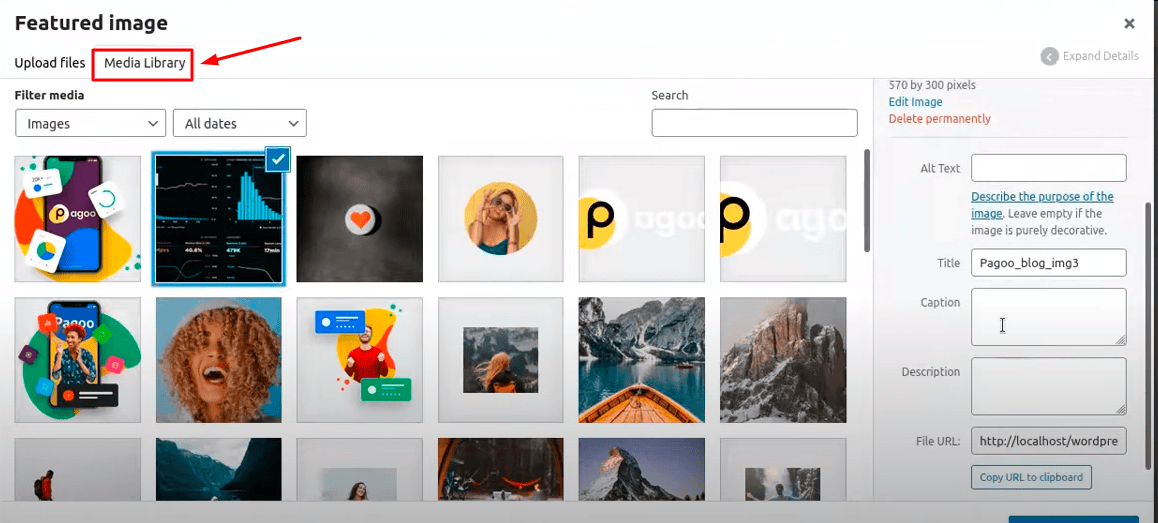
Next, go to the caption text box and describe your image.
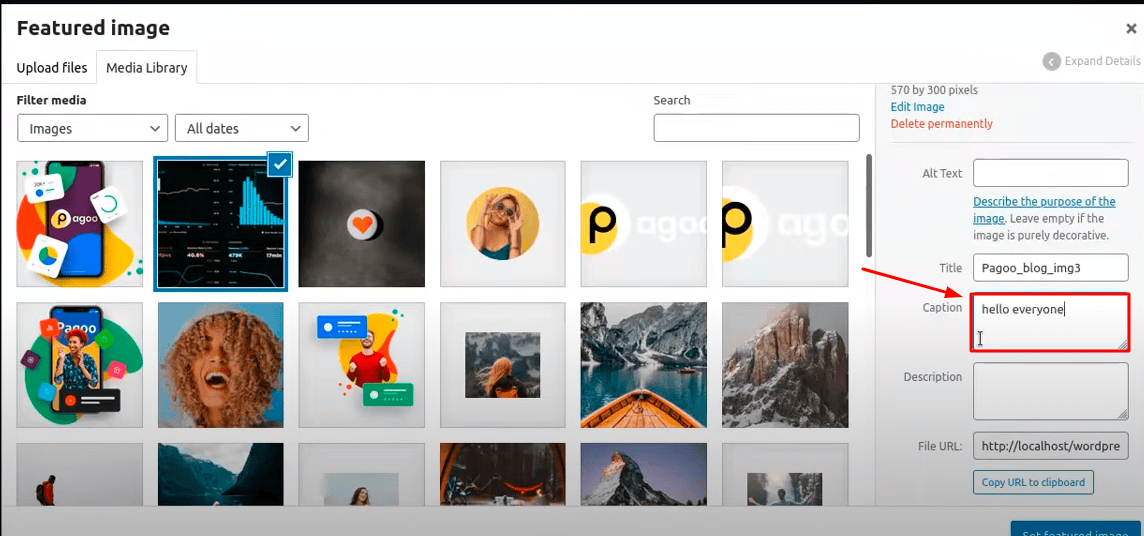
And that’s it, folks!
Editing existing WordPress image captions
Editing existing WordPress image description? Let’s break it down:
The Media Library is your one-stop shop for all images (and other media) in WordPress.
Head to Media > Library in your WordPress admin area.
This will show you all your uploaded images in a grid or list. Use the search and filter options at the top right to pinpoint a specific image.
Next, I recommend switching to the Grid view, as this makes things easier.
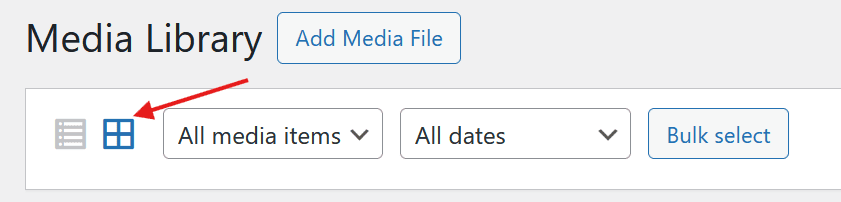
After that, click on the image whose caption you want to edit.
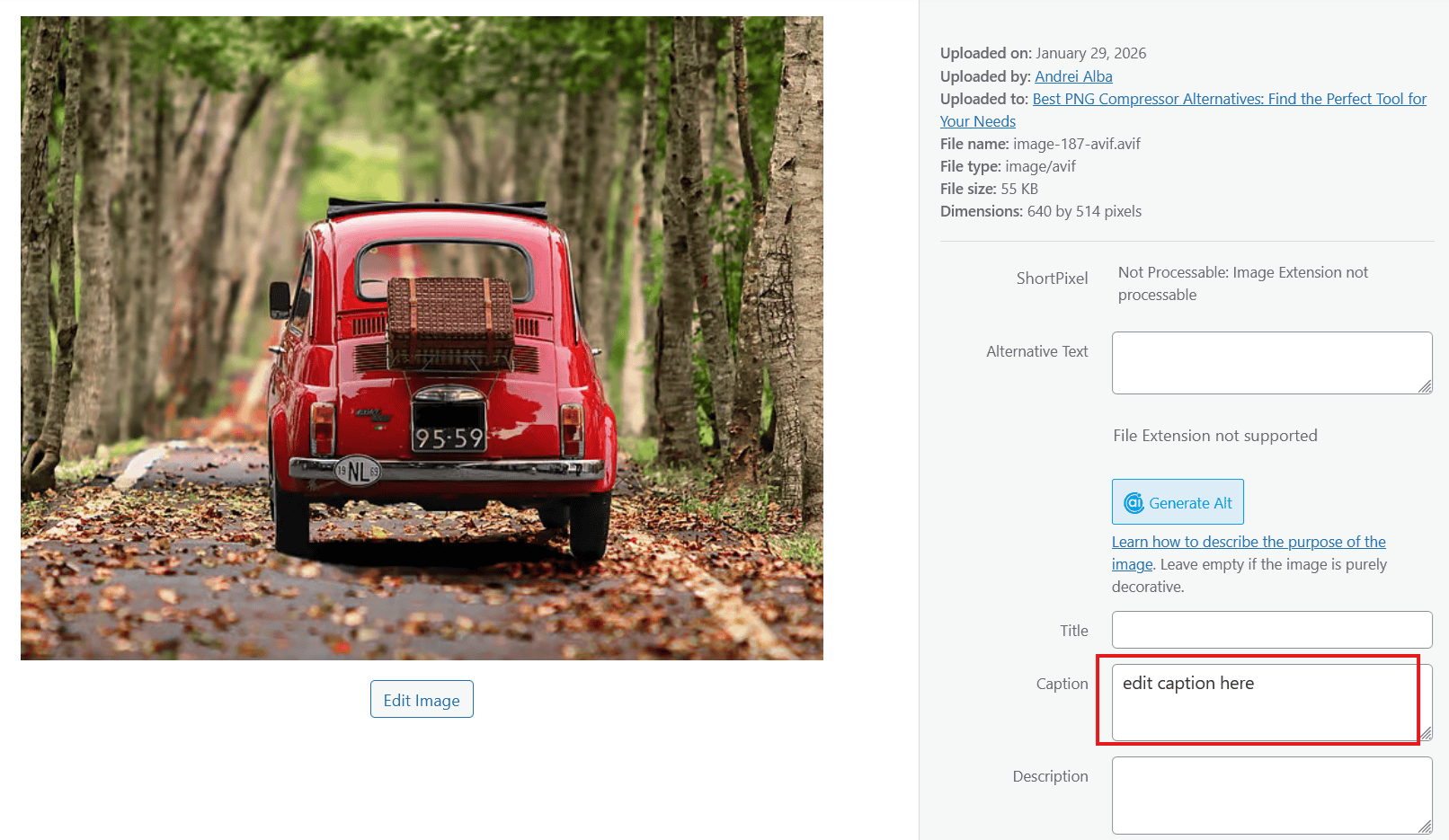
Add the caption, and the changes will save automatically without having to click any buttons.
Tip: Navigate through images quickly using the left and right arrow keys.
Customizing WordPress image captions using CSS
To customize image captions with CSS in WordPress, follow these steps:
- Go to Appearance > Themes > Customize (under your active theme) to add custom styles.
- In the left menu, go to Additional CSS and paste your CSS code, usually located at the bottom of the menu.
- To style the image captions, target the
.wp-caption-textclass. Here’s an example of what you can add:
.wp-caption-text {
    font-size: 13px; /* Adjust the font size */
    color: #333333; /* Set the text color */
    text-align: center; /* Center-align the text */
    line-height: 1.5; /* Improve readability with line height */
    margin-top: 6px; /* Space between image and caption */
    padding: 0 4px; /* Small inner spacing for readability */
    opacity: 0.85; /* Slightly soften caption text */
    word-wrap: break-word; /* Prevent long text from overflowing */
}
- After adding the CSS, click Publish and verify a caption to make sure everything works as expected.
Summary
Captions add context, boost SEO, and improve accessibility.
Use this guide to unlock easy hacks for the secrets to adding, editing, and optimizing captions in both Block and Classic Editors.
Troubleshooting common caption woes and banishing those frustrating moments when your carefully crafted captions vanish into thin air shouldn’t be a pain in the neck.
FAQs
How is adding captions to a picture helpful?
Adding captions to a picture helps improve SEO by giving search engines more context. It also boosts user engagement by making the image more relatable and informative. Captions can clarify the image’s meaning and enhance accessibility for users with visual impairments. Plus, they break up text and improve the overall readability of the page.
What is meant by caption while editing an image in WordPress?
In WordPress, a caption is a short description or text that appears below an image. When editing an image, you can add a caption in the “Caption” field, which is displayed alongside the image on your page or post. It’s helpful for providing context, improving SEO, and making the content more accessible.
How does image captioning work?
Image captioning works by adding descriptive text below or beside an image. In WordPress, when you upload an image, you can enter a caption in the “Caption” field. This text appears on the front-end of the website, usually below the image. It can describe what the image is about, provide context, or add extra information. Captions help with accessibility, SEO, and user engagement by providing more details about the image. They also make content more scannable and informative for visitors.
What is the difference between image caption and description in WordPress?
In WordPress, the image caption and image description serve different purposes. Caption is a short text that appears below the image on the front-end of the website. It’s meant to briefly describe or add context to the image, often visible to users as part of the content. Description is a longer piece of text added in the “Description” field when editing an image in the media library. It’s not usually displayed directly on the page, but it provides additional context and can be used for SEO purposes, helping search engines understand the image better.