ShortPixel CDN + Amazon S3: On-the-Fly Image Optimization Setup Guide

If you store images in Amazon S3, chances are you’re paying more for bandwidth than you should.
Every time someone requests an image, S3 serves the original, full resolution, uncompressed, in whatever format you uploaded. No resizing for mobile. No conversion to WebP or AVIF. Just the raw file, every single time.
Multiply that by thousands of requests and it adds up fast.
The fix? Put ShortPixel CDN between your S3 bucket and your users. It fetches the original once, optimizes it on the fly, caches it globally, and serves the lighter version from the nearest edge. Your originals stay untouched.
In this guide, we’ll walk through the full setup, from creating the S3 bucket to serving optimized images through ShortPixel CDN.
Quick Takeaways
- S3 is built for storage, not image delivery, it serves raw files with no compression, resizing, or format conversion.
- ShortPixel CDN optimizes S3 images on the fly via URL parameters, no SDKs or Lambda functions needed.
- The setup covers creating an S3 bucket, IAM policy and user, connecting to ShortPixel, and building optimized URLs.
- For WordPress sites with S3 media, the ShortPixel Adaptive Images (SPAI) plugin automates the entire process.
- Image payloads typically drop by 40–80% with compression and next-gen format delivery.
Why serving raw images from S3 is a problem
S3 is great for storage. Reliable, cheap per GB, and it scales without you thinking about it.
But it’s not an image delivery service.
When you serve images directly from S3, or even through CloudFront without a transformation layer, you’re dealing with a few issues:
No compression. That 4MB DSLR photo or product image gets delivered at full weight, every time.
No format negotiation. Visitors get the original JPEG or PNG, even when their browser supports AVIF at a fraction of the size.
No resizing. A 3000px-wide image gets downloaded by mobile users who only need 400px. This is one of the most common reasons for failing the “properly size images” audit in tools like PageSpeed Insights.
Bandwidth costs stack up. AWS charges for every byte transferred out of S3. Serving unoptimized images makes this way more expensive than it needs to be.
Now, you could build your own pipeline with Lambda + Sharp + CloudFront. It works. But that’s infrastructure you have to build, deploy, monitor, and maintain. And Lambda cold starts can add noticeable latency on the first request.
There’s a simpler path: let a URL-based CDN handle it for you.
How ShortPixel CDN optimization works
The idea is straightforward. Instead of pointing your <img> tags at the raw S3 URL, you point them at a ShortPixel CDN URL that includes optimization instructions.
Raw S3 URL (no optimization):
https://my-bucket.s3.eu-central-1.amazonaws.com/uploads/hero.jpg
Through ShortPixel CDN (resized, compressed, auto-format):
Here’s what each part does:
- cdn.shortpixel.ai — ShortPixel’s CDN endpoint
- xcf — your account-specific identifier (visible in the ShortPixel dashboard after setup)
- w_1200+q_lossy+ret_img+to_auto — optimization parameters, chained with +
- Everything after the parameters — the original S3 path, without https://
The CDN reads the parameters, fetches the original from S3, applies the transformations, caches the result, and serves it. Next time someone requests the same image with the same parameters, it comes straight from cache. No round-trip to S3.
A quick note on URL path differences
You might notice that ShortPixel uses different URL paths depending on the image source.
For regular website images (served from your own domain), the CDN URL includes /spai/:
https://cdn.shortpixel.ai/spai/w_800+q_lossy+ret_img/mysite.com/wp-content/uploads/photo.jpg
For S3-sourced images, /spai/ is dropped and the account identifier appears directly:
https://cdn.shortpixel.ai/xcf/w_800+q_lossy+ret_img/my-bucket.s3.amazonaws.com/uploads/photo.jpg
This tells the CDN backend that the source is an S3 bucket. It uses this to know when to strip the S3 hostname from the URL, important both for correct caching and for keeping your bucket details hidden from end users (especially with private buckets).
Available optimization parameters
Here are the parameters you can use when building your CDN URLs:
| Parameter | What it does |
| w_800 | Resize width to 800px (keeps aspect ratio but can be changed to a different size) |
| h_600 | Resize height to 600px (keeps aspect ratio but can be changed to a different size) |
| q_lossy | Lossy compression, smallest file size |
| q_glossy | Glossy, good balance of quality and size |
| q_lossless | Lossless, no quality loss |
| to_auto | Serve AVIF or WebP based on browser support |
| ret_img | Return the image directly |
| ret_wait | Wait for processing before returning |
Chain them with +:
w_1200+q_glossy+ret_img+to_auto
With to_auto, ShortPixel checks the browser’s Accept header. AVIF-capable browsers get AVIF. WebP-capable ones get WebP. Everything else gets the original format.
Not sure which compression level to pick? Here’s a quick breakdown: Lossy gives you the smallest files with barely noticeable quality loss, great for most web images. Glossy preserves more detail and works well for photography or product images. Lossless keeps the image pixel-identical to the original.
This alone typically cuts image payloads by 50–90%, depending on the originals.
Step-by-step setup
Step 1: Create your Amazon S3 bucket
Step 2: Connect the bucket in the ShortPixel dashboard
With your S3 bucket and IAM credentials ready, head to ShortPixel.
- Log in to your ShortPixel account.
- Go to Associate Domains. Add your domain if it’s not there yet, then click the Settings (gear) icon next to it.
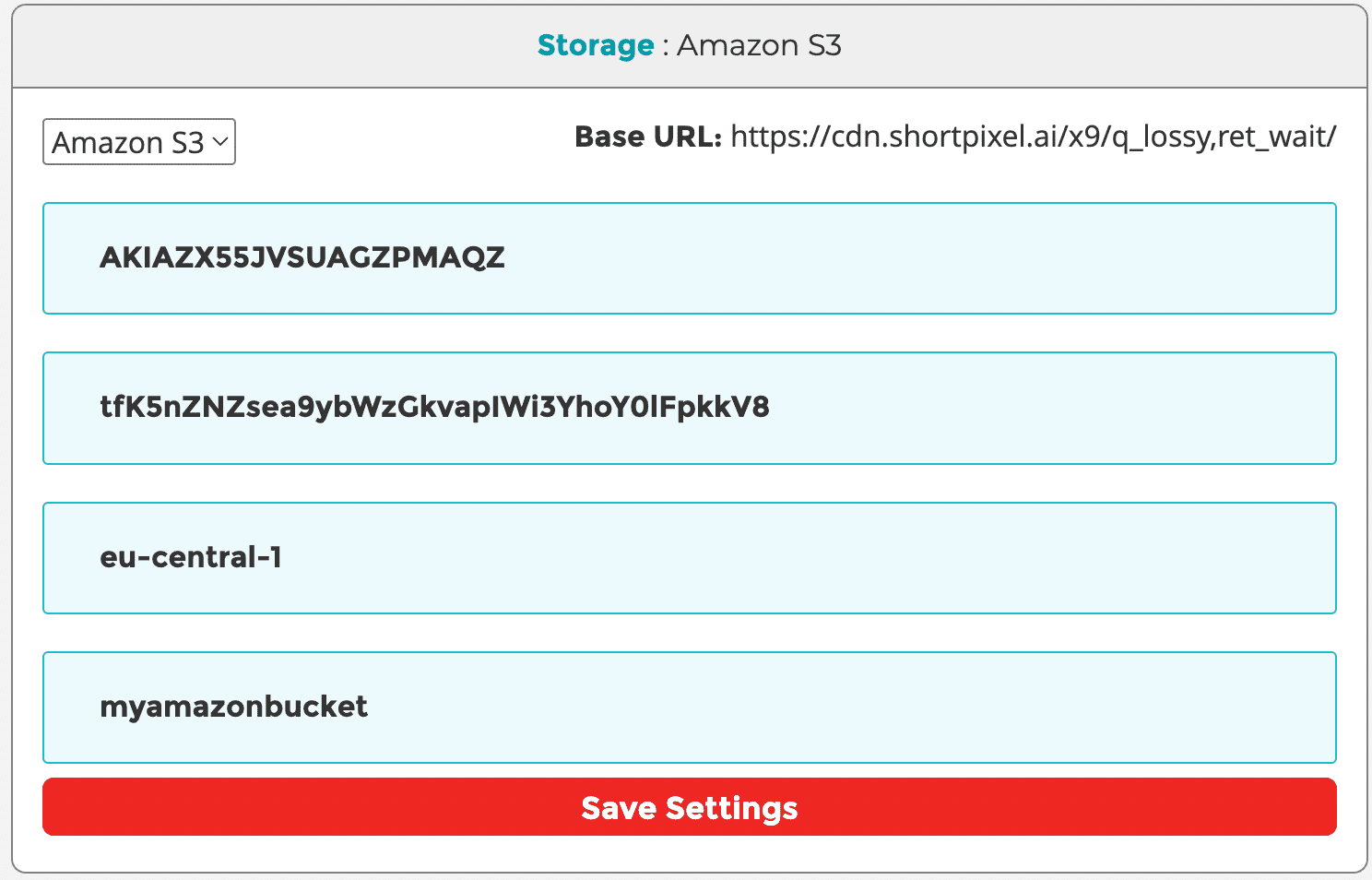
- Click Storage and choose Amazon S3 from the dropdown.
- Fill in the fields
- Save. ShortPixel will generate a base CDN URL for your bucket: https://cdn.shortpixel.ai/xcf
Your specific identifier shows up in the dashboard. Keep this URL, you’ll need it to build image URLs.
Step 3: Use your optimized image URLs
That’s it for setup. Now you just build the URL.
Append optimization parameters and the original S3 path to your base CDN URL:
Use it wherever you’d normally use an image URL — HTML, CSS, JavaScript, API responses:
<img

  src="https://cdn.shortpixel.ai/xcf/w_1200+q_lossy+ret_img+to_auto/my-bucket.s3.eu-central-1.amazonaws.com/uploads/photo.jpg"

  alt="Optimized product image"

/>
.hero {
background-image: url('https://cdn.shortpixel.ai/xcf/w_1920+q_glossy+ret_img+to_auto/my-bucket.s3.eu-central-1.amazonaws.com/assets/bg.jpg');
}No SDK. No build step. Just a URL swap.
Private buckets
If your bucket isn’t public, no problem. The AWS credentials in the ShortPixel dashboard handle authentication server-side.
ShortPixel fetches the image on your behalf, and the S3 hostname gets stripped from the final CDN URL, so your bucket details stay hidden from end users. From the visitor’s side, the image just comes from cdn.shortpixel.ai.
WordPress: Setting up SPAI with Amazon S3
Running WordPress with media stored on S3? The ShortPixel Adaptive Images (SPAI) plugin automates the whole URL rewriting process for you.
After connecting your bucket in the ShortPixel dashboard (Step 2 above), you configure two settings in the plugin:
Enable Amazon S3 mode
Go to Settings → ShortPixel AI → Behaviour and check the Amazon S3 option. This activates S3-specific URL handling.
Set the storage URL
In the Storage URL field, enter the base CDN path ShortPixel provided in the dashboard:
Important: Just the base path. No full S3 URL, no optimization parameters. SPAI builds the rest on its own.
When this setup makes sense (and when it doesn’t)
Good fit:
- You serve user-uploaded images from S3 — marketplaces, SaaS apps, media-heavy sites.
- Your images don’t change every few minutes.
- You want optimization without building or maintaining a Lambda pipeline.
- You’re on WordPress with S3-hosted media and want it automated via SPAI.
Might not be ideal:
- You need complex transformations like watermarking, face detection, or advanced cropping.
- Your images change every few seconds (live feeds, real-time dashboards) — CDN caching won’t help much.
- You only have a handful of static images, manual optimization with ShortPixel’s online compressor might be simpler.
Conclusion
Don’t serve raw images from S3 when a CDN can optimize them on the fly.
ShortPixel CDN sits between your bucket and your visitors. It compresses, resizes, and converts images to modern formats like WebP and AVIF, automatically. Your originals stay safe in S3, your bandwidth costs drop, and your users get faster pages.
The whole thing is URL-based. No SDKs, no build steps, no Lambda functions to babysit. Connect your bucket, swap the URLs, done.
And if you’re on WordPress, ShortPixel Adaptive Images handles even the URL swapping for you.
FAQs
Does ShortPixel modify or delete my original images in S3?
No. ShortPixel only reads from your bucket. The originals are never modified, moved, or deleted. The CDN fetches them, creates an optimized version, caches it, and serves that cached version to visitors.
Do I need a public S3 bucket for this to work?
No. You can use a private bucket. The AWS credentials you provide in the ShortPixel dashboard handle authentication server-side. Your bucket’s hostname is also stripped from the public CDN URL, so bucket details aren’t exposed to end users.
What formats does ShortPixel convert to?
When you use the to_auto parameter, ShortPixel automatically serves AVIF if the browser supports it, WebP as a fallback, or the original format if neither is supported. You don’t need to create multiple versions of your images.
How much smaller will my images be?
It depends on the originals, but compression combined with next-gen format conversion typically reduces image payloads by 40–90%. High-resolution, uncompressed source images see the biggest gains.
Does this work with any CMS or framework, or just WordPress?
It works with anything. The CDN URL is just a standard image URL, you can use it in HTML, CSS, JavaScript, React, Next.js, API responses, or any platform that loads images via HTTP. The SPAI plugin is an optional convenience for WordPress users, not a requirement.
Can I use this alongside CloudFront?
Yes. You can keep CloudFront for other assets and use ShortPixel CDN specifically for image delivery. The two don’t conflict.
Try ShortPixel on WordPress for free!
Easily optimize your pictures and cut down pixels fast using ShortPixel Adaptive Images.