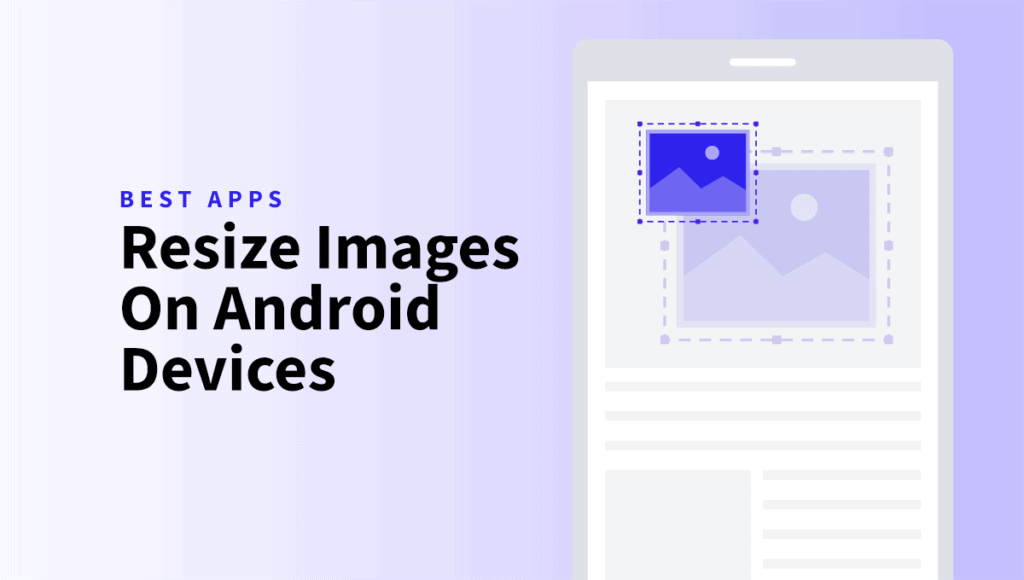
Resize Images On Android Devices

Smartphones have come a long way, and today they’re much more than just communication tools.
For those passionate about photography, your phone’s camera is one of the key features to consider when upgrading your device.
If capturing high-quality photos is a priority for you, you may find yourself with a lot of large image files taking up space on your device. That’s where image compression and resizing come into play.
In this post, we’ll explore why you should resize images on Android and share a list of some great apps that can help you do just that, freeing up your valuable storage space.
Why should I compress and resize images on Android?
Most smartphones today come equipped with incredibly high-resolution cameras, meaning the images you capture can easily exceed 5MB to 10MB in size.
While high-quality photos are great, they can quickly eat up your storage and slow down your device, especially when you’re sharing images on social media, sending them via email, or backing them up to the cloud.
By compressing and resizing your images, you can save valuable storage space, reduce bandwidth usage, and make your photos much faster to upload. It’s an easy way to optimize your images without sacrificing noticeable quality.
How to resize images on Android devices?
Not all Android devices come with built-in tools for resizing or compressing images, though.
While default photo apps let you view and manage your images, they typically lack editing features.
Thankfully, the Google Play Store has plenty of third-party apps that can help you with this.
The process of resizing an image is simple: choose the image(s) you want to resize, adjust the resolution or dimensions to your preference, and save the final result.
Below are some of the best apps to help you get started. But before that, I’ll also explain how to resize for free without using an app.
Don’t want to rely on an app?
If you don’t want to install an app on your phone, you can resize your images for free in your browser.
Here’s how to do it:
Step 1: Navigate to ShortPixel’s online compressor
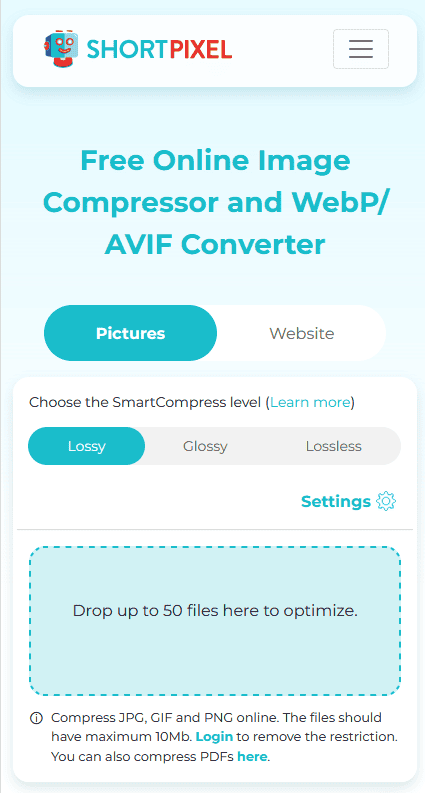
Head over to ShortPixel’s Online Image Compression tool. The interface is clean and straightforward – you’ll see everything you need right on the homepage.
Step 2: Choose your compression level
ShortPixel offers three compression modes to match your needs:
- Lossy: Maximum compression with minimal visible quality loss. Best for web images where file size is critical.
- Glossy: Balanced compression that preserves quality while reducing file size significantly. Great for photos and detailed graphics.
- Lossless: Zero quality loss, perfect for images where every pixel matters.
Select your preferred compression level at the top of the page. If you’re unsure, Glossy is a safe bet that delivers excellent results for most use cases. You’ll save a lot of space by compressing and also resizing.
Step 3: Adjust additional settings
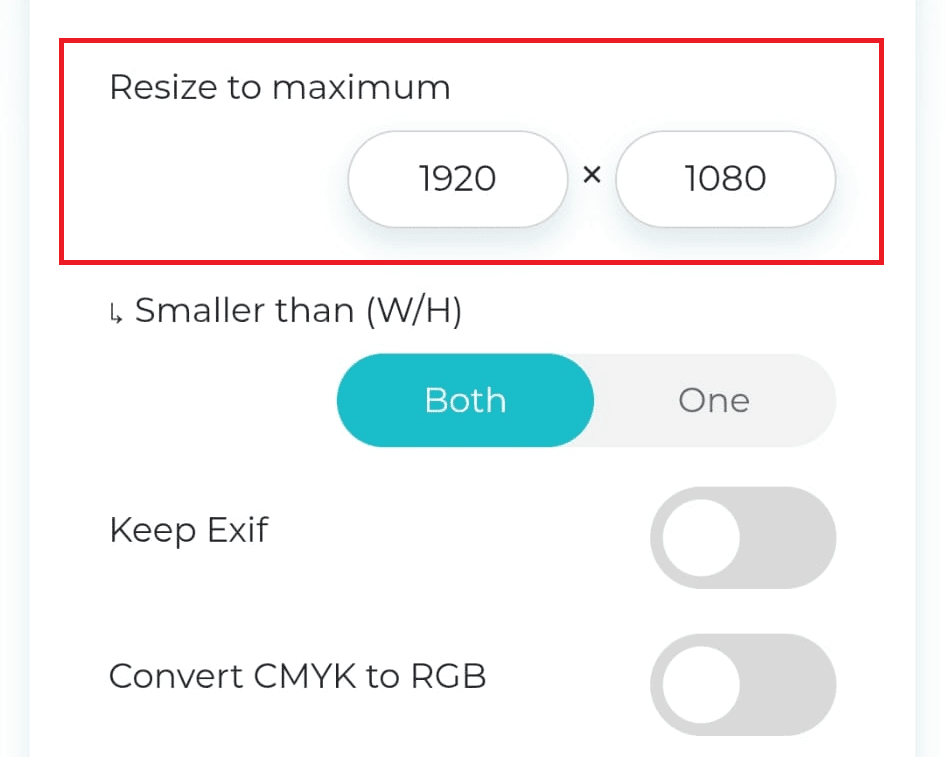
Before uploading, click the Settings panel to customize a few optional settings:
- Resize to maximum: Set maximum width/height if you want to reduce dimensions along with file size.
- Keep EXIF data: Choose whether to preserve or strip metadata.
These settings are optional – the defaults work great for most situations. But, if you’re here to resize the images, you’ll want to set the max width/height.
Step 4: Upload your images
Now it’s time to upload. Click the upload box to select files from your computer manually.
ShortPixel supports up to 50 files per batch and handles individual files up to 10MB if you’re not logged in. For no restrictions with the online processor, just sign up for a free account.
Step 5: Wait for compression to complete
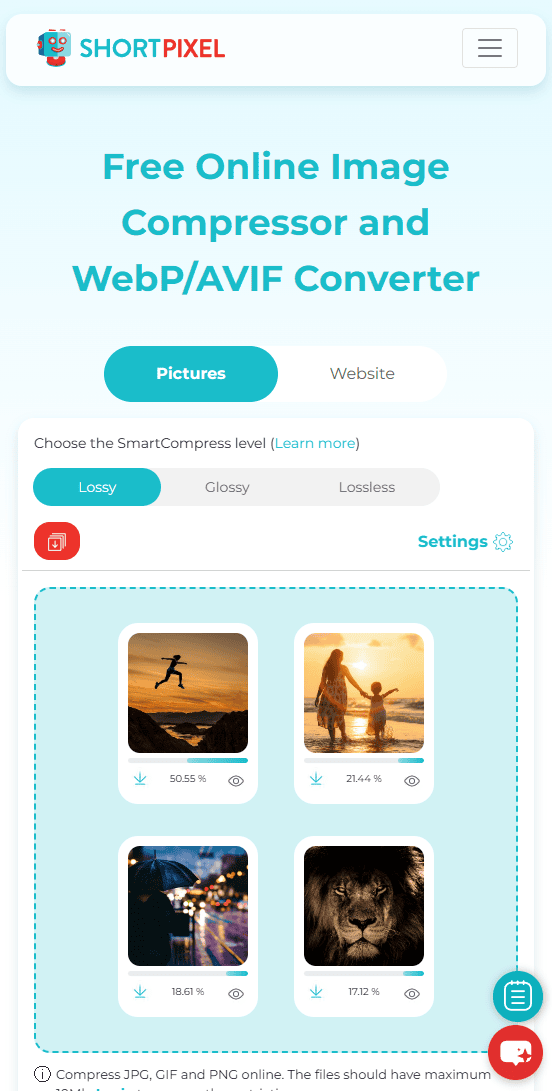
ShortPixel processes your images once uploaded. You’ll see real-time progress for each file.
Once complete, you’ll see the percentage reduction. Depending on your file sizes and number of images, this usually takes just a few seconds to a few minutes to complete.
Step 6: Download your optimized images
Once compression finishes, you’ll see a download button for each image. You can:
- Download images individually by clicking the downward icon next to each image.
- Download all compressed files as a ZIP archive by clicking the red download button.
That’s it, your images now weigh a lot less!
Best photo resizer app for Android
If you’re looking for the best app to resize photos on your Android device, there are plenty of options to choose from.
Whether you’re trying to save storage space, prepare images for social media, or adjust file sizes for sharing, the right photo resizer app can make the task simple and efficient.
Let’s dive in and see which ones might work best for your needs.
Pixlr
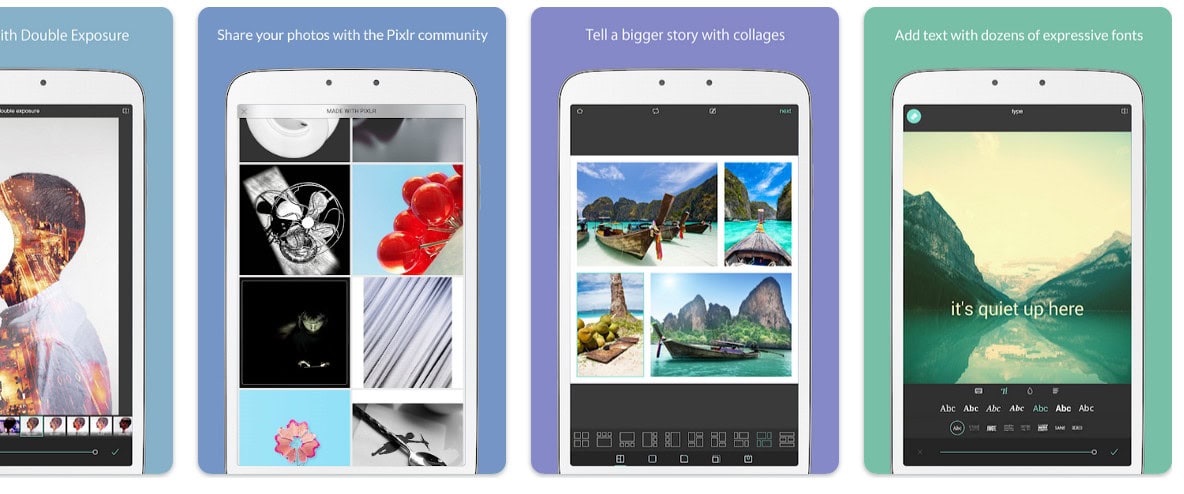
You might wonder why is Pixlr one of the most popular app to reduce photo size out there, with over 50M installs. Because it has numerous features and offers more than 600 special effects for easy editing.
If you want to do some advanced editing, besides resizing images, with Pixlr you can unleash your creativity and create collages, adjust the contrast and brightness of your photos, create cool photo effects, add text to your images, and many more.
Photo & Picture Resizer
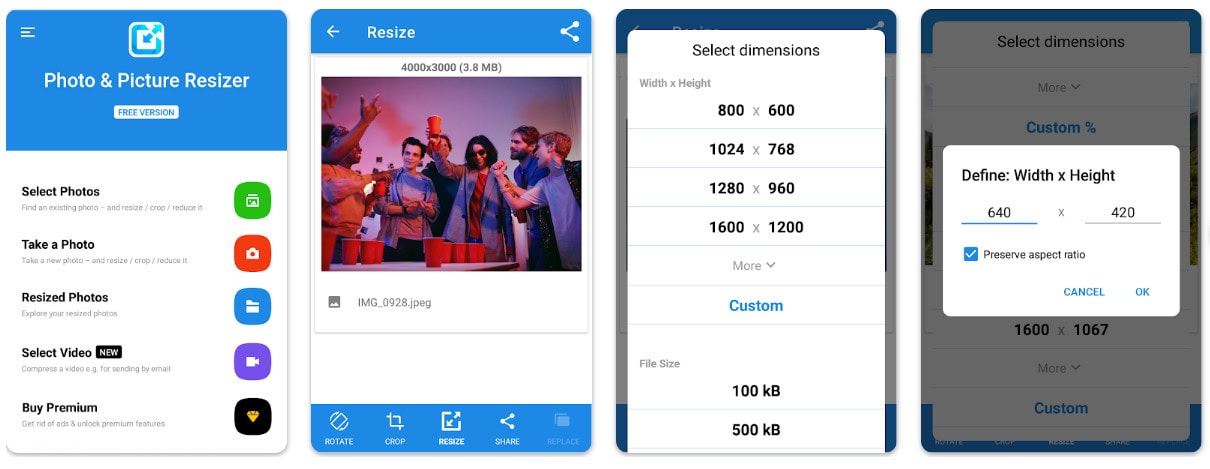
The Photo & Picture Resizer app is swift. Don’t take our word for it, just try it yourself! This tool reduces the size of your image and also includes the option to share the final version on social media platforms, such as Facebook and Instagram.
If you’re looking for an app that shrinks your pictures without affecting their quality, you should check out this app. Designed to maintain the picture aspect ratio by providing the resolution list based on the camera, this app is one of the best and smartest tools that you can use to resize image Android devices.
Image Size
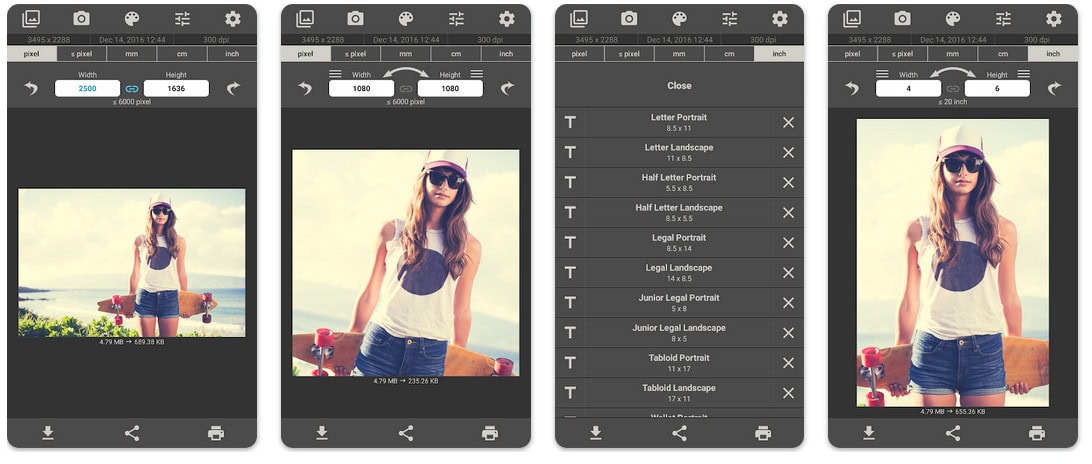
This app allows you to resize images on Android quickly and easily, and you can also specify the output format: inches, centimeters, millimeters, or pixels. The app also includes the options to save, email, print, or share the final image.
Resize Me!
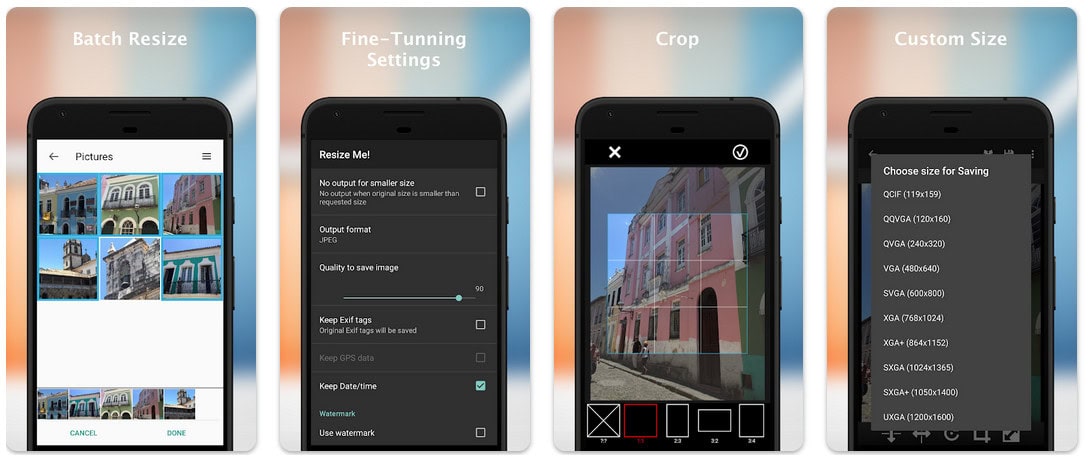
The Resize Me app can be customized to quickly adjust the size of your photos with a single click. By using this tool, you can crop, rotate, and set your pictures as wallpaper. Want to add your personal watermark? Then you’re in for a treat, as Resize Me enables you to do just that!
Image Shrink
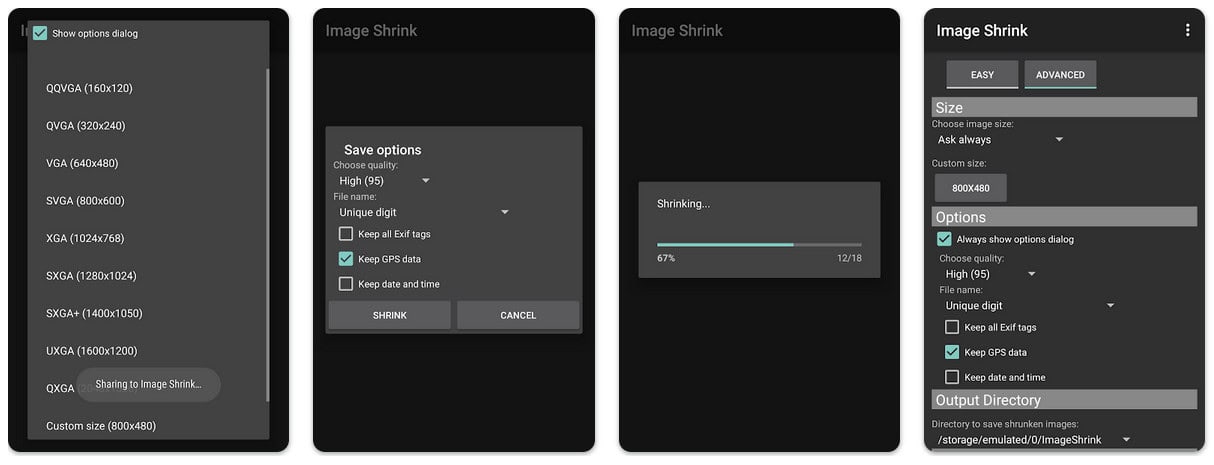
Do you want to change the width and height of your photo however you like? Then Image Shrink may be the app you’re looking for. While shrinking your images, you can also keep or remove your GPS data, EXIF info, and other data to reduce the file size.
Photo Tools
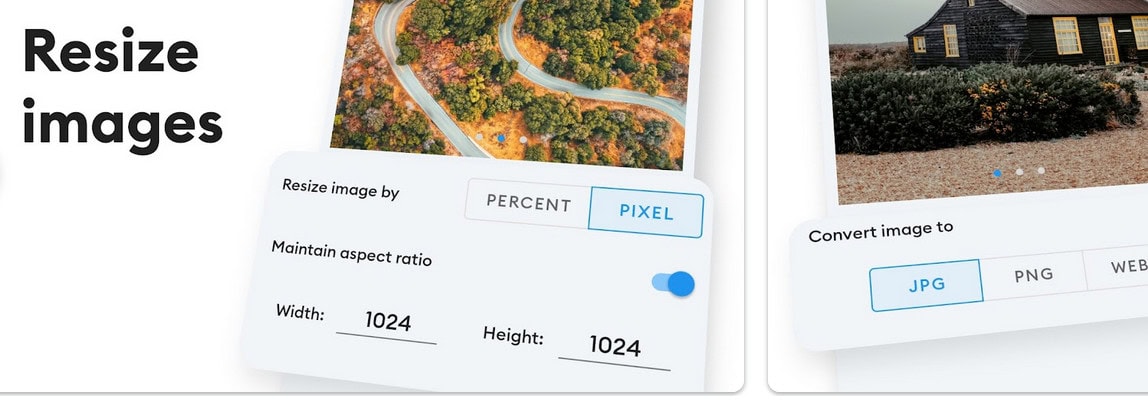
Photo Tools comes with the basic tools you’ll actually ever need. Besides the option to resize an image, it includes equally intuitive features such as image compression to reduce the file size, ability to crop and rotate images, image conversion to JPG, PNG, or WebP, and other useful features.
Instasize
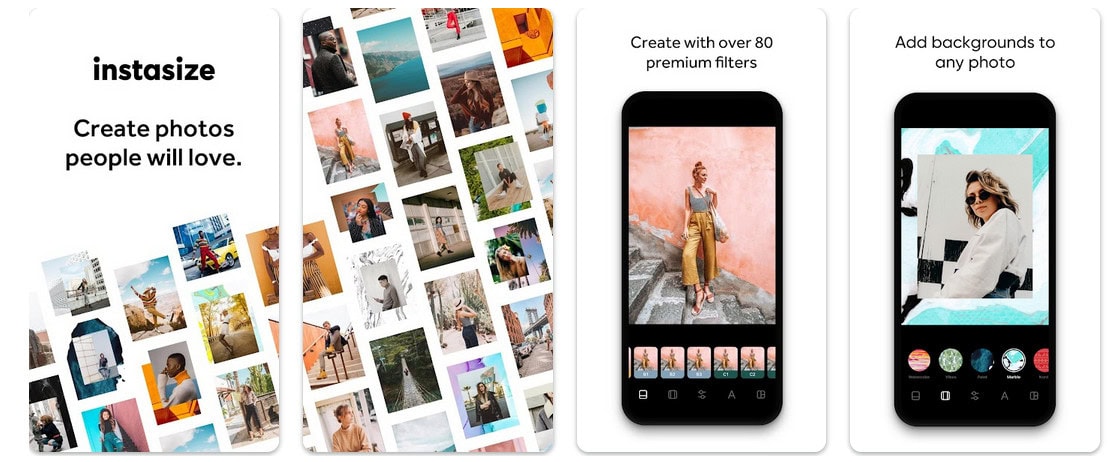
Instasize is a photo editor app for creative people. It includes the ability to resize your photos, and comes with a plethora of other cool and intuitive features. You can easily edit your photos with photo filters, create collages, use various retouching tools, and many more.
To unlock other great tools and options, such as gaining access to a huge library of photo filters, and using specific editing tools to enhance your images, you can subscribe to Instasize Premium.
Canva
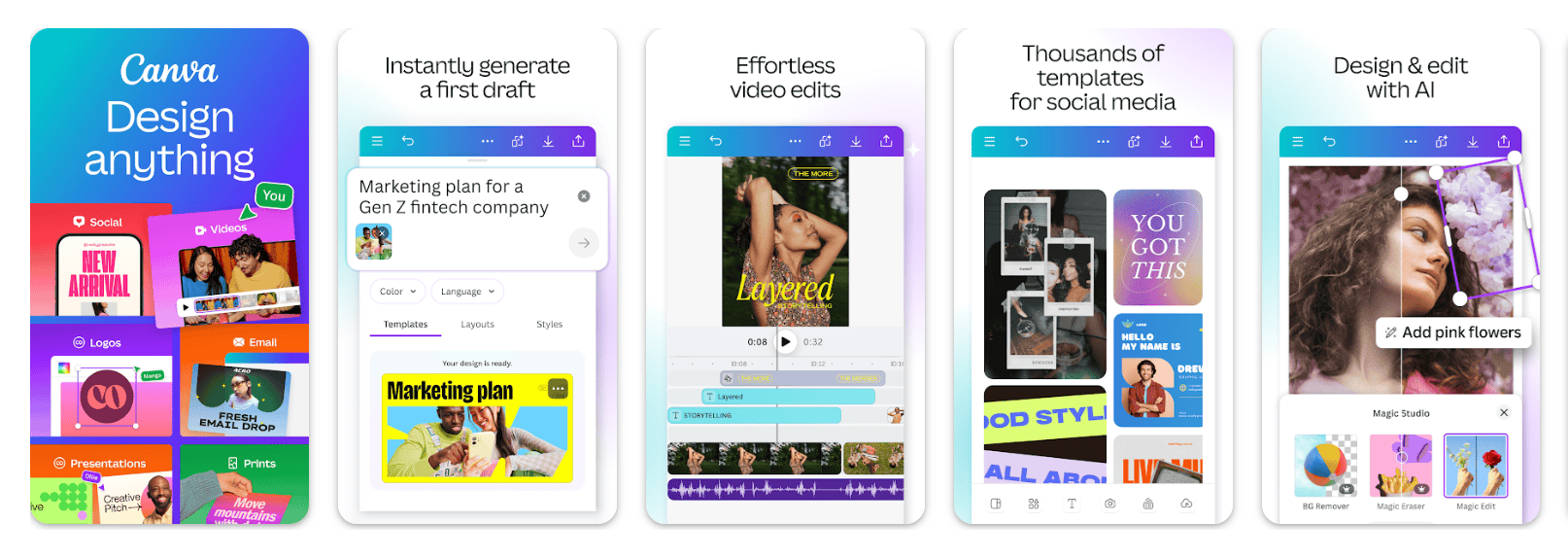
While known as a graphic design giant, Canva’s mobile app is one of the best tools for resizing images, especially if your end goal is social media.
With Canva’s “Magic Resize” and built-in templates, you can scale your photos to perfectly fit Instagram, X (Twitter), TikTok, or a blog post.
It’s an essential tool for creators looking to size images flawlessly.
Puma
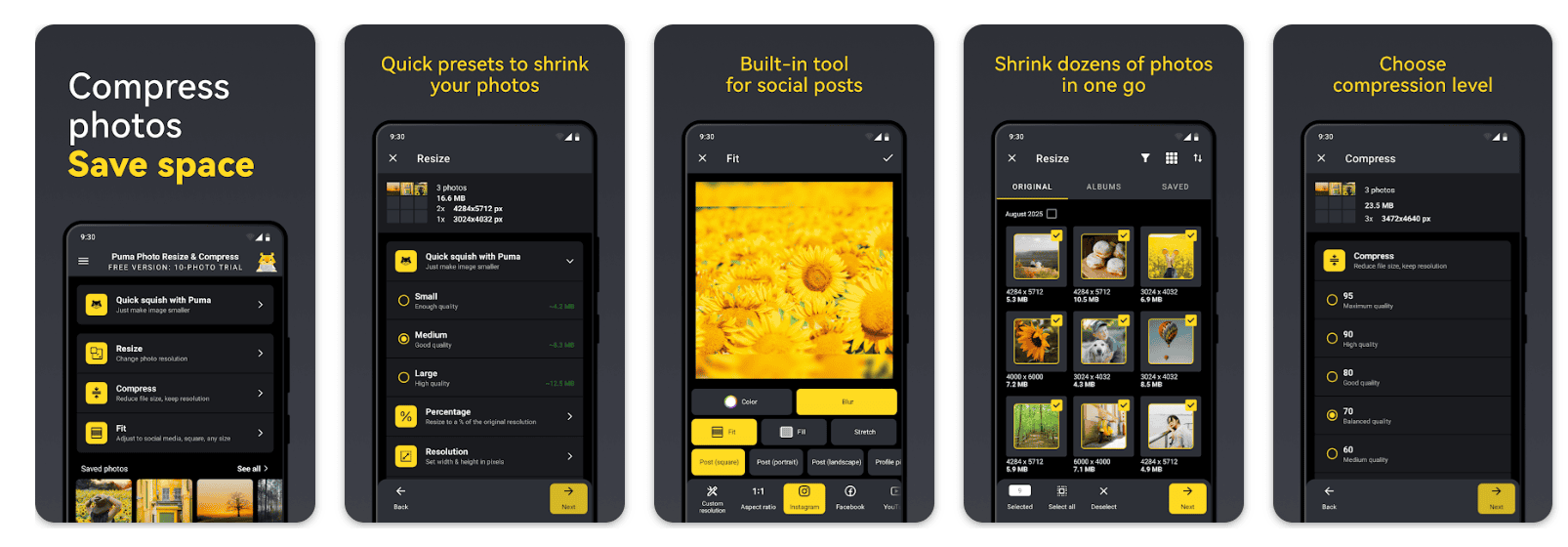
Puma has gained massive popularity for its user-friendly interface and highly effective compression algorithms. You can choose to reduce a photo based on three settings: File Size (e.g., shrink to exactly 500KB), Dimensions (e.g., shrink to 1080p), or Resolution & Quality. It’s perfect for quickly getting your images under strict email attachment limits.
LitPhoto
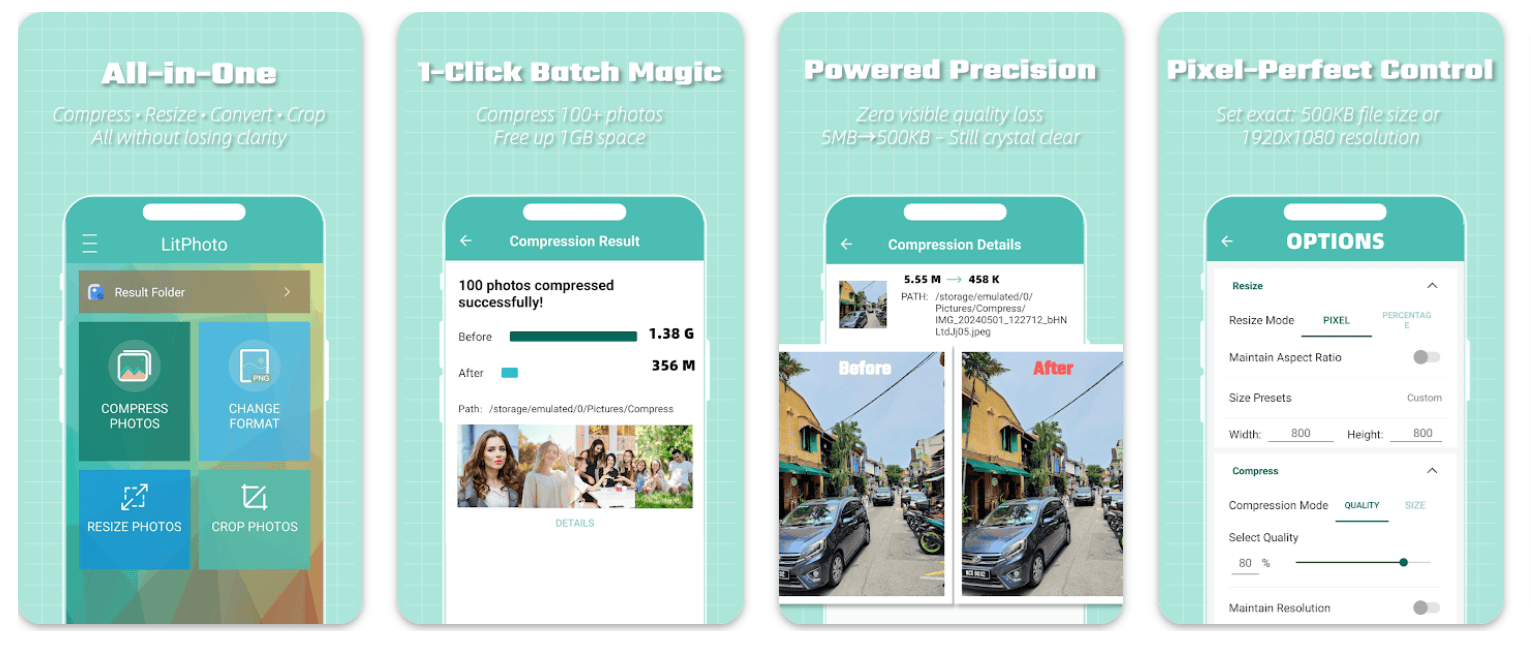
A favorite among photographers on Android, LitPhoto is excellent because it drastically reduces your image size while offering the option to keep your EXIF data (camera settings, date, time, and location) intact.
Its batch compression feature is fast, and the app provides a great side-by-side preview so you can check the quality before saving.
Summary
Smartphones today offer more than just communication features, with high-resolution cameras making them great tools for photography.
However, these large image files can quickly consume storage space. To manage this, resizing images on Android is a useful way to save space, reduce bandwidth usage, and maintain device performance.
Not all Android devices come with built-in tools for resizing, but there are many third-party apps available to help.
Popular Android resize image apps like Pixlr, Photo & Picture Resizer, and Resize Me allow users to adjust image dimensions, save storage, and maintain quality for sharing on social media or other purposes. These apps provide quick, easy solutions to resize, compress, and even crop images without losing too much detail.
FAQs
How to resize an image on Android?
To resize an image on Android, you can use a photo editing app. There are many free apps that offer easy resizing options.
How does image resizing work?
Image resizing works by changing the dimensions (width and height) of an image, either making it larger or smaller. When resizing, the software adjusts the number of pixels in the image.
For reducing size, it removes some pixels while trying to keep the important details intact. For increasing size, it adds pixels, often by estimating what the new pixels should look like (which can sometimes make the image look blurry if overdone).
How do I resize an image without losing quality app?
To resize an image without losing quality, you can use apps to resize and maintain the original quality.
What application can be used to crop or resize an image?
Pixlr is a good choice for resizing and cropping, with a user-friendly interface. This app lets you make adjustments without losing quality.
How can reduce image size in Android?
To reduce image size on Android, you can use any photo editing app that offers resizing features. Open the app, load your image, and look for options like “Resize” or “Adjust Image Size.” You can then reduce the image’s dimensions by choosing smaller pixel measurements.