I Installed ShortPixel But My LCP Is Still Red — What Now?


You did everything right.
You installed ShortPixel, ran a bulk optimization, watched your JPEGs turn into featherweight WebP and AVIF files, and felt that little rush of satisfaction.
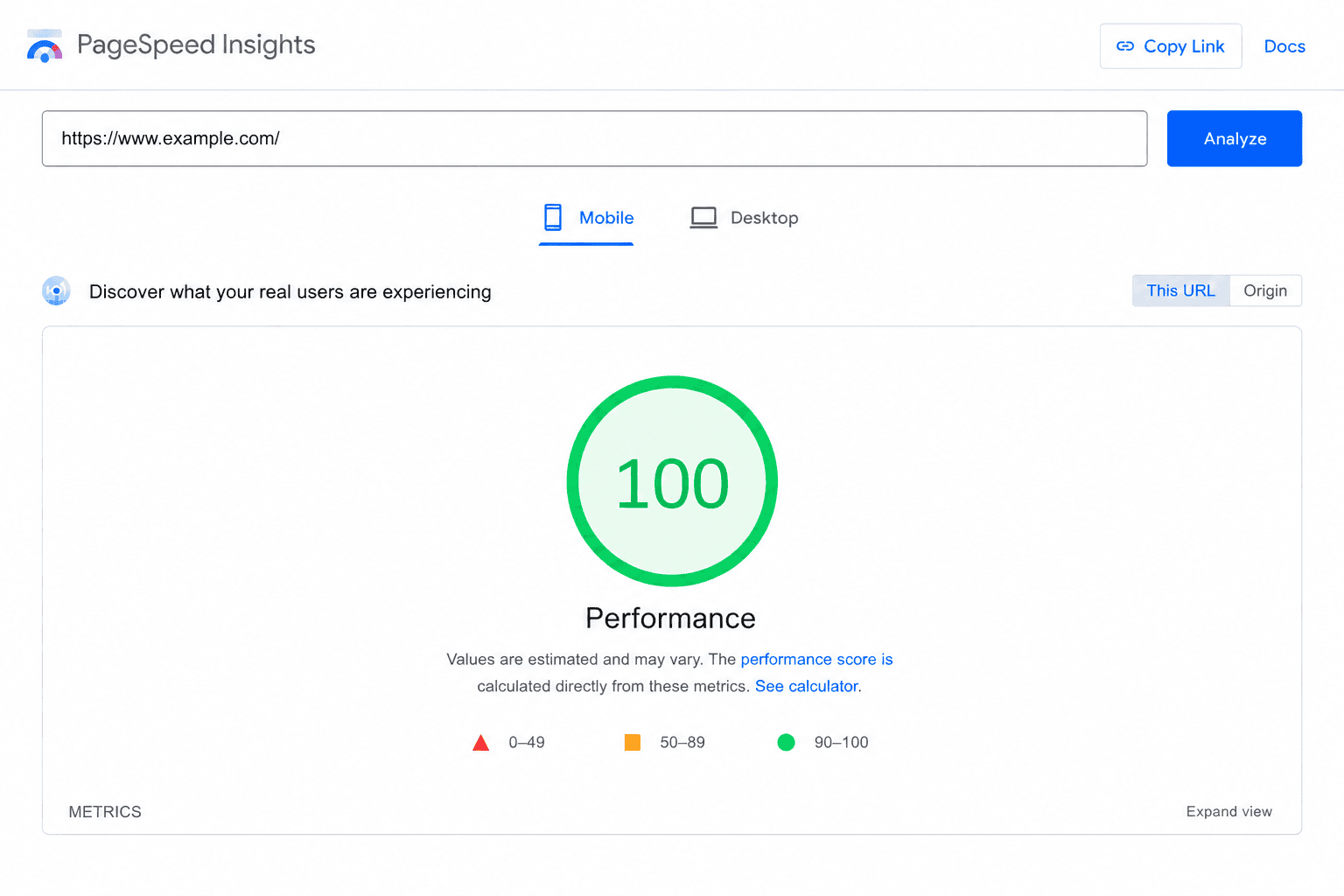
Then you ran PageSpeed Insights one more time, expecting a wall of green.
And there it was, still glaring back at you: Largest Contentful Paint — red.
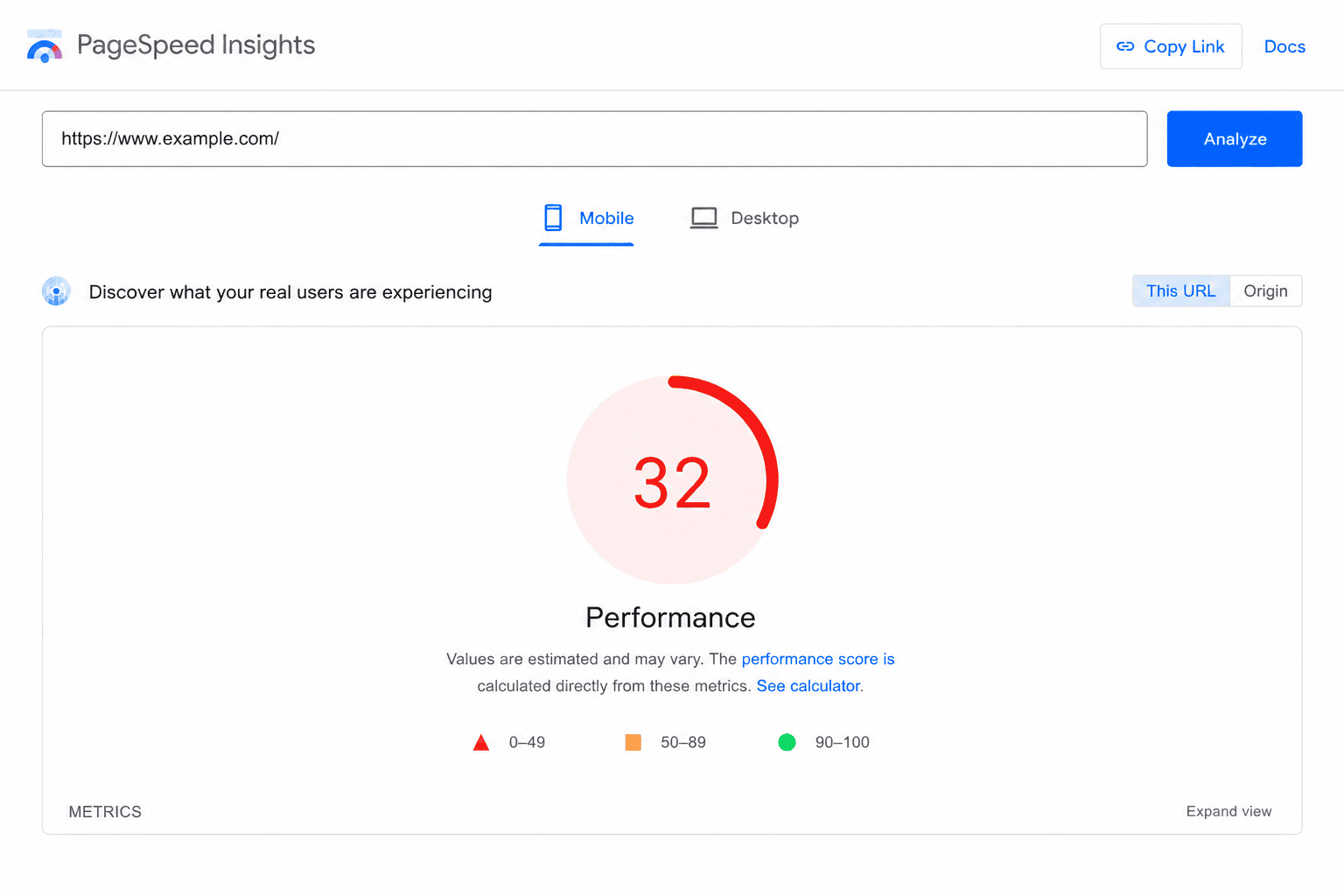
Take a breath. Nothing went wrong, and your images really are optimized. The thing nobody tells you upfront is that LCP was never just about how heavy your images are.
Let’s fix it.
In most cases, a red LCP after image optimization comes down to one of four things:
- render-blocking CSS and JavaScript
- slow server response times
- incorrect lazy loading
- delayed image discovery
We’ll show you how to figure out which one is dragging your site down.
What LCP actually measures
Largest Contentful Paint is one of Google’s Core Web Vitals. Put simply, it measures how long it takes for the biggest visible element to finish loading in the part of the page a visitor sees first, before they scroll.
That “biggest element” is usually a hero image. Not always, though. It can be a background image, a video poster frame, or even a big chunk of heading text.
Google wants that element painted in under 2.5 seconds. Hit that and you’re green. Land somewhere between 2.5 and 4 seconds and you’re in the amber “needs improvement” zone. Slower than 4, and you get the red badge you’re staring at right now.
So here’s the part that trips people up: LCP is a timing metric, not a file size one. A perfectly compressed image that arrives late is still a slow LCP. Shrinking the file helps, sure, but if something is holding that image hostage before it even starts downloading, all the compression in the world won’t save your score.
Why optimized images don’t automatically fix LCP
A smaller image downloads faster.
But downloading faster doesn’t help if the browser discovers the image late, waits on CSS before rendering it, or delays it because of lazy loading.
That’s why image optimization on its own doesn’t guarantee a better LCP score.
Your optimized image is ready to go. The trouble is, it’s often queued behind render-blocking CSS and JavaScript, waiting on a slow server response, or being told to lazy-load when it absolutely shouldn’t be. ShortPixel solves the image side of the problem. But LCP is also affected by caching, CSS, JavaScript, fonts, and the way your page is delivered to visitors. That’s where FastPixel comes in.
If this sounds familiar, you’re not alone.
Plenty of people watch image optimization slash their page weight and then stare at an LCP that hasn’t budged, because the delay is coming from caching, CSS, JavaScript, or fonts instead. Those issues need a different kind of optimization than image compression alone.
First, find your actual LCP element
Before you touch anything, you need to know what your LCP element even is. Guessing wastes time.
Here’s the quick way using Chrome:
Step 1: Open your page in Chrome, right-click anywhere, and choose Inspect to open DevTools.
Step 2: Go to the Performance tab and click the reload icon to record a page load.
Step 3: In the timeline that appears, look for the LCP marker. Click it, and DevTools highlights the exact element on your page that counts as your Largest Contentful Paint.
You can also pull this straight from PageSpeed Insights. Run your URL, scroll to the diagnostics, and expand “Largest Contentful Paint element.” It names the element directly.
Now you know what you’re actually fighting for. If it’s an image, the fixes below apply directly. If it’s a text block or heading, you can skip the lazy-loading section, but everything else still counts.
Pro tip: On many WordPress sites, the LCP element isn’t the image you think it is. It’s surprisingly common to find that a large heading, a featured image loaded through CSS, or even a slider component is being measured instead.
Once you’ve found the element, ask yourself one question:
Is this element loading late because it’s large, or because the browser is discovering it late?
That single distinction decides almost every fix that follows.
Check the LCP breakdown before changing anything
PageSpeed Insights doesn’t just hand you an LCP score.
It also shows you where the time is going:
- TTFB (Time to First Byte)
- Load Delay
- Load Time
- Render Delay
If your image is already optimized with ShortPixel, the image file itself is often no longer the bottleneck. The delay tends to hide in one of the other phases.
Here’s what each one means in practice:
- TTFB is how long your server takes to start responding. A high number here points to slow hosting or missing caching, not your image.
- Load Delay is the gap between the page starting to load and the browser actually beginning to fetch your LCP image. A large load delay usually means the image was discovered late, or it’s stuck behind render-blocking resources. A hero image hidden inside a slider, loaded through JavaScript, or referenced as a CSS background image will often show a big Load Delay.
- Load Time is how long the image itself takes to download. This is the one phase ShortPixel shrinks directly, and if you’ve already optimized, it’s usually the smallest slice. When Load Time is the largest part of your breakdown, image optimization is the first place to look.
- Render Delay is the time between the image finishing its download and actually showing up on screen. This one usually points to render-blocking CSS, JavaScript, or fonts holding up the paint.
Reading this breakdown tells you which problem you actually have, before you start changing things. Tiny Load Time but a huge Render Delay? No amount of extra image compression will help, and you know to go look at your CSS and scripts instead.
The 6 real reasons your LCP stays red
With optimized images already in place, these are the usual suspects keeping your score in the red.
1. Render-blocking CSS and JavaScript
When a browser hits a stylesheet or script in the <head>, it often stops everything and waits. It won’t paint your hero image until those files are downloaded and processed. You could have a 15KB AVIF ready to go, and it’ll just sit there politely, waiting for a 300KB CSS bundle to finish. This is where techniques like minifying and deferring CSS and JavaScript start to matter.
This is the single most common reason a well-optimized site still has a slow LCP.
2. Slow server response (high TTFB)
Time to First Byte is how long your server takes to even start sending the page. Slow hosting, or a setup where every visitor triggers a fresh, uncached page build, shifts the whole timeline later. Your image can’t load early if the page itself shows up late. Adding a layer of page caching is usually the first thing that helps here.
3. Lazy-loading applied to the LCP image (the classic mistake)
Lazy loading is great for images below the fold. But when it accidentally gets applied to your hero image, you’re telling the browser to delay loading the single most important element on the page. This one quietly wrecks LCP scores on countless sites.
The fix is to exclude your LCP image from lazy loading so it loads immediately. (Want a deeper dive on getting lazy loading in WordPress right? We’ve covered it separately.)
4. No preload hint on the LCP image
By default, the browser only discovers your hero image fairly late, after it’s already parsed the HTML and CSS. A preload hint tells the browser “grab this one early, it matters,” moving the download up the queue so it kicks off almost immediately. This matters most when the LCP element is a hero background image, since browsers tend to discover those later than regular image elements.
5. Web fonts blocking the render
If your LCP element is text (remember, it can be), a slow-loading custom font will hold up the paint. The browser waits for the font, the text doesn’t render, and your LCP timer just keeps ticking.
6. Hero background images discovered too late
Plenty of WordPress themes build hero sections using CSS background images instead of standard <img> tags.
The catch is that browsers tend to discover background images later in the rendering process. So your hero image might already be optimized and still load too late to produce a good LCP score.
In cases like these, preloading the image or restructuring the hero section can make a real difference. This is especially common with page builders and modern WordPress themes that build hero sections visually rather than using standard image markup.
When image optimization isn’t enough
This is where FastPixel comes in.
At this point, you could go manually configure caching, preload hints, critical CSS, script deferral, and font loading yourself. Or you can automate most of it.
The good news? You don’t need to hand-edit your theme, juggle preload tags, or learn what font-display: swap does to fix most of this.
FastPixel is ShortPixel’s caching and performance plugin, built to handle the performance issues that image optimization alone can’t address.
Here’s what it does that moves your LCP from red to green:
- Page caching — serves a pre-built version of your page instead of rebuilding it on every visit, which helps with the slow TTFB from reason #2.
- Critical CSS generation — pulls out the styles needed for the above-the-fold view and loads them inline, so your hero element paints without waiting on your full stylesheet. That eases the impact of reason #1.
- JavaScript delay and deferral — pushes non-essential scripts back until after the page is interactive, clearing them out of the render path.
- Smart lazy loading — lazy-loads what should be lazy-loaded, while leaving your above-the-fold LCP image alone. That prevents the issue described in reason #3.
- Font optimization — handles font loading so it stops blocking your render, which often improves reason #5.
The idea is simple. FastPixel works on the delivery side while ShortPixel handles the image side. Run both, and you cover the whole LCP story instead of half of it.
Still seeing a red LCP score? FastPixel handles caching, critical CSS, JavaScript optimization, and font delivery — the parts of the loading process that image optimization alone can’t fix. Try FastPixel →
ShortPixel + FastPixel: the full picture
It helps to see who owns what.
Think of it this way:
ShortPixel optimizes what gets delivered.
FastPixel optimizes how and when it gets delivered.
| Job | ShortPixel Image Optimizer | FastPixel |
| Image Optimization (WebP/AVIF) | Yes | — |
| Resize and scale images | Yes | — |
| Page caching | — | Yes |
| Critical CSS | — | Yes |
| Defer/delay JavaScript | — | Yes |
| Smart lazy loading (LCP-safe) | — | Yes |
| Font optimization | — | Yes |
| CDN Delivery | — | Yes |
ShortPixel makes sure the image that does load is as small and modern as it can be. FastPixel makes sure it loads early and unblocked. Neither one replaces the other, and running both is how you end up with a genuinely fast page rather than just a page with small images on it.
Your LCP recovery checklist
Run through this in order:
- Identify your LCP element in DevTools or PageSpeed Insights. Know what you’re optimizing for.
- Confirm your images are optimized with ShortPixel (WebP/AVIF, properly resized). You’ve likely done this already.
- Make sure your LCP image is NOT lazy-loaded. Exclude it if needed.
- Add page caching to fix a slow TTFB.
- Eliminate render-blocking CSS/JS with critical CSS and script deferral.
- Preload your LCP image so the browser fetches it early.
- Optimize fonts if your LCP element is text.
- Re-test in PageSpeed Insights and compare the new LCP breakdown to the original one.
Steps 3 through 7 are exactly what FastPixel automates, which is why it’s the fastest path from a red badge to a green one.
FAQs
Does ShortPixel improve LCP at all?
It does, when your LCP element is an image, smaller modern-format files download faster. What it can’t fix is the stuff around the image: caching, render-blocking resources, lazy-load misconfiguration.
Why is my LCP red even though my images are tiny?
Because the problem is usually when the image loads, not how big it is. Render-blocking CSS/JS, a slow server, or lazy loading on the hero image are the usual culprits.
Can lazy loading hurt my LCP?
Yes, if it lands on your above-the-fold LCP image. Your hero should load immediately; lazy loading belongs further down the page.
Do I need both ShortPixel and FastPixel?
For the best Core Web Vitals scores, yes. One optimizes the images, the other optimizes how the page is delivered.
How fast should my LCP be?
Under 2.5 seconds is “good.” Between 2.5 and 4 needs improvement, and anything over 4 is poor.