How to Fix Common Image Issues on an Older WordPress Blog

Go open one of your blog posts from 2019 and really look at the images. Not a quick scroll, but actually inspect them at an HTML level.
There’s a decent chance that at least one is broken, another is missing its alt text, and a third is still hosted on whatever platform you were using before WordPress.
Most bloggers never go back and check, which is how these issues pile up quietly over the years.
Meanwhile, Google is indexing those pages, screen readers are trying to describe those images to visually impaired users, and real people are clicking through to posts where half the product photos are gone.
Here are the most common image issues I see on older WordPress blogs and how to fix each one.
Missing alt text is quietly hurting your SEO and accessibility
Alt text is the short description attached to an image that tells search engines and screen readers what the image shows.
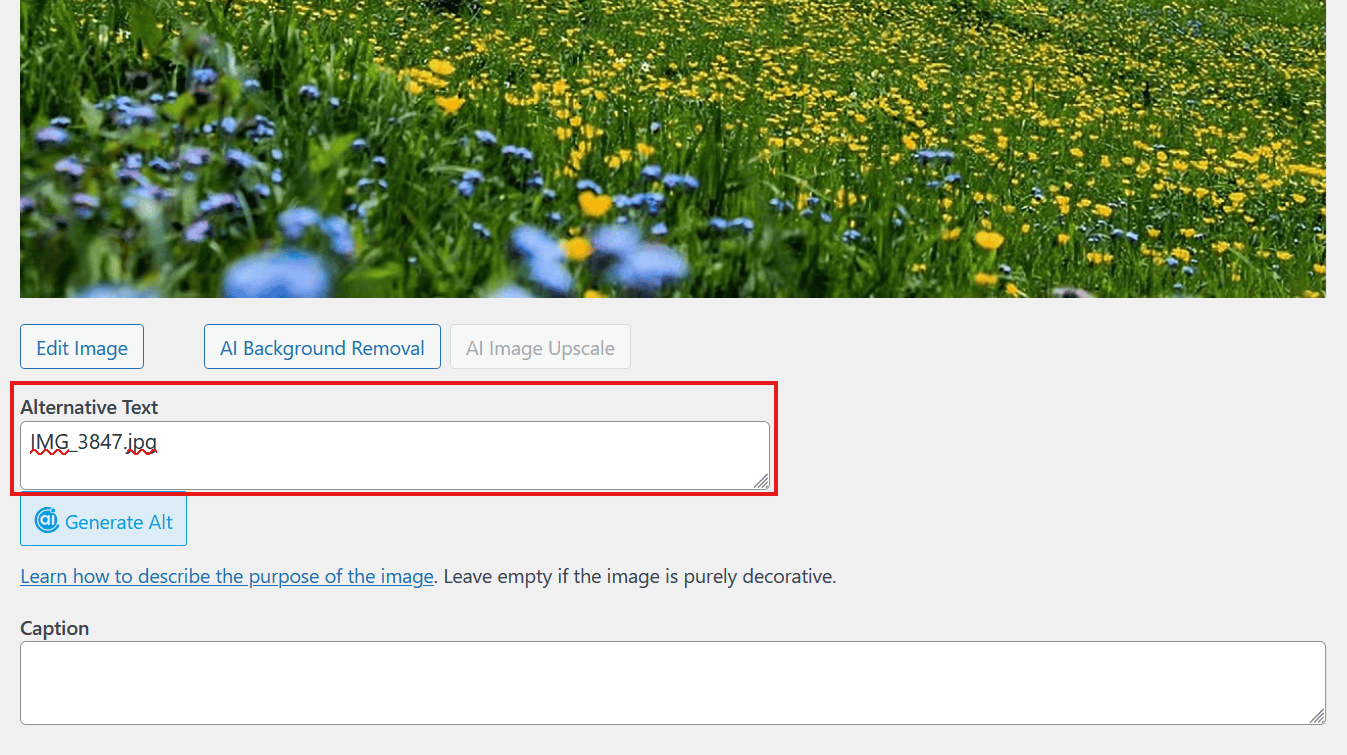
It’s been an HTML standard since the beginning of the web, but most bloggers either skip it entirely or it autofills with something useless like “IMG_3847.jpg.”
The impact is real.
Google uses alt text as a ranking signal for image search, and it factors into the overall relevance of your page. On the accessibility side, screen readers depend on alt text to describe images to visually impaired users. Without it, those readers hear nothing, or worse, they hear the raw filename read aloud.
How to find images with missing alt text
WordPress doesn’t have a built-in way to audit alt text across your entire site. You have a few options:
- Screaming Frog SEO Spider can crawl your site and flag every image with missing or empty alt attributes. The free version crawls up to 500 URLs.
- Ahrefs Site Audit will surface missing alt text as an on-page SEO issue if you already have a subscription.
- Browser developer tools let you inspect individual pages. In Chrome, open DevTools, go to the Elements panel, and search for alt=”” to find empty alt tags on the current page.
For a quick spot check, open a handful of your oldest posts and right-click on images and choose “inspect” from the menu. If you see alt=”” or no alt attribute at all, you likely have the problem site-wide.
How to fix missing alt text
If you only have a few dozen posts, you can update alt text manually.
Open each post, click on each image, and fill in the alt text field in the block settings panel. Keep descriptions concise yet specific. “Chocolate chip cookies cooling on a wire rack” is far better than “cookies” or “image1.”
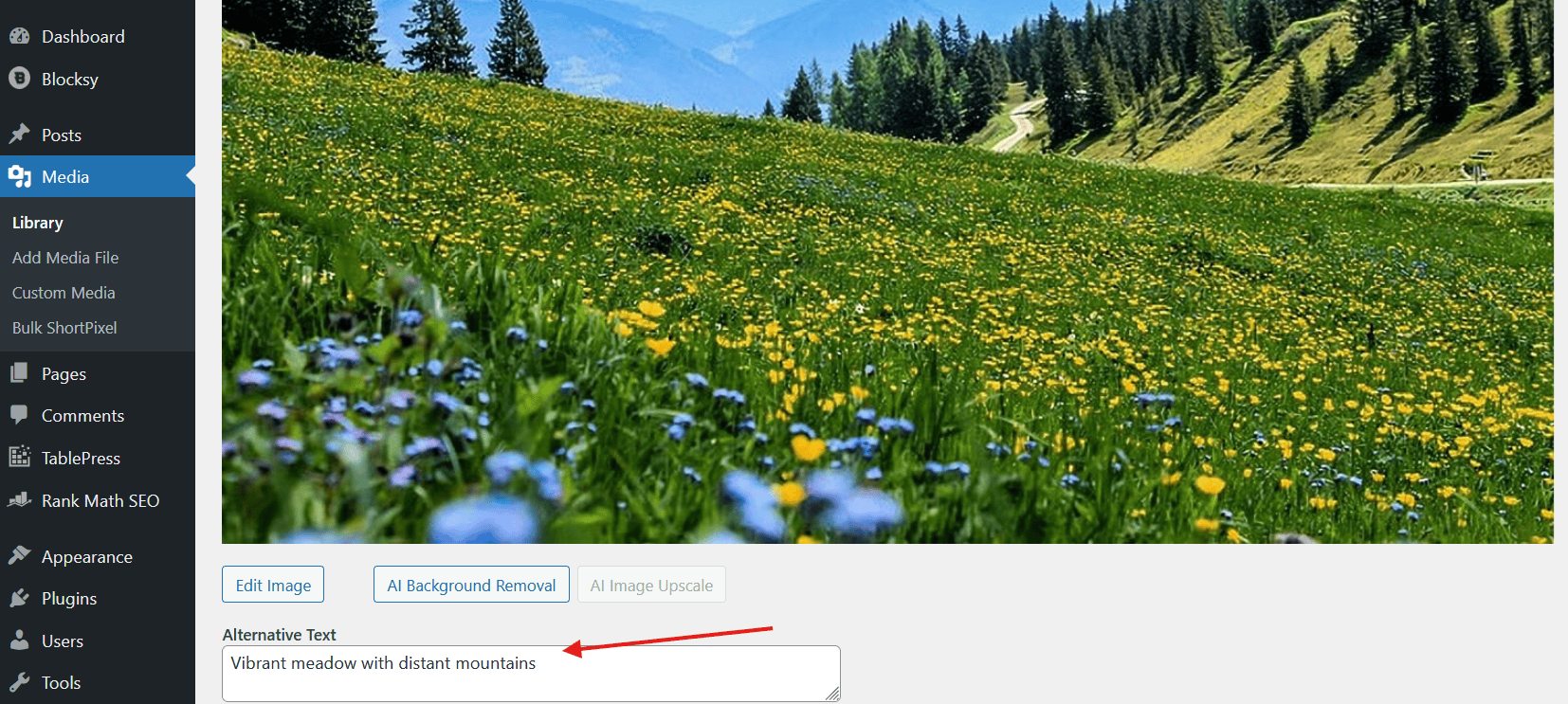
You should also update the alt text in your Media Library. Go to Media > Library, click on an image, and fill in the Alternative Text field. This matters because when you or another author inserts that image in a future post, WordPress will pull the alt text from the Media Library entry.
For larger blogs with hundreds or thousands of posts, doing this manually isn’t realistic.
You can generate alt text with AI automatically using ShortPixel Image Optimizer.
Try ShortPixel on WordPress for free!
Hassle-free alt text generation using AI.
Tips for writing good alt text
- Be specific. Describe what’s actually in the image, not what you wish was in the image.
- Keep it under 125 characters. Screen readers typically cut off alt text after that.
- Skip “image of” or “picture of.” Screen readers already announce that it’s an image.
- Include relevant keywords naturally — but don’t keyword-stuff. If the image shows a WordPress dashboard, say “WordPress dashboard showing the Plugins page,” not “WordPress WordPress plugin best WordPress plugin.”
- Decorative images (dividers, backgrounds, spacers) should have empty alt attributes (alt=””) so screen readers skip them entirely.
Broken Amazon product images after the SiteStripe shutdown
If you’ve ever used Amazon’s SiteStripe toolbar to grab product images for your blog posts, you may have a problem.
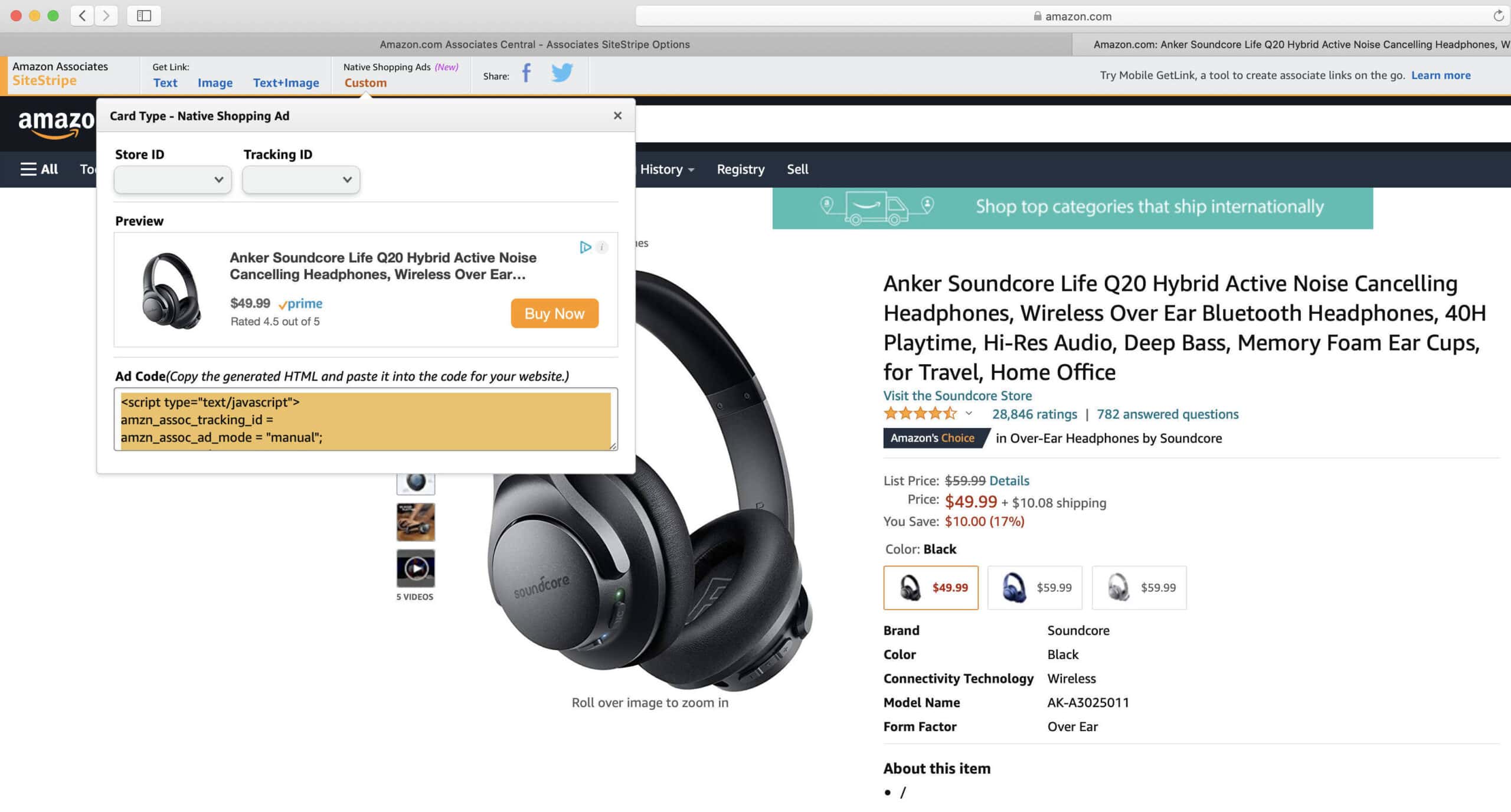
Amazon discontinued key SiteStripe features at the end of 2023, and many of the product images bloggers embedded using that tool have broken since then.
The images were hosted on Amazon’s servers and referenced through SiteStripe-generated URLs. When Amazon pulled the plug, those URLs stopped working. What you’re left with are broken image placeholders where product photos used to be.
This is especially common on blogs that review products, publish gift guides, or run affiliate content.
If you wrote a “Best Kitchen Gadgets” post in 2020 and embedded Amazon product images via SiteStripe, those images are gone unless you already manually replaced them.
How to check for broken Amazon images
The quickest check is to visit a few of your older posts that featured Amazon products and see if the images still load.
If you see broken image icons or blank spaces where product photos should be, you’ve confirmed the problem.
For a site-wide audit, you can use your browser’s developer console. On any page, open DevTools and look at the Console tab for 404 errors on image requests pointing to Amazon domains (like images-na.ssl-images-amazon.com or m.media-amazon.com).
Screaming Frog can also catch these. Run a crawl and filter for broken images, then look for Amazon domains in the results.
How to fix them
Here’s the thing that makes this tricky: Amazon’s terms of service specifically prohibit downloading product images and hosting them on your own server.
You’re required to display images directly from Amazon’s servers. So the “save the image and re-upload it” approach that works for other broken images isn’t an option here.
The only compliant fix is to use the Amazon Product Advertising API to pull current product image URLs programmatically. The API returns image URLs that are meant to be used by affiliates, hosted on Amazon’s servers, kept up to date, and fully compliant with their terms. You replace the broken SiteStripe URLs with these API-provided URLs, and the images work again.
Doing this manually for each product across hundreds of posts isn’t practical, since you’d need to look up each ASIN in the API individually. The Blog Fixer’s Amazon Broken Image Fix handles this at scale. It identifies every broken SiteStripe image across your blog, looks up each product through the API, and replaces the URLs with current, working versions.
Images are still hosted on your old blogging platform
This one catches a lot of people who migrated to WordPress from Blogger, Typepad, or another platform years ago.
When you import content into WordPress, the text of your posts comes over, but the images often don’t. They stay hosted on your old platform’s servers, and your WordPress posts just reference them at their original URLs.
That works fine until it doesn’t. If Blogger changes how they serve images, or Typepad restructures their storage, or your old account gets deactivated, every one of those images vanishes from your WordPress blog overnight.
Even if the images are still loading today, relying on a third-party platform to host images for your self-hosted WordPress blog is a risk you don’t need to be taking.
How to check for externally hosted images
Open a few of your oldest posts, the ones you originally wrote on your previous platform. Right-click on an image and select Inspect (or Inspect Element). Look at the src attribute of the <img> tag.
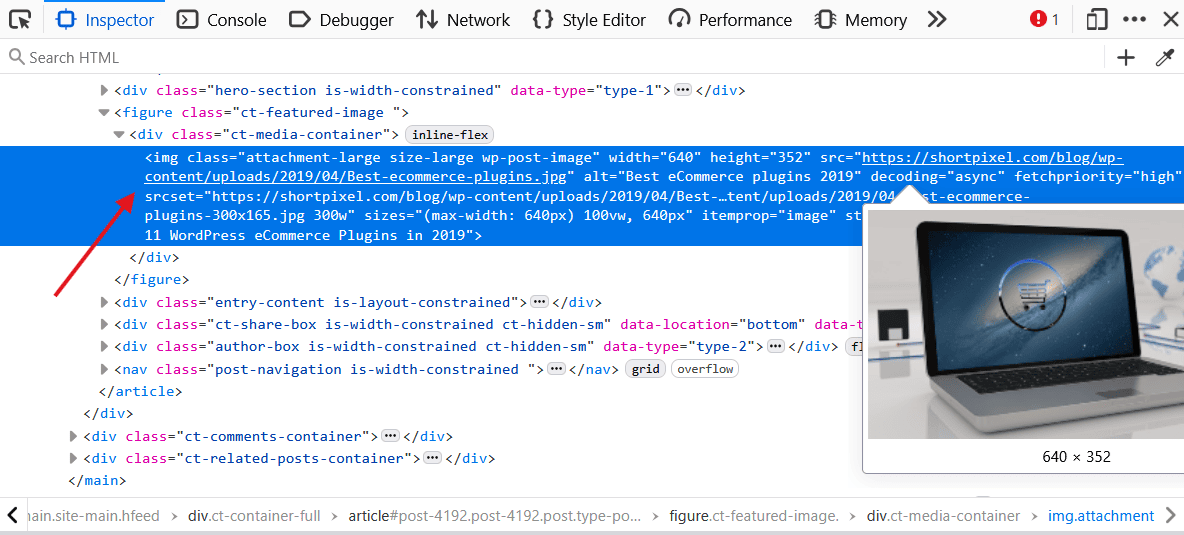
If it points to a domain like bp.blogspot.com, blogger.googleusercontent.com, or typepad.com instead of your own domain, those images are still externally hosted.
For a full audit, a crawler like Screaming Frog can list every image URL on your site and filter for external domains.
How to import them into WordPress
WordPress doesn’t offer a built-in tool for batch-importing external images. You’ll need a plugin or a manual process:
- Auto Upload Images is a free WordPress plugin that can download external images in your post content and import them to your Media Library. It works when you update a post, so you’d need to open and re-save each post for it to kick in.
- For a manual approach, you’d download each image, upload it to your Media Library, and update the image URL in your post. On a blog with thousands of old posts, this obviously isn’t practical.
If you have hundreds or thousands of posts with externally hosted images, The Blog Fixer’s Import External Images service handles this at scale. It downloads all external images, adds them to your Media Library, and updates every reference across your posts.
The important thing is to get this done before the external source goes away. Once those images are gone, recovering them may not be possible.
Images that link to themselves
Open one of your older WordPress posts, click on an image, and see what happens.
If the image opens in a new page showing just the image file by itself, then the image is linked to its own URL. This was the default behavior in older versions of WordPress, and many themes enforced it as well.
It’s not harmful in the way a broken image is, but it’s a bad user experience.
A reader clicks an image expecting something useful (a larger version, a product page, more information) and instead gets dumped on a blank page showing the same image. Then they have to hit the back button to get back to your post.
It can also create duplicate content issues, since each of those image attachment pages is a separate URL that Google can index.
How to prevent it on new posts
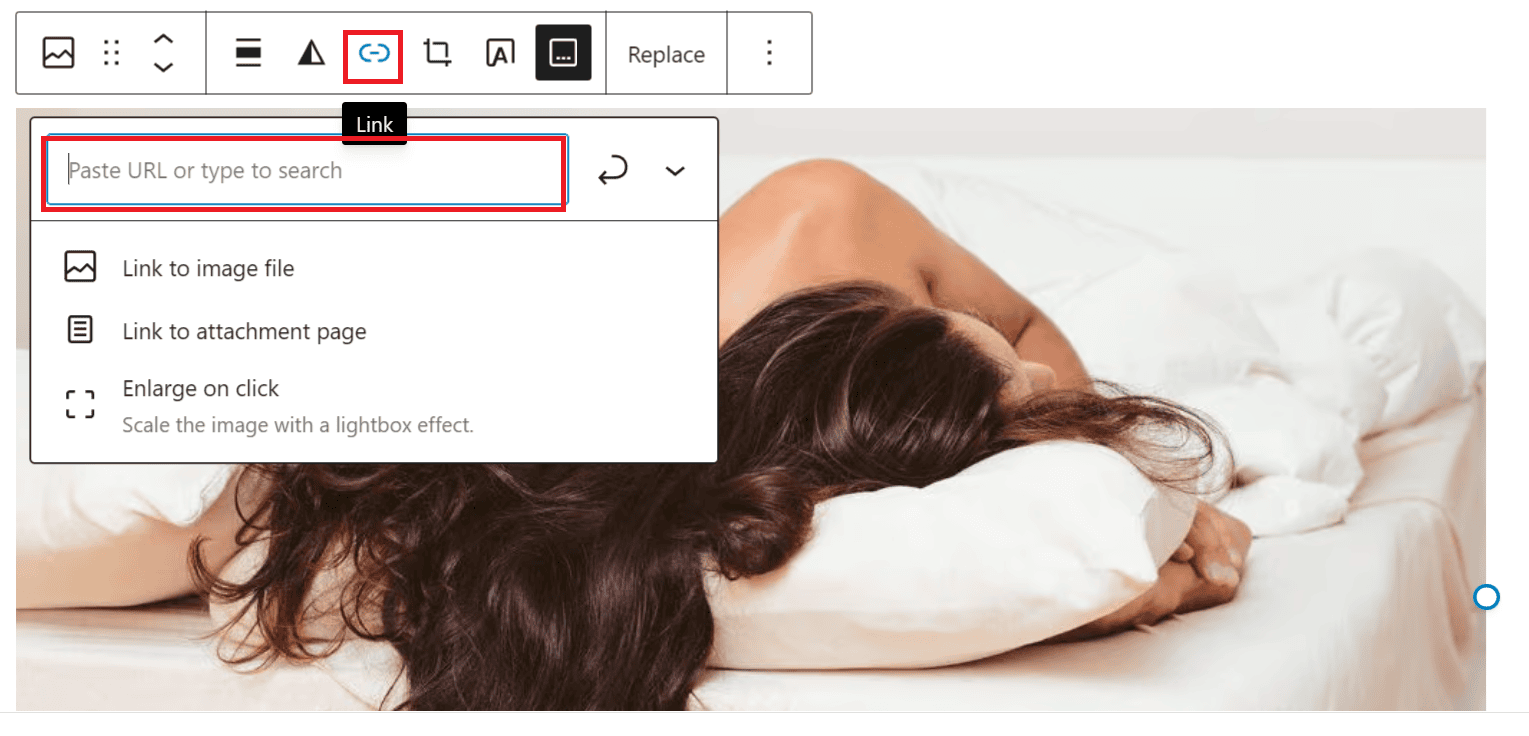
In the Gutenberg block editor, when you insert an image, click on it and look for the Link settings in the block toolbar or sidebar. Make sure there’s no URL set unless you specifically want the image to link somewhere.
In older versions of WordPress (using the Classic Editor), go to Settings > Media and set the default link type for images to “None.”
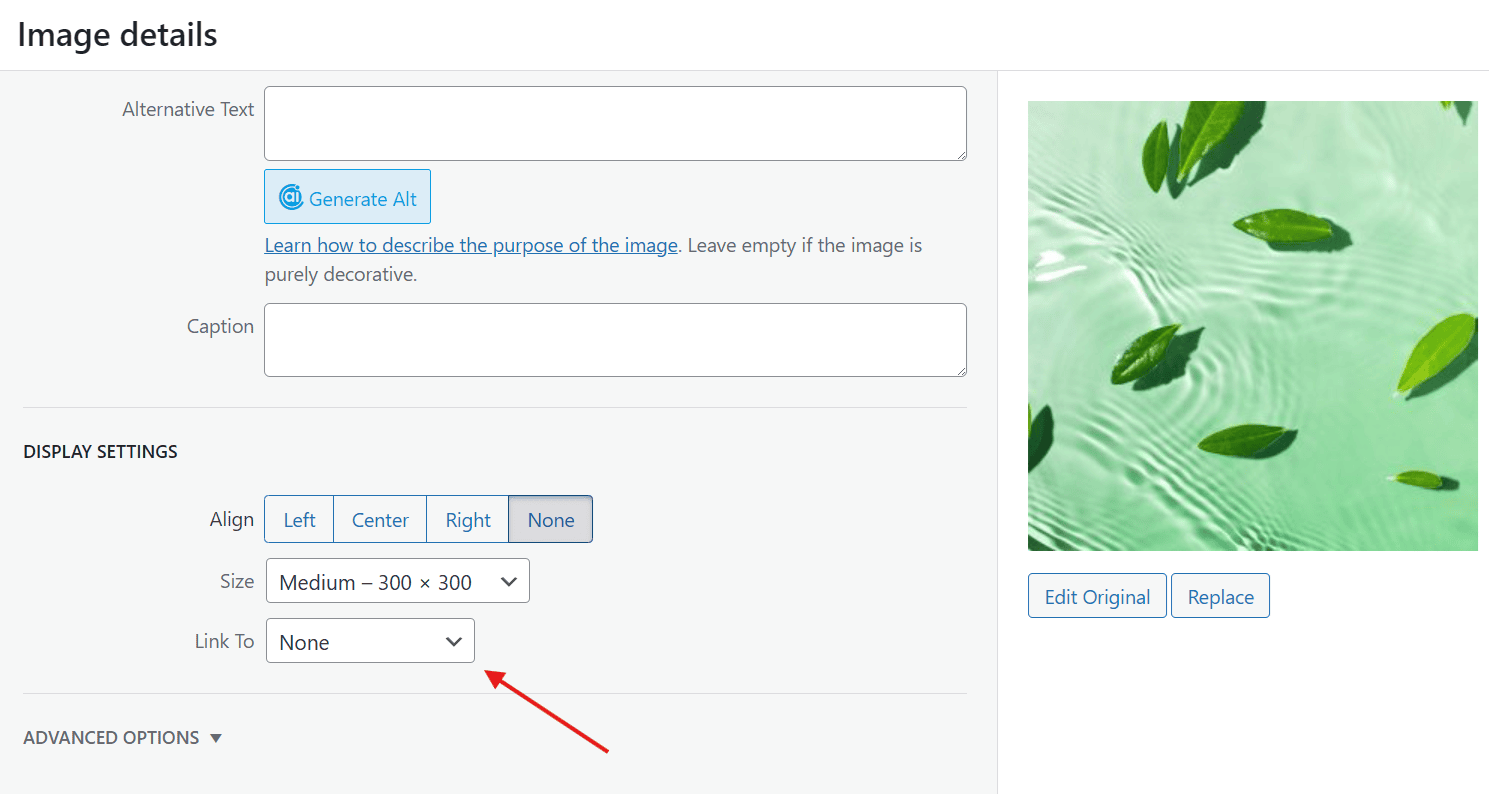
How to fix existing images
If you only have a few posts, open each one, click on each image, and remove the link manually. In the block editor, select the image, click the link icon in the toolbar, and remove the URL.
For a blog with years of content, doing this by hand on every post is painful. You could use a search-and-replace plugin to target the HTML patterns, but you need to be careful not to remove intentional image links (like images that link to products or other pages).
The Blog Fixer’s Image Unlink Fix handles this by specifically targeting images that link to their own file URL while leaving intentional links intact.
Oversized images dragging down your page speed
Even if your images aren’t broken or missing attributes, they could still be causing problems if they’re larger than they need to be.
A 4000-pixel-wide photo uploaded straight from a camera might display at 800 pixels on your blog, but the browser still has to download the full-size file.
This directly impacts your Core Web Vitals scores, particularly Largest Contentful Paint (LCP). Large, uncompressed images are one of the most common reasons WordPress sites load slowly.
Quick wins for image optimization
- Resize before uploading. Get in the habit of resizing images to your blog’s content width before uploading. If your content area is 800 pixels wide, there’s rarely a reason to upload anything wider than 1600 pixels (for retina displays).
- Use modern formats. WebP and AVIF offer significantly better compression than JPEG and PNG with no visible quality loss. Most modern browsers support both.
- Enable lazy loading. WordPress has supported native lazy loading since version 5.5. This tells the browser to only load images as they scroll into view, which can dramatically improve initial page load times.
For automated optimization on the delivery side, FastPixel handles image compression and format conversion on the fly.
Your original images stay untouched while visitors are served optimized versions through a CDN. If you want to understand the difference between optimizing images at the source versus optimizing delivery, this comparison of FastPixel and ShortPixel breaks it down well.
But optimization tools work best when the underlying images are in good shape. Fixing the problems in this article first (broken images, missing alt text, bloated file sizes) gives tools like FastPixel a clean foundation to work with.
A practical approach to auditing your images
If you’ve been blogging for several years and suspect you have some of these issues, here’s a simple way to get a picture of where you stand:
- Run a site crawl. Use Screaming Frog (free for up to 500 posts) or Ahrefs to crawl your site. Look at the Images section for broken images, missing alt text, and oversized files.
- Spot-check your oldest content. Open five or ten of your earliest posts and inspect the images. Are they loading? Are they on your domain? Do they have alt text? Do they link to themselves?
- Check your Amazon content. If you’ve ever used Amazon affiliate images, specifically check posts that feature products. Look for broken images or image URLs on Amazon domains.
- Prioritize by impact. Broken images and missing alt text are the highest priority because they directly affect what readers see and what search engines can understand. Self-linking images and externally hosted images are less urgent but still worth addressing.
If the audit reveals problems across hundreds of posts, that’s where a service like The Blog Fixer comes in. Fixing image issues manually across a large blog is one of those projects that sounds manageable until you’re 40 posts in and realize you have 600 more to go. The automated approach handles the bulk of it so you can spend your time on what you actually enjoy, which is writing new content.
FAQs
Does missing alt text actually affect my Google rankings?
Yes. Google has confirmed that alt text is a factor in image search rankings, and it contributes to the overall understanding of your page’s content. It won’t tank your rankings on its own, but combined with other on-page factors, it matters. This is especially true if you’re competing for search terms where image results appear.
Can I use AI to generate alt text for all my images?
You can, but use it as a starting point rather than a finished product. AI-generated alt text has gotten much better, but it still makes mistakes. It misidentifies objects, misses context that a human would catch, and tends to produce generic descriptions. Review and edit AI suggestions, especially for important images.
My Amazon images still show up fine. Do I still need to worry?
It depends on how they’re embedded. If the image URLs go through SiteStripe-specific endpoints, they may break at any time. Even if they work now, Amazon has been gradually deprecating legacy image URL formats. It’s worth checking the actual URLs to see what domain and path structure they use.
I migrated from Blogger five years ago and the images still load. Should I bother importing them?
Yes. Google has maintained Blogger’s image hosting infrastructure so far, but there’s no guarantee that continues indefinitely, especially for accounts that are no longer active. The images are on borrowed time. Import them now while they’re still accessible.
Will removing image self-links affect my SEO?
Not negatively. In fact, it can help. Those image attachment pages are thin content that adds nothing to your site. Removing the links means removing unnecessary indexed pages and preventing readers from accidentally leaving your posts. Some SEO plugins (like Yoast) even have an option to redirect attachment URLs to the parent post for this reason.