How to Create High-Quality Product Photos for Your Online Store


If you sell products online, your photos do most of the heavy lifting. Nobody can pick up the product, feel the material, or check how big it actually is. They scroll, look at the photos, and decide.
And bad photos? They kill sales. You already know this.
What you might not think about as much is everything that happens to a photo after you take it. A great shot can still end up looking bad on your store if the background is messy, the file is too heavy, the sizing is off for mobile, or Google can’t even find it because there’s no ALT text.
This post covers the digital side of product photography. Not cameras and lighting, the stuff that happens between taking the photo and the customer actually seeing it on screen.
Here’s what most people miss
When somebody lands on your product page, they’re not looking at your original upload. Not even close.
WordPress chops every image into multiple sizes the moment you upload it. Your theme probably crops or resizes things further. If you’ve got a caching plugin running, that adds another layer. And then there’s the visitor’s device, a 27-inch iMac and a budget Android phone are going to treat that image very differently.
Point is: there’s a whole chain of things happening between your upload and what the customer actually sees. Each link in that chain can either hurt your image or help it.
Get your backgrounds consistent
Go browse a store that looks really put together. What do you notice? Every single product sits on the same clean background. White, light gray, whatever, the point is they all match.
Now think about a store where one product was photographed on a kitchen counter, another one on a bedsheet, and a third has some weird shadow cutting across it. You don’t even consciously register it, but it feels off. Feels like a hobby, not a business.
If you’re shooting your own stuff with a lightbox, you’ve probably got this under control already. The real headache starts when you’re working with supplier photos. They send you what they have, and what they have is usually… not great.
The old-school fix is Photoshop. Pen tool, trace around the product, feather the edges, export. Repeat 200 times. Nobody actually does this unless they’re getting paid by the hour.
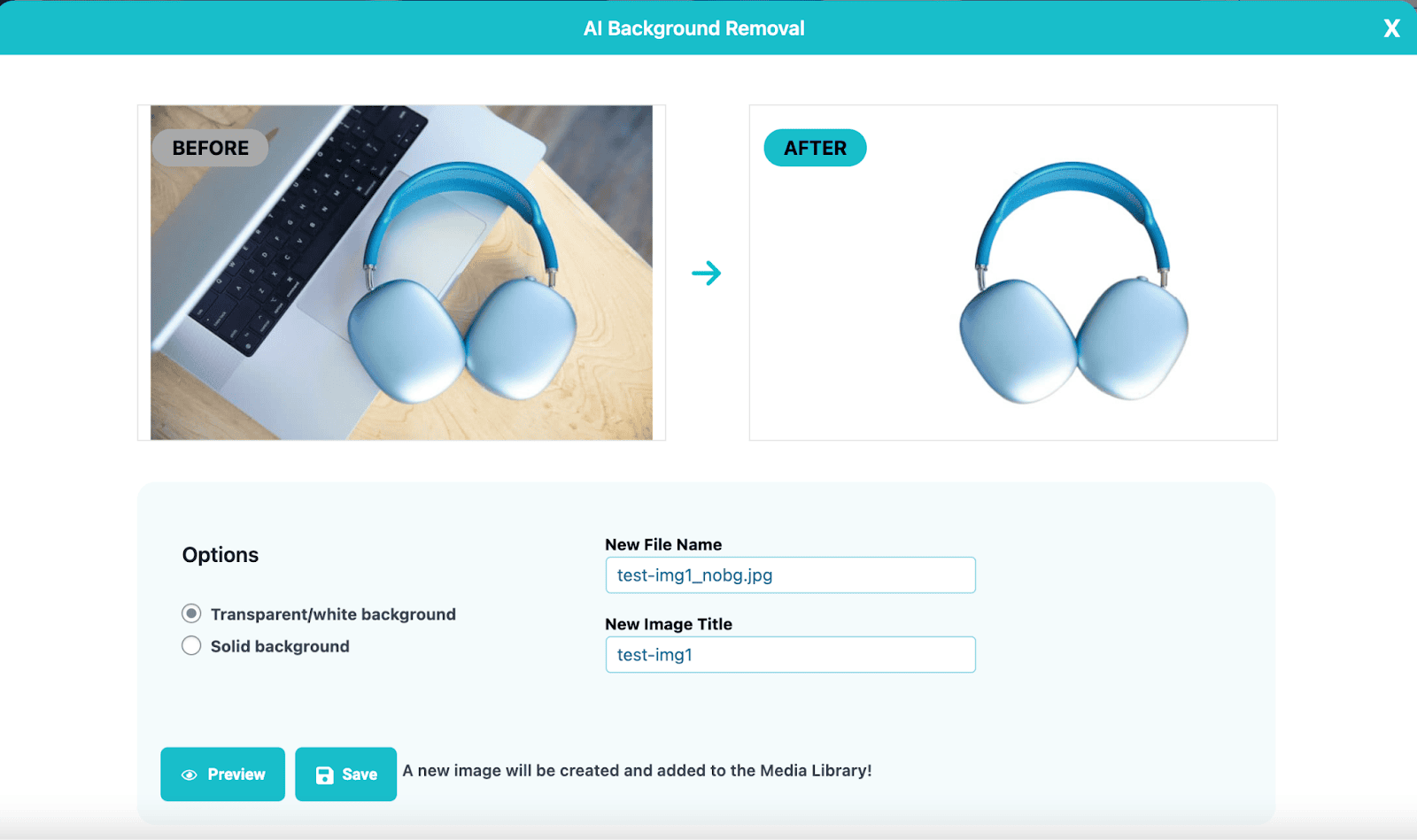
ShortPixel Image Optimizer added AI Background Removal right inside the WordPress Media Library. Click the image, hit remove background, done. Takes a few seconds. PNGs get transparency, everything else gets a solid color white by default, but you can change it.
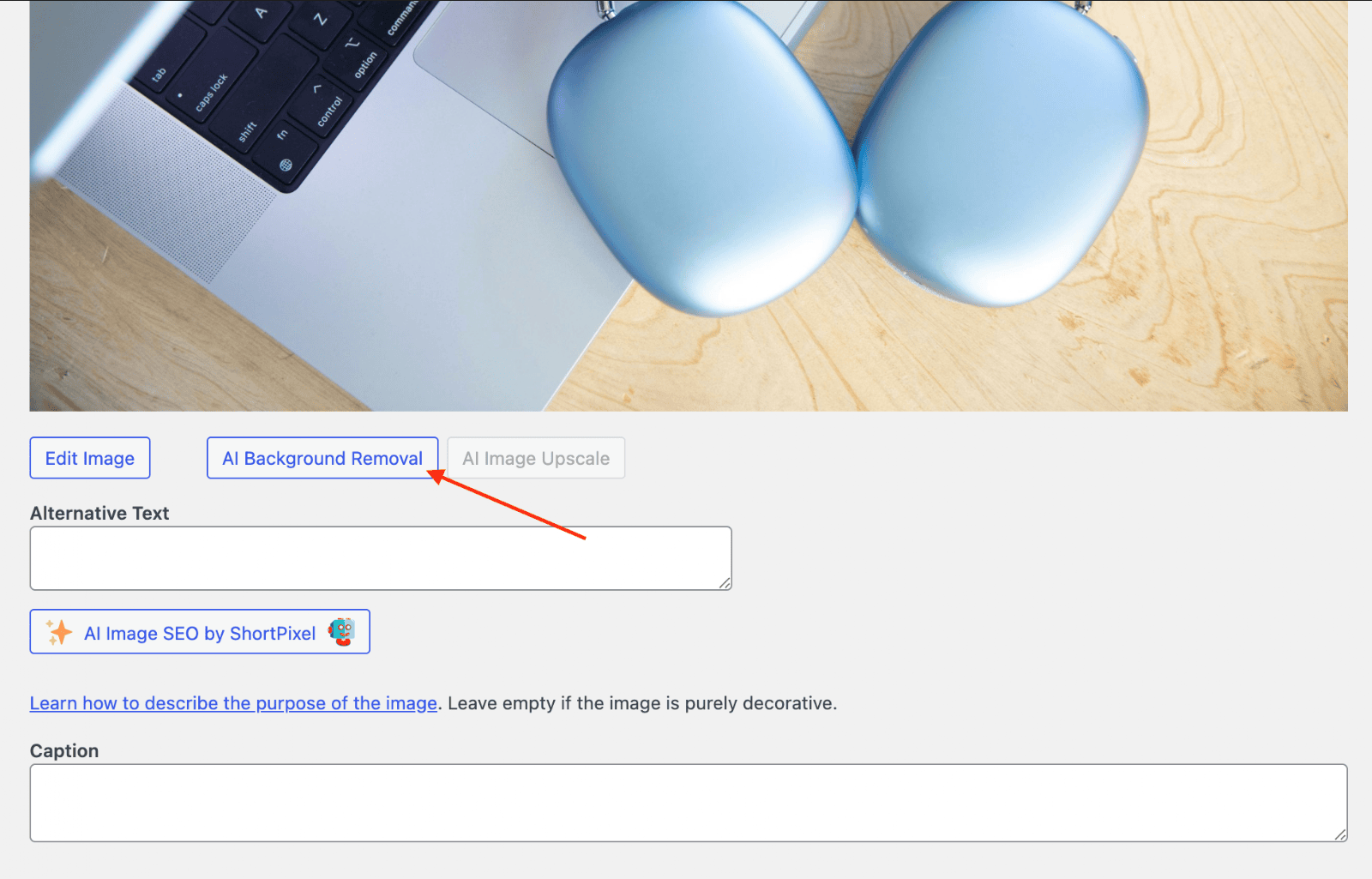
Few seconds versus 10-15 minutes per image in Photoshop. That math speaks for itself.
What to do about small, low-res images
Anyone who’s ever sourced products from suppliers knows this pain. You get a batch of product photos and half of them are tiny. 400 pixels wide, maybe less.
As thumbnails? They’re fine. On an actual product page, especially on a retina screen? They look pixelated and unprofessional.
Your options used to be: ask the supplier for better files, reshoot the product yourself, or accept the lower quality. None of those are ideal.
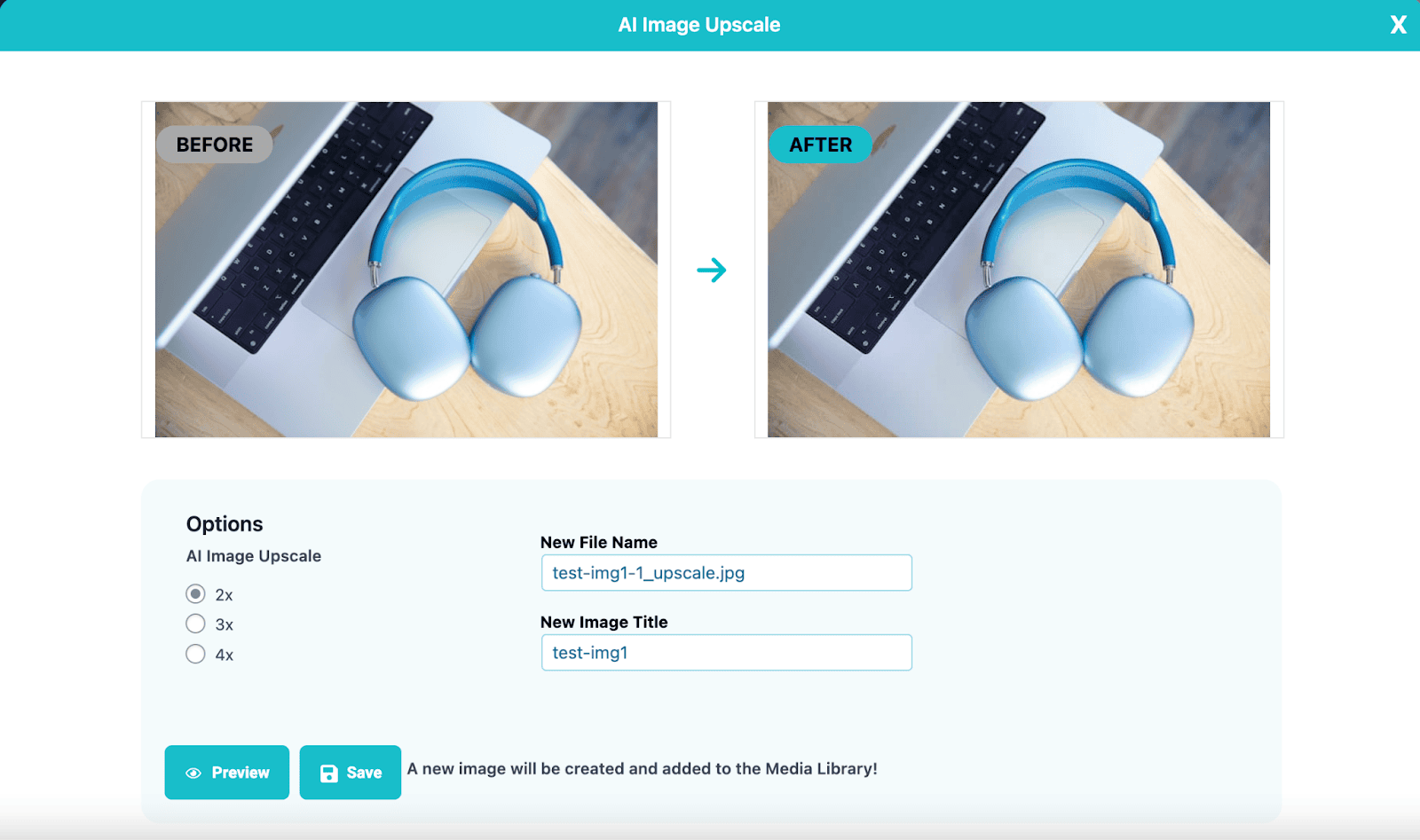
ShortPixel’s AI Image Upscale gives you a fourth option. Pick any image in your Media Library, upscale it 2x, 3x, or 4x. It’s not just stretching pixels, the AI actually fills in detail. You’re not going to mistake it for a studio shoot, but the result looks clean enough for a product listing, which is really all that matters.
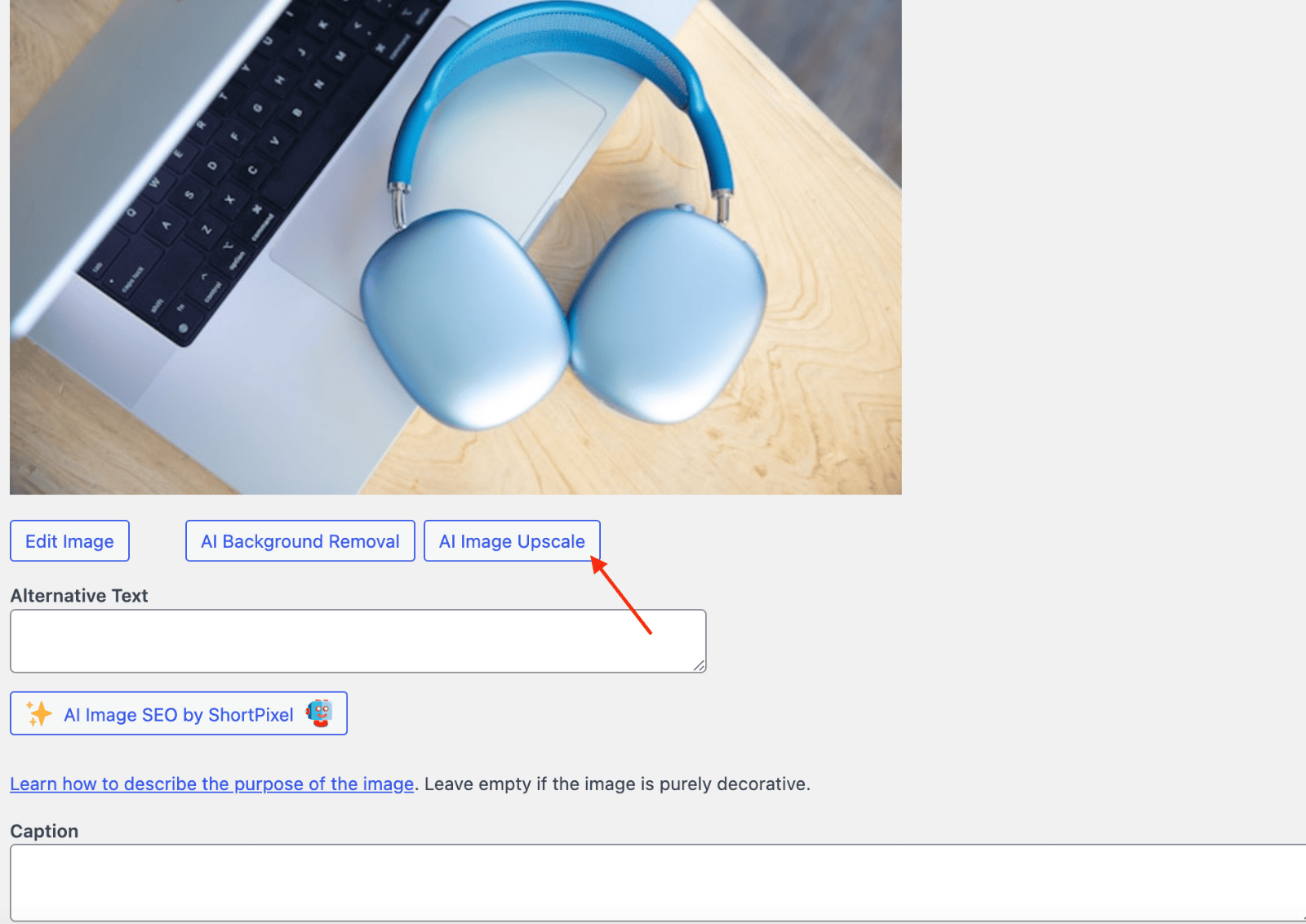
Since it’s right there in the dashboard, there’s no downloading, editing in some other app, and reuploading. Click, upscale, move on.
Compress the right way
You should optimize your product images. That’s not controversial, images tend to be the heaviest thing on any page, and product pages are full of them.
The tricky part is doing it without wrecking the photo.
Product images are the worst category to over-compress. Your customer wants to zoom in and see the grain of the leather, the weave of the fabric, the exact color. Push the compression too hard and you get banding in the gradients, mushy textures, and colors that shift just enough to look wrong.
For one-off images you can dial in the quality manually in Photoshop. Open the file, play with the slider, export when it looks right. Fine for a handful of photos, not realistic for a catalog.
ShortPixel has a Glossy compression mode that was built exactly for this. It’s the middle ground, noticeable file size reduction (usually 50-60%), but the visual quality stays intact. Comparing originals and Glossy versions side by side, the difference is practically invisible.
Once you pick Glossy in the settings, every image you upload from that point gets compressed automatically. Got a backlog of unoptimized images? The bulk optimizer processes your entire library in the background. If you’re sitting on a big catalog, bulk optimizing product photos at the right settings is one of the highest-impact things you can do for page speed.
Serve the right size to every screen
This one flies under the radar for most people.
Let’s say your product hero image is 1920 pixels wide. Looks perfect on a laptop. But someone opens that same page on their phone, 375 pixels wide, and their browser still downloads the full 1920-pixel file. Then it squishes it down to fit. Your visitor just burned through 5x more data than they needed, on a connection that’s probably slower to begin with.
Do that across a whole category page with 30 products and your mobile speed tanks.
You could set up srcset in your HTML and manually generate 3-4 sizes of every image. But that’s a maintenance headache, especially if you’re regularly adding new products.
ShortPixel Adaptive Images takes this off your plate. It figures out the visitor’s screen size and serves the right version. Also handles lazy loading, smart cropping, CDN delivery, and WebP/AVIF conversion, all automatic.
If PageSpeed Insights keeps flagging you for “properly size images” or “serve images in next-gen formats,” this is what makes those warnings go away.
Don’t skip image SEO
Google Image Search sends more traffic to online stores than most people realize. But your products won’t show up there unless the images have proper metadata.
ALT text is the big one. It tells Google what’s in the picture, and it also tells screen readers how to describe the image to visually impaired visitors. Two jobs, one attribute.
There’s a simple formula that works well for product photos: product type + color + material + one specific detail.
In practice:
| Bad ALT text | Good ALT text |
| alt=”IMG_4582.jpg” | alt=”Navy blue leather messenger bag with brass buckle” |
| alt=”product” | alt=”Handmade ceramic coffee mug in matte white” |
| alt=”photo1″ | alt=”Men’s waterproof hiking boots in dark brown suede” |
The bad examples? Google walks right past them. The good ones actually match things people search for.
Now, writing unique ALT text for 500 product images by hand is a lot of repetitive work. Most store owners skip it entirely, which is understandable.
ShortPixel’s AI Image SEO does it for you. It looks at the image, writes the ALT text, title, caption, and description. Works in 100+ languages, lets you preview before applying, and you can run it in bulk across everything in your Media Library. For WooCommerce stores, it picks up product images, gallery shots, and variation images too.
Putting it together
Once all of this is set up, your workflow for new product images basically looks like:
- Upload photos to WordPress. Camera, phone, supplier email — doesn’t matter.
- Remove backgrounds on the ones that need it. One click each.
- Upscale any images that came in too small.
- Compression kicks in on its own — Glossy mode, WebP/AVIF conversion, originals backed up.
- ALT text and SEO metadata get generated across the board.
- Adaptive Images serves the right file to every visitor — correct size, modern format, from a CDN.
That’s it. Set it up once and your 500th product gets the same treatment as your first.
One last thing
Good product images aren’t really about having a better camera. They’re about showing up fast, looking clean, and being findable.
A visitor who sees a sharp photo that loads instantly is already closer to buying. One who waits five seconds for a blurry image to load is probably gone.
Most of the work here is setup. Do it once, and every image after that takes care of itself.
FAQs
What’s the difference between image optimization and compression?
Compression just shrinks the file. Optimization is broader, format conversion, responsive sizing, metadata, CDN delivery. You need all of it, not just smaller files.
Will compressing product photos make them blurry?
Only if you go too aggressive with lossy settings. Glossy compression was designed specifically for photography. It reduces the file size without touching the detail and color accuracy that product photos need.
Do I need ALT text on every product image?
You should, yes. Google needs it to index your images, and screen readers need it for accessibility. Writing it by hand for every image isn’t realistic though, our AI Image SEO feature handles it in bulk now.
What do I do with tiny images from suppliers?
Upscale them. AI upscaling can take a 400-pixel image to 1200 or 1600 pixels and keep it looking sharp. Won’t replace a studio shoot, but it’s enough for a product page.
What image format should I use?
Upload JPEG for most products, PNG if you need transparency. For what visitors actually receive, WebP and AVIF are lighter by 25-50% at the same quality. Let the plugin handle the conversion — you just upload normally.
How much difference does all this actually make?
On product and category pages? A lot. Proper compression plus modern formats plus responsive sizing plus CDN can cut image weight by 60-80%. Pages that used to crawl end up loading in under two seconds.
Try ShortPixel on WordPress for free!
Easily optimize your pictures and cut down pixels fast using ShortPixel Image Optimizer.