How to Compress Screenshots Without Making Text Blurry

A screenshot looks perfect on your screen, you run it through a compressor, and the text comes out smudged. You can still read it, technically. You just wouldn’t want to.
Screenshots are hard on compression. Tiny text, one-pixel lines and hard edges leave nowhere to hide, so whatever the algorithm gets wrong shows up right away. Photos are far more forgiving.
The good news is that you can usually cut the file size by a good margin and keep the text readable. With ShortPixel, it mostly comes down to picking the right level out of three, then checking the result at 100% before you publish.
Why screenshots are harder than photos
A photo is mostly soft transitions: sky, skin, a blurry background. You can squeeze those areas and nobody notices.
A screenshot is a grey 11px label next to a button, a hairline border, an icon with sharp corners. Add a little noise around a letter and the eye catches it immediately.
Format and compression level are not the same thing
Two things decide how your text ends up looking: the format you save in (PNG, JPEG, WebP, AVIF) and the compression level you choose in ShortPixel (Lossless, Glossy or Lossy). It’s easy to blame the format when the level was the problem, or the other way around.
PNG is where I’d start for anything with small text or interface elements. It keeps edges crisp, and that’s exactly what screenshots need. JPEG can leave a faint haze around letters, so I’d skip it for text-heavy images.
WebP and AVIF are a different story. Both can be lossy or lossless, so the text can come out perfect or soft depending on how the file was made. They’re also not accepted everywhere, so check the upload requirements first. If you need a refresher on what suits what, the guide to the best image file types covers it.
Step-by-step: how to compress a screenshot with ShortPixel
Nothing to install here. ShortPixel’s online image compressor is free and runs in your browser.
Step 1: Open the compressor
Head to the online compressor page. Settings and uploads both happen there.
Step 2: Choose the compression level
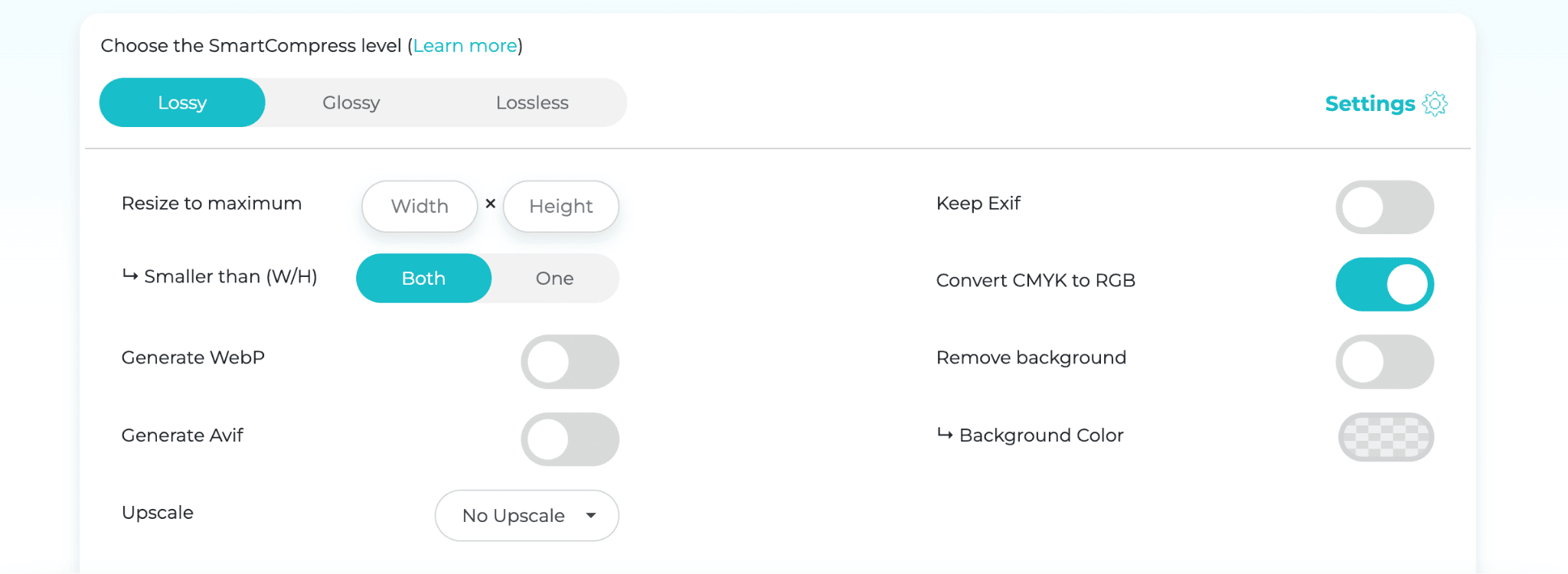
Pick Lossy, Glossy or Lossless, then click Settings. Lossy is preselected, so change it first if your screenshot has small text. If you’re unsure which one, skip to the next section and come back.
Step 3: Check the output options
Under Settings you’ll find toggles called Generate WebP and Generate Avif. Both start off. Switch them on only if the place you’re uploading to accepts them. When in doubt, leave them off and stick with PNG.
Step 4: Check the metadata setting
Keep Exif is already off by default, so just leave it. Most screenshots carry little or no metadata, so you probably won’t save much, but there’s no reason to hold on to it either.
Step 5: Upload and download
Drop your files in, give it a few seconds, and download the optimized images.
Step 6: Zoom in and check
Don’t judge the result at “fit to screen.” Open it at 100% and go looking for trouble: the smallest text, the thinnest line, the edge of a button. Keep the original open next to it, and look at the colors too.
Which compression level should you use?
ShortPixel’s own description is simple. Lossy gives the smallest files, Glossy stays very close to the original, and Lossless is pixel-by-pixel identical but saves the least.
For screenshots, I’d go from gentle to aggressive. Start with Lossless: it preserves the original pixels, which makes it the safest starting point when the text is small. (Resizing or converting to a lossy format are separate steps, and they can still change the result.) Not small enough? Move to Glossy. Still too heavy? Try Lossy, but zoom in before you trust it.
The goal isn’t the tiniest file. It’s the smallest file where the text still reads comfortably.
The easiest way to decide is to judge by eye. Run one screenshot through all three levels, open each result at 100%, and compare the smallest text. It takes a couple of minutes.
Colors deserve a look too. In rare cases, PNGs with gradients can look washed out after lossy optimization. If that happens, compare against the Lossless version.
Resize with care
Resizing is one of the quickest ways to shrink a file, and also the riskiest for text. When an image is scaled down, neighboring pixels get blended, and thin strokes are the first thing to go soft. Even halving the resolution doesn’t guarantee that small text stays crisp.
So compress first, at the original size. Resize only if the file is still too big, or if you know exactly how wide the image will be displayed. The impact of image dimensions on performance is worth reading before you pick a number. Avoid upscaling, since a bigger version doesn’t add real detail and small text can look softer. And check the result at 100%, ideally on the kind of screen your readers use.
In ShortPixel’s Settings, the Resize to maximum fields take a width and a height, and the image is resized and compressed in one go. If you’re up against a strict size limit, the same resize-then-compress approach is covered in how to shrink an image from 5MB to 100KB. Just check the text carefully afterward.
Compressing many screenshots at once
Uploading a hundred screenshots one by one gets old fast. The online compressor takes up to 50 files at a time, so a big folder means a few rounds.
On WordPress, ShortPixel Image Optimizer compresses new uploads automatically and can bulk-optimize what’s already in your media library. One setting to look at for screenshots: the option that converts PNG to JPG when it makes the file smaller. It suits photos, but for text-heavy screenshots, test it or keep it off.
Outside WordPress, the ShortPixel CLI works through a folder and its subfolders from the command line. By default, optimized files go into an optimized/ subfolder, so your originals stay untouched. This example uses Glossy compression, creates WebP versions, and sends the results to a separate ./out folder:
./shortpixel-optimize.sh -k YOUR_KEY -l 2 -o ./out –convertto +webp ./images
A small tip: because the results go to their own folder, your original screenshots stay as they are. That makes it easy to run the same batch at different levels and keep whichever version holds up best at 100%.
Quick checklist
- PNG is a safe default for sharp edges. Check WebP and AVIF before relying on them.
- Lossless or Glossy first, Lossy after.
- Keep Exif off.
- Compress first. Resize only if you must.
- Zoom to 100%, then check the smallest text and the colors.
Sharp text, smaller files
Small and readable aren’t opposites. Choose a format that suits hard edges, try the three levels on one of your own screenshots, and resize only when the file really needs it.
If you’d like to try it, the ShortPixel online compressor is the quickest place to start. And if screenshots pile up on your site, the WordPress plugin or the CLI can handle the rest.
Compress screenshots for free!
Easily optimize and compress your screenshots using ShortPixel!