Free Online Background Removers Compared: What You Actually Get Without Paying

Removing a background used to mean twenty minutes with the Pen tool in Photoshop. Today it takes a few seconds in a browser tab.
But “free” doesn’t mean the same thing everywhere. Some tools hand you the full image. Others give you a small preview and ask you to pay for the real thing.
So I took one product photo, ran it through five free online background removers, and checked what actually came back: resolution, file size, format, and what you need to do to get it.
Quick Takeaways
- ShortPixel was the only tool in the test that returned the original resolution for free without requiring an account, while also optimizing the resulting file.
- Adobe Firefly also returned the full 3201×4001 resolution for free, after signing in.
- At that same resolution, ShortPixel’s transparent PNG was 5.2 MB versus 14.9 MB from Adobe Firefly, about 65% smaller in this test.
- remove.bg’s free download is a 447×558 preview, roughly 2% of the original pixels. The full-size file is paid.
- Photoroom returned 1920×2400 and Clipdrop 819×1024.
- On this relatively straightforward product photo, all five tools produced a usable cutout. The bigger differences showed up in the file you were actually allowed to download for free.
Test setup: one photo, five tools
I kept the test simple and repeatable: the same photo, the same day, the free version of every tool.
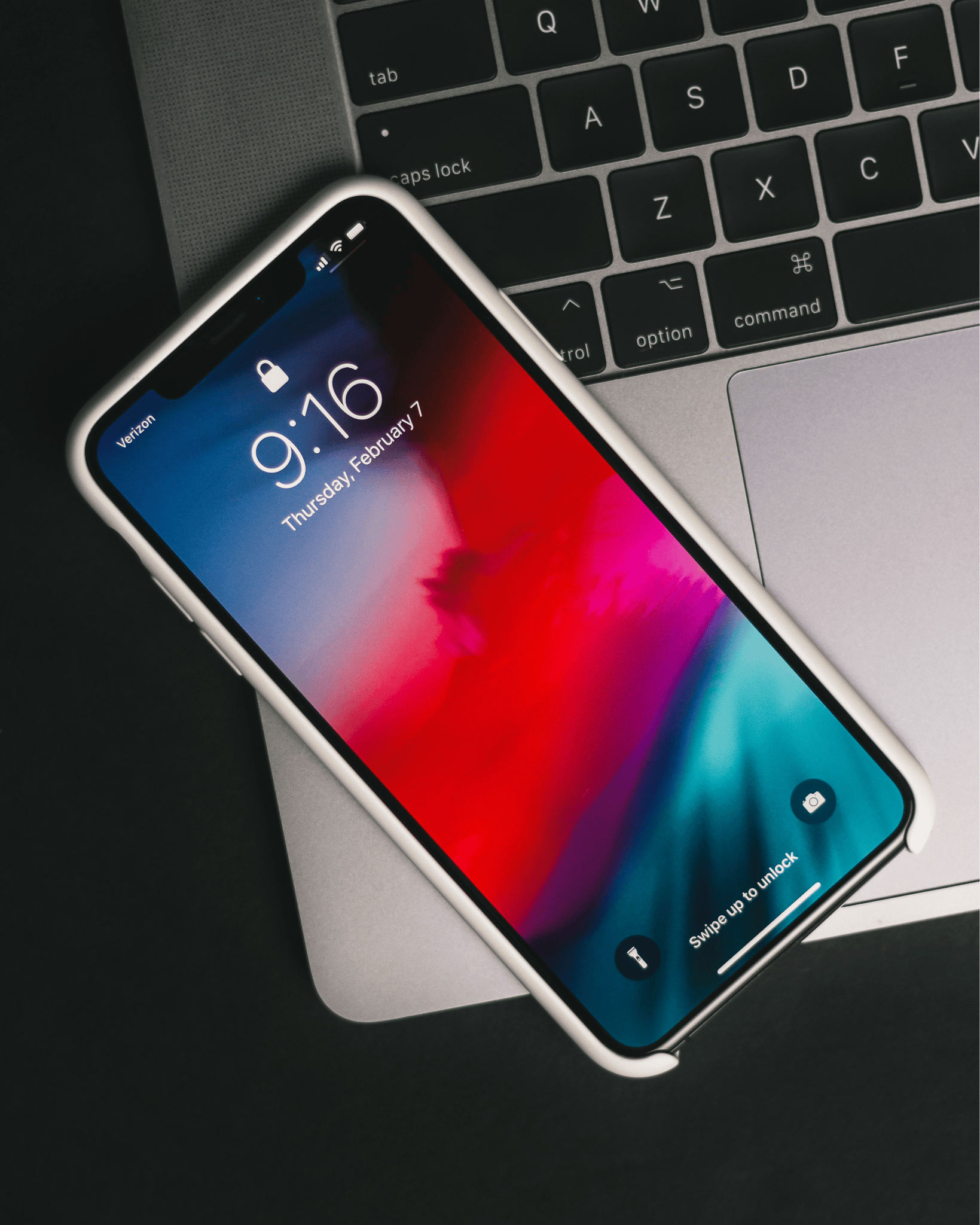
The image: an iPhone lying on a laptop keyboard, 3201×4001 px. It’s a typical product-style shot with clean edges, a dark background, and a glossy frame. Photo by Brad Pouncey on Unsplash.
The tools:
- ShortPixel (free online background remover)
- remove.bg
- Photoroom
- Adobe Firefly
- Clipdrop
The rules:
- Same photo uploaded to every tool.
- Free version only, no paid plans or trials.
- Default settings, no manual corrections or edge refinement.
- I only signed in where a tool required it.
- On ShortPixel, I used Lossless compression with a transparent background, so image data wouldn’t be altered by lossy compression.
- Results were downloaded right after processing and checked from the downloaded file, not the browser preview.
All tests were run on September 28, 2026. Free plans change often, so some limits may differ by the time you read this.
Results at a glance
Here’s what each tool gave me for free, starting from a 3201×4001 original.
| Tool | Free download (px) | Share of original pixels | Full-res free? | File size | Account needed |
| ShortPixel | 3201×4001 | 100% | Yes | 5.2 MB | No |
| Adobe Firefly | 3201×4001 | 100% | Yes | 14.9 MB | Yes (free Adobe ID) |
| Photoroom | 1920×2400 | 36% | No | 3 MB | No |
| Clipdrop | 819×1024 | 6.5% | No | 606 KB | Yes (free account) |
| remove.bg | 447×558 | 1.9% | No | 186 KB | No |
A quick note on file size: smaller isn’t automatically better here. remove.bg’s file is tiny because the image itself is tiny. The closest apples-to-apples comparison is ShortPixel vs. Adobe Firefly, since both returned the original 3201×4001 resolution. At that size, ShortPixel produced a 5.2 MB PNG versus 14.9 MB from Firefly, roughly 65% smaller in this test.
The tools, one by one
ShortPixel
What I got: the best results, a transparent PNG at the full 3201×4001 resolution, 5.2 MB, without signing in.
ShortPixel’s background remover lives inside its online image optimizer, so you set things up before processing rather than after. Along with the Remove background toggle, you can choose:
- Compression level: Lossy, Glossy, or Lossless
- Background color: transparent or any color you pick
- Resize to a maximum width and height
- Generate WebP and AVIF versions
- Keep or strip EXIF data
- Convert CMYK to RGB
- Upscale
So instead of removing the background first and optimizing the image somewhere else afterward, you can do both in the same step. The result also goes through ShortPixel’s optimization pipeline, which helps keep the file size down.
The same background removal is also available in the ShortPixel Image Optimizer plugin for WordPress, directly from the Media Library.
Good fit for: website owners, WooCommerce stores, and anyone who wants a full-size cutout that’s ready to upload.
Try ShortPixel’s free background remover
Adobe Firefly
What I got: a transparent PNG at 3201×4001, 14.9 MB, after signing in with an Adobe ID.
Adobe Firefly also keeps the full resolution for free, but you need an account first. After the background is removed, you land in an editor full of generative options, such as generating a new background or turning the subject into a sticker. Several of those features require an upgrade.
Good fit for: designers who already use Adobe tools and want to keep editing the image creatively.
Photoroom
What I got: a transparent PNG at 1920×2400, 3 MB.
Photoroom is built around product photos. Once the background is gone, you can edit the cutout, resize it, or add a new background right away. The free download came back at about a third of the original pixels.
Good fit for: online sellers creating quick product visuals and social media posts.
Clipdrop
What I got: a transparent PNG at 819×1024, 606 KB, after signing in.
Clipdrop keeps things minimal: upload, preview, download. There’s an eraser for small fixes and a relight tool. The free result is noticeably smaller than the original.
Good fit for: quick edits where the image will be used small, such as a thumbnail or a slide.
remove.bg
What I got: a transparent PNG at 447×558, 186 KB.
remove.bg is the name most people know, and the cutout was fast. The download menu makes the free limit clear: the 447×558 preview is free, while the full 3201×4001 version needs to be unlocked. The editor also includes background, effects, and design options.
Good fit for: a quick preview or a small image for chat or a presentation.
What this means for your images
On a simple product photo, every tool in this test removed the background. What changes is the file you walk away with.
If the image is going on a website or product page, resolution matters. A 447×558 cutout looks fine in a chat window but falls apart on a product zoom or a retina screen. In this test, only ShortPixel and Adobe Firefly returned the full-size image for free.
If page speed matters, file size matters too. A 14.9 MB PNG is heavy for any web page. The ShortPixel file had the same dimensions at 5.2 MB. That combination of full resolution, no sign-in, and optimization in the same step is where ShortPixel stood out in this test.
If you want to keep designing, tools like Adobe Firefly and Photoroom give you more to play with after the cutout: new backgrounds, templates, and generative edits.
A few things to check before you pick a tool:
- Output resolution on the free plan. Is it the full image or a preview?
- Format and transparency. Do you get a transparent PNG (or WebP) ready to use?
- File size. Will you need to compress the result separately?
- Account requirements. Can you use it right away, or do you need to sign up first?
- Workflow. Do you need it in WordPress, in bulk, or through an API?
If all you need is a quick cutout, every tool here can do the job. But if the image is going straight onto a website, getting the full-resolution result already optimized can save you an extra step.
FAQs
Which free background remover keeps the original resolution?
In this test, ShortPixel and Adobe Firefly both returned the full 3201×4001 image. Photoroom, Clipdrop, and remove.bg returned smaller versions on their free plans.
Why is the free remove.bg image so small?
The free download is a preview at 447×558. The full-resolution file has to be unlocked with a paid option.
Why is my image bigger after removing the background?
Transparency requires a format like PNG, which is usually heavier than JPEG. Compressing the result via ShortPixel, or serving it as WebP or AVIF, brings that down.
Can I use a colored background instead of a transparent one?
Yes. In ShortPixel, you can pick any background color before processing. The image is then saved with that color instead of transparency.
Can I remove backgrounds directly in WordPress?
Yes. With the ShortPixel Image Optimizer plugin, open your Media Library in List View, click an image, and choose AI Background Removal. You can preview the result before saving.
Does background removal cost extra in ShortPixel?
No. Background removal is included in all ShortPixel plans at no extra cost. The Free plan currently includes 100 credits per month, and processing an image with background removal uses the same 1 credit as optimizing it.
Want to see what you get with your own images? Try ShortPixel’s free background remover and compare the result for yourself.
Want to see what you get with your own images?
Try ShortPixel AI Background Removal and compare the result for yourself.