20 Common Elementor Performance Problems and How to Fix Them

If your Elementor‑built website feels sluggish, you’re not alone.
While Elementor makes it easy to design beautiful pages, it can also introduce performance bottlenecks. Slow load times hurt user experience and search engine rankings.
The good news is that most issues can be traced to a handful of common causes.
This blog post explores 20 of the most frequent speed and performance problems, along with practical solutions drawn from Elementor’s documentation and expert performance guides.
1. Conflicting image optimization plugins
Here’s a mistake that trips up even experienced developers: running multiple image compression plugins at the same time. It seems logical that more tools would mean better optimization, but the reality is quite different.
When you have ShortPixel and Imagify, or Smush, EWWW, and LiteSpeed Cache’s image optimization features all active simultaneously, they fight over the same images.
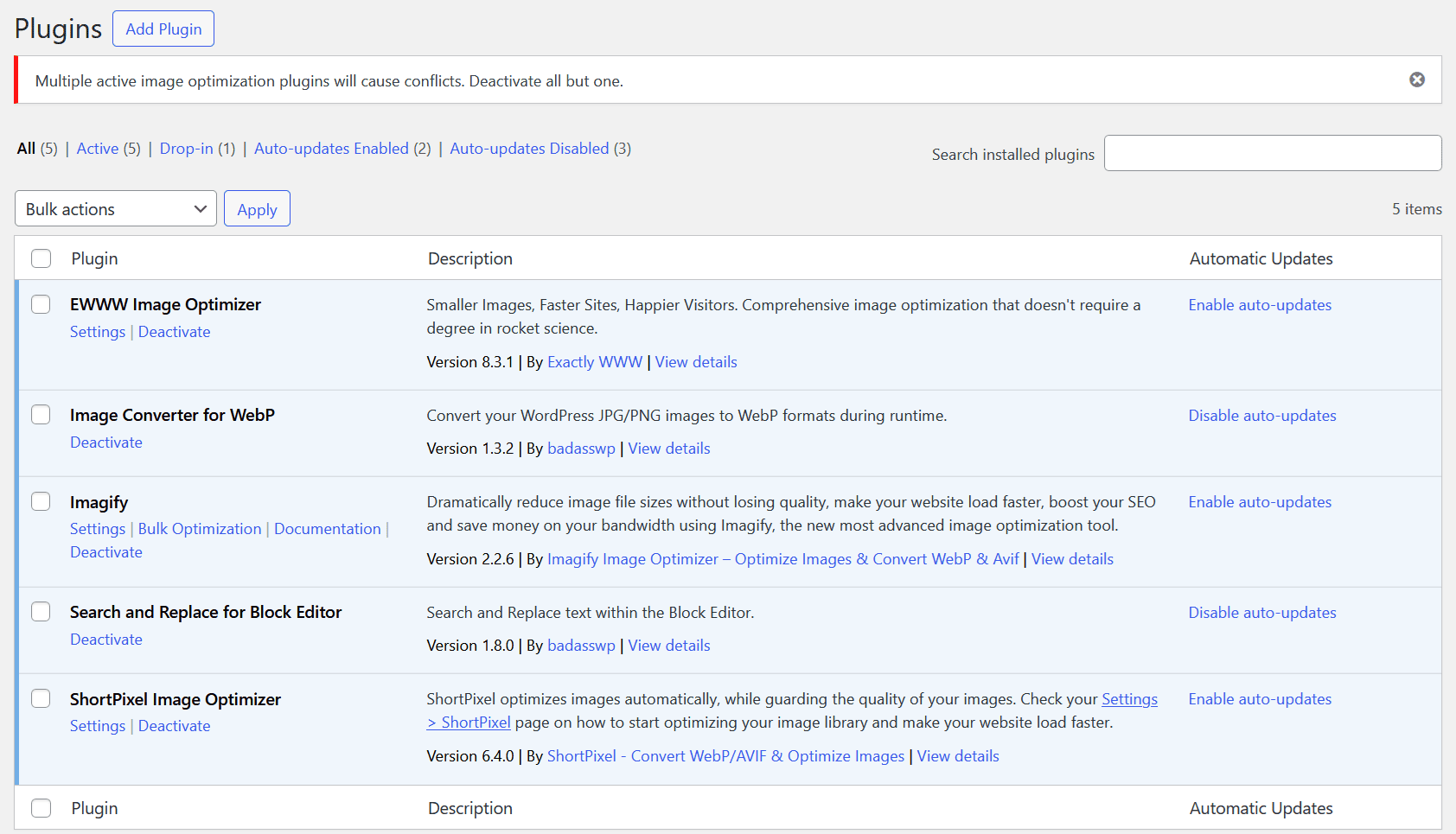
One plugin compresses an image, then another tries to process it again, and suddenly you’re dealing with conflicts, failed compressions, over-compression, or even corrupted images.
The fix is straightforward: Pick one image optimizer and stick with it. Before activating your chosen tool, go through your plugin list and deactivate (then delete) any competing image optimization plugins.
If you’re looking for guidance on which optimizer to choose, check out our comparison of the best image optimization plugins.
2. Using large, uncompressed images
Now, let’s talk about the real elephant in the room.
That stunning 5MB hero image you just uploaded? It’s probably killing your site speed.
A single large photo can affect performance of a page, especially if it came straight from a professional camera or stock photo site.
When someone visits your page, their browser has to download every single byte of that massive file before displaying it. Multiply that by a dozen images on a page, and you’ve got a recipe for frustrated visitors and high bounce rates.
The solution usually involves a few simple steps.
First, resize images before uploading them. That 6000px wide photo doesn’t need to be that large for a website display, even on a full-width hero section. Aim for 1920px width maximum for hero images.
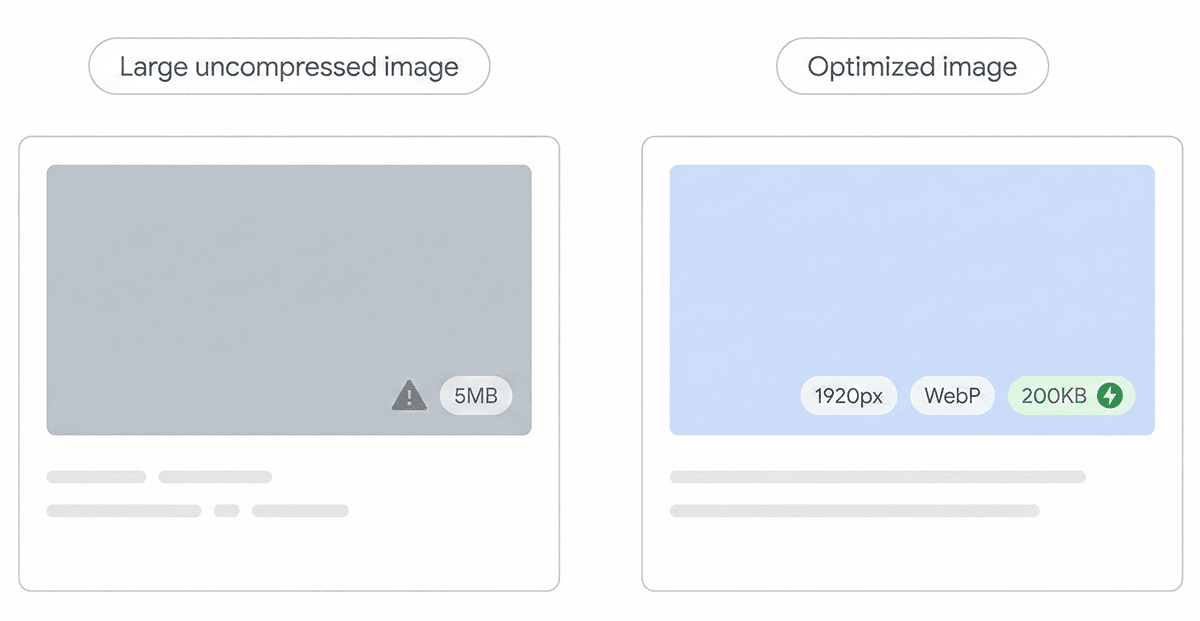
Next, compress. ShortPixel can reduce image file sizes by up to 90% without visible quality loss, using smart compression. I would recommend keeping images under 200KB for optimal performance, though Elementor’s baseline recommendation is under 1MB.
Modern formats like WebP offer superior compression compared to traditional JPEG and PNG files. Converting your JPG images to WebP can shave significant load time off your pages. Finally, enable lazy loading so images only load when they’re about to scroll into view.
Try ShortPixel for free!
Easily resize your pictures and cut down pixels fast using ShortPixel Image Optimizer.
3. Too many CSS/JS requests
Every widget, element, and third-party add-on in Elementor injects its own scripts and styles.
Before you know it, your elegant landing page is loading 40 different CSS files and 35 JavaScript files. Each one requires a separate HTTP request, creating a waterfall of delays that slows your site to a crawl.
Here’s how to tackle it:
- Use a performance plugin like FastPixel to minify and combine your CSS and JS assets. Minification strips out unnecessary characters like whitespace and comments, while combination merges multiple small files into larger ones.
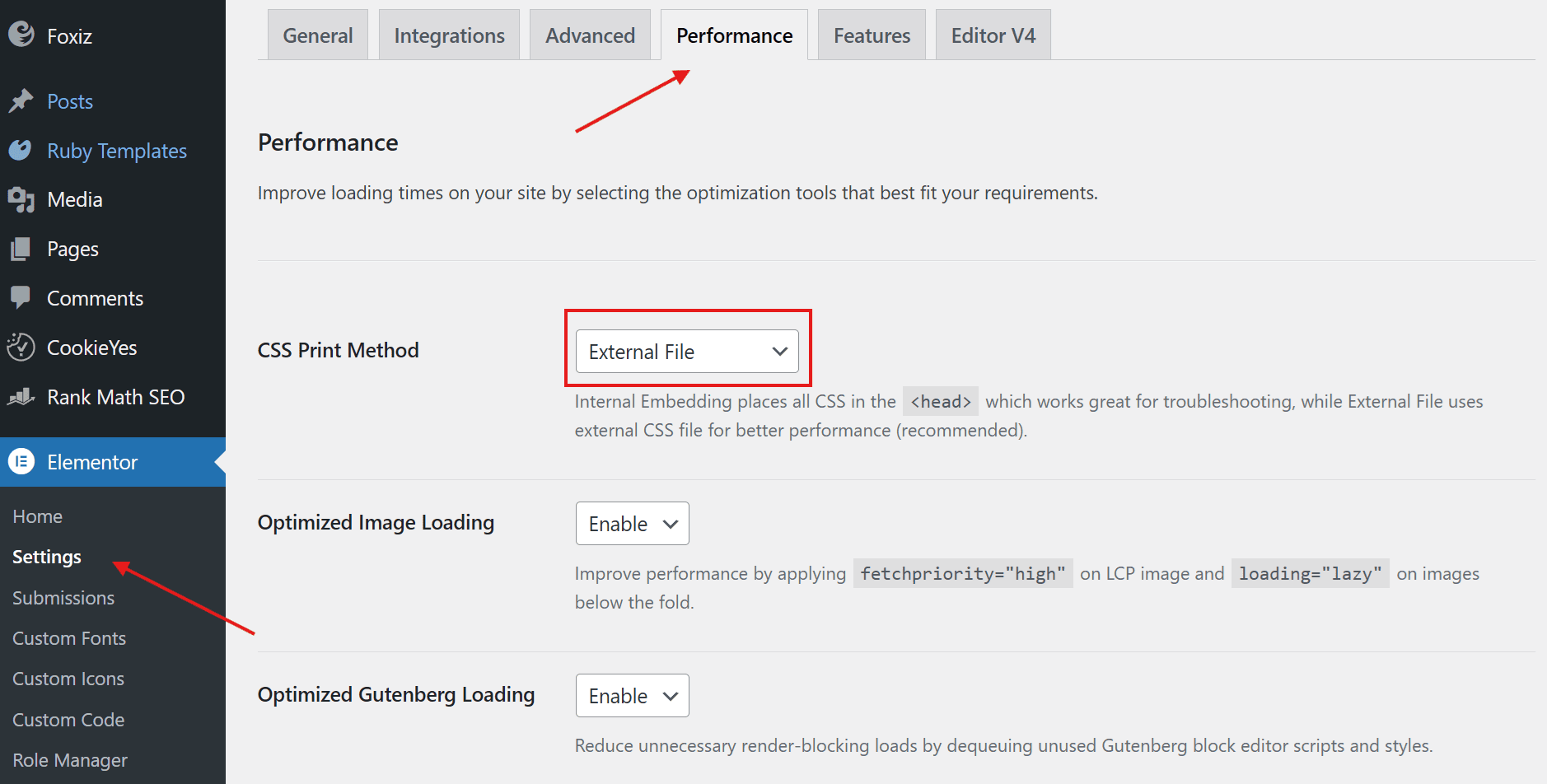
- In Elementor > Settings > Performance, enable the “External file” option under CSS Print Method. This makes Elementor output most generated styles as external, page-specific CSS files instead of inline
<style>blocks. These files are cacheable by browsers and CDNs, reducing HTML size and improving performance, although some dynamic styles may still be printed inline.
- Delay non-critical scripts. Analytics scripts, comment systems, and chat widgets don’t need to load immediately. Let them wait until after your main content appears.
Important: When testing new caching plugins or CSS and JS minification and combination features, always check your pages carefully. These optimizations can sometimes break layouts or scripts if not configured properly.
4. Slow hosting and low server resources
Sometimes the problem isn’t your website at all. It’s the foundation it’s built on.
If your Time to First Byte (TTFB) exceeds 600ms, your hosting is likely the culprit. Those bargain $3/month shared hosting plans might seem appealing, but they’re splitting resources among hundreds of websites. When your neighbor’s site gets a traffic spike, your site suffers too.
Elementor is a dynamic page builder that requires decent server resources to function smoothly.
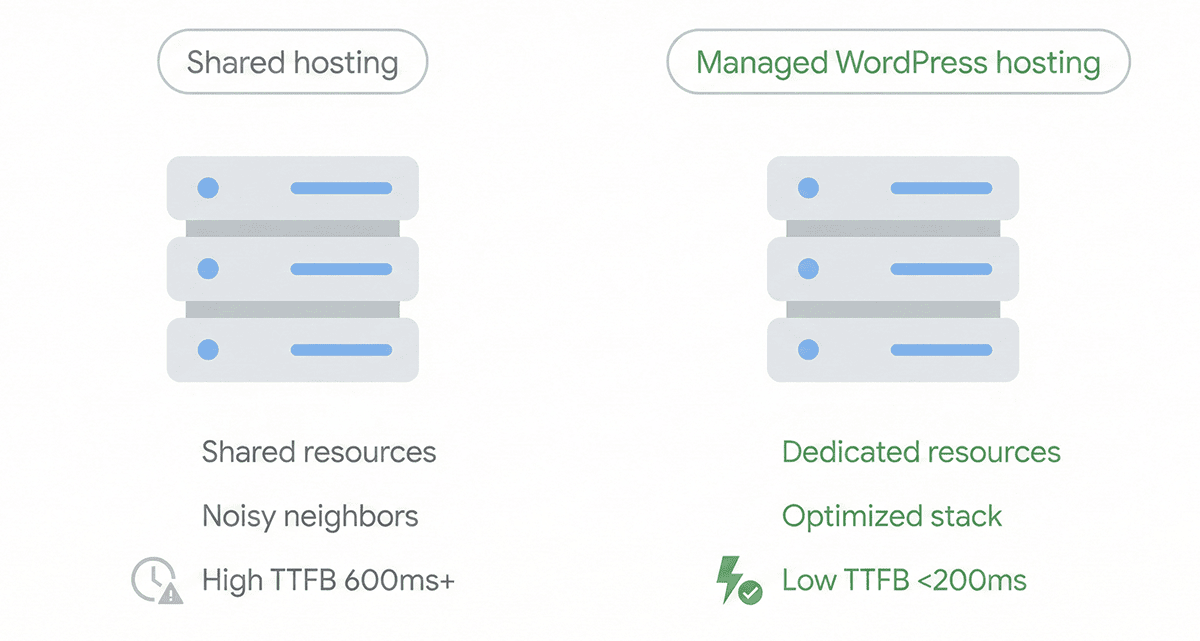
At minimum, you need SSD storage (NVMe is even better), at least 256MB of PHP memory (512MB is preferable), and server-level caching like Redis(Object Cache) or Varnish(full-page caching).
Consider switching to WordPress hosting optimized for performance. The investment pays for itself in improved user experience and better search rankings. You can often adjust the PHP memory limit through your hosting control panel or by editing your wp-config.php file.
5. Complex layouts and too many widgets
Elementor’s flexibility can be a double-edged sword. It’s tempting to nest sections within columns within more columns, creating intricate layouts. But every layer of nesting bloats your Document Object Model (DOM) tree, forcing browsers to work harder to render your page.
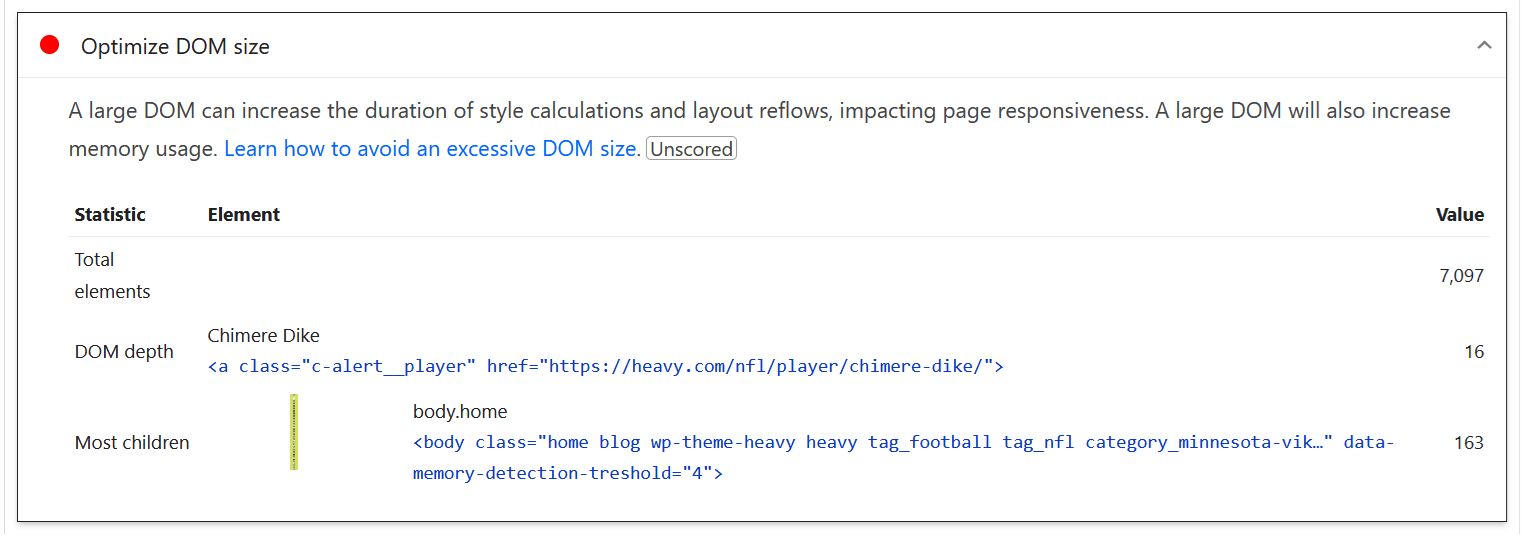
Think of it like giving someone directions. “turn left at the third street” is simple. “Turn left at the street after the street after the street that comes after the gas station” is unnecessarily complex. Browsers feel the same way about deeply nested HTML structures.
Modern Elementor offers a better way: the Container element. Containers produce cleaner, more efficient markup than the old Section/Column system. If you’re still using the classic structure, converting to Containers can significantly reduce your DOM size and improve rendering speed.

Also, take a critical look at your widget count. Do you really need three different call-to-action buttons saying essentially the same thing? Consolidating elements isn’t just good for performance; it’s often better for user experience too.
6. Leaving unused themes and plugins installed
Sure, inactive themes and plugins don’t load on the front end. But keeping them around is still a bad idea.
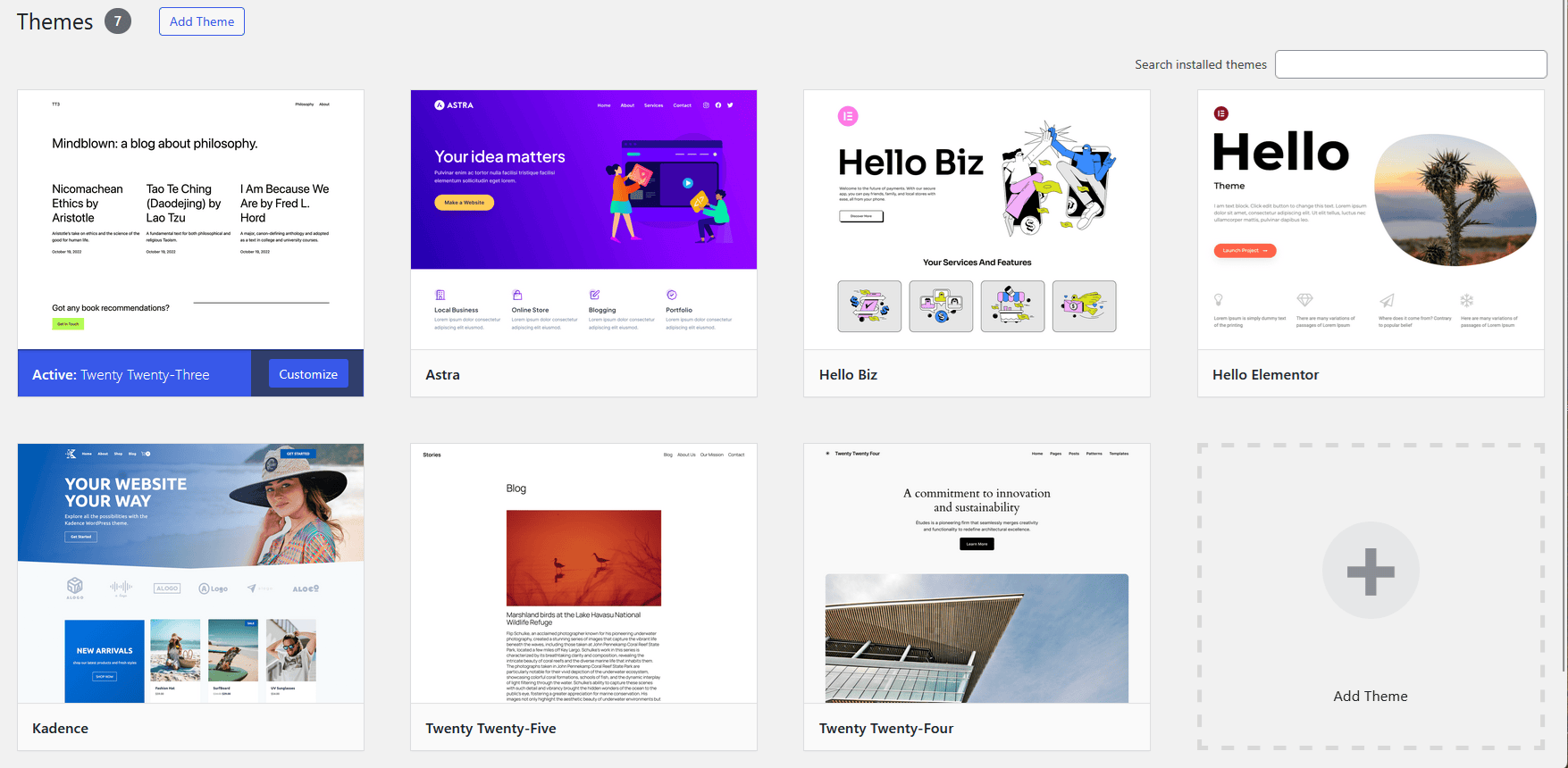
They occupy disk space, create potential security vulnerabilities, and make it all too easy to accidentally activate something that conflicts with your current setup.
Some poorly coded plugins can even impact performance while deactivated, running cron jobs or database queries in the background.
Every few months, audit your installed themes and plugins.
If you haven’t used it in six months, you probably don’t need it. Deactivate and delete.
And if you’re thinking about keeping a lightweight default theme like Twenty Twenty-Four “just in case” your main theme breaks, there’s no real need. You can reinstall later in seconds if ever needed.
7. Using a heavy theme
Elementor is designed to take over the visual design of your site, effectively making the WordPress theme’s job minimal.
Yet, many users run Elementor on top of massive, feature-heavy themes that are packed with their own sliders, custom post types, and styling frameworks.
This creates what I like calling “bloat sandwich”. Your visitor’s browser has to load the theme’s heavy CSS and JavaScript libraries plus Elementor’s assets.
You end up loading code for features (like the theme’s native header builder or slider) that you aren’t even using because you’ve replaced them with Elementor widgets.
Switch to a lightweight theme designed specifically for page builders. Elementor’s own Hello Elementor theme is the industry standard here.
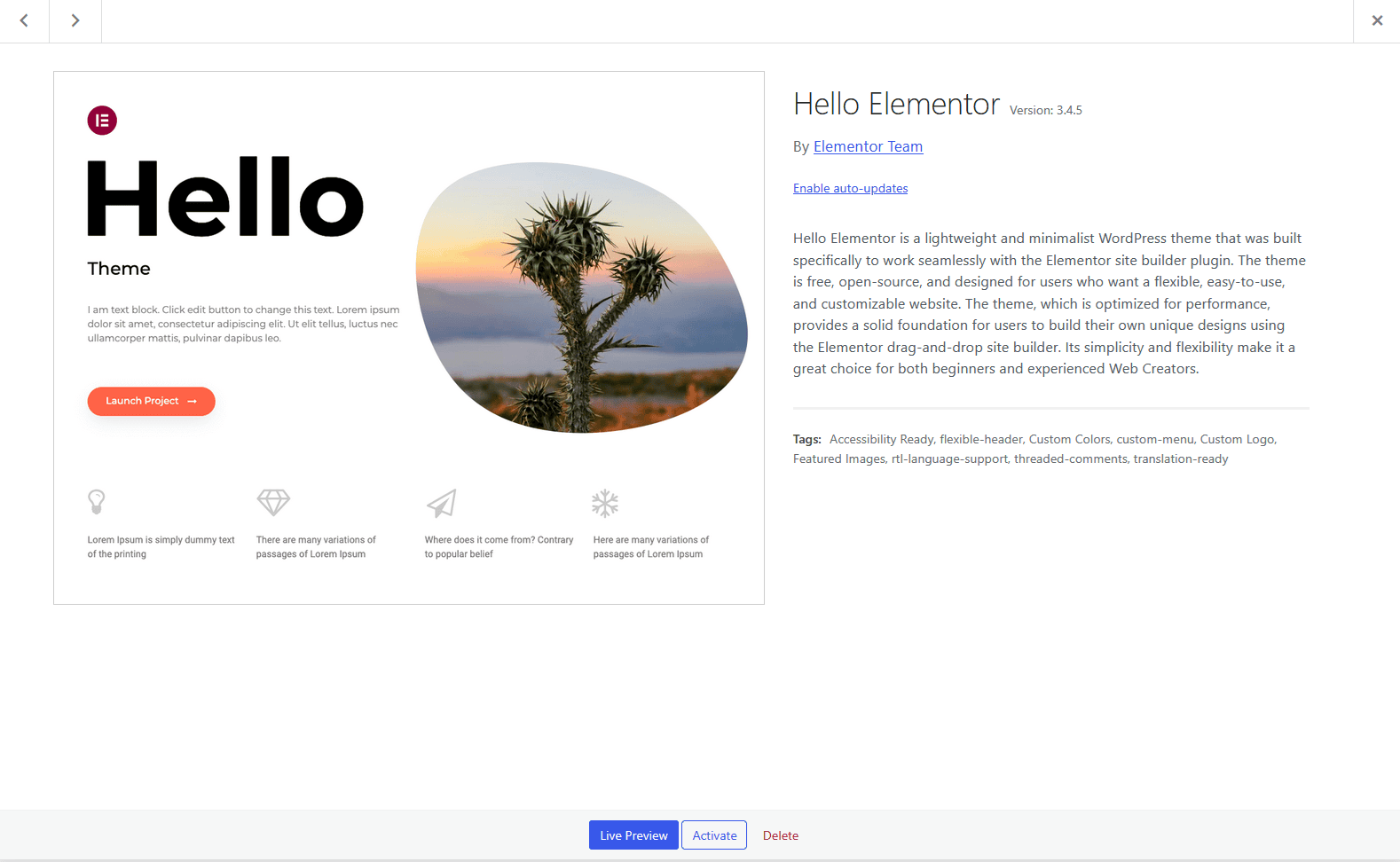
It acts as a blank canvas, stripping away non-essential code and reducing the theme’s footprint to virtually zero.
If you are using Elementor Pro to build your headers and footers, you likely don’t need a complex theme. Switching from a “multipurpose” theme to Hello Elementor can instantly shed hundreds of kilobytes of code and drastically reduce server requests.
8. Bloat from third-party add-ons
Third-party Elementor add-on packs promise hundreds of amazing widgets. They often load scripts and styles for every single widget, even if you only use two or three of them.
Essential Addons, PowerPack, and similar plugins are powerful, but they can become performance liabilities if not managed properly.
Start by using Query Monitor to identify which plugins contribute most to your page load time. You might be surprised to see an add-on pack adding 500KB of assets to every page, even those that don’t use any of its widgets.
Elementor’s Element Manager (Elementor > Element Manager) lets you disable unused widgets from add-on packs.

This prevents their associated scripts from loading unnecessarily.
Also, script managers like Asset CleanUp or Perfmatters allow you to unload entire plugin assets on specific pages. Why load your forms plugin everywhere when you only have one contact page?
9. Slow Elementor editor
There’s nothing more frustrating than waiting 30 seconds for the Elementor editor to load, watching that spinning icon while your productivity plummets.
A sluggish editor usually signals a conflict with your theme or another plugin. The editor is trying to load resources that are hung up somewhere in your setup.
Try these troubleshooting steps in order: Close unnecessary browser tabs and restart your browser to free up memory. Use Elementor’s Safe Mode (found in the editor loading screen) to temporarily disable your theme and plugins, helping isolate the conflict source.
In Elementor > Settings > Advanced, disable the Switch Editor Loader Method option. On some hosting setups, server-level security or configuration quirks can interfere with Elementor’s default editor loading process.
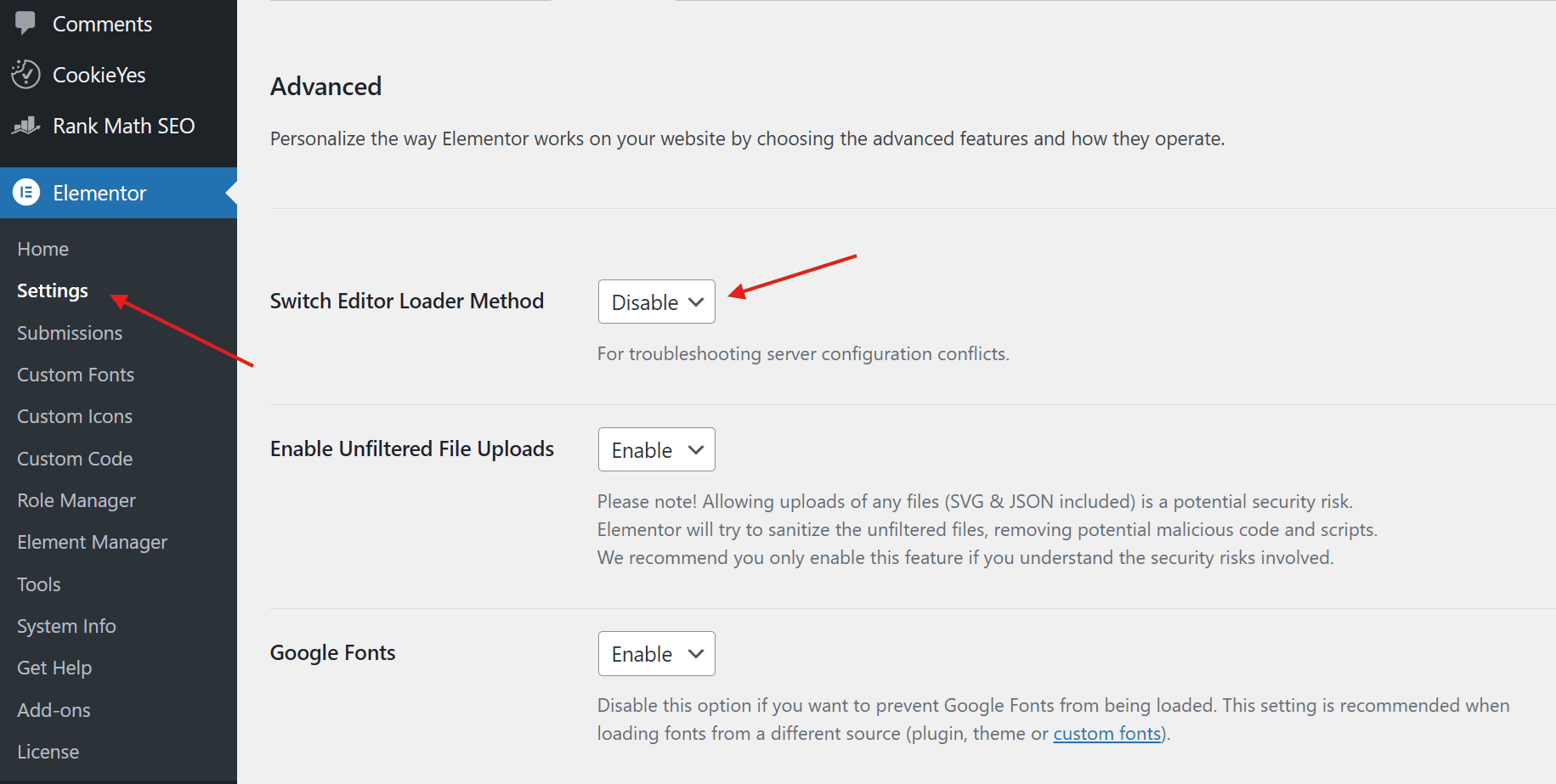
Switching to the alternative loader can help the editor initialize correctly, especially when it gets stuck loading or shows a blank screen.
Security plugins can also interfere. Try temporarily disabling aggressive firewall rules in Wordfence or Cloudflare to see if that’s blocking editor resources.
10. No caching layer
Without caching, WordPress rebuilds your entire page from scratch for every visitor.
It queries the database, executes PHP scripts, assembles the HTML, and only then delivers the page. This process might take 1-2 seconds per visitor, which is an eternity in web time.
Caching changes everything. A good caching plugin stores a pre-rendered, static version of your pages. When someone visits, they receive this lightweight HTML file instantly instead of waiting for WordPress to reconstruct the page. This reduces server load by 80-90% and dramatically speeds up page delivery.
Popular options include FastPixel, WP Rocket, LiteSpeed Cache, and W3 Total Cache.
Many quality hosting providers also offer server-level caching through Redis(Object Cache) or Varnish(full-page caching). The combination of plugin-based and server-side caching delivers maximum performance gains.
11. Outdated PHP versions and low memory limits
PHP is the engine that powers WordPress and Elementor. Running an old version is like trying to race a modern sports car with a 1970s engine.
PHP 7.4 and older versions are not only security risks (they no longer receive security updates), but they’re also significantly slower than current versions.
PHP 8.1, 8.2, and 8.3 offer dramatic performance improvements in script execution speed, sometimes as much as 30-50% faster than PHP 7.4.
Go to Tools > Site Health > Info > Server, and check the PHP version and PHP memory limit.
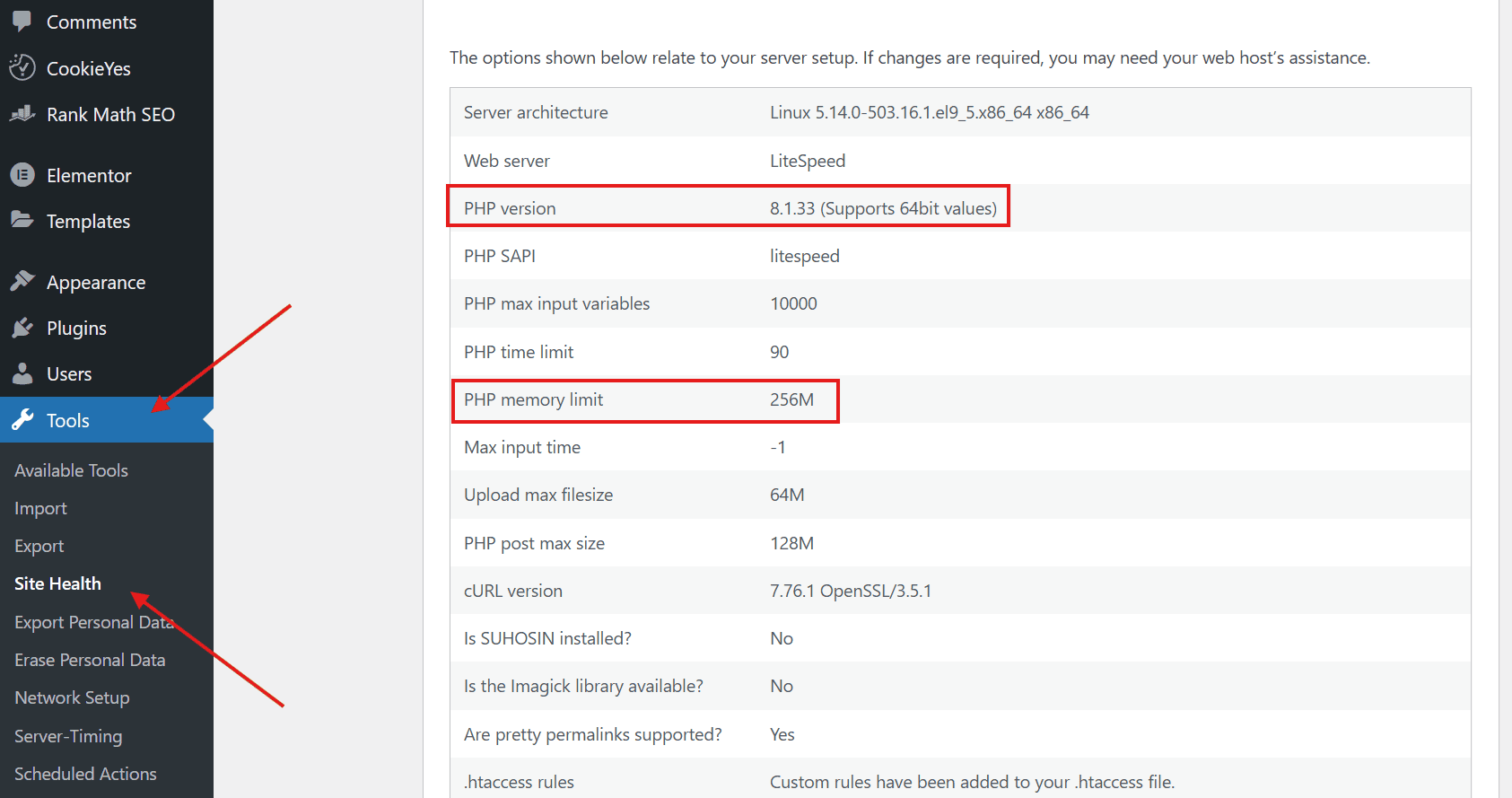
If your PHP version is not at least 8.1, check with your hosting provider to upgrade to the latest stable PHP version.
While you’re at it, verify your PHP memory limit. Elementor needs at least 256MB to function properly, though 512MB is better for complex sites with multiple plugins. This setting is usually accessible through your host’s control panel or can be set in wp-config.php with the WP_MEMORY_LIMIT constant.
12. External fonts and icons
Google Fonts are beautiful. Font Awesome icons are convenient.
But loading them from external CDNs means extra HTTP requests and DNS lookups before anything can render on screen.
Each external font file requires your visitor’s browser to: Look up Google’s DNS servers, establish a connection to Google’s CDN, download the font file, and then finally render the text. Multiply this by 3-4 different font weights and styles, and you’ve added noticeable latency to your page load.
The fastest solution is hosting fonts locally.
Download your required Google Fonts and convert them to WOFF2 format, then add them to Elementor > Custom Fonts in order to serve them from your own domain. This eliminates external dependencies entirely.
Alternatively, consider system fonts for body text. Fonts like Arial are already on users’ devices, requiring zero download time. Save custom fonts for headings where visual impact matters most.
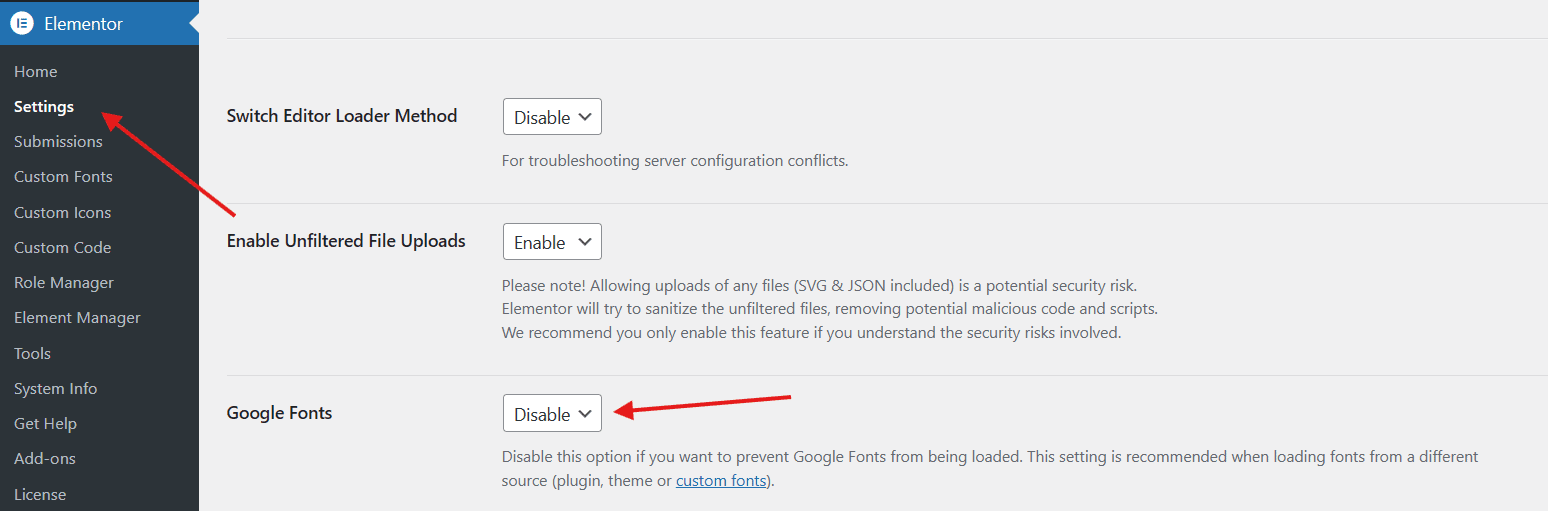
You can disable Google Fonts in Elementor’s Advanced settings.
13. Not using Elementor performance experiments
Elementor constantly develops new performance features, rolling them out initially as “Experiments” or “Features” in the settings. Many users never explore this section, leaving free performance boosts on the table.
Usually, once these options prove stable, some of them are moved into the main Performance tab.
Navigate to Elementor > Features and activate these performance boosters:
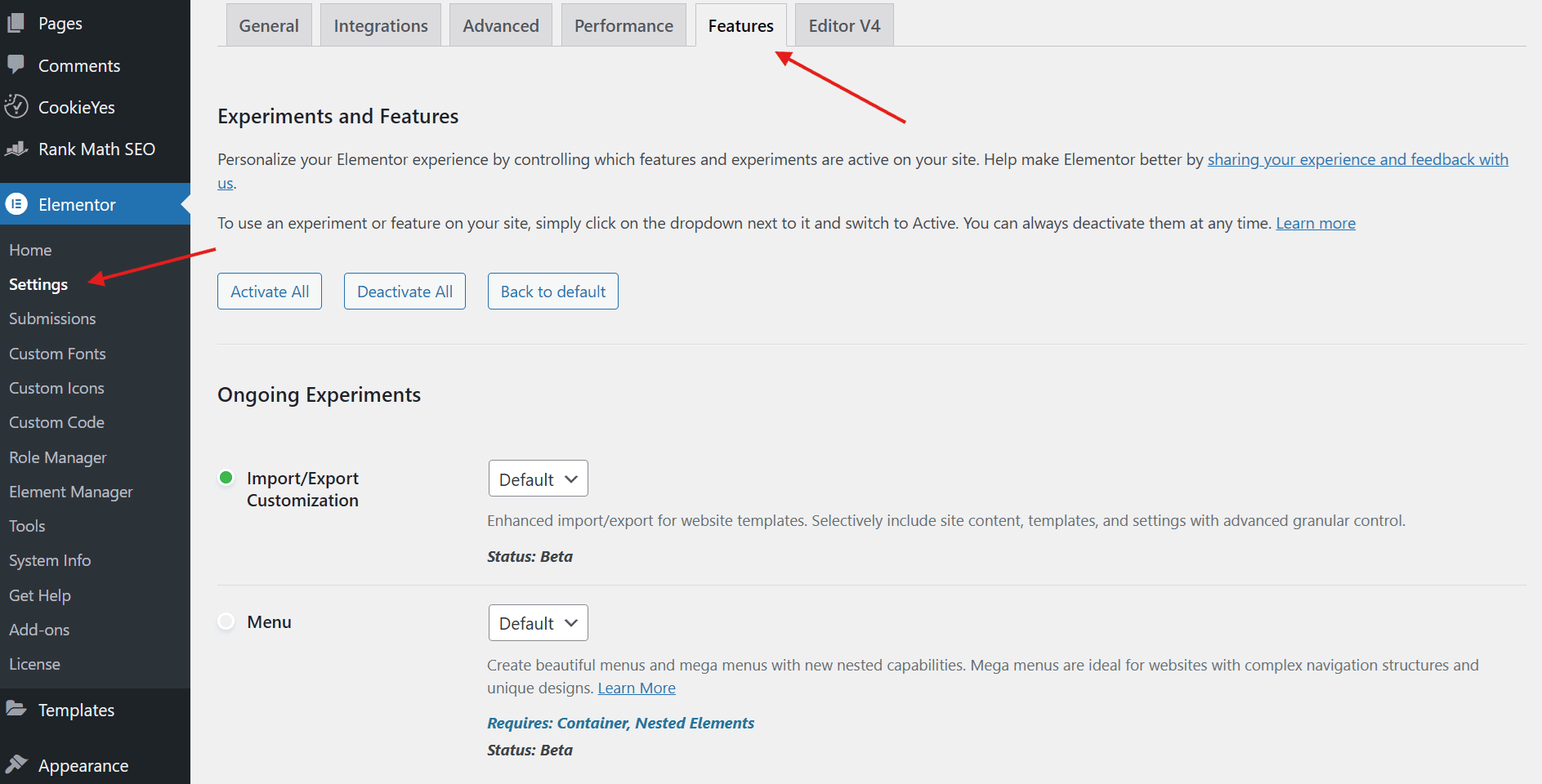
- Inline Font Icons: Renders icons as inline SVGs instead of loading Font Awesome and eIcons. This removes extra CSS and font files, reducing requests and improving load speed.
- Additional Custom Breakpoints: Adds more responsive breakpoints for better control across screen sizes, helping achieve consistent, pixel-perfect layouts.
- Container: Enables Flexbox and Grid layouts with cleaner markup, better responsiveness, and improved performance compared to sections and columns.
- Optimized Markup: Reduces unnecessary HTML elements, resulting in a smaller DOM and better performance. Test if you rely on custom CSS or third-party plugins.
- Default to New Theme Builder: Opens the newer Theme Builder interface by default, offering a smoother workflow and better alignment with current Elementor features.
- Nested Elements: Allows widgets inside other widgets for more complex layouts without hacks. Works best with Containers enabled.
These features are stable and tested, so there’s no reason not to enable them.
Important: Even though these features are stable and tested, enable them one at a time and review your site layout after each change to make sure everything displays correctly.
14. Duplicate lazy loading conflicts
Running multiple lazy-loading systems simultaneously creates chaos rather than optimization.
If you enable Elementor’s native lazy loading feature, then also activate lazy loading in WP Rocket or an image optimization plugin, the two systems will conflict. Images might not load at all, or they’ll load twice, completely defeating the purpose.
Pick one lazy loading method and disable the others.
If you’re lazy-loading images with a plugin, make sure to disable Elementor’s built-in options.
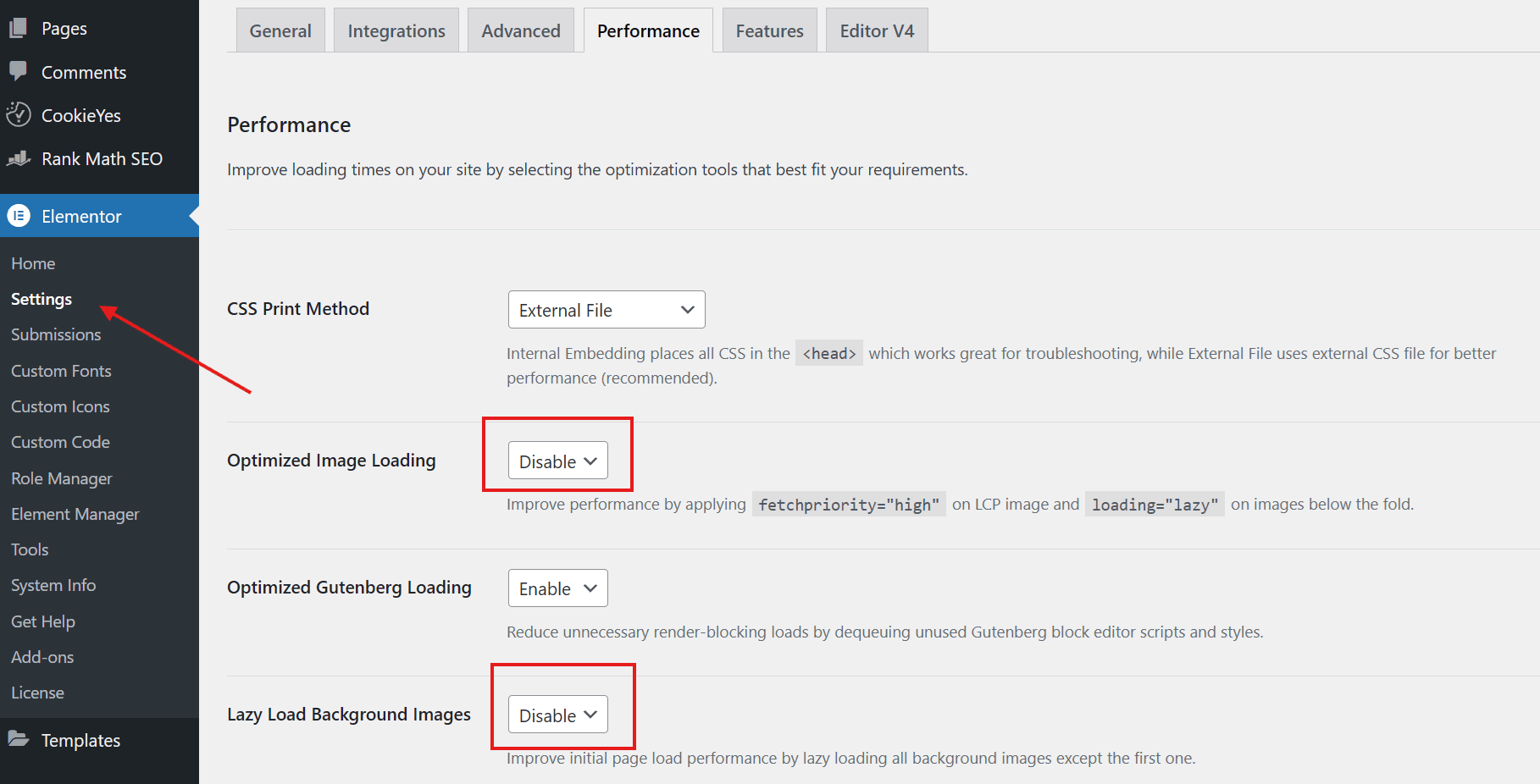
Besides, there are various tools, plugins, and themes that offer lazy loading, so first check your theme settings. Then review your caching or optimization plugin, as well as any plugin that handles images, such as image optimizers, sliders, or gallery plugins, to make sure lazy loading is not enabled in multiple places.
15. Image optimizer storage bloat
Here’s a hidden cost of image optimization: backup files.
By default, most optimization tools keep a copy of your original, unoptimized images. This safety net lets you revert if you’re unhappy with the compression quality.
Even if you reduce image sizes by 75%, you still keep the original 5GB of images, plus the new optimized versions.
For most users, keeping backups is worth it. But if you’re running low on storage and confident in your optimization settings, you can disable the backup feature in your image optimizer settings or remove the backup after a while.
ShortPixel offers an option to remove backup files to help you balance safety and storage efficiency.
16. Not enabling lazy loading and smart image prioritization
Reducing image file size is only half the battle. You also need to control when and how images load on the page.
Elementor’s Optimized Image Loading feature, which you can find by going to Elementor > Settings> Performance, handles this intelligently.
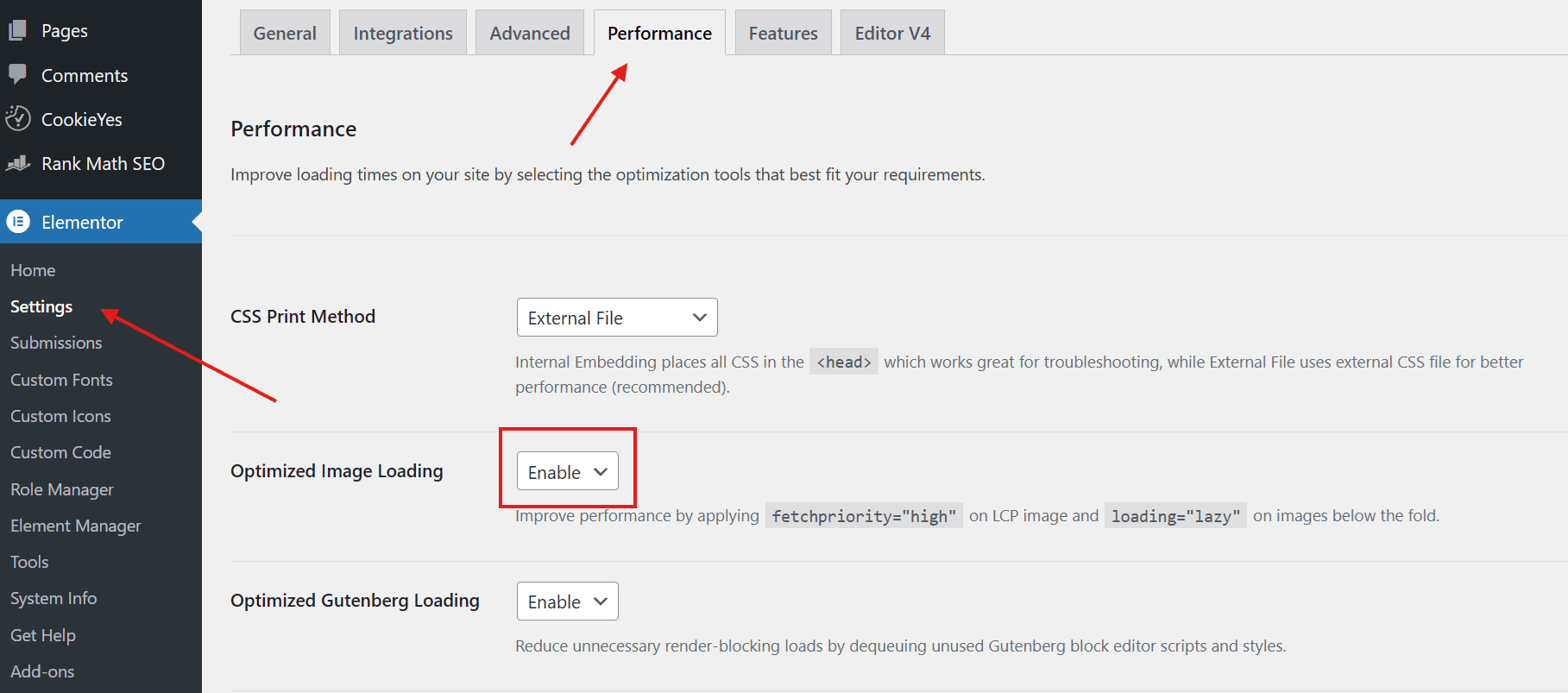
It uses the fetchpriority="high" attribute on your most important above-the-fold image (usually your hero image), telling browsers to prioritize it. Meanwhile, off-screen images get deferred until they’re about to enter the viewport.
This prevents the browser from wasting bandwidth downloading images users might never see, while ensuring the most critical images load instantly.
Don’t forget to also activate Lazy Load Background Images in the Features tab, as these are often forgotten and can be quite large.
17. No CDN
Serving all your assets from a single server location creates latency problems for international visitors.
Someone accessing your site from Sydney experiences significantly slower load times than someone in the same city as your server.
A Content Delivery Network (CDN) solves this by delivering your static files (images, CSS, JavaScript) from a global network of servers.
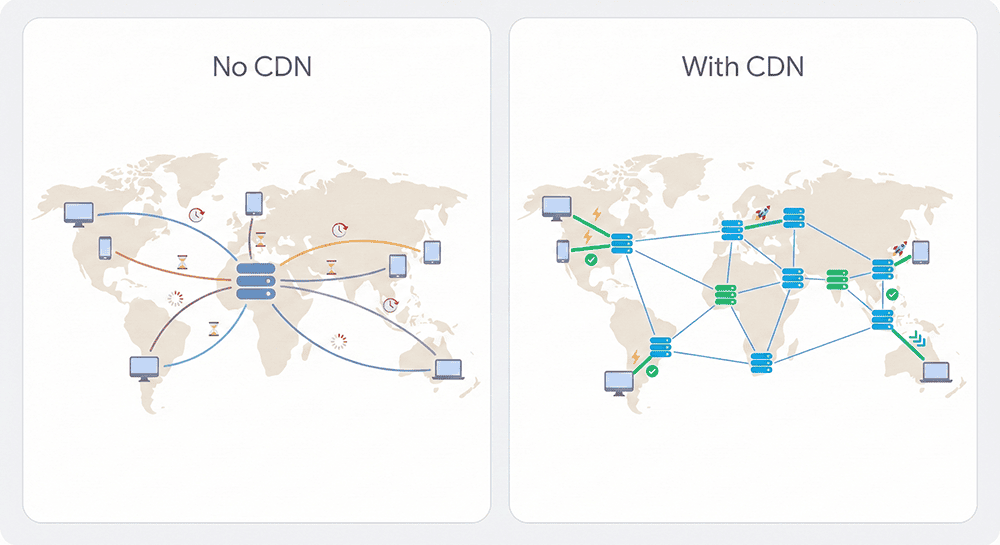
When someone visits your site, their browser fetches assets from the geographically closest server, dramatically reducing network latency.
Image CDNs are particularly beneficial for image-heavy sites. Services like Cloudflare, BunnyCDN, and KeyCDN offer affordable plans that can cut your global load times in half. Many quality hosts like Kinsta and SiteGround include CDN integration, simplifying the setup process.
18. Heavy animations and layout shifts
Animations add visual polish, but overusing them (especially JavaScript-based animations) can hurt performance and user experience.
Complex animations that change element sizes or positions cause Cumulative Layout Shift (CLS), a critical Core Web Vitals metric that Google uses for rankings.
Nothing annoys users more than clicking a button, only to have it jump 200 pixels down the page as an image loads and pushes everything around.
For smoother, less impactful animations, use CSS transform and translate properties instead of JavaScript libraries.
These CSS animations are rendered directly by the GPU and cause minimal layout reflow.
Also, always specify image dimensions in your HTML. When browsers know exactly how much space to reserve before assets load, they can prevent layout shifts entirely.
19. Not preloading above-the-fold images
Lazy loading is fantastic for saving bandwidth, but it can backfire for your most important image: the hero image visible immediately when the page loads.
This image determines your Largest Contentful Paint (LCP) score, the most important Core Web Vitals metric.
If you lazy-load your hero image, browsers wait to start downloading it until JavaScript loads and executes. This delay can add 500-1000ms to your LCP, failing Google’s performance standards.
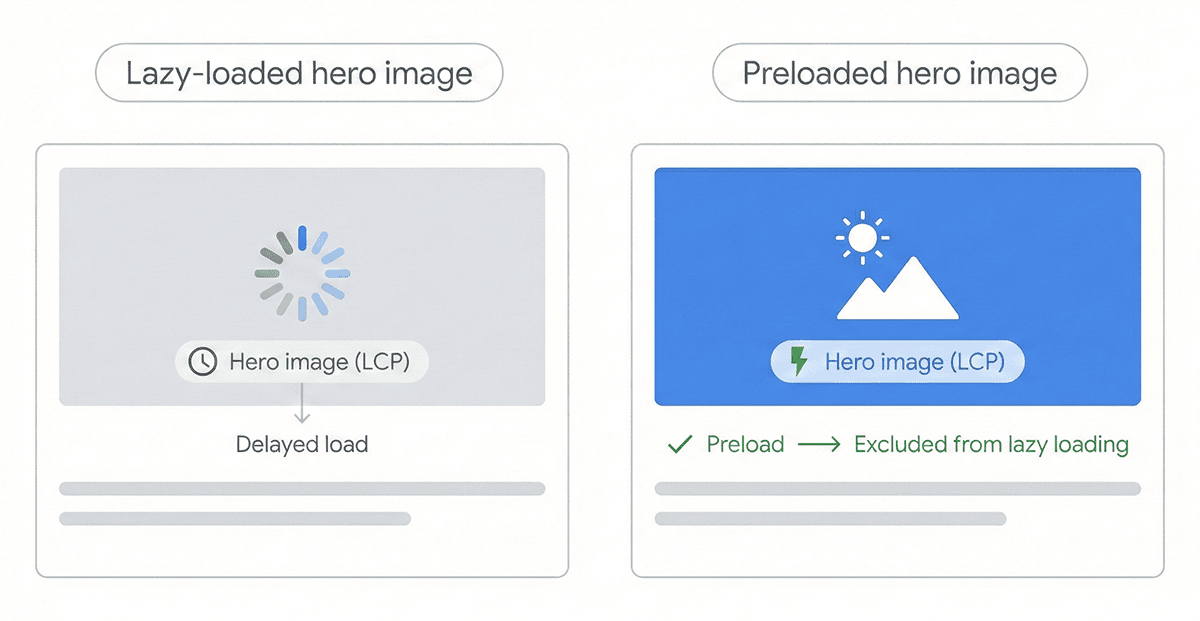
The solution is preloading critical assets. This tells browsers to download these files immediately, in parallel with other page resources. Crucially, if you preload an image, you must also exclude it from lazy loading, otherwise you’re just downloading it twice.
Most performance plugins offer preloading options, or you can add the tags manually if you’re comfortable with code.
20. Database bloat and revision history
WordPress databases accumulate clutter over time: thousands of post revisions, expired transients (temporary cached data), spam comments, and orphaned metadata.
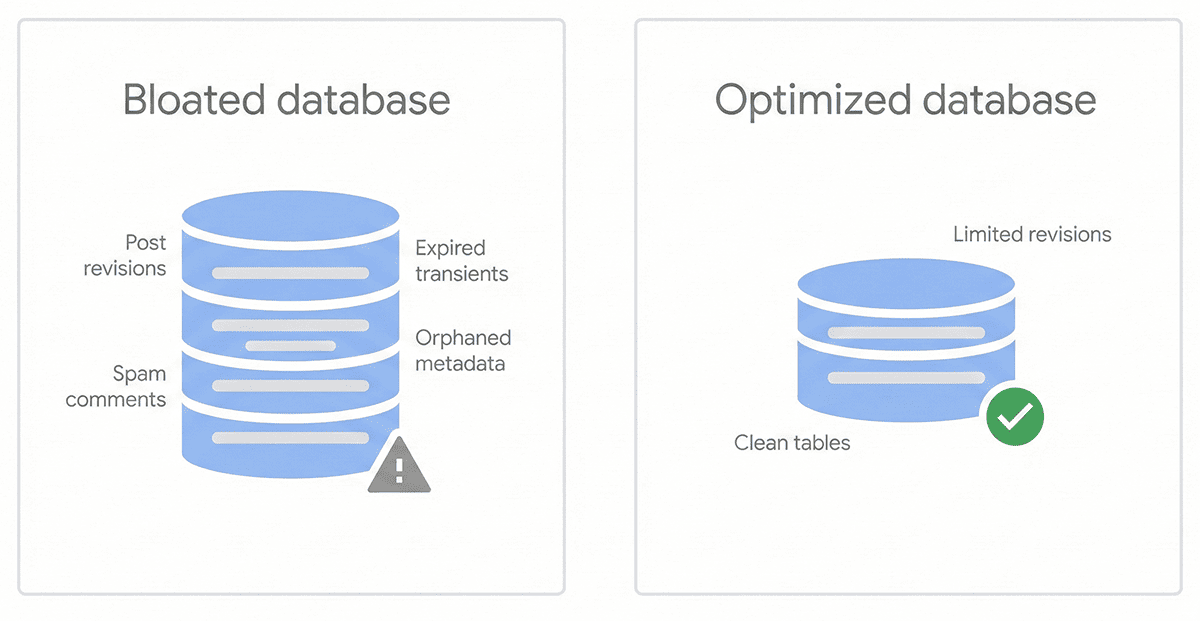
This bloat slows down every database query, directly impacting your overall site performance.
Think about it: if WordPress has to sift through 50 revisions of each blog post every time it queries your content, that’s a lot of unnecessary overhead.
Start by limiting post revisions. Add this line to your wp-config.php file: define('WP_POST_REVISIONS', 5); This limits WordPress to storing only the 5 most recent revisions of each post, rather than keeping every single edit forever.
Next, use a database cleanup plugin like Advanced Database Cleaner or WP-Optimize. These plugins can remove old revisions, clear expired transients, delete spam comments, and optimize database tables.
Many caching plugins like WP Rocket also include database cleanup features. Run a cleanup monthly to keep your database lean and efficient.
Conclusion
A fast Elementor site isn’t magic. It’s the result of careful, systematic optimization.
By aggressively compressing images, reducing unnecessary scripts and plugins, choosing quality hosting, and leveraging Elementor’s robust built-in performance features, you can deliver a snappy experience without sacrificing design flexibility.
Start with a lightweight foundation, limit add-ons, and adopt a “less is more” approach.
Your visitors and search engines will thank you.