Best Tools to Bulk Optimize Product Photos for Your Online Store


Product photos can make or break your online store’s performance.
High-quality images sell products, but large, unoptimized files slow down your site, frustrate customers, and hurt your search rankings. When you’re managing dozens, hundreds, or even thousands of product images, optimizing them one by one simply isn’t realistic.
That’s where bulk optimization comes in – a game-changer for e-commerce stores that need to compress large image libraries quickly without sacrificing visual quality.
In this post, we’ll explore the best tools for bulk optimizing product photos, compare their features, and show you exactly how to optimize your entire product catalog efficiently with ShortPixel.
Quick Takeaways
- Product photos are critical for sales but often slow down e-commerce sites with large file sizes.
- Bulk optimization lets you compress hundreds or thousands of images at once, saving hours of manual work.
- ShortPixel excels at bulk product photo optimization with WordPress/WooCommerce integration and three compression levels.
- Desktop tools like ImageOptim (Mac) and XnConvert offer offline batch processing.
- Consider compression quality, batch size limits, format support, and e-commerce platform integration when choosing tools.
- Advanced techniques like smart resizing, WebP/AVIF generation, and consistent naming improve results.
- Combining bulk optimization with CDN and lazy loading maximizes store performance.
Why bulk optimization is essential for product photos
If you’re running an online store, you already know how important product images are.
Customers can’t touch or try your products, so photos do the heavy lifting. Multiple angles, zoom-in details, lifestyle shots – these images build trust and drive conversions.
But here’s the problem: high-quality product photos often come straight from professional cameras with massive file sizes. A single product might have 5-10 images, each several megabytes large. Multiply that across your entire catalog, and you’ve got a serious performance problem.
Optimizing product photos one by one is tedious, time-consuming, and practically impossible at scale. That’s why bulk optimization is essential:
✅ Save massive amounts of time: Compress hundreds of product photos in minutes instead of hours or days.
✅ Improve site speed dramatically: Smaller images mean faster page loads, especially on product and category pages with multiple images.
✅ Boost conversions: Studies show that even a 1-second delay in page load time can reduce conversions by 7%. Faster sites sell more.
✅ Enhance SEO rankings: Google prioritizes fast-loading sites, and optimized images contribute significantly to better search visibility.
✅ Reduce bandwidth costs: Smaller images consume less server bandwidth, lowering hosting costs for high-traffic stores.
✅ Maintain consistent quality: Bulk processing ensures all product photos get the same optimization treatment for uniform quality across your catalog.
Whether you’re launching a new store or optimizing an existing catalog, bulk optimization tools are non-negotiable for serious e-commerce success.
What to look for in a bulk product photo optimizer
Not all bulk optimization tools are created equal, especially when it comes to product photography. Here’s what matters most:
- Batch processing capacity: Can it handle hundreds or thousands of images in one go? Check file limits and processing speed.
- Compression quality control: Product photos need to look sharp and professional. Look for tools with multiple compression levels (lossy, lossless) so you can balance file size and quality.
- Format support: Does it handle JPEG, PNG, and modern formats like WebP and AVIF? Product catalogs often mix formats.
- E-commerce platform integration: WordPress/WooCommerce, Shopify, Magento – the best tools integrate directly with your platform for automatic optimization.
- Preserve image details: Product photos often include fine details, textures, and colors that matter. The tool should maintain these without introducing artifacts.
- Resizing capabilities: Many product photos need multiple sizes (thumbnails, galleries, zoom images). Built-in resizing saves additional work.
- Speed and reliability: When processing large catalogs, you need tools that won’t crash or timeout halfway through.
- Metadata handling: Product photos might contain copyright info or color profiles you want to keep, or unnecessary EXIF data you want to strip.
The right tool depends on your specific platform, catalog size, and technical comfort level, but these features separate good bulk optimizers from great ones.
Top tools for bulk optimizing product photos
Let’s explore the best tools for bulk product photo optimization, each with strengths for different use cases.
ShortPixel – Best for e-commerce stores and bulk processing
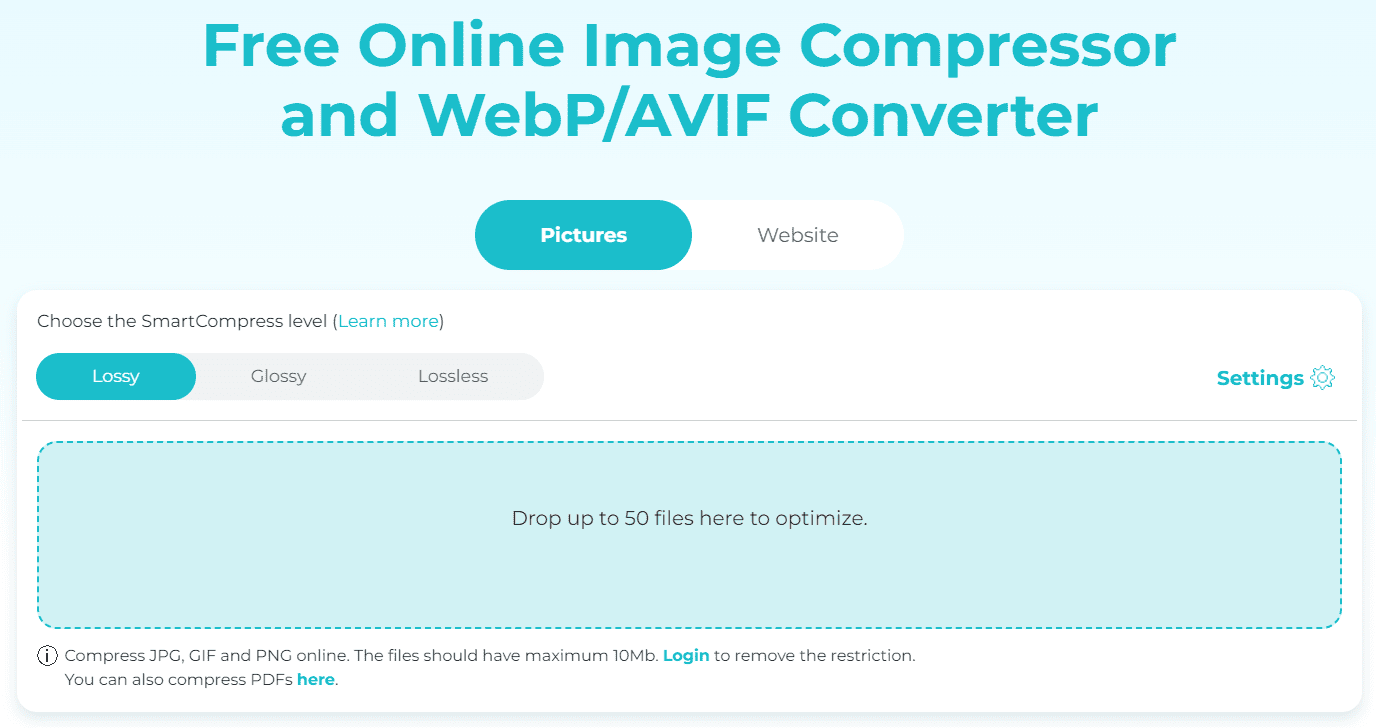
ShortPixel is purpose-built for bulk image optimization and shines particularly bright for e-commerce stores.
What makes ShortPixel perfect for product photos? Three compression modes (Lossy, Glossy, Lossless) let you choose the right balance for your products. Glossy mode, in particular, is ideal for product photography – it significantly reduces file size while preserving the sharp details and accurate colors customers need to see.
The ShortPixel WordPress/WooCommerce plugin is seamless. Install the plugin, and it automatically optimizes every product image you upload – main images, galleries, variations, everything. Already have thousands of existing products? The bulk optimizer processes your entire media library in the background without touching your site’s performance.
ShortPixel also supports resizing, WebP/AVIF generation, and can even optimize images stored in your theme or plugin folders – crucial for stores with product images scattered across different directories.
Best for: WooCommerce stores, WordPress e-commerce sites, stores with large product catalogs needing reliable bulk optimization.
Adobe Photoshop – Professional control for batch processing
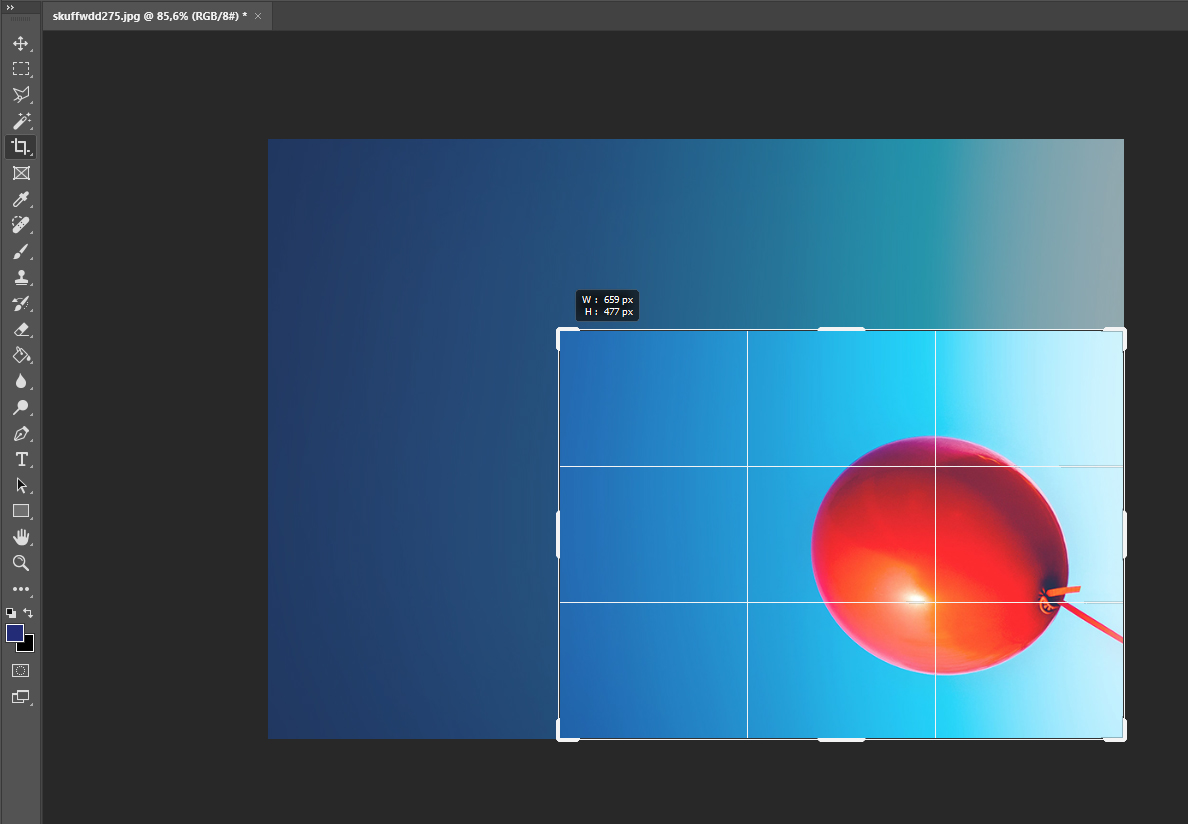
Photoshop isn’t just for individual edits – its Actions and Batch Processing features make it powerful for optimizing product photo libraries.
You can create custom Actions that resize, sharpen, and export images with specific compression settings, then apply those Actions to entire folders of product photos. This gives you professional-grade control over every aspect of optimization.
The downside is that Photoshop requires technical knowledge, costs money, and runs on your local machine, which means processing hundreds of images can tie up your computer for extended periods. It’s also manual – you need to set everything up yourself, and there’s no integration with e-commerce platforms.
Best for: Professional photographers, designers, and stores that need custom optimization workflows with maximum control.
Alternative recommendation: If you want professional quality without the complexity, ShortPixel’s Glossy mode delivers excellent results automatically, and the bulk processor runs in the cloud without tying up your computer.
XnConvert – Free bulk converter with optimization features
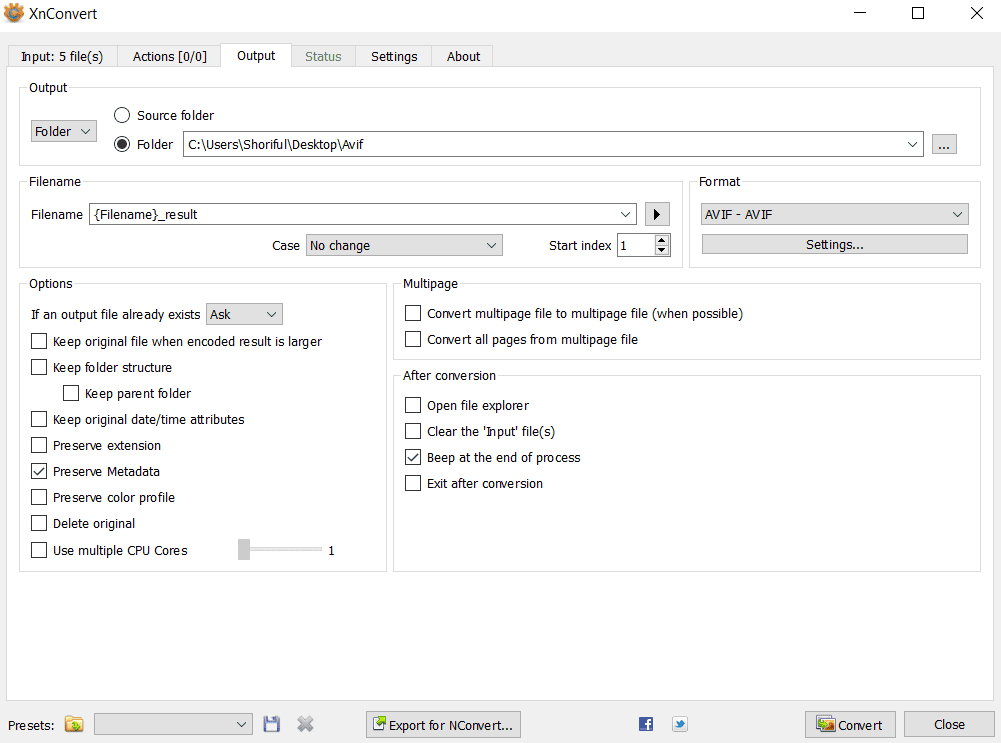
XnConvert is a powerful, free desktop tool that handles batch image conversion and optimization across multiple formats.
It supports hundreds of formats, lets you apply custom filters and adjustments, and can process entire folders of product photos. You can set up compression, resizing, watermarking, and format conversion all in one automated workflow.
For Windows, Mac, and Linux users who need offline batch processing without monthly costs, XnConvert is solid. However, it lacks e-commerce integration, cloud processing, and the interface has a steep learning curve compared to purpose-built tools.
Best for: Technically comfortable users who need free, offline bulk processing and don’t require platform integration.
Alternative recommendation: ShortPixel offers similar batch capabilities with a simpler interface, cloud processing that doesn’t slow your computer, and direct integration with WooCommerce and Shopify.
Squoosh – Google’s simple bulk optimizer
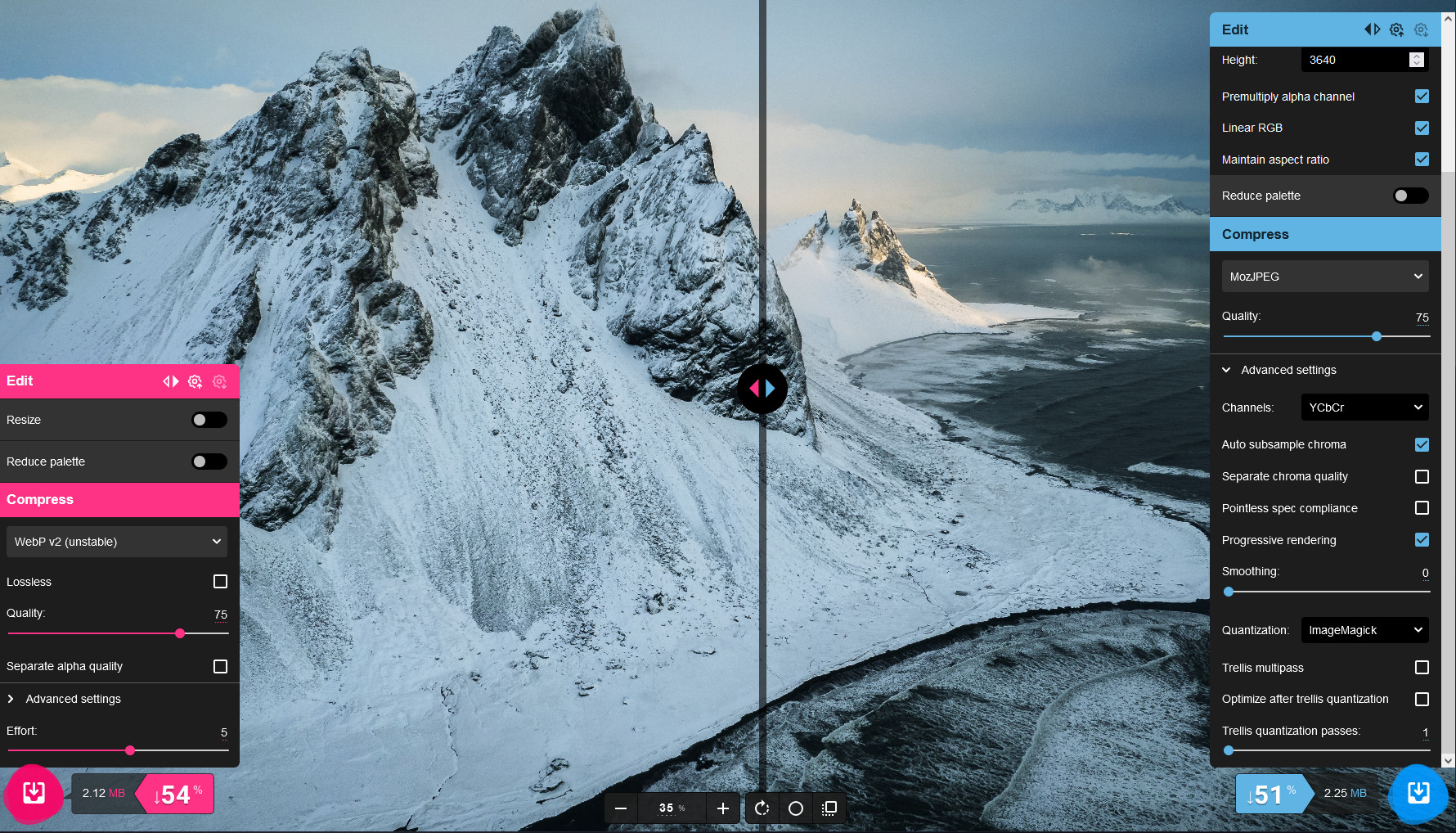
Squoosh, developed by Google, offers straightforward image compression with modern format support including WebP and AVIF.
The web interface lets you upload images, adjust compression settings visually with side-by-side comparisons, and download optimized versions. It’s free, requires no account, and works entirely in your browser.
However, Squoosh handles one image at a time – not ideal for bulk product catalogs. You can download the CLI (command-line) version for true batch processing, but that requires technical skills and terminal comfort.
Best for: Individual product photo optimization and users who want to experiment with modern formats.
Alternative recommendation: For true bulk processing without technical overhead, ShortPixel handles hundreds of images at once through its online tool or plugin, with better e-commerce integration.
ImageOptim – Mac users’ favorite batch optimizer
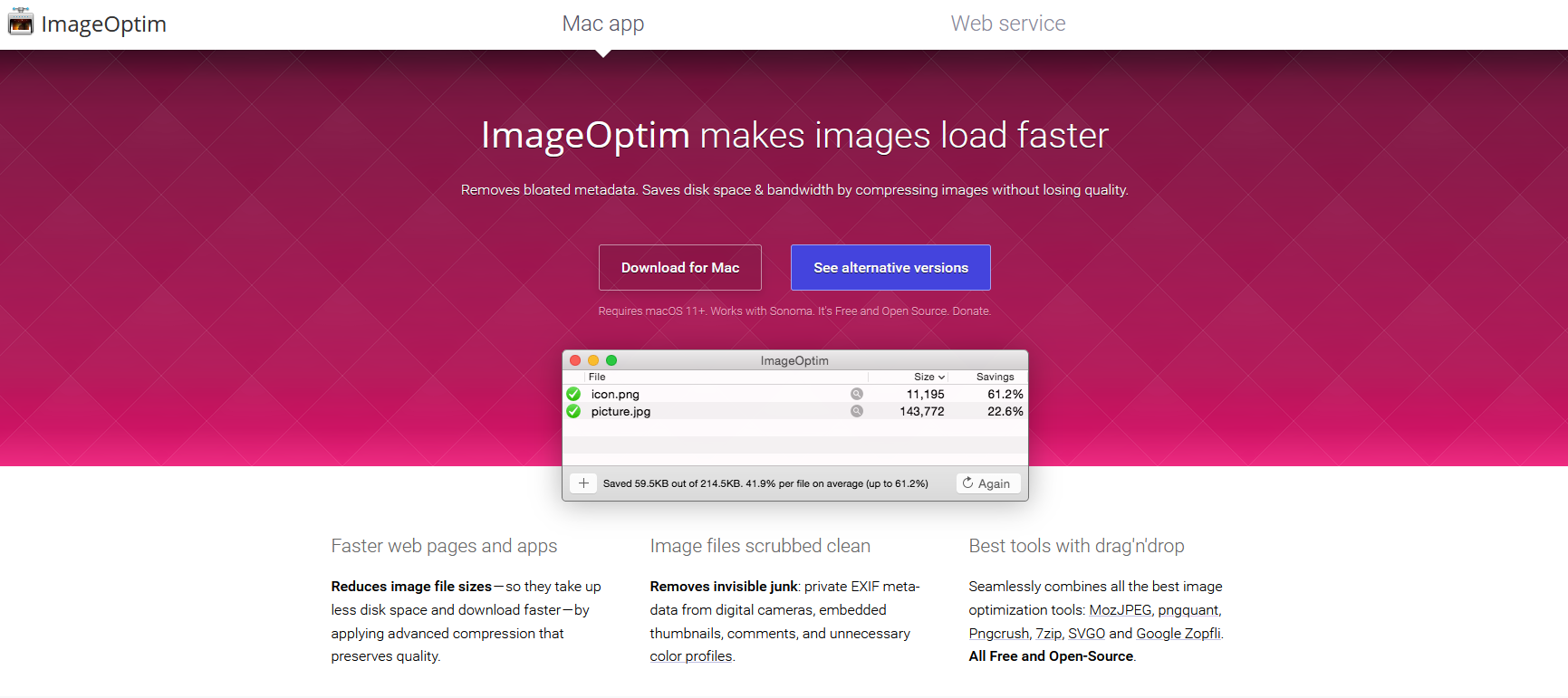
ImageOptim remains a top choice for Mac users needing offline batch compression.
Drag entire folders of product photos onto the app, and it processes them automatically using multiple optimization algorithms. It’s free, strips unnecessary metadata, and maintains excellent quality while significantly reducing file sizes.
However, it’s Mac-only. No e-commerce integration, and no cloud processing. You’re limited to your computer’s processing power and can’t optimize images that are already uploaded to your store without downloading them first.
Best for: Mac users who prefer desktop apps and offline processing.
Alternative recommendation: ShortPixel works on any platform, integrates directly with e-commerce platforms, and optimizes images in the cloud, including those already in your store – no downloading and re-uploading required.
How to bulk optimize product photos with ShortPixel (step-by-step)
Ready to optimize your entire product catalog efficiently? Here’s exactly how to bulk optimize product photos using ShortPixel.
For WooCommerce/WordPress stores:
Step 1: Install ShortPixel Image Optimizer plugin
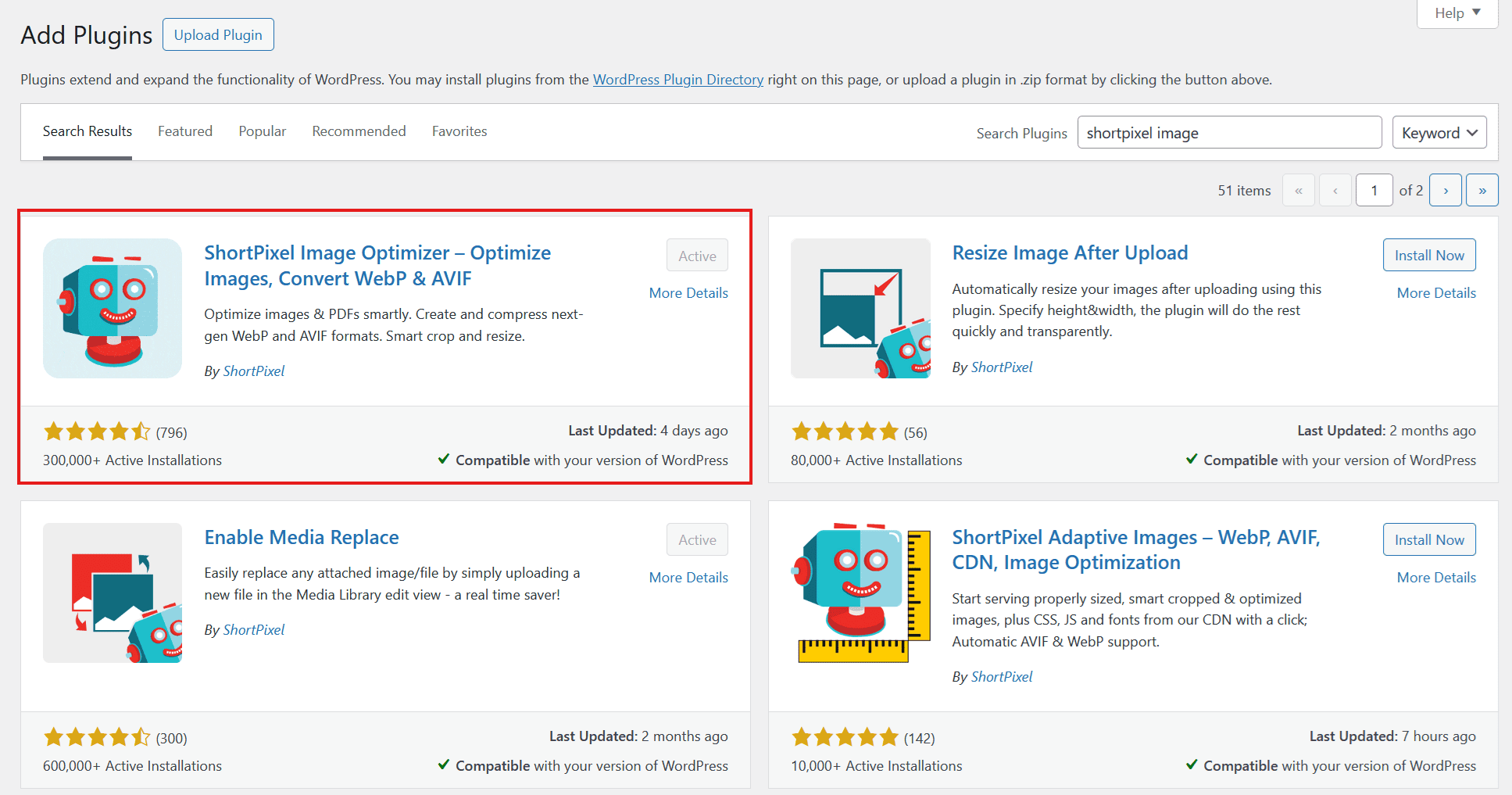
Log into your WordPress dashboard, navigate to Plugins > Add New, and search for “ShortPixel Image Optimizer.” Install and activate the plugin.
Step 2: Connect your API key
After activation, you’ll be prompted to enter your API key. Sign up for a free ShortPixel account to get your key – you’ll receive 100 free image credits monthly, with affordable paid plans for larger catalogs.
Enter your API key in the plugin settings to connect.
Step 3: Choose your compression settings
Navigate to Settings > ShortPixel > Image Optimization in your WordPress dashboard.
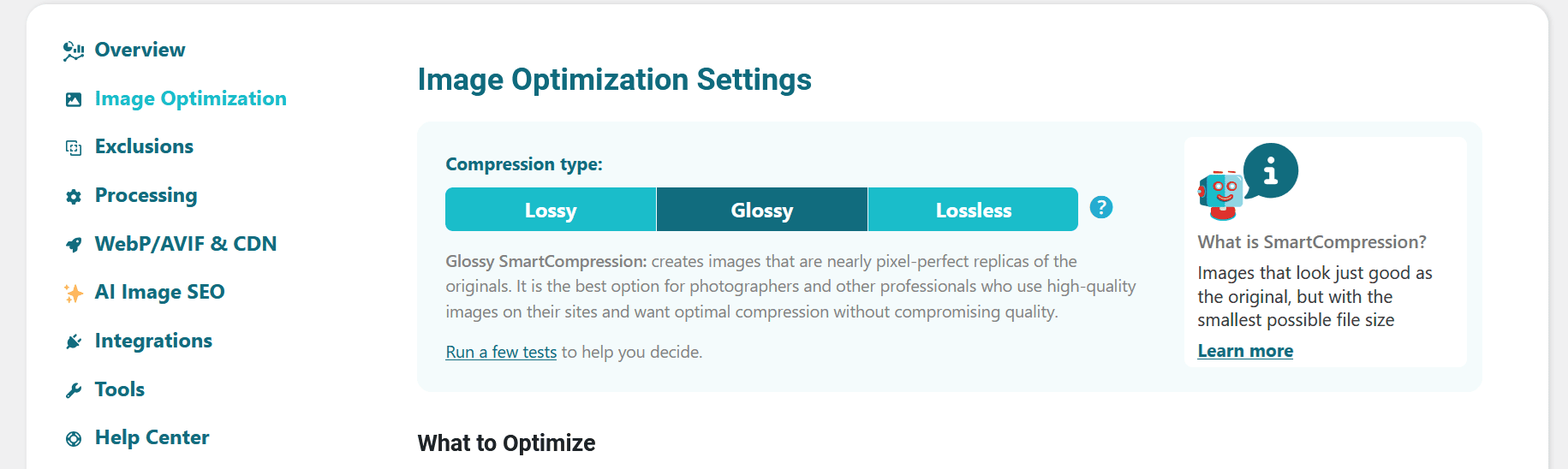
Select your compression level:
- Lossy: Maximum compression, smallest files, minimal visible quality loss
- Glossy: Balanced compression that preserves details – recommended for product photos
- Lossless: Zero quality loss, larger files
For product photos, Glossy is typically the sweet spot – it maintains sharp details and accurate colors while significantly reducing file size.
Step 4: Configure additional options
In the settings, you can enable:
- WebP generation: Create WebP versions alongside originals for modern browsers
- AVIF generation: Generate even smaller AVIF versions for supported browsers
- Resize large images: Set maximum dimensions for uploaded images
- Backup originals: Keep uncompressed copies (recommended)
- Convert PNG to JPEG: Convert non-transparent PNGs to smaller JPEGs
Adjust these based on your store’s needs. For most product catalogs, enabling WebP generation and setting reasonable maximum dimensions (like 2000px) works well.
Step 5: Bulk optimize existing product images
Navigate to Media > Bulk ShortPixel in your WordPress dashboard, and click the button to start the optimization.
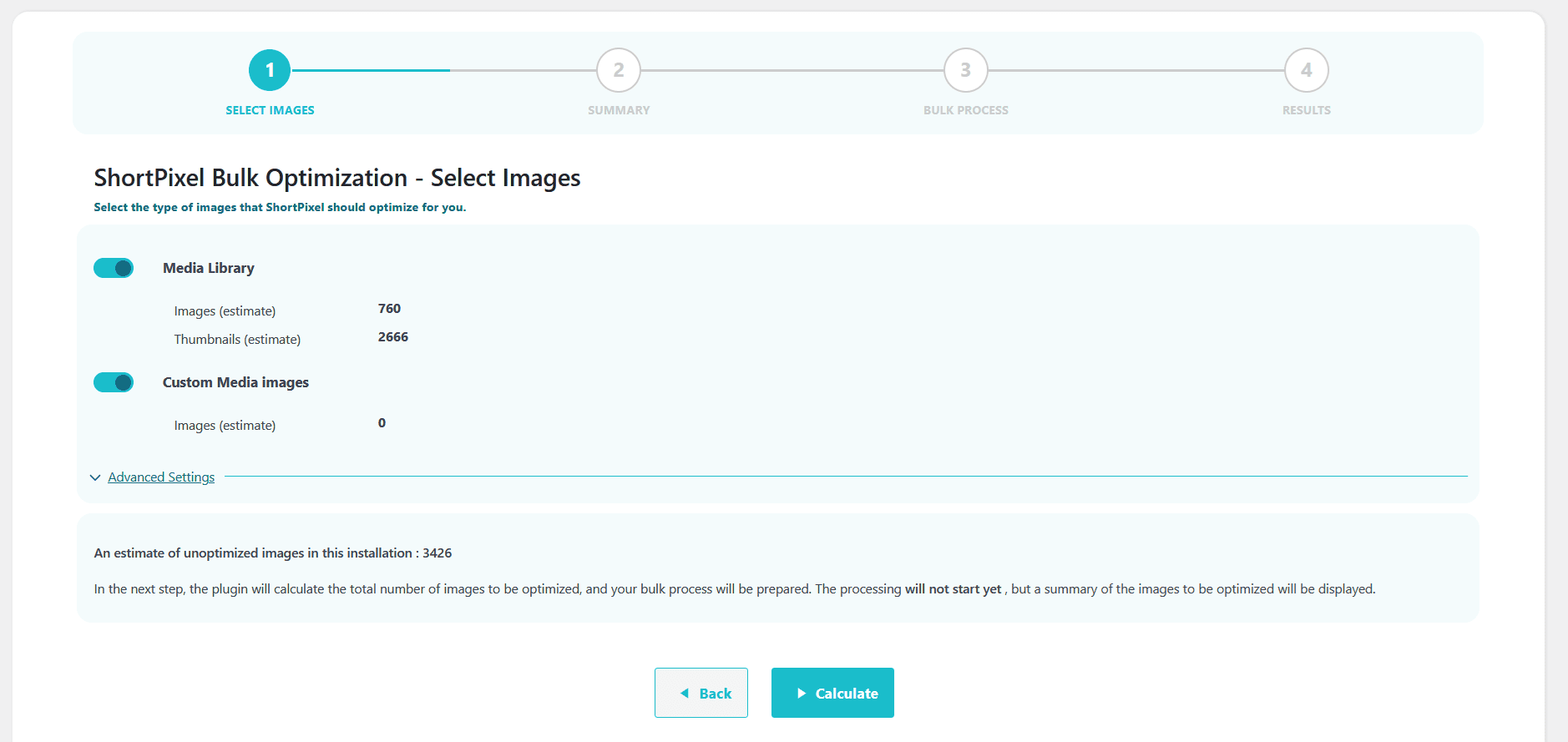
ShortPixel will scan your media library and show how many images can be optimized.
After starting the optimization, the plugin processes images in the background without affecting your site’s performance. You can monitor progress in real-time while keeping a tab open in your browser.
Depending on your catalog size, this might take minutes or hours. The plugin will notify you when complete.
For other platforms (Shopify, Magento, custom stores):
Step 1: Export your product images
Download your product photos from your e-commerce platform. Most platforms let you export images through their admin panel or FTP access.
Organize them in folders if they’re not already structured.
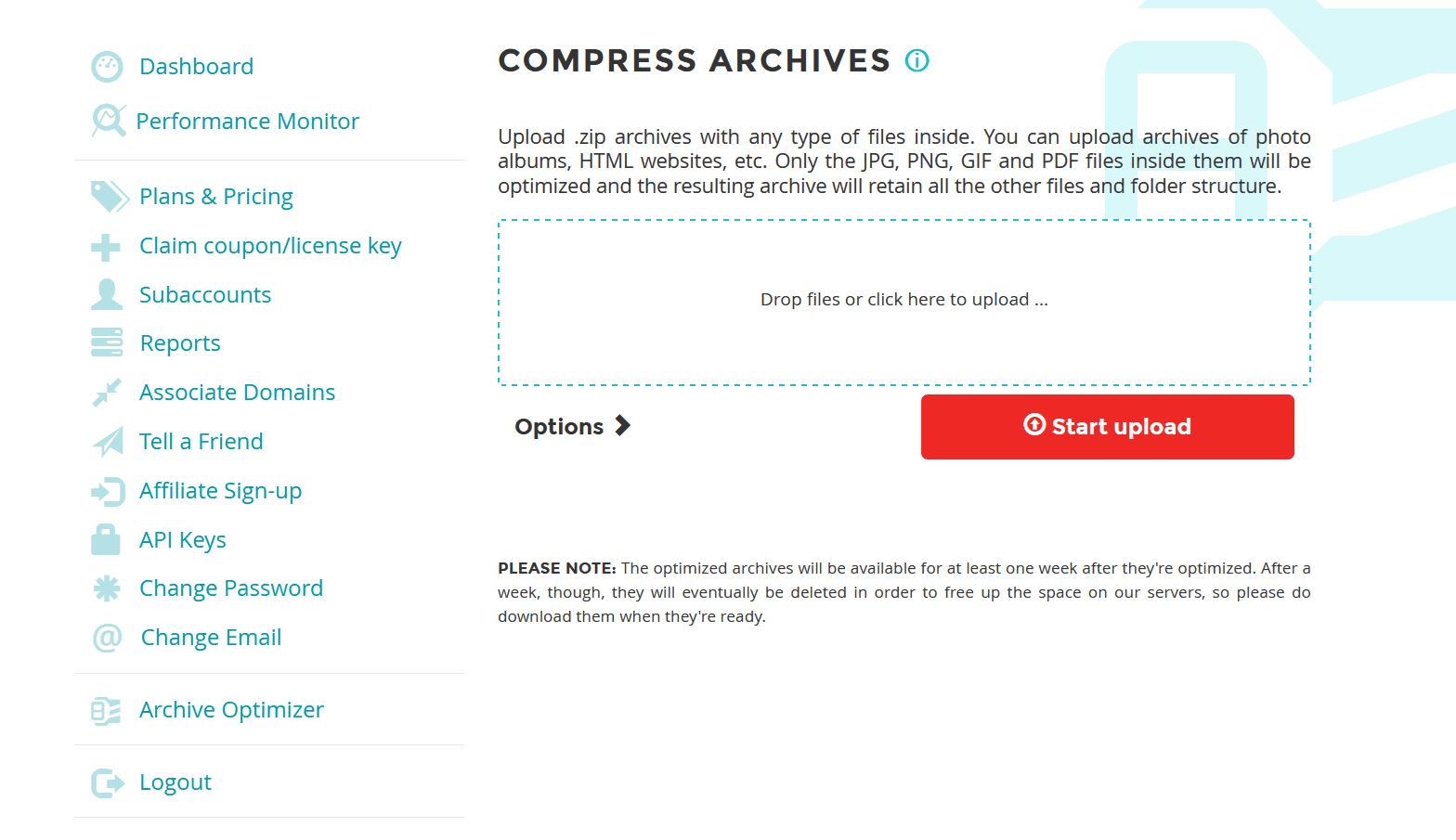
Step 2: Navigate to ShortPixel’s Archive Optimizer
Head over to the Archive Optimizer tool. You need an account in order to access this page.
Step 3: Choose compression level and settings
Under Options, select your compression mode (Glossy recommended for product photos).
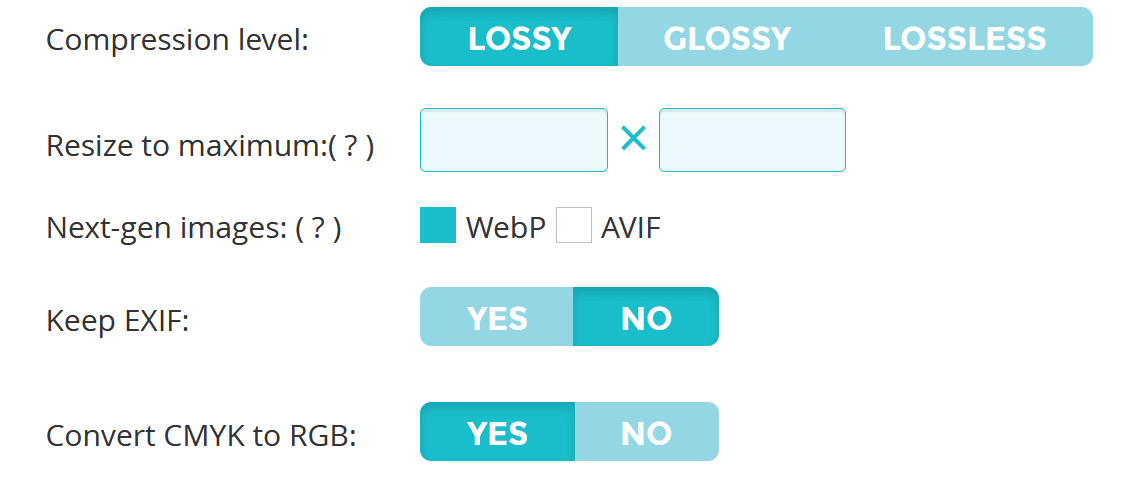
Configure optional settings:
- Resize to maximum: Set dimensions if needed
- Next-gen images: Enable WebP or AVIF for modern format versions
- Keep EXIF data: Usually not needed for product photos
Step 4: Upload your ZIP archive with the images
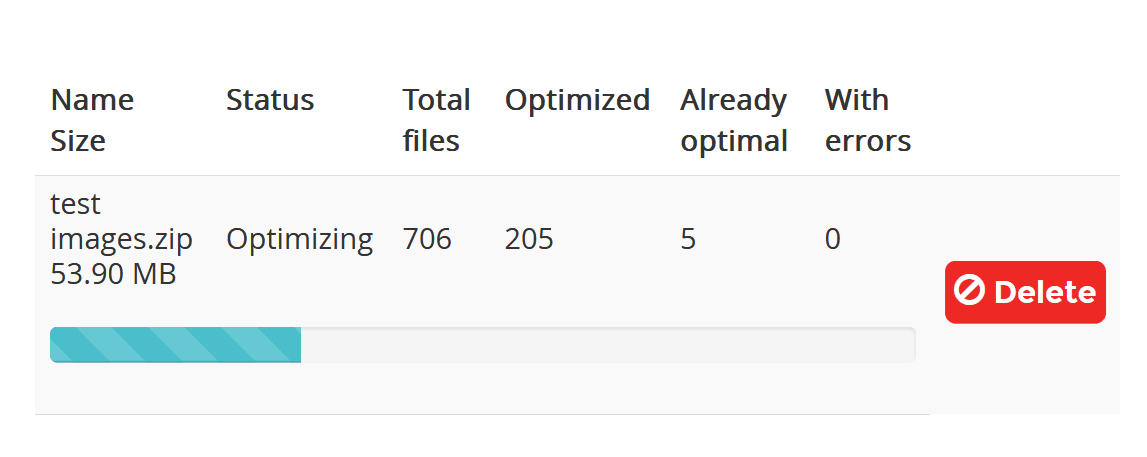
For best results, it’s best to split large archives into smaller ZIP files.
You can upload .zip archives containing any type of files, such as photo albums or full HTML websites.
Inside the archive, only JPG, PNG, GIF, and PDF files will be optimized. All other files and the original folder structure will remain exactly the same in the resulting archive.
Step 5: Download optimized images
Once compression completes, click the button to download the optimized files.
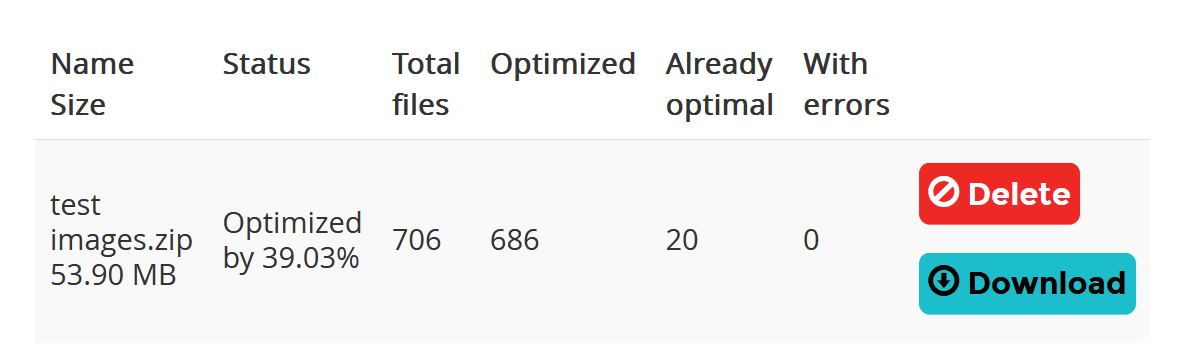
You’ll have your optimized product photos ready to upload back to your store.
Step 6: Re-upload to your store
Upload the optimized images to your e-commerce platform, replacing the originals.
Most platforms support bulk imports through CSV files or admin interfaces.
Important: Always keep a copy of the original files, just in case anything doesn’t look quite right after optimization.
Advanced tips for product photo bulk optimization
Want to get even better results from your product photo optimization? Here are some pro techniques.
Standardize dimensions before optimizing
Product photos often come in random sizes from different sources. Before bulk optimizing, resize them to consistent dimensions that match your store’s design.
For example, if your product pages display images at 1200px width, resize originals to 1200-1500px before compressing. This reduces file sizes dramatically while ensuring consistency across your catalog.
Use appropriate compression for image types
Not all product photos need the same compression level. Consider:
- Main product images: Lossless compression for maximum quality
- Thumbnails and small images: Lossy for smallest size (quality matters less at small dimensions)
- Product variations: Match the main image compression
- Lifestyle and context shots: Can often handle Lossy compression better than isolated product shots
ShortPixel lets you set different defaults, or you can process different image sets separately.
Generate multiple formats for modern browsers
WebP offers 25-35% smaller file sizes than JPEG/PNG with equivalent quality. AVIF goes even further, achieving 30-50% better compression.
Enable WebP and AVIF generation in ShortPixel so your store serves the best format to each browser automatically, with fallbacks for older browsers. This dramatically improves load times for most visitors without extra work.
Implement consistent file naming
Before bulk uploading, rename your product photos with descriptive, SEO-friendly names:
- Good:
blue-cotton-shirt-front.jpg - Bad:
IMG_3847.jpg
Consistent naming helps with organization and improves image SEO.
Preserve originals in a backup
Always keep uncompressed originals in a separate backup before bulk processing.
Storage is cheap, but recreating lost product photography is expensive.
ShortPixel’s WordPress plugin automatically backs up originals, but for other workflows, manually save copies before processing.
Optimize beyond product images
Don’t forget other store images that impact performance:
- Category headers and banners
- Logo and branding images
- Content marketing images in blog posts
- Email marketing images
Include these in your bulk optimization workflow for comprehensive site performance improvements.
Combine with lazy loading and CDN
Bulk optimization solves the file size problem, but loading strategy matters too:
- Lazy loading: Only load product images as users scroll to them
- CDN: Serve optimized images from servers geographically close to customers
Most e-commerce platforms support these features natively or through plugins. Combined with optimized images, they deliver blazing-fast store performance.
FAQs
What is the best tool to bulk optimize product photos?
ShortPixel is the top choice for bulk optimizing product photos, especially for WooCommerce and WordPress stores. It offers three compression levels perfect for product photography, seamless platform integration, and can process thousands of images efficiently in the background. The Glossy compression mode maintains professional quality while significantly reducing file sizes.
Can I bulk optimize product photos without losing quality?
Yes, using lossless or glossy compression preserves visual quality while reducing file size. ShortPixel’s Glossy mode is specifically designed for product photography – it maintains sharp details, accurate colors, and fine textures while achieving 50-70% file size reduction that’s virtually indistinguishable from the original.
How do I bulk optimize product photos in WooCommerce?
Install the ShortPixel Image Optimizer plugin, connect your API key, choose Glossy compression, and run the bulk optimizer from Media > Bulk ShortPixel. The plugin processes all existing product images in the background and automatically optimizes future uploads, including product galleries and variation images.
Should I use lossy or lossless compression for product photos?
For most product photos, Glossy compression (available in ShortPixel) offers the best balance – it preserves the quality customers need to see while significantly reducing file size. Use Lossless only for products where absolutely every pixel matters (like art prints or technical diagrams). Lossy works well for thumbnails and small images where minor quality reduction is invisible.
Can bulk optimization work for thousands of product images?
Absolutely. Tools like ShortPixel are designed to handle large catalogs with thousands of images. The WordPress plugin processes images in the background without affecting your site, and can handle unlimited images. The online tool processes images in batches of 50, or you can use the API for automated bulk processing of entire catalogs.
What file formats should product photos use?
JPEG works best for most product photos with complex colors and details. PNG is better for images with transparency (like products on transparent backgrounds) or simple graphics. Additionally, generating WebP and AVIF versions provides better compression for modern browsers. ShortPixel handles all formats and can automatically generate modern format versions alongside originals.
How much can bulk optimization reduce product photo file sizes?
Typical results range from 40-70% file size reduction, depending on the original images and compression level used. A 2MB product photo might compress to 600KB-1.2MB while maintaining professional quality. Across an entire catalog, this can reduce total image weight by 50% or more, dramatically improving site speed.