Best PNG Compressor Alternatives: Find the Perfect Tool for Your Needs

Images are the backbone of modern websites, but PNG files can quickly become a bottleneck if they’re not optimized.
If you’ve been using the same PNG compressor for a while, you might be missing out on better features, faster compression, or tools that fit your workflow more seamlessly.
Whether you’re looking for a WordPress-friendly option, a desktop tool, or a free online compressor, there’s an alternative out there that’ll work perfectly for you.
In this post, we’ll explore the best alternatives to popular PNG compressors, compare their features, and show you exactly how to use ShortPixel – one of the most powerful and user-friendly options available.
Quick Takeaways
- Different PNG compressors excel at different tasks – batch processing, quality preservation, or platform integration.
- ShortPixel stands out with three compression levels, WordPress integration, and excellent quality-to-size ratio.
- Free tools like CompressPNG and iLoveIMG work well for occasional use.
- Desktop apps like ImageOptim (Mac) offer offline compression with drag-and-drop simplicity.
- Consider your specific needs: bulk processing, transparency support, format conversion, and ease of use.
- Advanced features like WebP/AVIF conversion and metadata stripping can further improve results.
Why look for PNG compressor alternatives?
Even if your current PNG compressor works fine, exploring alternatives can open up new possibilities for your workflow.
Maybe you need better batch processing for hundreds of images. Perhaps you want tighter WordPress integration or faster compression speeds. Or you’re simply curious if there’s a tool that delivers better quality at smaller file sizes.
Here’s why switching to a different PNG compressor might make sense:
✅ Better compression algorithms: Newer tools often use advanced techniques that squeeze more size out of your PNGs without quality loss.
✅ Workflow integration: Some compressors plug directly into WordPress or your operating system, saving you time.
✅ Advanced features: Format conversion (PNG to WebP or PNG to AVIF), metadata stripping, and smart resizing can take your optimization further.
✅ Cost considerations: Free alternatives might handle your needs just as well as paid tools, or vice versa.
✅ Speed and efficiency: Batch processing and faster compression can save hours when optimizing large image libraries.
The right alternative depends on your specific use case, but the good news is that there are excellent options for every situation.
Top PNG compressor alternatives to consider
Let’s explore the best alternatives to popular PNG compressors, each with its own strengths and ideal use cases.
ShortPixel – Best all-around PNG compressor alternative
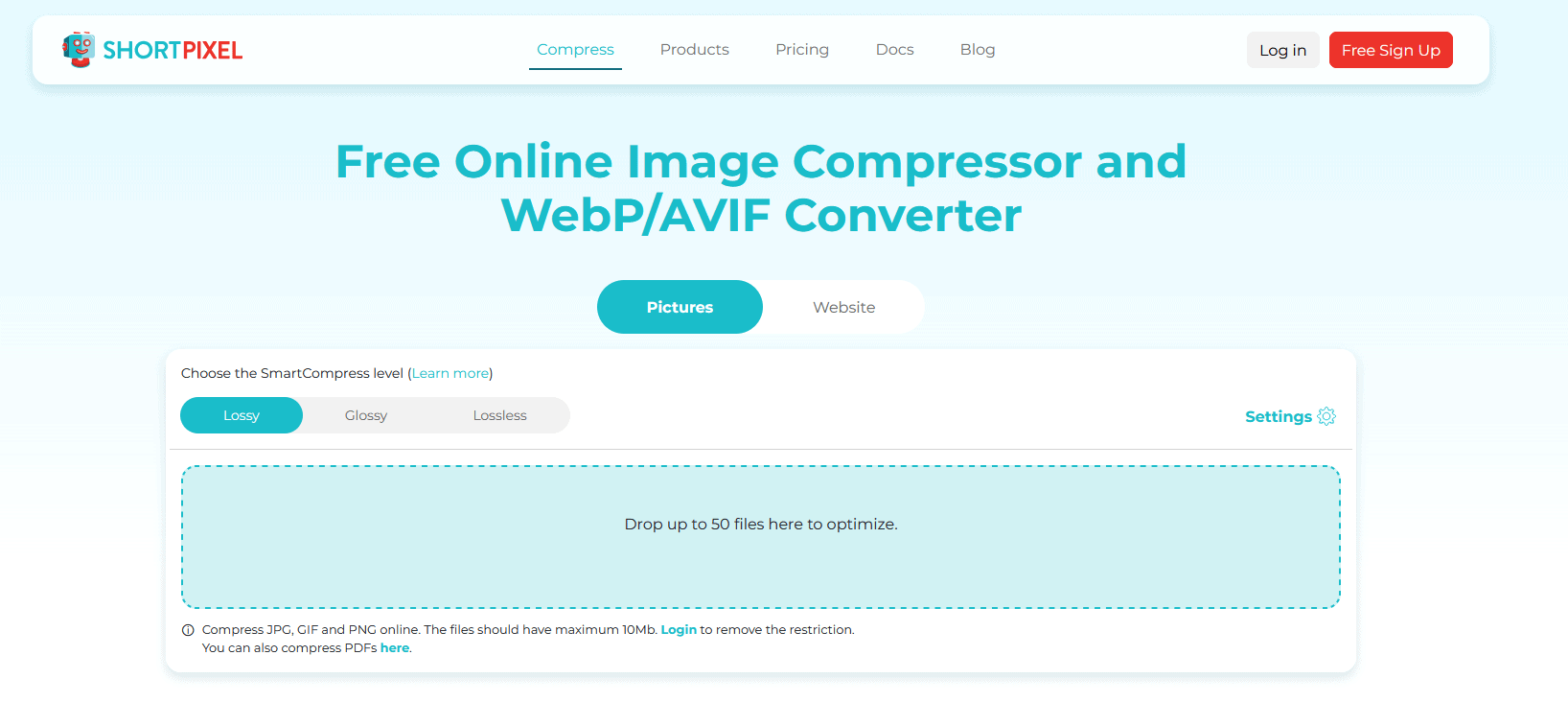
ShortPixel is hands-down one of the most versatile PNG compression tools available, whether you’re using it online, through WordPress, or via API.
What makes ShortPixel special is its three compression modes: Lossy (maximum compression), Glossy (balanced), and Lossless (zero quality loss). This flexibility lets you choose exactly how much compression you need based on your image type and use case.
The WordPress plugin automatically optimizes images as you upload them, and can even handle your existing media library in bulk. For non-WordPress users, the online compressor is fast, intuitive, and handles up to 50 images at once.
ShortPixel also supports WebP and AVIF generation, resizing, and metadata removal – all features that help you achieve the best possible file sizes without compromising visual quality.
Best for: WordPress users, agencies, and anyone needing reliable bulk compression with excellent quality.
Try ShortPixel for free!
TinyPNG – Popular but limited for advanced users
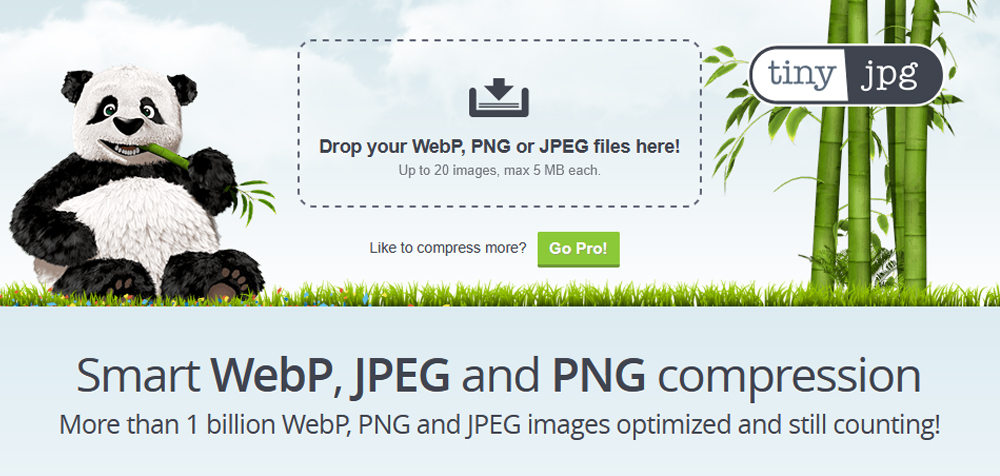
TinyPNG is probably the most well-known PNG compressor out there, and for good reason – it’s simple, effective, and free for basic use.
The tool uses lossy compression that reduces file sizes significantly while keeping images looking sharp. You can compress up to 20 images at a time through the web interface, which is perfect for quick optimization tasks.
However, TinyPNG’s limitations become clear when you need more control. There’s no lossless option, no built-in resizing, and the free tier caps individual files at 5MB. For WordPress users, the plugin exists but requires a separate API key and subscription for bulk processing.
Best for: Quick, one-off compressions and users who don’t need advanced features.
Alternative recommendation: If you like TinyPNG’s simplicity but need more flexibility, ShortPixel offers all three compression modes, larger file support, and seamless WordPress integration.
Compressor.io – Multi-format support with basic features
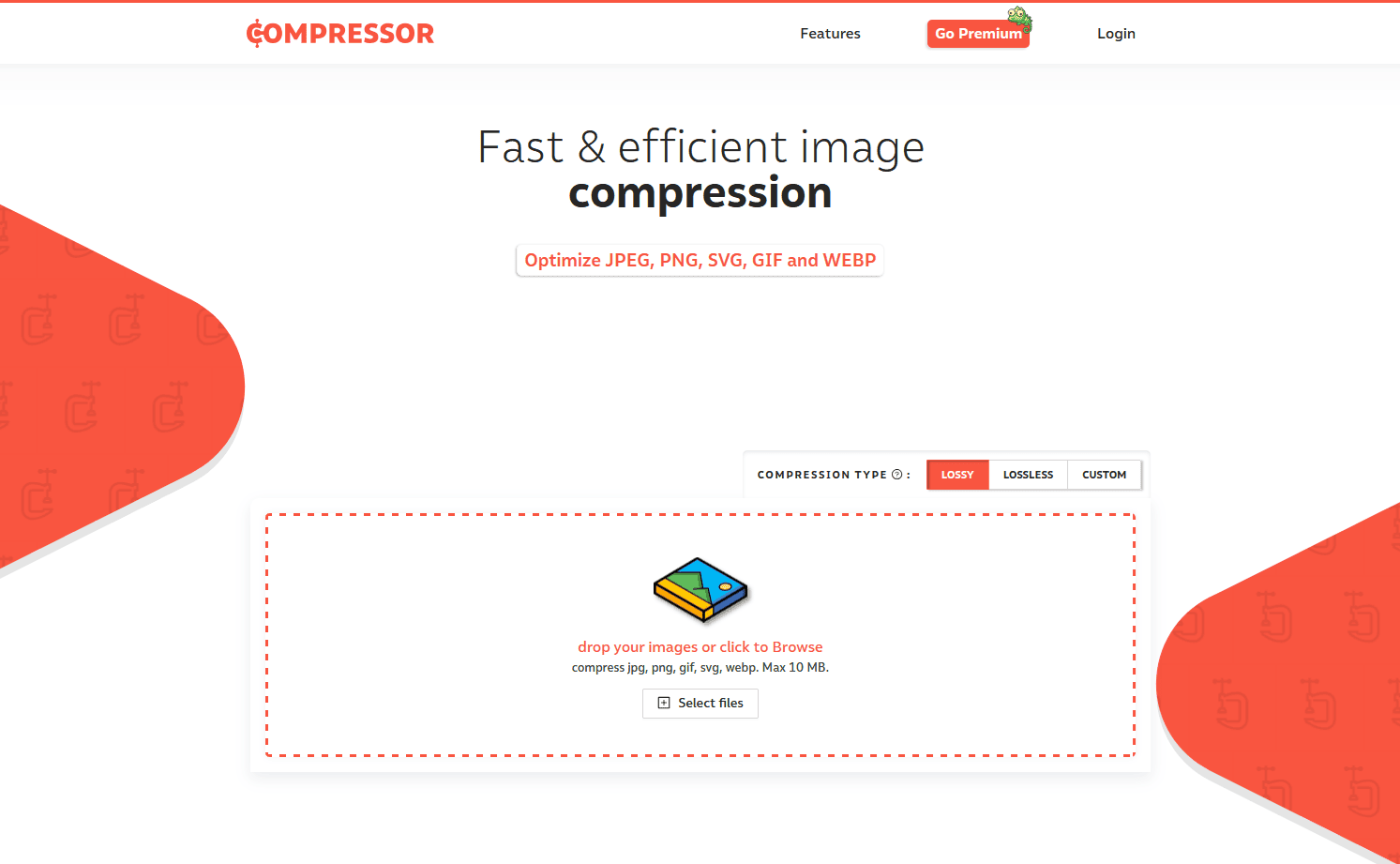
Compressor.io handles PNG, JPEG, GIF, and SVG files, making it a handy all-in-one option for basic compression needs.
The tool offers both lossy and lossless compression, though you’re limited to processing one image at a time. It’s straightforward and gets the job done, but lacks the advanced features that power users need.
No batch processing, no WordPress plugin, no format conversion – Compressor.io covers the basics and nothing more.
Best for: Occasional users who work with multiple image formats and don’t need automation.
Alternative recommendation: ShortPixel supports all major formats plus WebP/AVIF, with powerful batch processing and WordPress integration included.
ImageOptim – The go-to desktop app for Mac users
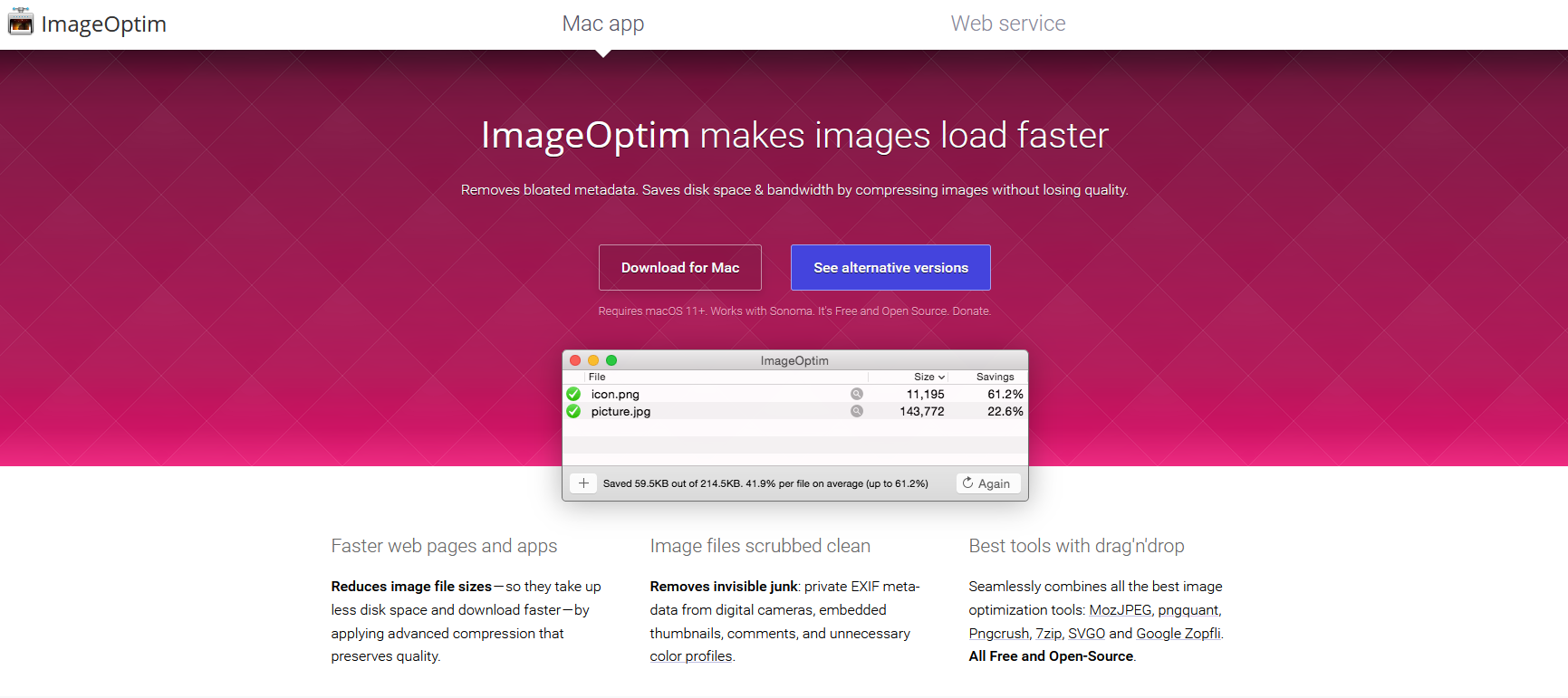
ImageOptim is a beloved tool in the Mac community, offering robust PNG compression through a simple drag-and-drop interface.
It uses multiple optimization engines simultaneously, strips metadata automatically, and handles batch processing beautifully. The app is free, open-source, and works entirely offline – perfect if you value privacy and don’t want to upload images to the cloud.
The obvious limitation? It’s Mac-only. Windows and Linux users are out of luck. And while it’s excellent for local file optimization, it doesn’t integrate with WordPress or offer cloud-based processing.
Best for: Mac users who prefer desktop apps and offline processing.
Alternative recommendation: For cross-platform support and WordPress integration, ShortPixel works everywhere and offers more advanced features like format conversion.
PNGGauntlet – Free Windows alternative with powerful compression
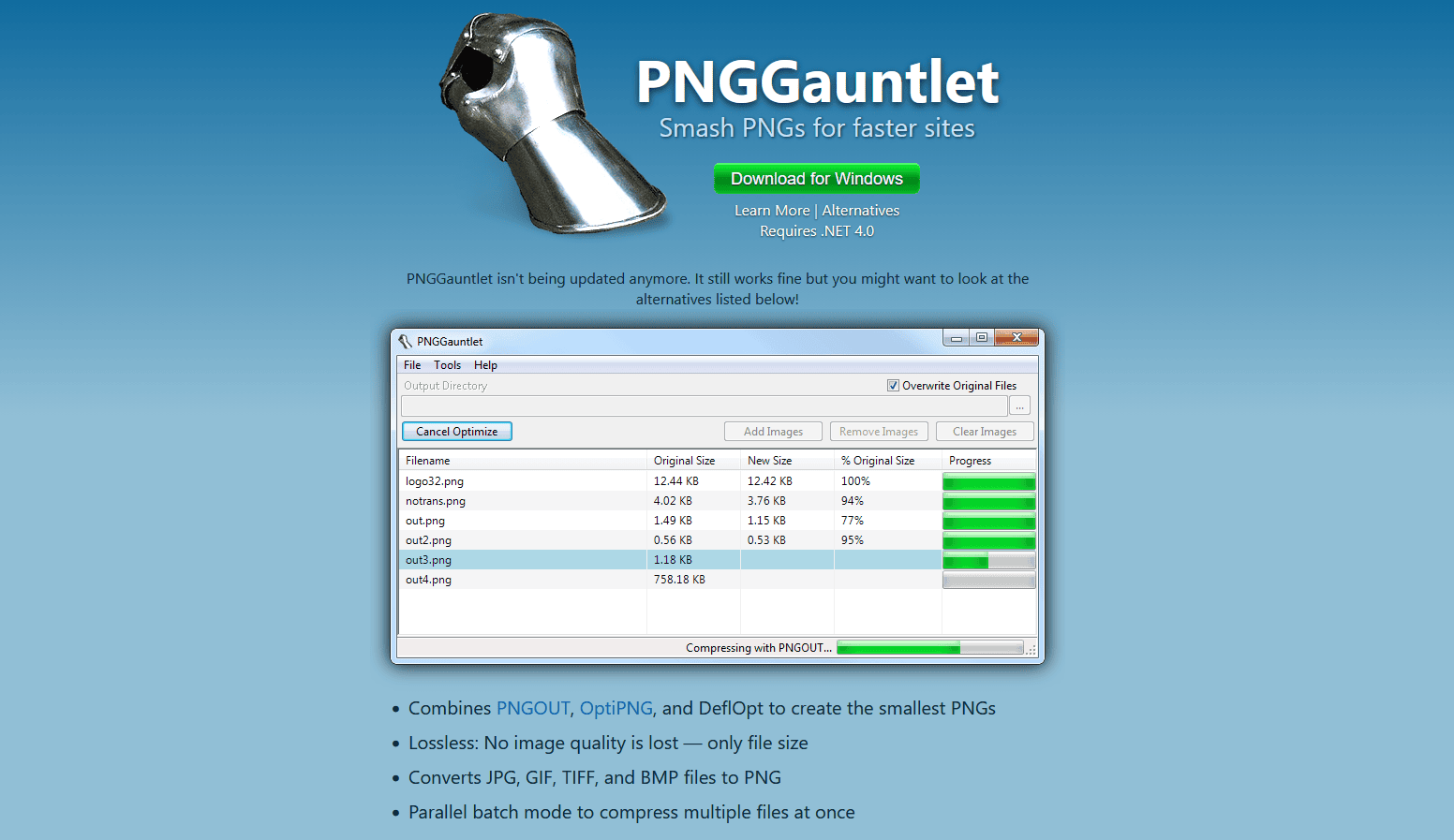
PNGGauntlet is a Windows-only tool that combines multiple PNG optimization algorithms (PNGOUT, OptiPNG, and DeflOpt) to achieve good compression results.
It’s completely free, supports batch processing, and can handle large image collections without breaking a sweat. The interface is straightforward, and the results are often better than many online tools.
However, PNGGauntlet looks and feels dated, lacks modern features like WebP conversion, and has no cloud or WordPress integration. It’s purely a desktop solution for Windows users.
Best for: Windows users who need powerful, free, offline batch compression.
Alternative recommendation: ShortPixel offers similar compression quality with modern features, cross-platform support, and seamless WordPress integration.
iLoveIMG – Quick online tool for basic compression
iLoveIMG provides fast, straightforward PNG compression through a clean web interface.
You can upload multiple files, compress them in one batch, and download the results quickly. It’s user-friendly and requires zero technical knowledge, making it accessible to everyone.
Like most basic online tools, it lacks advanced features – no compression level control, no WordPress integration, no format conversion. It handles the essentials and nothing more.
Best for: Casual users who need quick, no-frills compression without learning a new tool.
Alternative recommendation: ShortPixel’s online compressor offers the same simplicity with added power – three compression levels, larger batch support, and optional WordPress integration.
Key features to compare when choosing an alternative
Not sure which PNG compressor alternative is right for you?
Here are the key features to evaluate:
- Compression quality and control: Look for tools that offer multiple compression options (like lossy and lossless).
- Batch processing capabilities: If you regularly optimize multiple images, batch support is non-negotiable. Also, check the file limits.
- Platform integration: WordPress users should prioritize plugins that automate the process. Desktop users might prefer native apps.
- Format conversion: Modern alternatives support WebP and AVIF, which can reduce file sizes even further than PNG alone.
- Speed and performance: Some tools are significantly faster than others, especially when processing large batches.
- Transparency preservation: Essential for logos, icons, and graphics – make sure your tool handles transparency properly.
- Free vs. paid options: Many tools offer free tiers with limitations. Determine if the paid features justify the cost for your use case.
- Ease of use: Complex tools with steep learning curves slow you down. Prioritize intuitive interfaces that match your skill level.
The best alternative depends on your specific needs, but evaluating these features will help you make an informed choice.
How to compress PNG images with ShortPixel (step-by-step)
Ready to try one of the best PNG compressor alternatives? Here’s exactly how to use ShortPixel’s online compression tool.
Step 1: Navigate to ShortPixel’s online compressor
Head over to ShortPixel’s Online Image Compression tool. The interface is clean and straightforward – you’ll see everything you need right on the homepage.
Step 2: Choose your compression level
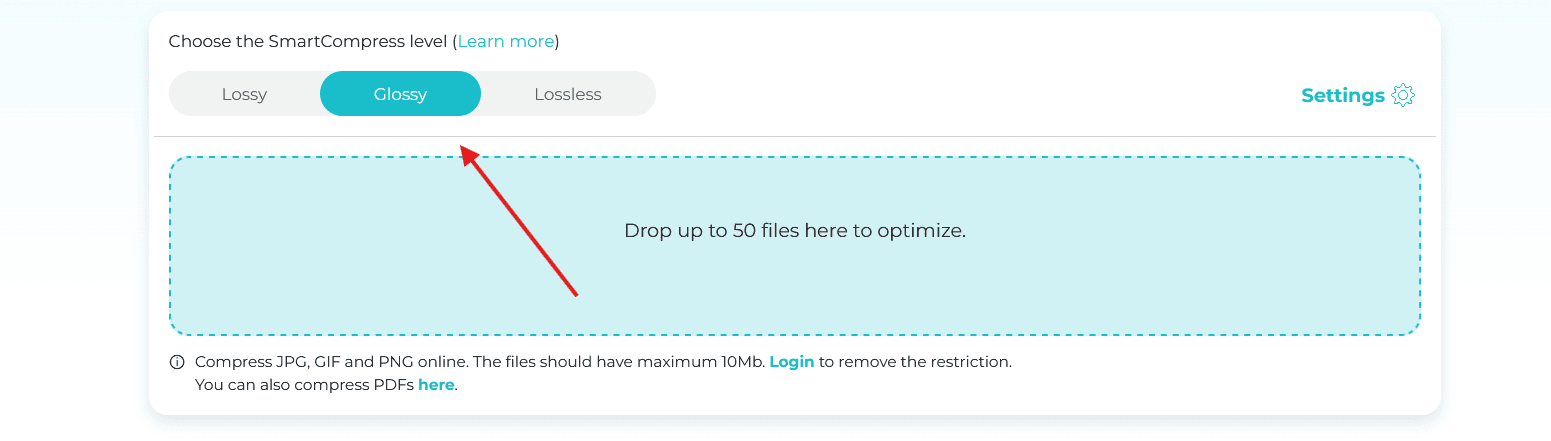
ShortPixel offers three compression modes to match your needs:
- Lossy: Maximum compression with minimal visible quality loss. Best for web images where file size is critical.
- Glossy: Balanced compression that preserves quality while reducing file size significantly. Great for photos and detailed graphics.
- Lossless: Zero quality loss, perfect for images where every pixel matters.
Select your preferred compression level at the top of the page. If you’re unsure, Glossy is a safe bet that delivers excellent results for most use cases.
Step 3: Adjust additional settings (optional)
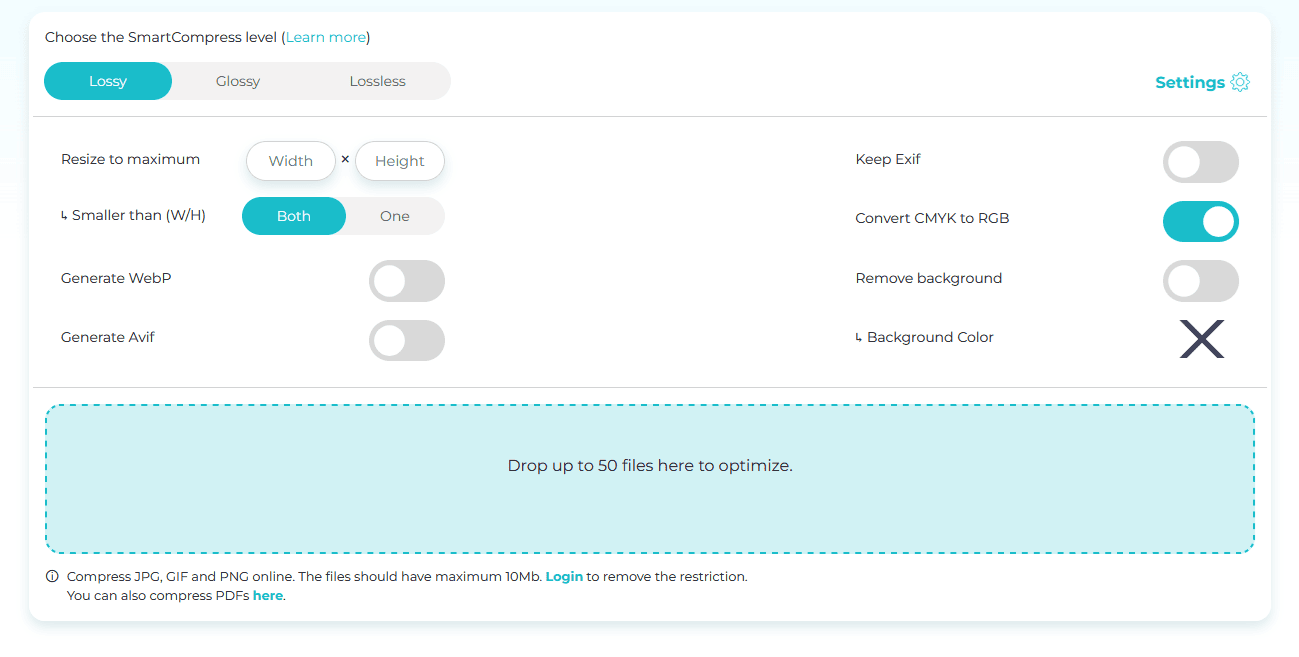
Before uploading, you can customize a few optional settings:
- Resize to maximum: Set maximum width/height if you want to reduce dimensions along with file size.
- Generate WebP/AVIF: Enable modern format generation for even smaller files.
- Keep EXIF data: Choose whether to preserve or strip metadata.
These settings are optional – the defaults work great for most situations.
Step 4: Upload your PNG files
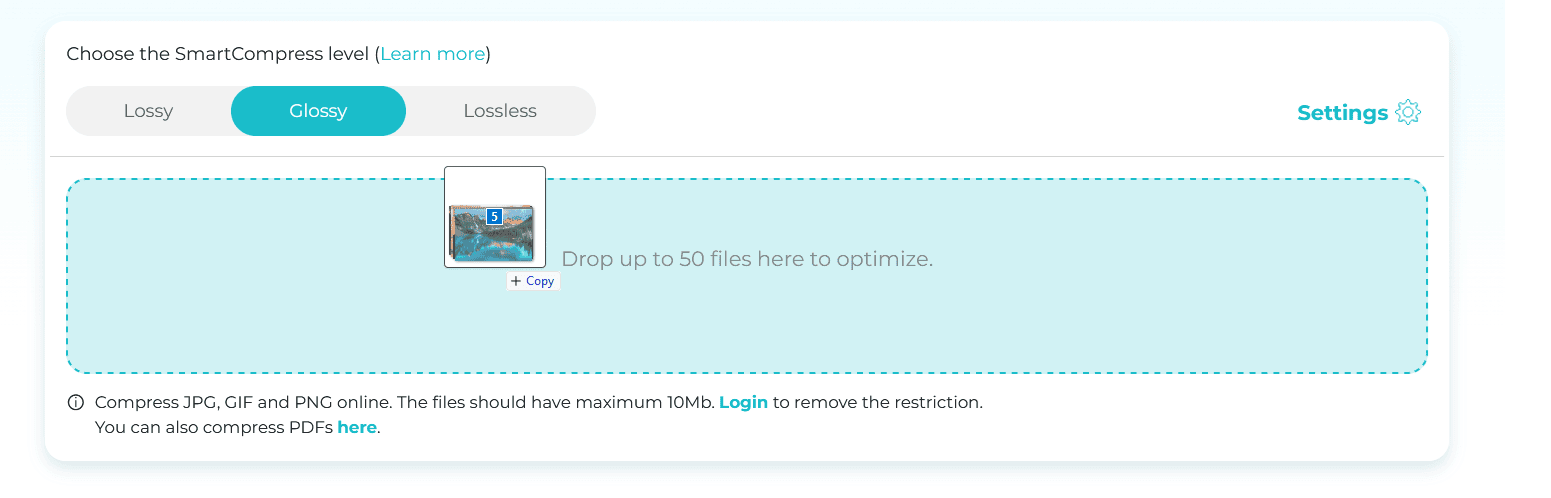
Now it’s time to upload. You have two options:
- Drag and drop: Grab your PNG files and drop them into the upload box.
- Click to browse: Click the upload box to select files from your computer manually.
ShortPixel supports up to 50 files per batch and handles individual files up to 10MB if you’re not logged in. For no restrictions with the online processor, just sign up for a free account.
Step 5: Wait for compression to complete
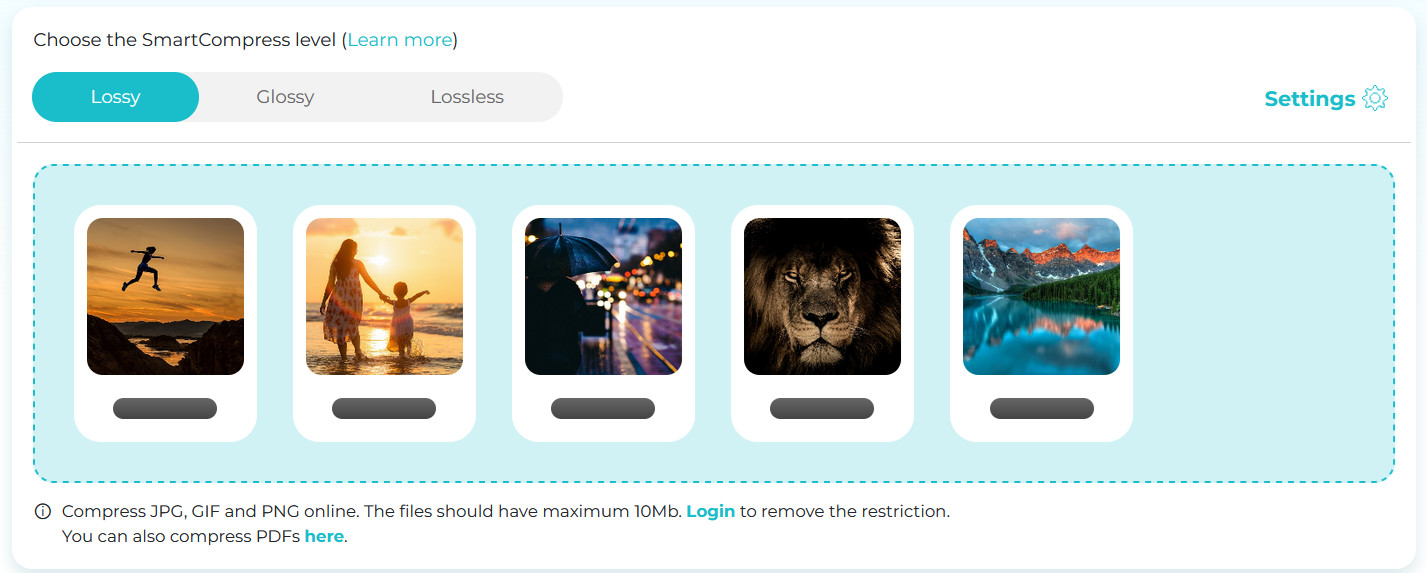
ShortPixel processes your images automatically once uploaded. You’ll see real-time progress for each file. Once complete, you’ll see the percentage reduction.
Depending on your file sizes and number of images, this usually takes just a few seconds to a couple of minutes.
Step 6: Download your optimized images
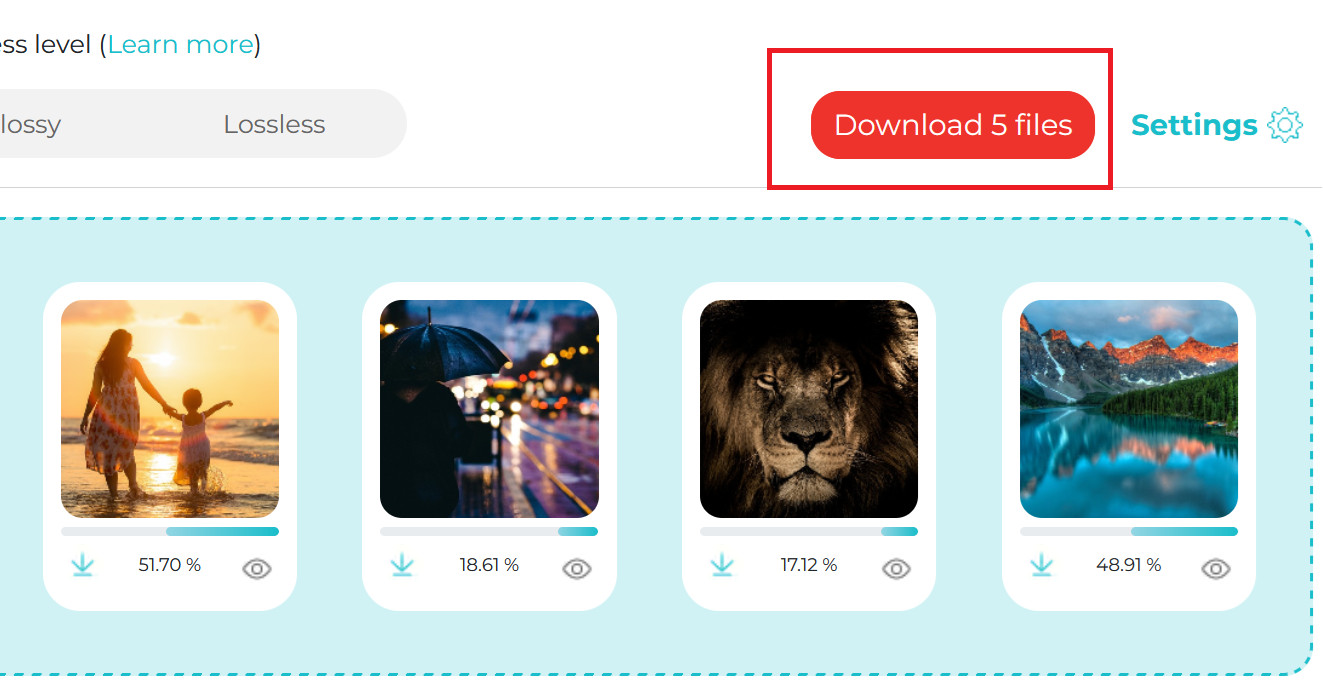
Once compression finishes, you’ll see a download button for each image. You can:
- Download images individually by clicking the downward icon next to each image.
- Download all compressed files as a ZIP archive by clicking the red download button.
That’s it! Your PNG files are now optimized and ready to use on your website, app, or anywhere else you need fast-loading, high-quality images.
Bonus: Using ShortPixel with WordPress

If you’re running a WordPress site, skip the manual upload process entirely by installing the ShortPixel Image Optimizer plugin.
Once installed, the plugin automatically compresses every PNG you upload to your media library. You can also bulk-optimize your existing images with just a few clicks, making it incredibly easy to optimize your entire site.
Advanced tips for maximum PNG compression
Want to squeeze even more performance out of your PNG files?
Here are some advanced techniques to combine with your compressor of choice.
Resize before compressing
Don’t upload a 4000×3000px image if you only need 800×600px on your site. Resize your images to their display dimensions first, then compress. This simple step often reduces file size by 70-80% before compression even begins.
Use PNG quantization for web graphics
Tools like pngquant reduce the color palette in PNG files without noticeable quality loss.
This technique works especially well for UI elements, icons, and illustrations, often cutting file sizes by 60-70% on top of standard compression.
Strip unnecessary metadata
PNG files often contain EXIF data, color profiles, and creation dates that web browsers don’t need. Stripping this metadata shaves off extra kilobytes with zero visual impact. Most good compressors, including ShortPixel, do this automatically.
Consider WebP and AVIF formats
Modern browsers support WebP and AVIF, which offer better compression than PNG while maintaining quality and transparency.
Converting your PNGs to these formats can reduce file sizes drastically compared to optimized PNG.



Check browser support (WebP / AVIF) for your audience, but most tools (including ShortPixel) let you serve modern formats with PNG fallbacks automatically.
Combine compression with lazy loading
Even perfectly compressed images can slow down your site if they all load at once.
Implement lazy loading so images only load when users scroll to them. Combined with good compression, this delivers lightning-fast perceived page speeds.
Batch process for consistency
If you’re optimizing a large image library, use batch processing to maintain consistent quality and compression settings across all files.
This ensures your entire site performs uniformly and saves massive amounts of time.
Need to compress images? Try ShortPixel for free!
FAQs
What is the best alternative to TinyPNG?
ShortPixel is an excellent alternative to TinyPNG, offering more compression options (lossy, glossy, and lossless), better WordPress integration, and support for larger files. It delivers comparable or better compression results with more flexibility and features.
Are there any completely free PNG compressor alternatives?
Yes, several tools offer free PNG compression: CompressPNG, iLoveIMG, and Compressor.io all have free tiers with limitations on file size or batch processing. ImageOptim (Mac) and PNGGauntlet (Windows) are completely free desktop alternatives. ShortPixel also offers a generous free tier with 100 credits per month.
Which PNG compressor is best for WordPress?
ShortPixel is the top choice for WordPress users. Its plugin integrates seamlessly with your media library, automatically compresses uploads, and can bulk-optimize existing images. The combination of compression quality, ease of use, and automation makes it hard to beat for WordPress sites.
Can I compress PNG files without losing transparency?
Absolutely. Good PNG compressors preserve transparency perfectly during compression. ShortPixel, ImageOptim, and other quality tools maintain alpha channels (transparency) without any degradation, regardless of which compression mode you use.
What’s the difference between lossy and lossless PNG compression?
Lossless compression reduces file size by removing unnecessary data without changing any pixels – the image remains identical. Lossy compression achieves larger size reductions by removing some visual information in ways that are barely noticeable. Lossy gives smaller files, lossless preserves perfect quality.
Do PNG compressor alternatives work on mobile devices?
Most online PNG compressors work fine on mobile browsers, though the experience is better on desktop. For mobile-specific needs, some apps exist, but the easiest solution is using a WordPress plugin like ShortPixel that optimizes images automatically on your server, regardless of where they were uploaded from.
Is it worth switching from my current PNG compressor?
If you’re happy with your current tool and it meets your needs, there’s no urgent reason to switch. However, if you want better compression, more features, WordPress integration, or faster processing, exploring alternatives like ShortPixel can significantly improve your workflow and results.