6 Benefits of Lazy Loading Images in WordPress

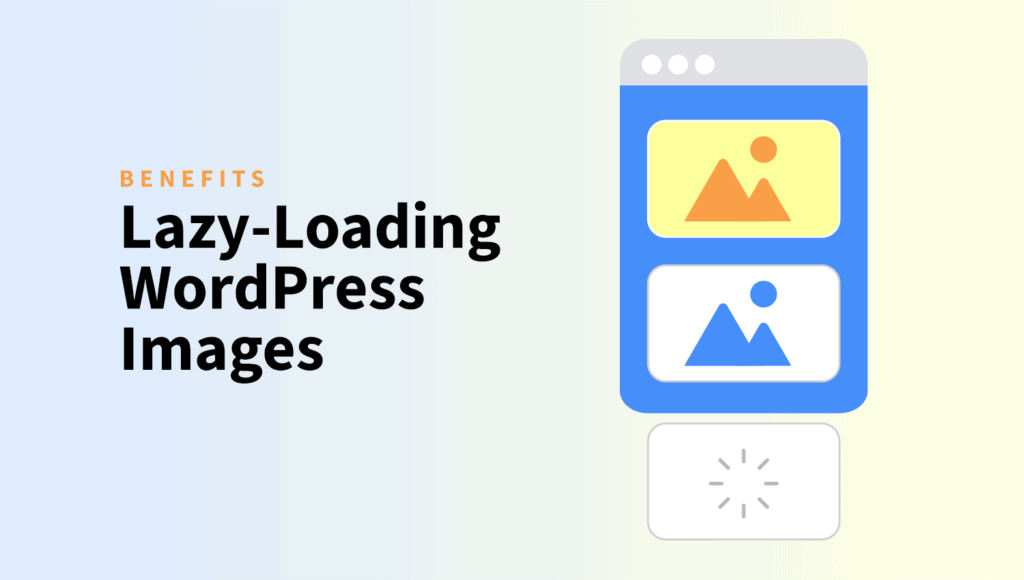
Lazy loading images in WordPress is a crucial optimization hack since humans are impatient—even down to seconds.
Search engines, too. So, every second counts if you’re competing for top ranking on search results. Large, high-resolution images can slow your site’s speed as they take longer to load.
And if they take more than 3 seconds, a whopping 40% of your site visitors are likely to abandon your site. A slow website can lower your rankings, reduce traffic, and cost you conversions and customers.
But you can optimize images to speed up your site through lazy loading.
This article will deep dive into image lazy loading, how it works, and how it benefits your site’s performance.
What is lazy loading?
Lazy loading is a technique that waits to load non-critical resources on your web page—like images—until the user needs them.
When a user loads a page on your site, the resources at the top will load like they’re supposed to. But the images further down the page will load when the user scrolls down to the content.
Sites load light placeholder images when the page is loading. They then replace them with the intended image when the user scrolls as they read the content. As a result, the page load speed is reduced, improving user experience.
How To Implement Lazy Loading Images in WordPress
Use a WordPress Plugin
You can use lazy load on your website by adding a WordPress plugin. With the right plugin, lazy loading images significantly enhance your site’s performance.
These plugins are user-friendly and often require minimal configuration. They are accessible and easy to use, even without advanced technical knowledge.
To get started, choose a WordPress lazy load plugin from the WordPress plugin repository. Install and activate the plugin. You can then configure the plugin settings to apply lazy loading to elements such as images, videos, and iframes.
If you’re using ShortPixel Image Optimizer, note that it doesn’t apply lazy loading to your images.
To combine it with a lazy-load effect, we recommend Autoptimize. You only need to install it and then navigate to Settings > Autoptimize > Images.
Check the checkbox provided at “Lazy-load images?” as shown below.
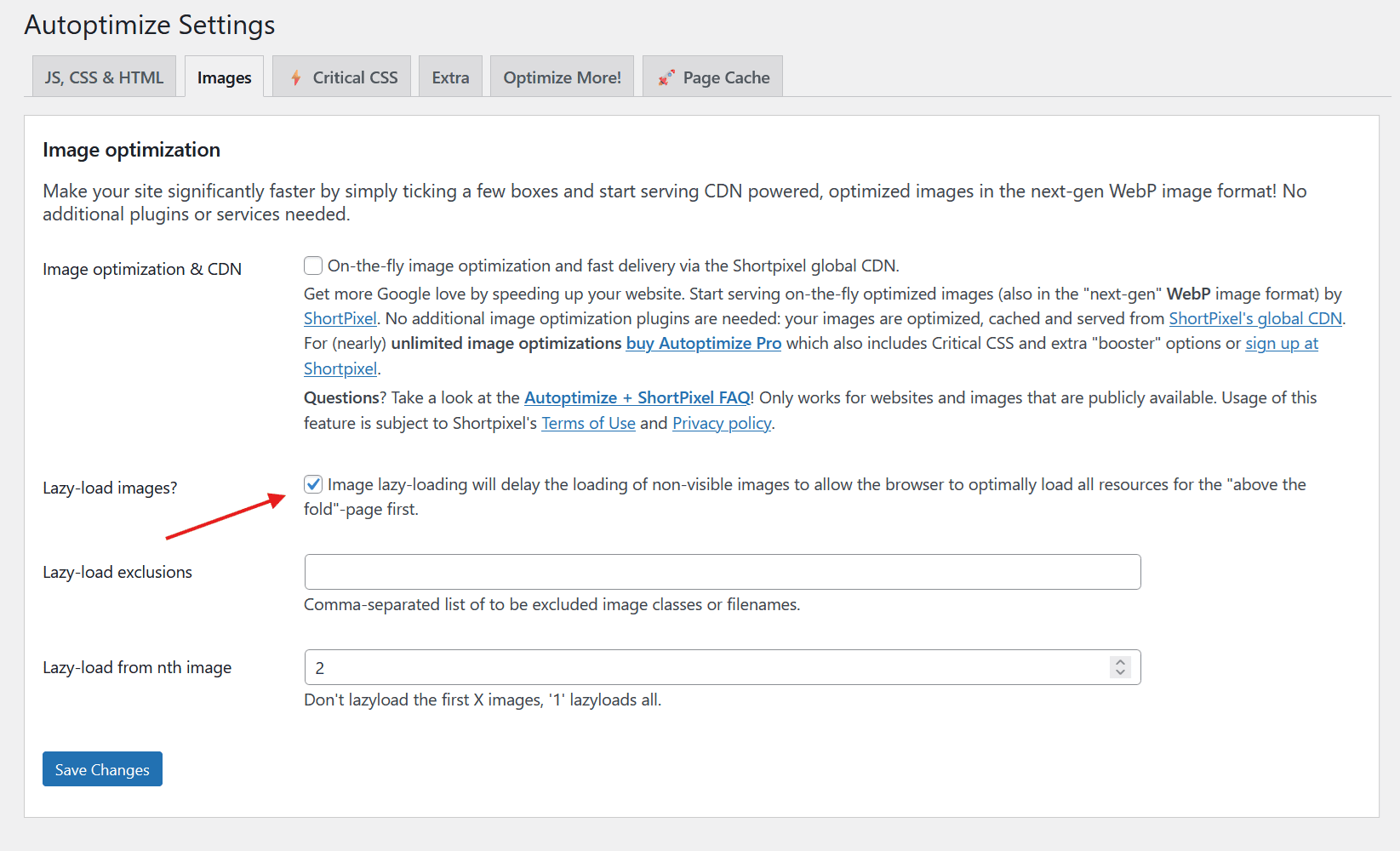
WordPress lazy-loading plugins are specifically designed to deliver images on a need basis, without the need for code.
But even without a plugin, higher WordPress versions come with built-in features for lazy loading images.
Upgrade to WordPress 5.4 or Higher
WordPress 5.4 introduced native lazy loading as a built-in feature, applying it to all image tags automatically using the HTML loading attribute. No plugin needed.
This covers images in your content, comments, text widgets, and post excerpts. It’s a standardized approach, which means no layout shifts or content jumping as images load in.
To upgrade, go to WordPress Dashboard > Updates. If your version is older than 5.4, you’ll get a prompt to bring it current.
The trade-off here is control. The built-in feature is a blanket setting, it applies to everything. Plugins give you more granular options, like skipping lazy loading for above-the-fold images (which you should always do – more on that in the tips section).
Enable Native Lazy Loading in Your Browser
You can also apply lazy loading at the HTML level directly, without a plugin or JavaScript library.
Just make sure the loading="lazy" attribute is added to your image or iframe tags:
<img src="photo.jpg" loading="lazy" alt="Description">
<iframe src="video-embed.html" loading="lazy"></iframe>
This works even when JavaScript is disabled, since it’s handled natively by the browser. Chrome, Edge, Firefox, and Safari all support it.
Chrome goes a step further by factoring in the user’s device viewport – the visible portion of the page on their screen – to prioritize which images load first. Images below the visible area get a lower load priority. Setting loading="lazy" tells the browser to defer those completely until the user scrolls to them.
Benefits of lazy loading images in WordPress
1. Improves page load speed
This is the most direct benefit, and it compounds quickly on image-heavy pages.
When a browser loads a standard page, it tries to download everything. All images, all scripts, all assets, before the page is considered ready.
On a product page with 20 product photos, a blog post with embedded visuals, or a portfolio gallery, that means the user waits while files they haven’t even scrolled to yet are being downloaded.
Lazy loading flips that. Only the images visible in the current viewport load on arrival. Everything else waits. The practical result is a much faster initial render, which directly improves metrics like Time to First Byte (TTFB) and First Contentful Paint (FCP).
For context: Google found that as page load time increases from one second to five seconds, the probability of a user bouncing jumps by 90%. Cutting even half a second off your initial load time has a measurable impact on how many people stick around.
2. Reduces data and bandwidth usage
Not every visitor who lands on your page scrolls all the way to the bottom. Without lazy loading, their browser still downloads every image on the page, including ones they never see.
Lazy loading fixes this by tying image downloads to actual user behavior.
If someone reads half your article and closes the tab, the images in the second half were never fetched. That’s data neither you nor your user had to pay for.
For your users, this is especially meaningful on mobile.
A significant portion of web traffic comes from people on limited data plans or slower connections. Shaving unnecessary requests off a page visit makes a real difference to them. For your server, it means lower bandwidth costs and less pressure during traffic spikes.
3. Improves user experience
A page that renders quickly feels responsive, even if the total amount of content on it hasn’t changed. That perception matters enormously.
When images load progressively as a user scrolls, rather than the entire page hanging while everything downloads, the experience feels natural and fluid.
Users can start reading immediately. Content is there when they need it. There’s no staring at a blank page waiting for something to appear.
Kissmetrics found that 47% of consumers expect a page to load in two seconds or less. That expectation is not going away. Lazy loading is one of the most effective ways to meet it, particularly on content-rich pages where images make up a large chunk of the total page weight.
Higher engagement, longer time on page, and lower bounce rates all follow from a faster, smoother experience. These aren’t just UX metrics — they feed directly into how Google evaluates your site.
4. Reduces the number of HTTP requests to the server
Every image on a page is a separate HTTP request to your server. A page with 30 images makes 30 individual requests the moment it loads. Under normal traffic, that’s manageable. Under a traffic spike (a viral post, a sale, a product launch) it can push your server to its limits.
Lazy loading spreads that load out over time. Instead of 30 simultaneous requests, your server might handle five on the initial load, then a handful more as users scroll. The total number of requests stays the same, but they’re distributed across the session rather than hitting all at once.
The result is a more resilient site. It handles traffic peaks better, reduces the risk of slowdowns under load, and puts less strain on your hosting infrastructure overall.
5. Better SEO performance
Google has been explicit about page speed as a ranking signal since at least 2010, and with the mobile-first indexing rollout, its importance has only grown.
The connection between lazy loading and SEO isn’t just theoretical.
Faster pages have lower bounce rates, higher engagement, and better user experience signals, all of which feed into how Google ranks your content. A page that loads in under two seconds consistently outperforms a slower equivalent in search results, all else being equal.
Lazy loading also helps you score better on Core Web Vitals, which Google uses as a direct ranking factor. Specifically, it contributes to improvements in Largest Contentful Paint (LCP), the metric that measures how quickly the main content of a page becomes visible. A better LCP score means better visibility in search.
As Google put it: “We encourage you to start looking at your site’s speed, not only to improve your ranking in search engines but also to improve everyone’s experience on the Internet.”
6. Improves performance metrics
Tools like Google PageSpeed Insights, Lighthouse, and GTmetrix score your site against a set of performance benchmarks. Lazy loading directly improves several of the metrics these tools measure.
- First Contentful Paint (FCP), which measures how quickly something meaningful appears on screen, improves because the browser isn’t blocked waiting for off-screen images to download before it can render.
- Largest Contentful Paint (LCP), which measures the time it takes for the biggest visible element to load, improves for the same reason. With lazy loading, resources are prioritized for what’s actually in view.
- Total Blocking Time (TBT) can also see improvement, since deferring image loads reduces the work the browser has to do during the critical rendering path.
Higher scores on these tools don’t just make for a nicer report card.
They reflect a genuinely faster experience for users, and they directly influence how search engines rank your pages.
WordPress lazy loading tips and best practices
A few things worth keeping in mind before you switch it on across your site:
Enable it broadly, but not blindly. Lazy loading works well for images in posts, pages, and galleries. It’s not appropriate for background images or design elements that should always be visible. Those should load normally.
Never lazy-load above-the-fold images. Hero images, header photos, anything that appears in the viewport on arrival should load immediately. Lazy-loading them actually hurts your LCP score because the browser defers something it needs right away.
Set dimensions on image containers. Without explicit width and height, the page layout can jump as images load in. Setting dimensions lets the browser reserve the right amount of space upfront, preventing layout shifts that hurt your CLS (Cumulative Layout Shift) score.
Don’t treat it as a complete solution. Lazy loading reduces unnecessary requests, but it doesn’t make your images smaller. Pair it with image compression (ShortPixel handles this well), caching, minification, and a CDN for a complete performance stack.
Test after implementation. Run your pages through PageSpeed Insights or GTmetrix before and after. The before-and-after comparison will tell you exactly what improved and flag anything that needs adjustment.
Keep everything updated. WordPress core, plugins, and themes all receive updates that affect performance. Staying current ensures you’re benefiting from the latest optimizations and aren’t exposing yourself to security vulnerabilities.
FAQs
Does lazy loading hurt SEO?
No – when implemented correctly, lazy loading does not hurt SEO. Google’s crawler can handle lazy-loaded images without any issues, as long as the image has a proper src attribute in the HTML. Where people run into trouble is when lazy loading is implemented purely with JavaScript, which some older search engine crawlers can’t execute. The native loading="lazy" HTML attribute avoids this entirely, and it’s what WordPress uses by default. To be safe, it’s still a good idea to have an image sitemap so search engines can discover all your visual content regardless of how it loads.
Does WordPress have lazy loading built in?
Yes. Since WordPress 5.5, lazy loading is enabled by default for all images. The CMS automatically adds the loading="lazy" attribute to image tags, so you don’t need a plugin to get the basic functionality. The limitation is control — the default applies to everything, including images that arguably shouldn’t be lazy-loaded (like above-the-fold images). A plugin gives you more flexibility over what gets deferred and what doesn’t.
Should I lazy load images above the fold?
No, and this is one of the most common mistakes. Images that appear in the visible area when a page first loads — hero banners, header images, the first product photo — should never be lazy-loaded. The browser needs to load those immediately for a good user experience. Lazy-loading them actually delays their appearance, which hurts your Largest Contentful Paint (LCP) score. Only defer images that live further down the page, where the user won’t see them right away.
Can I lazy load background images in WordPress?
Not with WordPress core on its own. The native lazy loading built into WordPress only applies to <img> tags, not CSS background images. If you need to lazy load backgrounds, for example, large hero sections defined in your theme’s stylesheet, you’ll need a plugin that specifically supports this.
Will lazy loading fix my PageSpeed Insights score?
It will help, but it depends on your starting point. Lazy loading directly addresses the “Defer offscreen images” recommendation that PageSpeed Insights frequently flags, which can give your score a meaningful boost. However, if your images are very large in file size, lazy loading alone won’t be enough – you’ll also need to compress them.
Can lazy loading break my website?
It shouldn’t, but misconfiguration can cause issues. The most common problem is lazy-loading images that are above the fold, which causes them to appear blank or delayed on arrival. Another issue is content layout shift – if images don’t have explicit width and height dimensions set, the page can jump around as images load in.