5 Reasons Your WordPress Images Are Broken and How to Fix Them

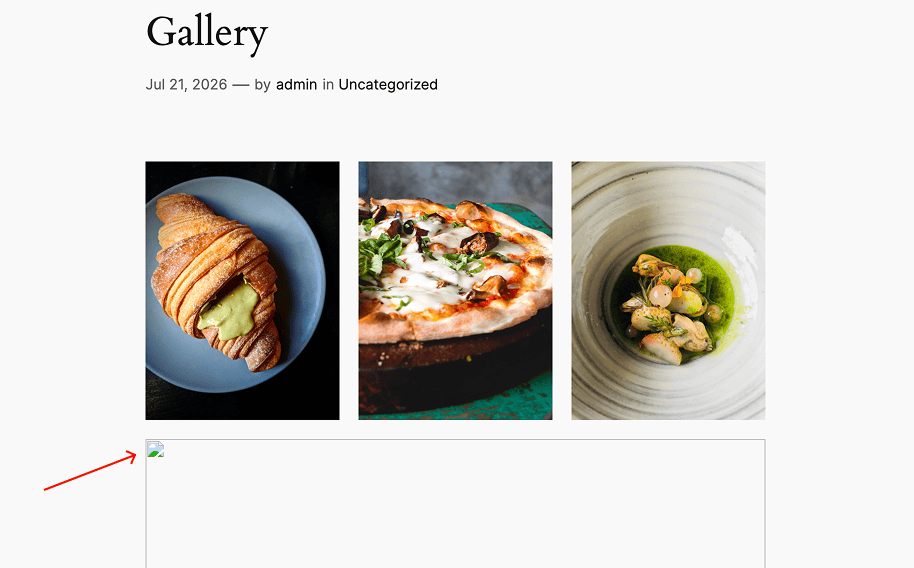
Oftentimes, a broken image icon only tells you some of the information needed to fix it. It tells you that the page failed to deliver an image, but it does not explain why, nor does it solve the problem of spotting broken images before visitors notice. The file may have been deleted, the page may reference an outdated URL, a thumbnail may be missing, or a cache, CDN, or optimization plugin may be serving the wrong response.
Sometimes, re-uploading the image or clearing the cache can fix it quickly, and these are usually the first things to try. However, when this doesn’t work, it is better to identify where the image-delivery process is failing and what changed before the problem appeared.
In this guide, you will learn how to inspect failed image requests, connect the results to their likely causes, fix common WordPress image problems, and find affected images across a larger site.
For upload errors, blurry images, duplicate media, and other problems, see our broader guide to common WordPress image issues.
How to Identify Broken Images
Missing images do not always appear as a broken-image icon. Depending on the theme, browser, or lazy-loading setup, they may appear as:
- An empty space
- The image’s alternative text
- A loading placeholder that never disappears
- A missing background image
- A blank product-gallery item
- An image that works on desktop but not on mobile
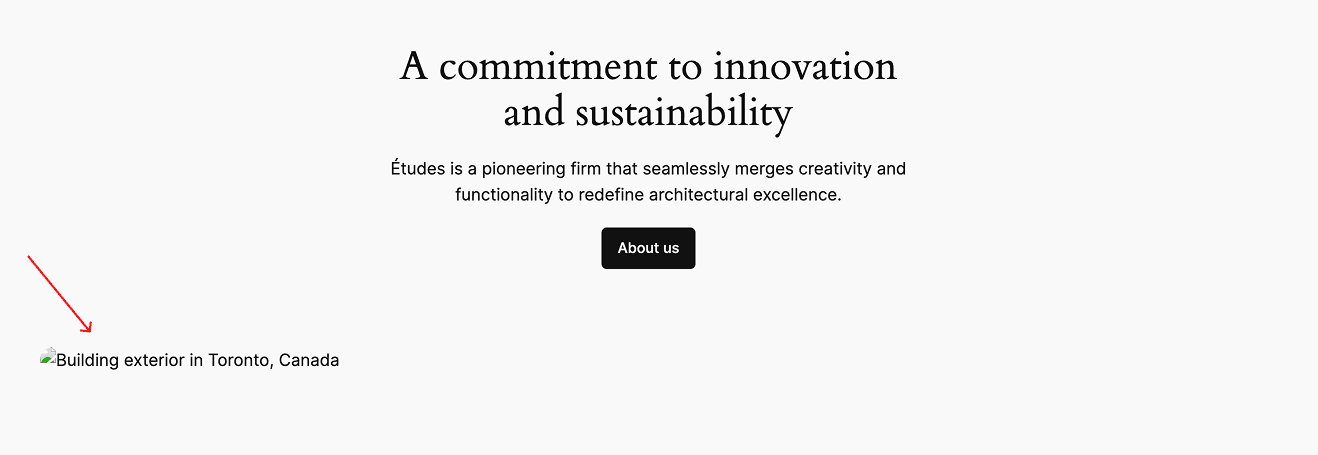
A visual check can reveal the problem, but it does not explain which image URL failed or why. To find out why the request failed, inspect it in your browser using these steps:
- Open Developer Tools > Network
- Reload the page
- Filter the requests by images
- Select the failed or unexpected request.
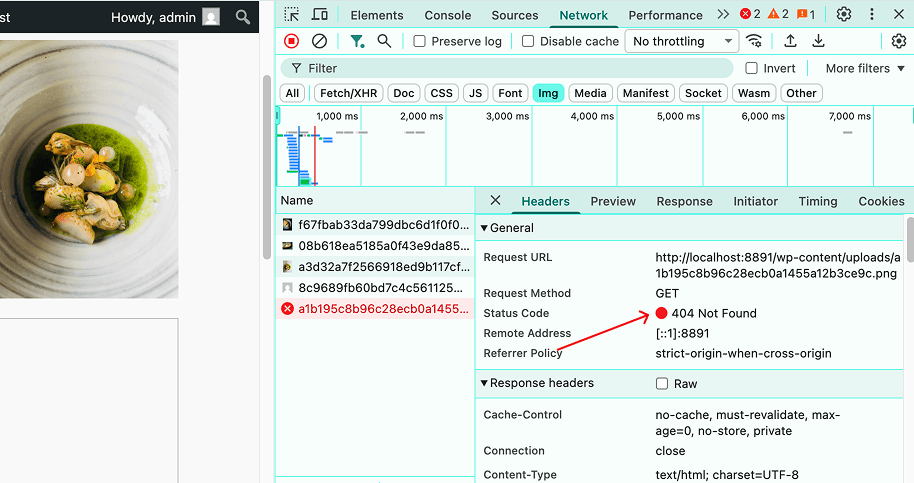
- Inspect and review the following details:
- Request URL: The exact image address requested by the page
- Hostname: Your server, a CDN, or an external website
- Status: For example, 404, 403, or 500
- Content-Type: It should normally be an image format
- Response: The image, an HTML error page, a redirect, or a placeholder
- Initiator: HTML, CSS, JavaScript, or another resource
- Source: src, srcset, a lazy-loading attribute, or CSS
The Status code result helps determine where to investigate next:
| Request result | Likely cause |
| 404 Not Found | Deleted file, incorrect URL, missing generated size, or incomplete migration |
| 403 Forbidden | Permissions, firewall, hotlink protection, authentication, or security rules |
| 500–504 | Origin server, proxy, CDN, or application failure |
| Repeated redirects | Incorrect domain, protocol, or CDN configuration |
| 200 OK with text/html | An error page, login page, challenge, or placeholder was returned instead of an image |
| Mixed-content warning | An HTTPS page is requesting an HTTP image |
| ERR_BLOCKED_BY_CLIENT | A browser extension or local filter blocked the request |
| Valid image response but no display | CSS, JavaScript, layout, decoding, or responsive-image problem |
5 Common Reasons WordPress Images Break and How to Fix Them
Most broken image issues fall into one of the following categories.
#1 The image file was deleted
The page may still contain an image URL even after the file has been deleted. This can happen when:
- Someone deletes an image from the Media Library.
- A media-cleanup plugin incorrectly classifies an image as unused.
- A deployment or migration misses part of the uploads directory.
- A file is deleted through FTP, SSH, or a hosting control panel.
How to check: Start with the exact URL shown in the Network panel. Open the image URL directly and check whether the page shows a 404 error. Then search for the image in the WordPress Media Library.
If the deletion happened through WordPress, an activity log plugin like WP Activity Log will show which user deleted the attachment and when. This can be useful for tracking user activity, identifying what changed, and troubleshooting the issue faster.
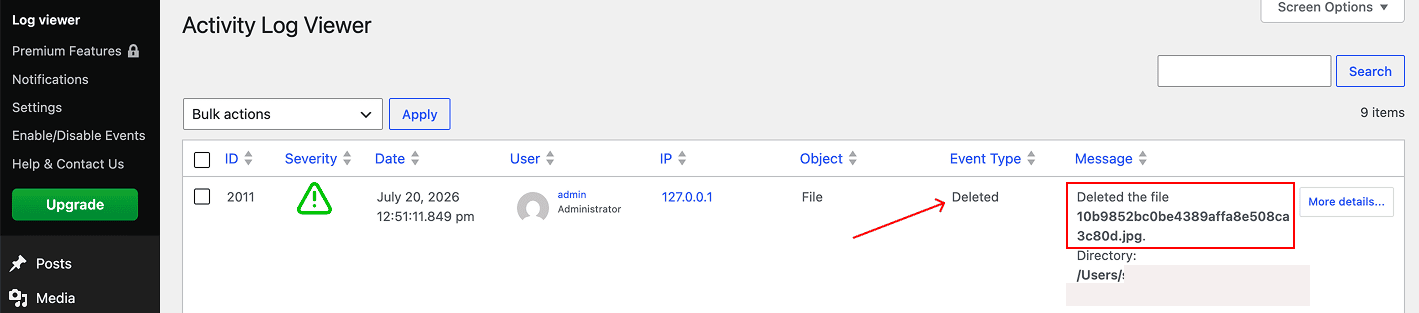
How to fix: Re-uploading the image to WordPress may seem like the simplest fix, but it does not always solve the problem. If only the physical file is missing, restore the original file to its previous location under wp-content/uploads. This keeps the same URL, so existing pages continue to work without changes.
If you upload through the Media Library instead, WordPress usually creates a new file with a different URL. Any page still referencing the old URL will show a broken image, so make sure to update the image link.
#2 The image URL is incorrect
Typical signs include image URLs that still contain a staging hostname, an old company domain, or http:// instead of https://. Images often break after:
- A staging-to-production migration
- A domain change
- An HTTPS migration
- An incorrect CDN hostname
How to check: Review the broken image URL and compare it with the current site address. Similarly, you can use an activity log plugin to help identify recent changes to the WordPress Address, Site Address, content, plugin configuration, or related settings.
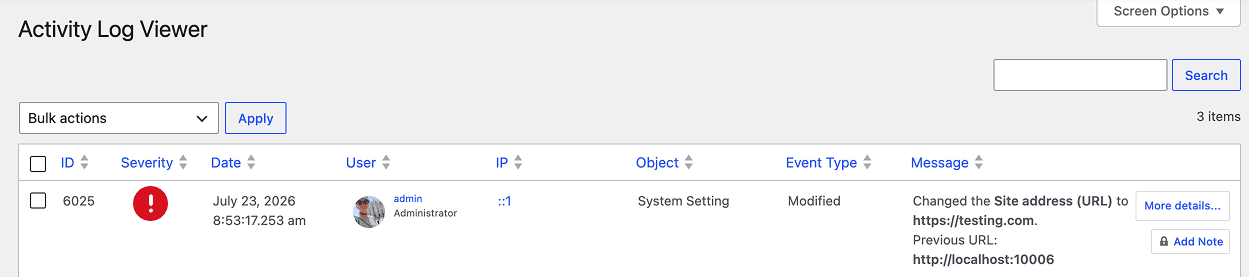
How to fix: You can use a plugin such as Better Search Replace to safely update old image URLs across the WordPress database.
Then clear the cache and test the page while logged out.
#3 The generated image size is missing
WordPress usually creates several files when an image is uploaded. These may include thumbnails, medium and large sizes, and additional dimensions registered by themes or plugins.
The original file might work, while a different size, such as product-photo-768×768.png, returns a 404 error. An incomplete migration, a theme change, or the removal of generated files usually causes this.
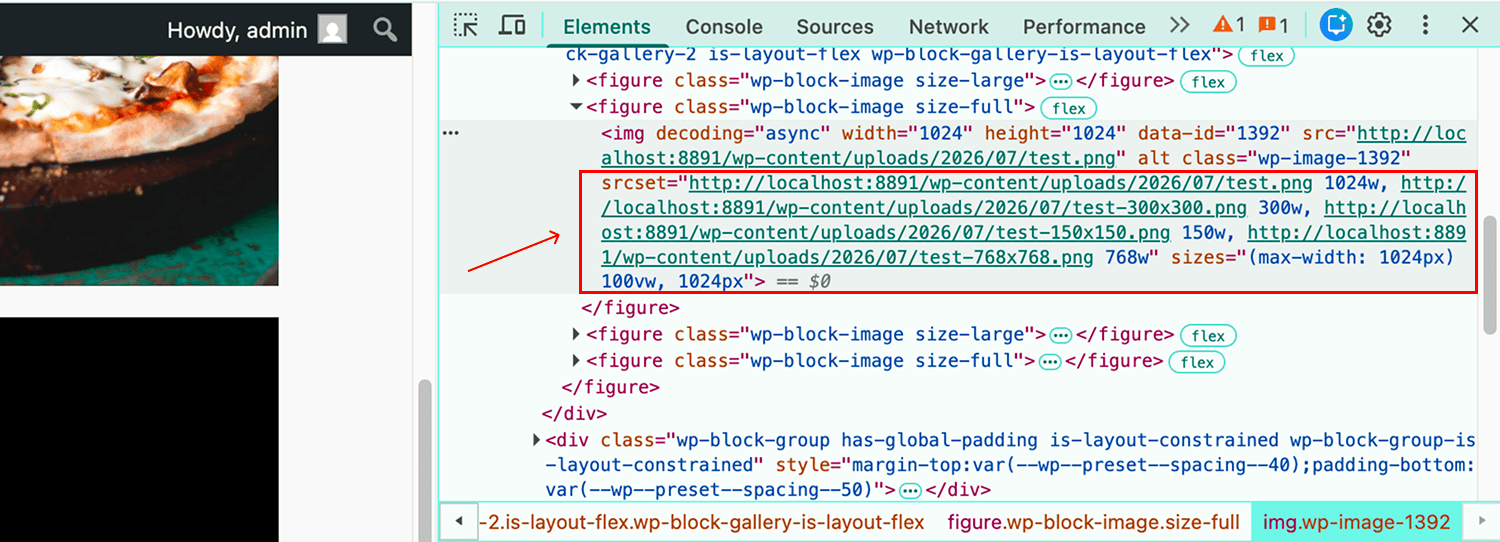
How to check: Copy the failed image URL from the DevTools and compare it with the original. Look for appended dimensions (like 300×300, 150×150, 768×768), and check the page’s srcset to see if a responsive size is missing. If the original loads but a generated version returns a 404, the attachment exists, but that specific size is missing.
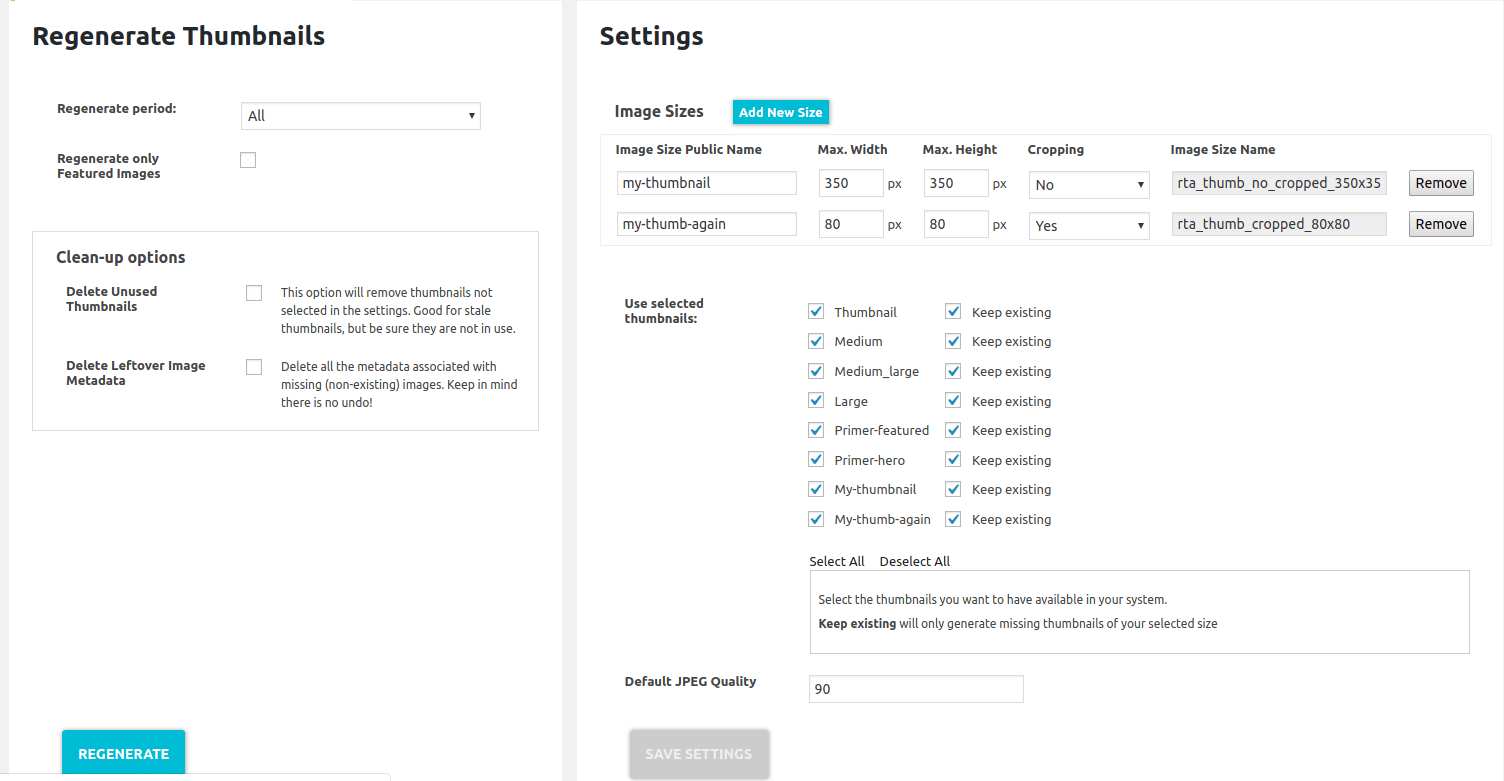
How to fix: Use a plugin like reGenerate Thumbnails Advanced to rebuild missing image sizes. For sites with command-line access, you can also use WP-CLI to regenerate sizes for selected attachments or the entire Media Library.
Source: https://ps.w.org/regenerate-thumbnails-advanced/assets/screenshot-1.png?rev=2069168
#4 Access to the image is blocked
The image may exist at the correct URL, but the server can still refuse the request. Common causes include incorrect file permissions, firewall rules, hotlink protection, password protection, or authentication requirements.
How to check: Check the failed request in the Network panel for access-related responses such as 401, 403, redirects to login pages, or HTML returned instead of an image. Also note any differences between logged-in and logged-out views.
How to fix: Correct the specific permissions or access rule causing the problem. Avoid disabling all security controls unless you are doing a brief diagnostic test.
#5 The optimized or CDN image is not loading
Image optimization plugins and CDNs replace the original image URL with an optimized or cached version. This can fail when the CDN serves an outdated copy, or when a caching plugin, CDN, and optimizer all handle the same image and conflict with each other.
How to check: Open the failed image URL in a new tab. If it returns an error or does not load, compare it with the original image URL in the WordPress Media Library. If the original loads correctly, the problem is likely with the optimized version, CDN URL, or image-rewriting process.
How to fix: Clear your WordPress and optimization plugin caches, purge the CDN cache, and regenerate optimized images if the plugin provides that option. Temporarily disable CDN delivery or image optimization to identify which service is causing the issue. Also check that multiple plugins are not optimizing or rewriting the same images.
How to Find Broken Images Across a Larger Site
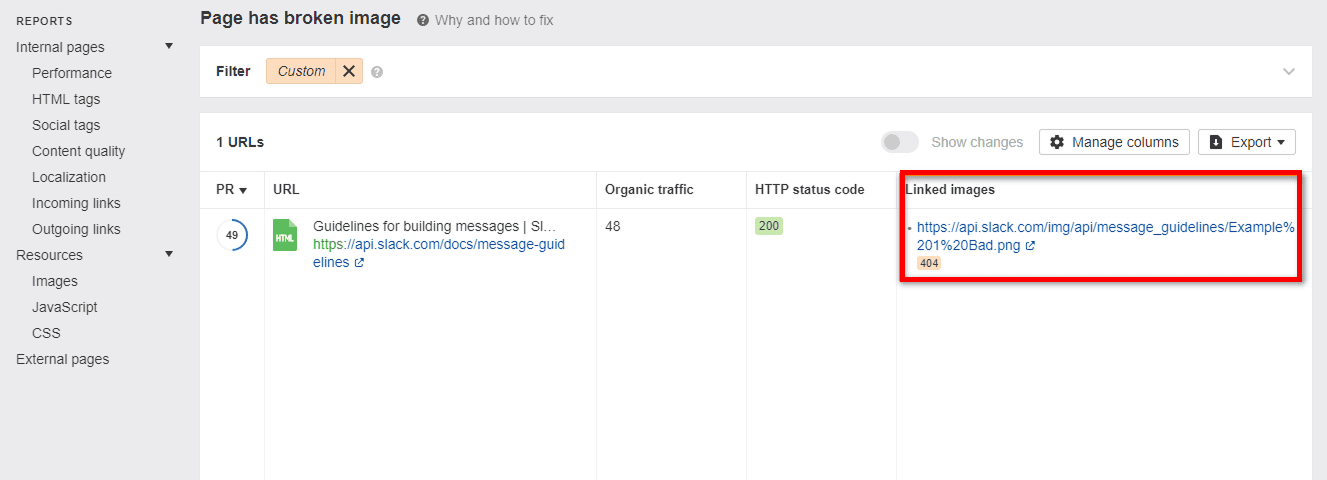
Manual checks are useful for individual pages and smaller sites, but impractical across large WordPress sites. You can use a crawler such as Screaming Frog or Ahrefs Site Audit to find image requests that return client or server errors, such as 404, 403, or 500 responses.
Configure the crawl to:
- Check both src and srcset image URLs
- Enable JavaScript rendering for lazy-loaded images
- Crawl as a logged-out visitor
- Include desktop and mobile pages
- Show which pages reference each broken image
Source: https://help.ahrefs.com/en/articles/2699397-page-has-broken-image-error-in-site-audit
Some visually broken images still return 200 OK; in such cases, use screenshot monitoring tools such as Playwright or Percy for important pages. Crawlers detect failed requests, while screenshots reveal empty placeholders, missing background images, and other visual problems.
How to Prevent Broken Images
To reduce the risk of broken images, focus on four areas: tool conflicts, backups, testing, and monitoring.
- Don’t run multiple plugins for the same task, such as image optimization, lazy loading, caching, or CDN delivery. When several tools rewrite the same image URLs or loading attributes, they can interfere with each other and produce inconsistent results.
- Before migrations, domain changes, media cleanup, or major optimization changes, back up the WordPress database and the wp-content/uploads directory. The database stores image URLs and attachment references; the uploads directory holds the actual files.
- Review the site as a logged-out visitor after migrations, plugin updates, or delivery changes. Check desktop and mobile layouts, key page types, galleries, background images, lazy-loaded images, and both origin and CDN URLs.
- Retain activity log records long enough to cover your normal maintenance and deployment cycle. This makes it easier to trace media deletions, content edits, plugin or theme changes, URL updates, and file permission changes if an image breaks later.
Find the Cause, Then Fix It
The most reliable way to investigate broken images is to divide the process into two tasks:
- Find the cause: Determine whether the issue is with the original file, the stored URL, the generated image size, the optimizer, the CDN, the cache, or the browser.
- Reconstruct the change: Use WordPress activity logs, hosting logs, deployment history, and CDN records to identify what changed and when.
Once both are known, the fix is usually simple. More importantly, you can improve the process rather than repeatedly reuploading individual images or clearing caches without knowing why the problem occurred.
Frequently Asked Questions
Why is an image in the Media Library but not visible on the page?
The attachment may still exist in WordPress even if the original file or a generated thumbnail is missing. The page may also be requesting a different URL, such as a CDN version, a WebP file, an old-domain URL, or a responsive image size. Check the exact image URL requested in the browser’s Network panel.
How can you see who deleted an image?
If the image was deleted through WordPress, you can use an activity log plugin like WP Activity Log to see who and when an image was deleted. The log can record details such as the user, role, time, IP address, and affected file.
Does clearing the cache fix broken images?
Only if the issue is cache-related. Clearing the cache will not restore deleted files, fix outdated URLs, regenerate missing thumbnails, or correct permissions and firewall rules. In some cases, clearing a CDN cache can also remove the last working copy of a missing image.
What should I check after migrating a WordPress site?
Check the site URLs, old domains in content, the wp-content/uploads directory, permissions, thumbnails, CDN settings, cached pages, and mobile image versions. Use a serialization-aware search-and-replace method instead of a direct SQL replacement.