The Hidden Cost of Hero Images: Why Your Homepage Loads 3 Seconds Too Slow

Your hero image might be costing you a lot of money in lost revenue.
You know the one – that stunning, high-resolution photo that greets visitors on your homepage. The one that perfectly captures your brand.
But here’s the problem: Google’s research shows that 53% of mobile users abandon sites that take longer than 3 seconds to load. Your beautiful hero image? It’s single-handedly eating up most of that time budget.
Think about that for a moment. You invested in professional photography, hired a designer, and crafted the perfect first impression. But half your visitors never see it because they bounce before it loads.
Quick takeaways
- Hero images average 1-2 MB on most WordPress sites, but modern compression can reduce them to under 200 KB without visible quality loss.
- Every 1-second delay in page load time reduces conversions by 7%, and hero images are often the biggest contributor to slow load times.
- Most WordPress site owners don’t optimize hero images because they fear quality loss or don’t know where to start.
- Modern image formats (WebP, AVIF) and smart optimization plugins can reduce file sizes by 60-80% while maintaining visual quality.
- Properly optimized hero images improve Core Web Vitals scores, boost conversions, and create better first impressions, without sacrificing aesthetics.
Why hero images are performance killers
Let’s break down what’s actually happening when someone visits your homepage.
Your hero image is typically:
Above the fold – It’s the first thing visitors see, which means the browser prioritizes loading it
High resolution – You want it to look crisp on retina displays, so you uploaded a 3000×2000 pixel image directly to the WordPress Media Library
Uncompressed or poorly compressed – Your designer exported it as a high-quality JPEG at 95-100% quality, or worse, a PNG “just to be safe”
Not in a modern format – WordPress still defaults to uploading JPEGs and PNGs, not the more efficient WebP or AVIF formats
The result? That single image becomes your Largest Contentful Paint (LCP) – the metric Google uses to measure when your main content becomes visible. And if your LCP is over 2.5 seconds, you fail Core Web Vitals.
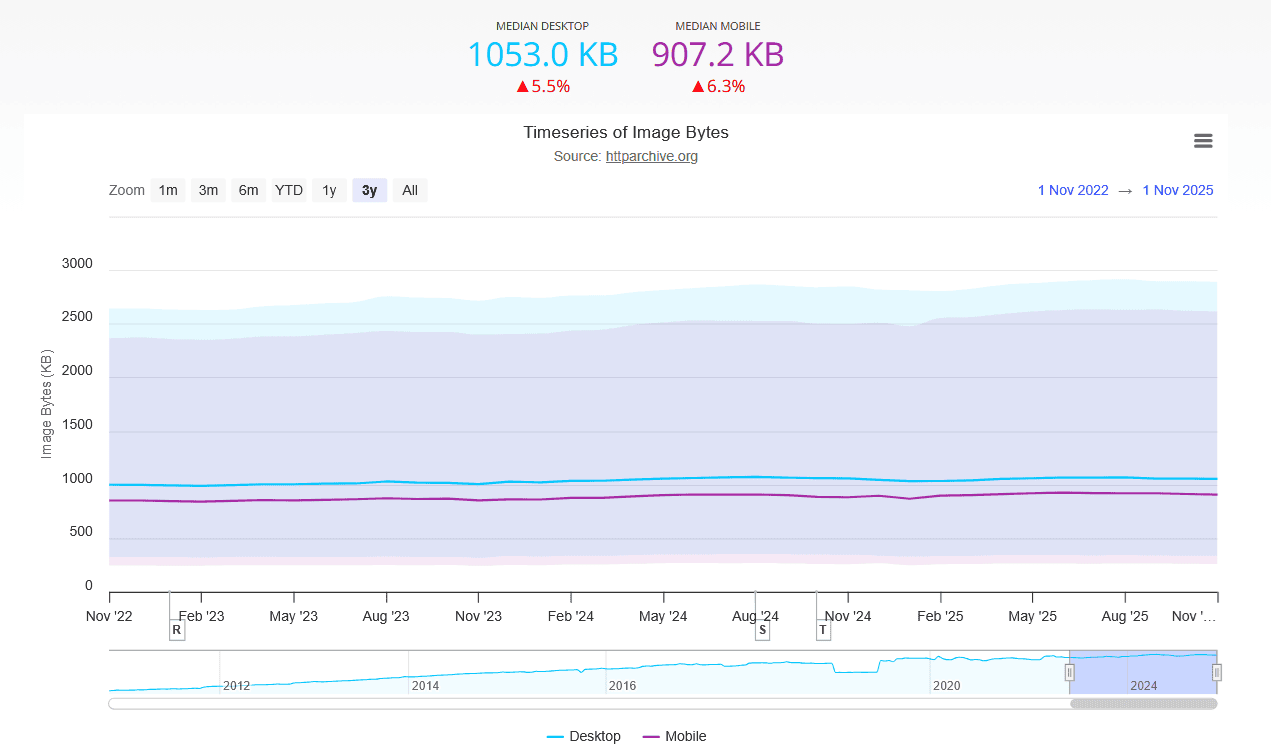
For context, HTTP Archive data shows that the median webpage loads around 1.05 MB of images total. If your hero image alone is 1 MB, you’re already above your performance budget on a single asset.
And here’s the thing: most WordPress site owners don’t even realize this is happening. You see your site on your fast office connection or home WiFi and think it loads fine. But your mobile users on 4G? They’re watching a blank screen or loading spinner for 3-5 seconds.
Many WordPress themes make this worse by not implementing proper image optimization out of the box. They prioritize aesthetics over performance, leaving you with a beautiful but sluggish site.
The real cost of slow hero images
Slow load times aren’t just annoying, they directly impact your bottom line.
The data is clear:
❌ 53% of mobile visitors abandon sites that take longer than 3 seconds to load (Google/SOASTA research)
❌ Every 1-second delay in page load time reduces conversions by 7% (Portent study)
❌ Page speed is a ranking factor for both desktop and mobile search (Google Search Central)
❌ Failing Core Web Vitals can push you down in search results, costing you organic traffic
Let’s put this in perspective. If your site gets 10,000 visitors per month and converts at 2%, that’s 200 conversions. If your hero image is causing a 2-second delay, you could be losing 14% of those conversions – 28 sales or leads per month.
If your average customer value is $100, that’s around $2,800 per month. $33,600 annually. All because of one image.
And that’s before factoring in the SEO impact. When Google sees users bouncing quickly from your site, it interprets that as a signal that your content isn’t satisfying search intent. Your rankings drop. Your traffic decreases. The cycle compounds.
For e-commerce sites, the impact is even more dramatic. Amazon found that every 100ms of latency cost them 1% in sales. If you’re running WooCommerce with a slow hero image, you’re actively losing customers to faster competitors.
How to optimize your hero image in WordPress (without losing quality)
Here’s the good news: you can dramatically reduce your hero image file size without any visible quality loss, and it’s easier than you think in WordPress.
Modern image optimization isn’t about making images look worse. It’s about being smart with compression, formats, and delivery.
1. Use next-gen image formats
JPEG has been around since 1992. WebP and AVIF are modern formats that compress 25-35% better while maintaining the same visual quality.
- Original JPEG hero image: 1.5 MB
- Same image as WebP: around 600 KB (60% reduction)
- Same image as AVIF: roughly 450 KB (70% reduction)
Browser support for WebP is now at 96%+, and AVIF at 93%+ support is growing rapidly. There’s no excuse to not use next-gen formats!
2. Compress aggressively (but smartly)
Not all compression is equal. For example, ShortPixel uses algorithms specifically trained on how humans perceive image quality – meaning you can compress more without anyone noticing.
The key is finding the sweet spot, usually between 75-85% compression, where file size drops dramatically but quality remains visually identical to the human eye.
For hero images specifically, Glossy optimization strikes the perfect balance between quality and file size. It’s more aggressive than WordPress’s default compression but preserves the quality that matters for prominent images.
3. Serve responsive images automatically
Your mobile users don’t need a 3000-pixel-wide hero image. They need one sized for their 400-pixel phone screen.
WordPress generates multiple image sizes automatically, but many themes don’t implement them properly for hero sections. This is where dedicated plugins come in.
Option 1: FastPixel (all-in-one speed optimization)
FastPixel is a comprehensive optimization plugin that handles responsive images as part of its complete speed solution. It automatically:
- Serves the right image size based on the visitor’s device
- Serves images in WebP format
- Optimizes Critical CSS
- Defers non-essential JavaScript
- Handles all performance optimizations in one plugin
This is ideal if you want a complete speed solution without managing multiple plugins.
Option 2: ShortPixel Adaptive Images
If you’re already using ShortPixel for image optimization, the Adaptive Images plugin takes it further by:
- Serving images sized exactly to the visitor’s screen resolution
- Delivering images through a CDN for faster load times
- Automatically switching between WebP, AVIF, and JPEG based on browser support
ShortPixel Image Optimizer generates all the necessary compressed image sizes, as well as WebP/AVIF, and Adaptive Images ensures the right version reaches each visitor.
Both approaches handle the technical complexity automatically, no manual resizing or coding required.
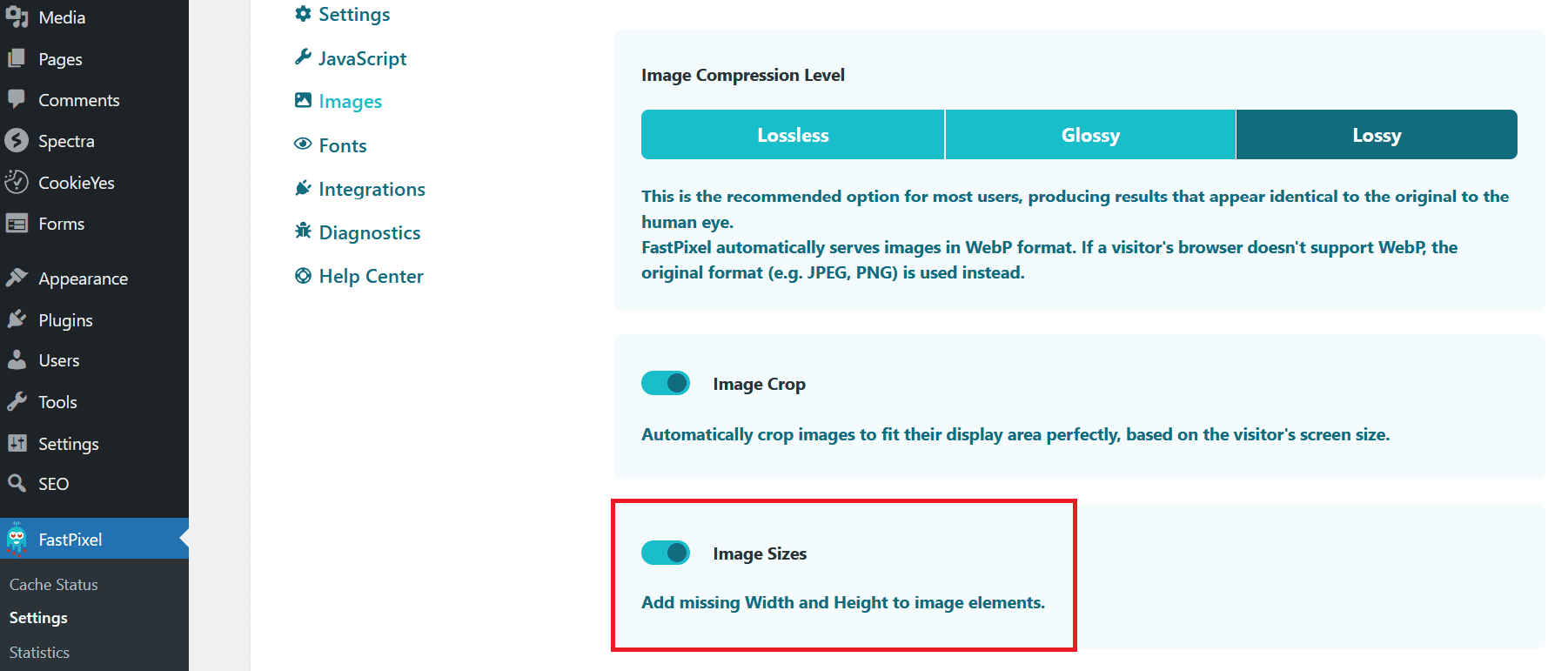
4. Add proper image dimensions in WordPress
When your browser doesn’t know an image’s dimensions ahead of time, it can’t reserve space for it. This causes layout shift, and content jumps around as images load, which hurts your Cumulative Layout Shift (CLS) score.
Good news: WordPress automatically adds width and height attributes to images uploaded through the Media Library. But if you’re using a page builder or theme that removes these (some do for “responsive” reasons), your performance suffers.
Make sure your theme or page builder preserves image dimensions. You can check by inspecting your hero image in the browser – it should have width and height attributes.
If you’re using a custom hero section in a page builder like Elementor, Beaver Builder, or Divi, check that the image widget includes dimension attributes. Most modern page builders handle this correctly, but it’s worth verifying.
There are also various plugins that add missing attributes, including FastPixel.
5. Don’t lazy-load your hero image
This is critical for WordPress users: never lazy-load your hero image.
Many WordPress optimization plugins, including popular ones like WP Rocket, Autoptimize, and others, enable lazy loading by default for all images. This is great for most images, but terrible for your hero.
Your hero image is your LCP element – the single most important thing to load quickly. Lazy loading delays the image until after JavaScript executes, which adds hundreds of milliseconds.
How to fix this:
In most optimization plugins, you can exclude specific images from lazy loading. Look for options like:
- “Exclude images from lazy loading” (enter your hero image filename or CSS class)
- “Disable lazy loading for above-the-fold images”
- Add your hero section’s CSS class to the exclusion list
Tip: If your theme uses a specific CSS class for hero images (like .hero-image or .banner-image), exclude that class from lazy loading across your entire site.
6. Optimize on upload (set it and forget it)
The best optimization strategy is one that happens automatically. Configure your WordPress site to optimize images as you upload them, so you never have to think about it again.
In ShortPixel Image Optimizer:
- Make sure “Optimize media on upload” in Settings > ShortPixel > Processing is enabled.
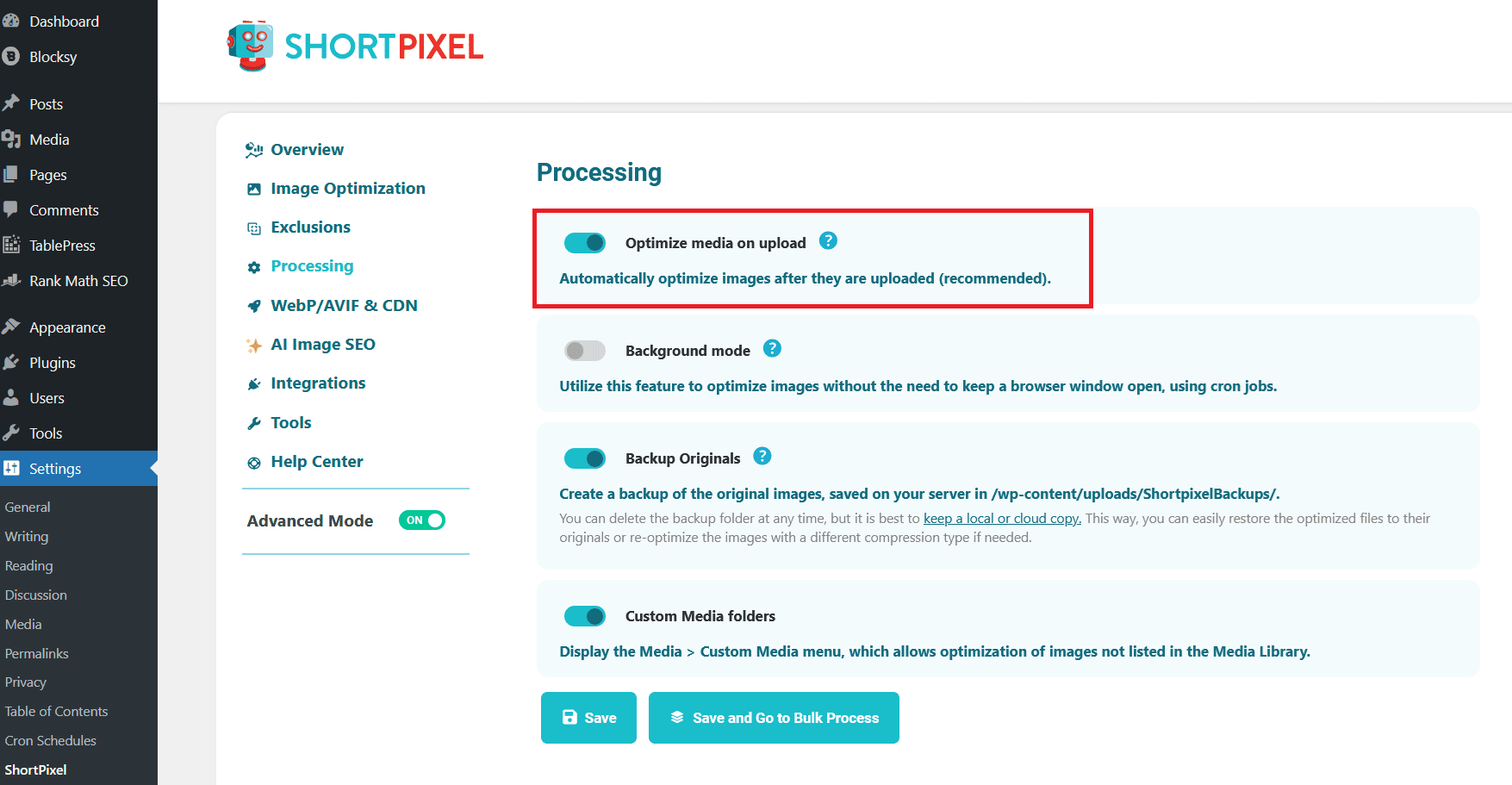
- Every image you upload from now on gets optimized automatically
- Works with any upload method: Media Library, page builders, WooCommerce product images, etc.
What happens when you fix your hero image
Let’s talk results. What site owners actually experience when they properly optimize their hero images.
Immediate performance improvements
✅ Your LCP score drops by 1-3 seconds, often moving you from “Poor” to “Good” in Core Web Vitals
When you check your site in PageSpeed Insights or Search Console’s Core Web Vitals report, you’ll see your LCP metric improve dramatically. Sites that were scoring 3.5-4.5 seconds often drop to 1.5-2.2 seconds—well within Google’s “good” threshold of 2.5 seconds.
✅ Your WordPress admin feels more responsive
This might surprise you, but optimizing your Media Library has a bonus benefit: your WordPress dashboard loads faster. If you’ve ever noticed your Media Library taking forever to load thumbnails, optimized images fix that.
✅ Mobile load times improve by 40-60%
Mobile users on 4G or slower connections see the biggest improvement. What took 5-6 seconds to load now appears in 2-3 seconds. On 5G connections, your hero can load almost instantly.
Traffic and engagement changes
✅ Bounce rates decrease by 10-20%
More visitors actually see your content before giving up. This shows up clearly in Google Analytics. Watch your bounce rate over the next 2-4 weeks after optimizing.
✅ Time on site increases
When visitors don’t spend 3-4 seconds staring at a loading screen, they have more time to engage with your actual content. Expect average session duration to increase by 15-30 seconds.
✅ Pages per session improve
Faster page loads encourage visitors to click through to other pages. If your hero image appears on multiple pages (home, landing pages, key product pages), this compounds across your entire site.
Business impact
✅ Conversions increase by 5-15%
This is where optimization pays for itself. Whether you’re tracking form submissions, email signups, or e-commerce sales, faster load times translate directly to more conversions.
For a WooCommerce store doing $10,000/month in revenue, a 10% conversion improvement is an extra $1,000/month or $12,000 per year. For an agency generating leads worth $500 each, just two extra conversions per month pays back the optimization effort multiple times over.
✅ Lower bounce rates signal quality to Google
Within 2-3 months, you may notice improved rankings for your key pages. Google sees that users aren’t bouncing as quickly, which it interprets as your content being more relevant and satisfying.
This doesn’t happen overnight. SEO takes time, but improved user experience metrics are a confirmed ranking factor.
✅ Hosting costs may decrease
If you’re on a metered hosting plan (charged by bandwidth), smaller images mean lower costs. Even on unlimited plans, reduced server load means better performance for all your site’s visitors.
FAQs
What size should my WordPress hero image be?
The ideal hero image size is 1920px wide by 400-600px tall. This ensures it looks sharp on most screens. Keep the file size under 200-250 KB after optimization for best performance.
Should I lazy-load my hero image?
No, never lazy-load your hero image. It’s your most important visual element and lazy-loading delays it, hurting your Largest Contentful Paint (LCP) score and making your page feel slower.
How do I optimize hero images in WordPress without losing quality?
Use plugins like ShortPixel that automatically compress images on upload. Set compression to Lossy or Glossy mode for the best balance between quality and file size.
What’s the fastest way to fix my hero image performance?
Three quick wins: (1) Convert to WebP/AVIF format, (2) Compress to under 200 KB, (3) Make sure it’s NOT lazy-loaded.
Should I use a PNG or JPG for my hero image?
Use JPG for photos and PNG only if you need transparency. But better yet, convert to WebP or AVIF – both support transparency and compress much better than either format.