How to add SEO ALT Text, Titles, and Descriptions in Bulk with ShortPixel

ShortPixel AI Image SEO makes it possible to generate ALT text, titles, descriptions, and captions in bulk for all images within WordPress, directly from the Media Library.
Instead of manually editing image metadata one by one, you can configure the AI Image SEO once, preview how the generated data would look like and run a bulk optimization which will generate the SEO data for all images.
This guide walks you through the complete workflow for adding AI Image SEO for all images in bulk.
Why having SEO image data matters
Most WordPress sites suffer from poor image metadata.
Images often have:
- Empty ALT text
- Filenames used as titles
- No descriptions or captions at all
This affects both accessibility (screen readers) and search visibility (image search and page relevance).
ShortPixel AI Image SEO solves this problem at scale, especially for sites with hundreds or thousands of images.
Prerequisite
Before starting, make sure you have:
- The ShortPixel Image Optimizer plugin installed and activated
- A ShortPixel API Key added to the plugin settings
- Available AI credits in your ShortPixel account
Step 1: Configure ShortPixel AI Image SEO settings
This is the most important step. These settings control how the AI generates SEO data for every image.
Go to Settings → ShortPixel → AI Image SEO.
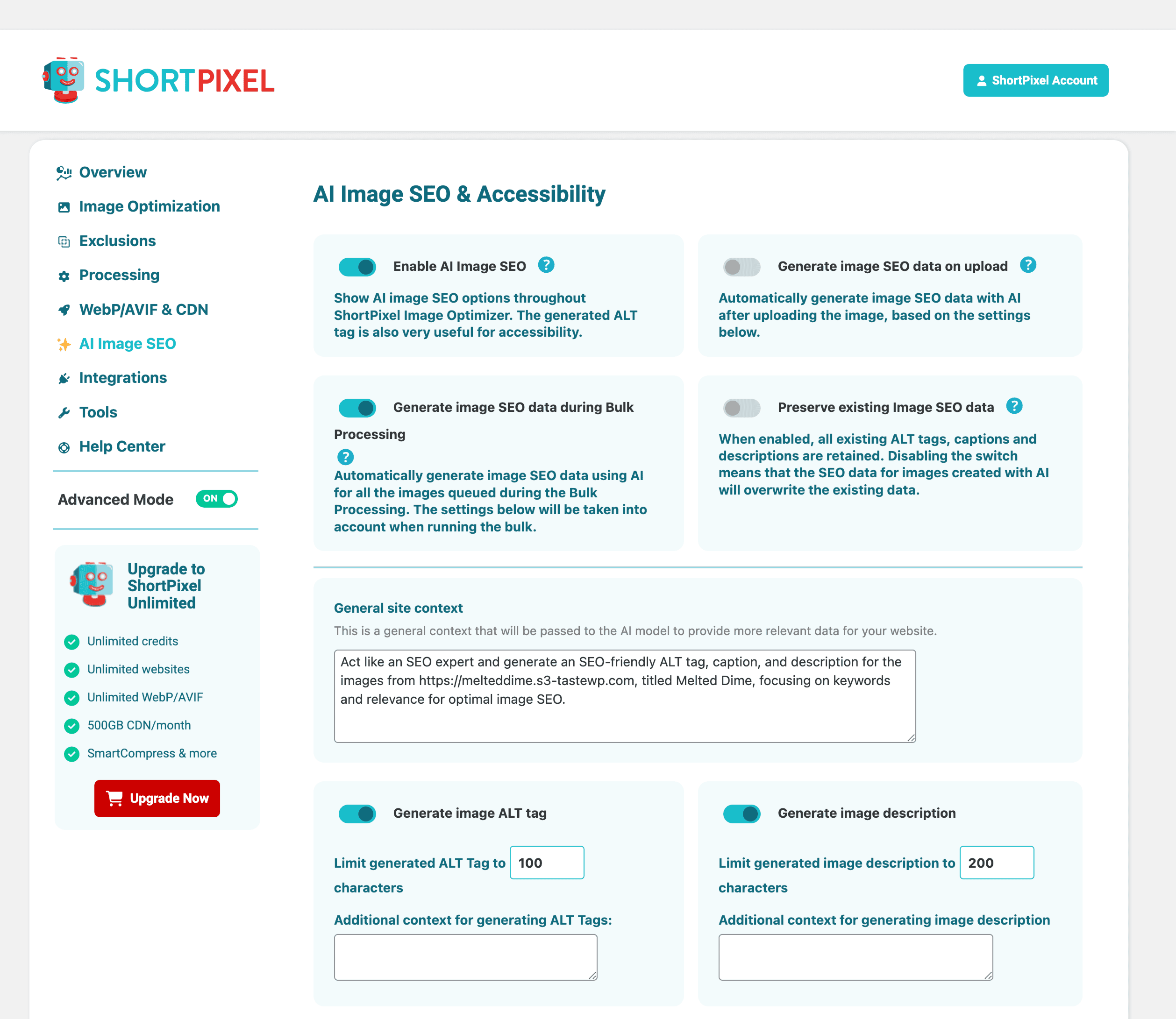
Enable the options that best suit your website
Check only the options you actually need:
- Generate image ALT tag
- Generate image description
- Generate image caption
- Update image title with an SEO-friendly one
You can enable all of them or just ALT tag if that’s your priority.
Set character limits
Recommended ranges:
- ALT text: 100–125 characters
- Title: 60–80 characters
- Description: 150–200 characters
- Caption: 100–150 characters
These limits help keep SEO data readable and consistent.
Set the language
Choose the language your site content is written in.
The AI will generate SEO data in this language.
Add general site context (important)
You’ll also see a field called General site context.
This is where you describe what your website is about.
The AI uses this text to generate more relevant and accurate SEO data.
Example:
Act like an SEO expert and generate SEO-friendly ALT text, captions, and descriptions for images from a WordPress site titled “Melted Dime,” focusing on relevant keywords and visual context.
This step helps the AI avoid generic descriptions and align image metadata with your site’s topic.
Click Save Changes when you’re done.
Step 2: Generate AI Image SEO in bulk
Once the settings are configured, you can generate SEO data for your images in bulk.
Method A: Process the entire Media Library
This is the fastest option which will generate SEO data for all images.
Go to Media → Bulk ShortPixel.
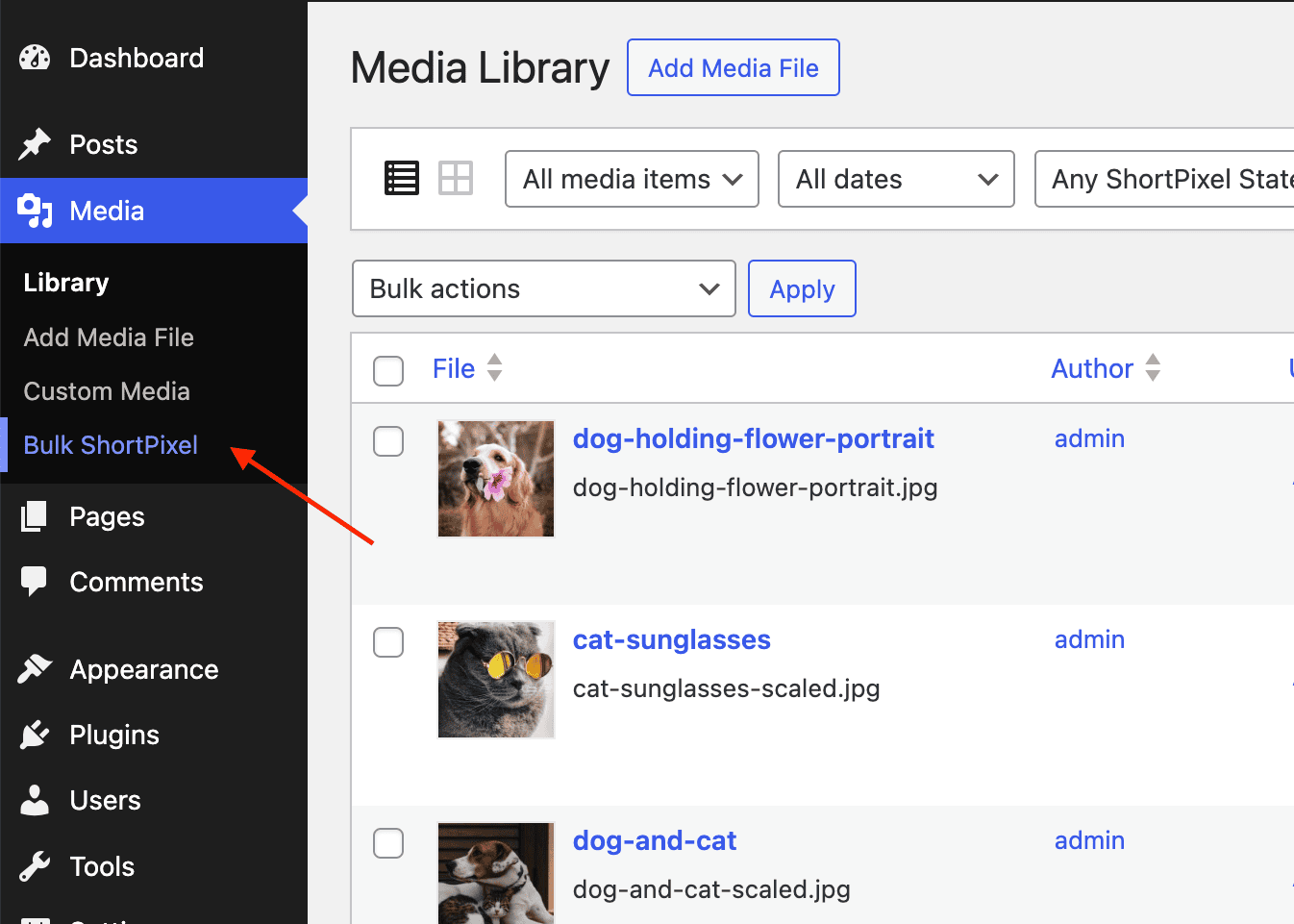
Steps:
- Make sure Media Library is enabled
- Enable Use ShortPixel AI to generate image SEO data
- Click Calculate
- Review the number of images and required credits
- Click Start Bulk Optimization
Method B: Process selected images only
This approach is useful if you want to:
- Test how the feature works first
- Process only recent uploads
- Handle specific image groups
Steps:
- Go to Media Library → List View
- Select the images you want
- From Bulk actions, choose Generate image SEO data
- Click Apply
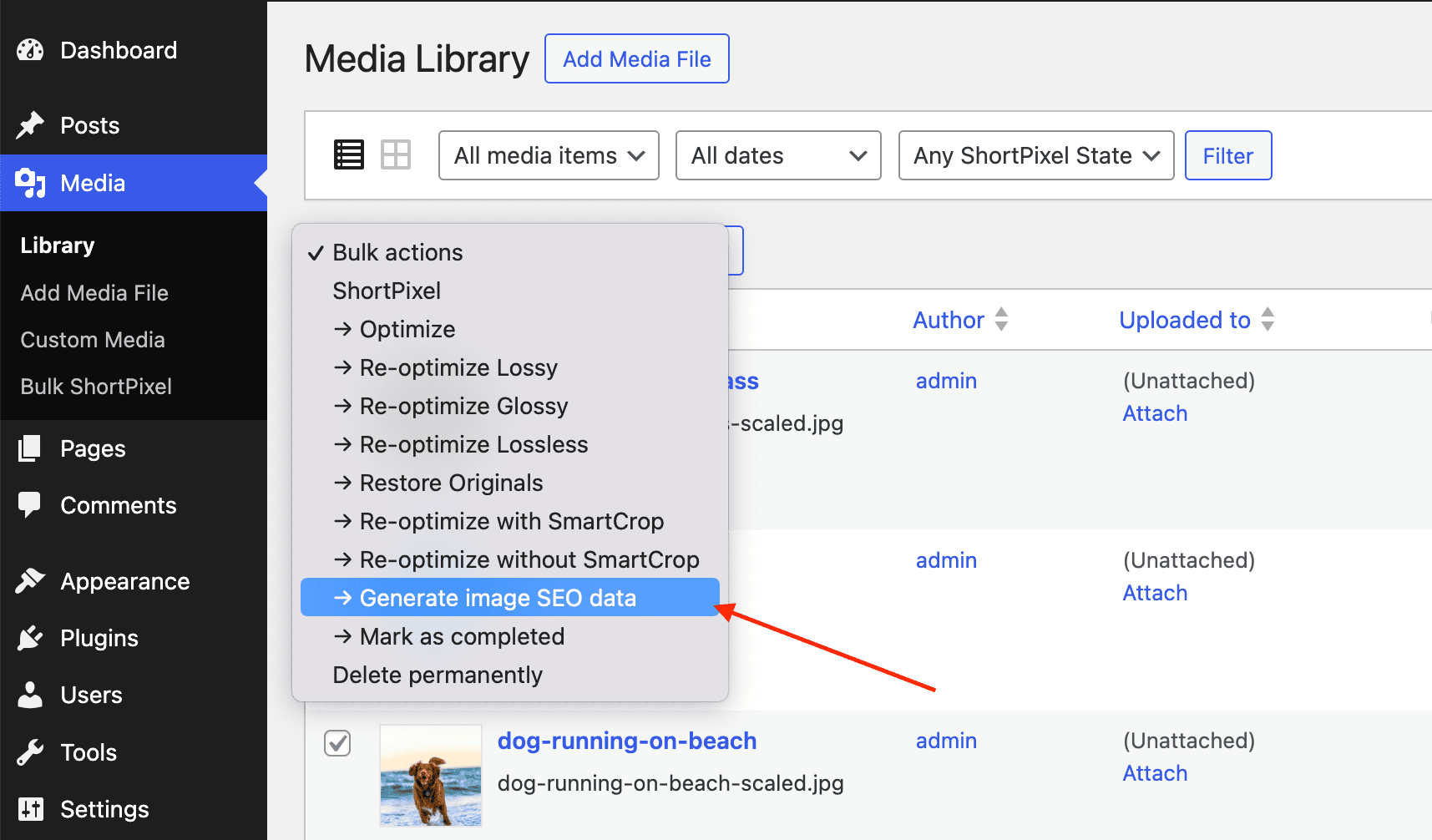
The selected images will be processed using your current AI settings.
Step 3: Review AI-generated SEO data
After processing finishes, the metadata is already applied to your images.
Go to Media → Library and click on any processed image and scroll down.
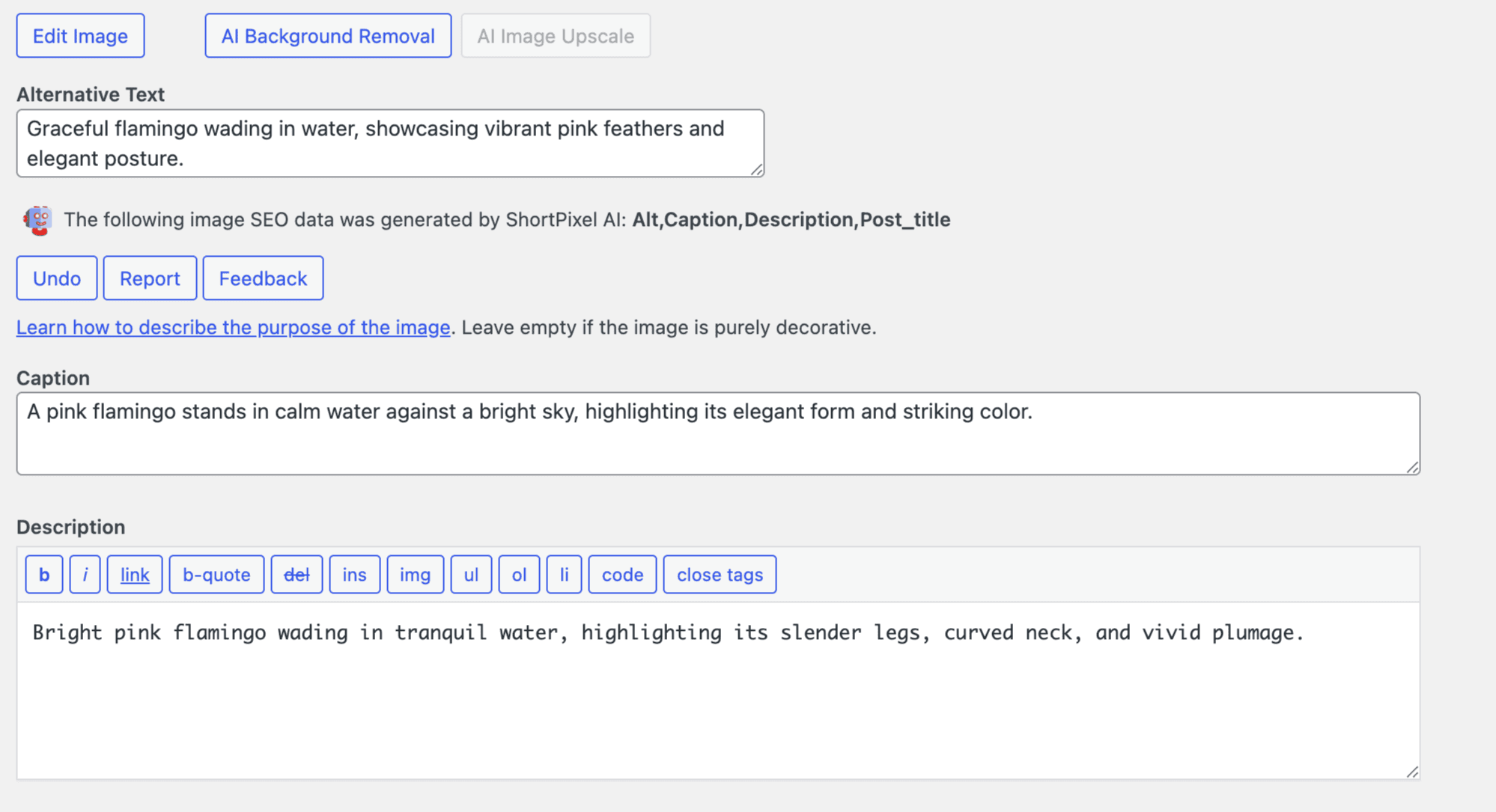
Here you can:
- Read the generated ALT text
- Adjust wording if needed
- Edit titles, captions, or descriptions
- Undo AI SEO for that image if necessary
For most images, the AI SEO will already be usable.
You only need to edit edge cases or highly specific visuals.
Step 4: Automate SEO data generation for new uploads
Once existing images are optimized, you can let ShortPixel handle new uploads automatically.
Go back to Settings → ShortPixel → AI Image SEO.
Enable:
- Generate image SEO data on upload
From now on, every new image uploaded to WordPress will receive AI-generated SEO data automatically, based on your saved settings and site context.
Key takeaways
- The General site context has a major impact on AI SEO data quality
- Always preview the data on an image first
- Review a few images and edit only what needs refinement
- Enable automatic generation after optimizing your existing library
Conclusion
Image SEO data no longer has to be a manual, time-consuming task.
With ShortPixel AI Image SEO, you can:
- Configure AI Image SEO options once
- Process all images in bulk
- Review results before starting the process
- Automatically optimize future uploads
The workflow is simple, scalable, and fits naturally into WordPress’s existing interface.
For growing sites, agencies, and content-heavy blogs, this approach saves hours of repetitive work while improving accessibility and search visibility at the same time.
Built for WordPress sites at scale.
If you’re managing a growing WordPress site, this workflow saves hours of repetitive work while improving accessibility and image SEO at the same time.
Try ShortPixel on WordPress for free!
Easily optimize all your images and generate AI Image SEO with ShortPixel Image Optimizer.