How to Optimize WordPress Sites Built With Theme Builders

Theme builders like Elementor, Divi, and Beaver Builder make creating stunning WordPress sites incredibly easy. Drag, drop, done.
But here’s the problem: they also make it incredibly easy to build slow, bloated websites.
You don’t need to abandon your theme builder to get better performance. You just need to use it smarter.
This guide will show you exactly how to optimize your theme builder site without sacrificing the visual design you worked so hard to create.
Quick Takeaways
- Theme builders add extra code layers that slow down your site, but proper optimization can recover most of that lost speed.
- Start by auditing your pages for widget bloat, removing unused features, and minimizing the number of sections per page.
- Optimize images aggressively since theme builders make it easy to add heavy visuals without proper compression.
- Use strategic CSS/JS loading by disabling builder assets on pages that don’t need them and enabling conditional loading.
- Choose performance-friendly addons and avoid installing massive widget packs when you only need a few features.
Why theme builders slow down your site
Theme builders are powerful, but that power comes with a cost.
Every drag-and-drop interface requires extra code to function. That means additional CSS files, JavaScript libraries, and rendering logic that regular themes don’t need.
Here’s what happens behind the scenes:
❌ The builder loads its core framework on every page
Even if you’re just displaying a simple text paragraph, the entire builder system needs to be initialized. That’s extra HTTP requests and processing time.
❌ Each widget or module you add brings its own code
A pricing table widget might load 50kb of CSS and JavaScript, even if that’s the only place on your site using it.
❌ The visual editor creates inline styles
When you adjust padding or change colors in the builder, it often generates inline CSS directly in your HTML. This bloats your page code and makes caching less effective.
❌ Builder-specific markup adds weight
The HTML structure needed to make drag-and-drop editing work is often more complex than hand-coded alternatives.
The good news is that you can keep using your theme builder and still achieve excellent performance. You just need to be strategic about how you build.
Read more: Ultimate WordPress Performance Checklist
Clean up your builder workflow
Most performance problems with theme builders come from how people use them, not the tools themselves.
Start by auditing your heaviest pages. Open PageSpeed Insights and identify which pages have the worst scores. These are your priority targets.
Look for widget bloat
Count how many different widgets or modules you’re using on a single page.
If you see 20+ different elements, you’ve probably gone overboard.
Each unique widget type loads its own assets, so using 15 different widgets is far worse than using 3 widgets repeated multiple times.
Remove unused features immediately
Theme builders come packed with features you’ll never use.
For example, Divi has built-in split testing. Elementor includes a form builder.
If you’re not using these, disable them. Most builders have settings to turn off unused features.
Simplify your section structure
Every section, column, and container adds HTML markup and CSS rules.
A page with 10 sections and complex nested columns will always load slower than a page with 5 sections and simple layouts.
Ask yourself if you really need that extra section break or if two sections could be combined.
Avoid animations and effects overload
That parallax background looks cool, but it requires JavaScript to track scroll position and reposition elements in real-time.
Multiply that by 5 sections, and you’ve created a performance nightmare. Use animations sparingly and only where they add real value to the user experience.
Image optimization for visual-heavy designs
Theme builders make it dangerously easy to add images everywhere.
Hero images, background images, gallery widgets, image boxes, and testimonials with photos. This is where most builder sites completely fall apart on performance.
You need an aggressive image optimization strategy.
Start by installing ShortPixel Image Optimizer and giving it a spin. This plugin automatically compresses every image you upload and generates modern WebP and AVIF formats for optimal performance.
Try ShortPixel for free!
Easily resize your pictures and cut down pixels fast using ShortPixel Image Optimizer.
Set proper dimensions before uploading
Theme builders often have specific requirements for image sizes. Check where you insert the image, and resize it to match the size of the container before uploading.
Never upload a 3000px wide image if the theme only displays it at 1200px. You’re wasting bandwidth and slowing down your site for no reason.
Use the builder’s built-in responsive settings
Most modern builders let you upload different images for desktop, tablet, and mobile. Use this feature.
Your mobile users don’t need the same high-resolution hero image as desktop visitors. Upload a smaller, optimized version specifically for mobile devices.
Lazy load everything below the fold
Make sure lazy loading is enabled for all images except your main hero image. ShortPixel and most caching plugins handle this automatically. The browser should only load images as users scroll down, not all at once on page load.
Master your builder’s performance settings
Every major theme builder has performance settings buried in their options. Most people never touch them. You need to dig into these settings and configure them properly.
Important: When enabling new settings, always check your pages carefully. These optimizations can sometimes break layouts or scripts.
Elementor optimization
Go to Elementor > Settings > Performance. Set the CSS Print Method to External File. This generates separate CSS files instead of embedding styles in the page head, which improves caching and reduces render-blocking CSS.
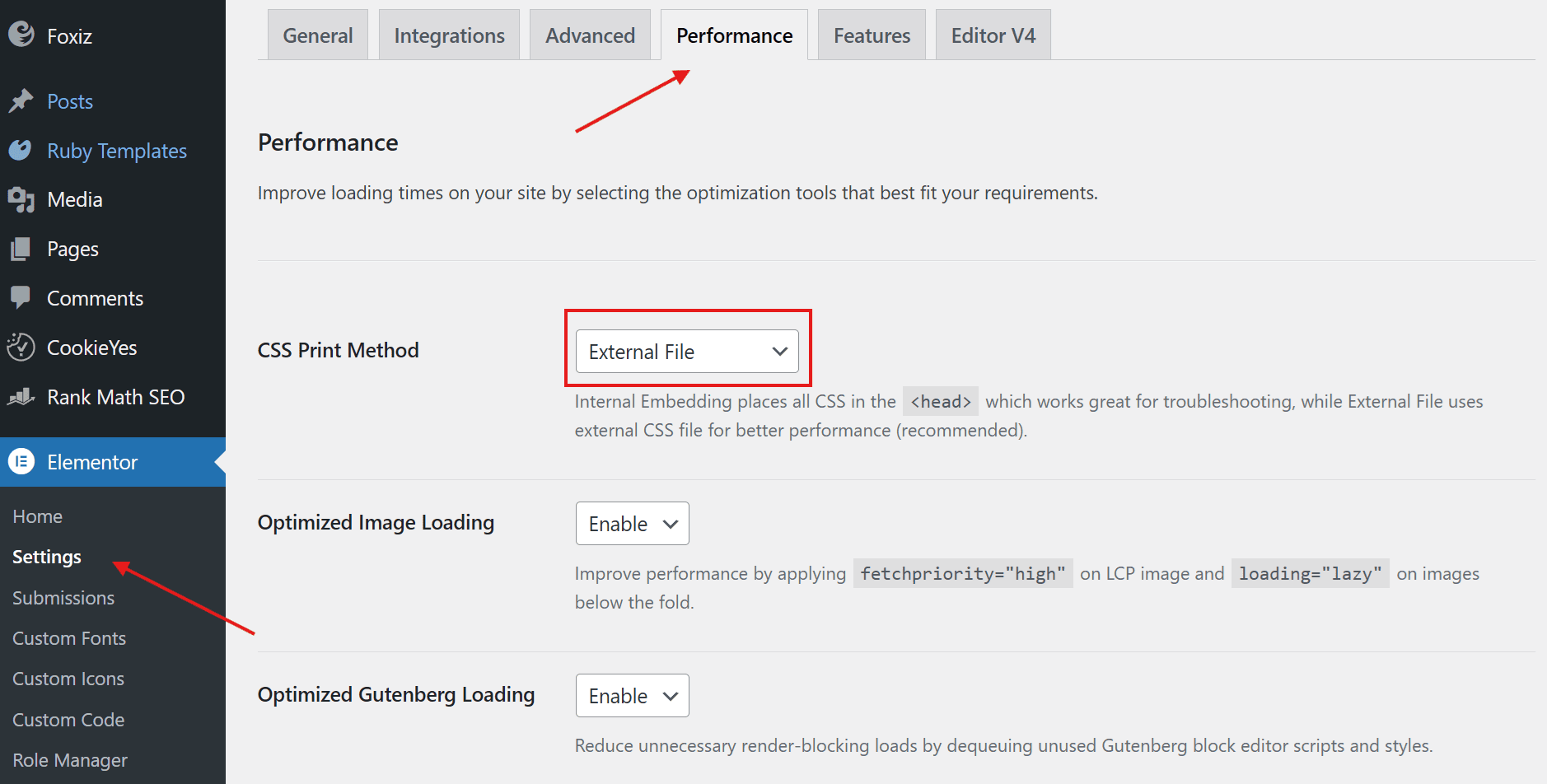
Enable Optimized Image Loading to prioritize the LCP image and lazy load images below the fold automatically.
Turn on Optimized Gutenberg Loading to prevent unused block editor scripts and styles from loading on the front end.
Enable Lazy Load Background Images so background images are deferred, except for the first visible one, improving initial load time. Disable this if you lazy-load the images using another plugin.
Keep Load Google Fonts Locally disabled if you are already handling fonts via a performance or optimization plugin. Enable it only if you want Elementor to self-host Google Fonts for GDPR or consistency reasons.
Next, go to Elementor > Settings > Features for the performance experiments.
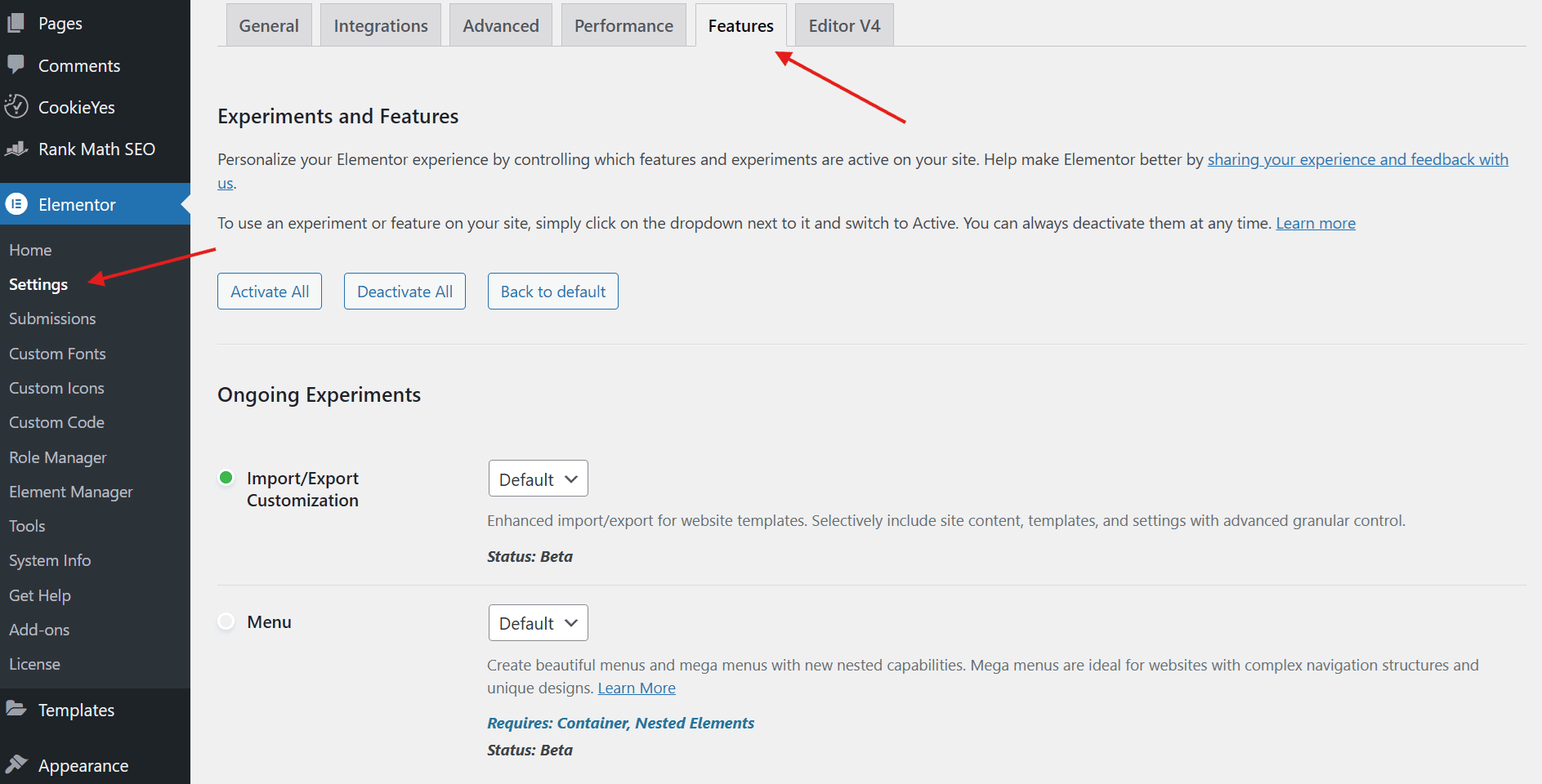
Enable Inline Font Icons to render icons as inline SVGs and avoid loading Font Awesome and Elementor icon font files.
Leave Container and Nested Elements enabled or at their default state if your layout already relies on them. These are required for newer performance and layout improvements.
Keep Optimized Markup at its default state unless you have tested it thoroughly. While it reduces DOM size, it may require CSS or JS adjustments and can affect third-party plugins.
Other experiments, like Menu and Import/Export Customization can remain at their default values unless you specifically need those features.
Divi optimization
Go to Divi > Theme Options > General > Performance.
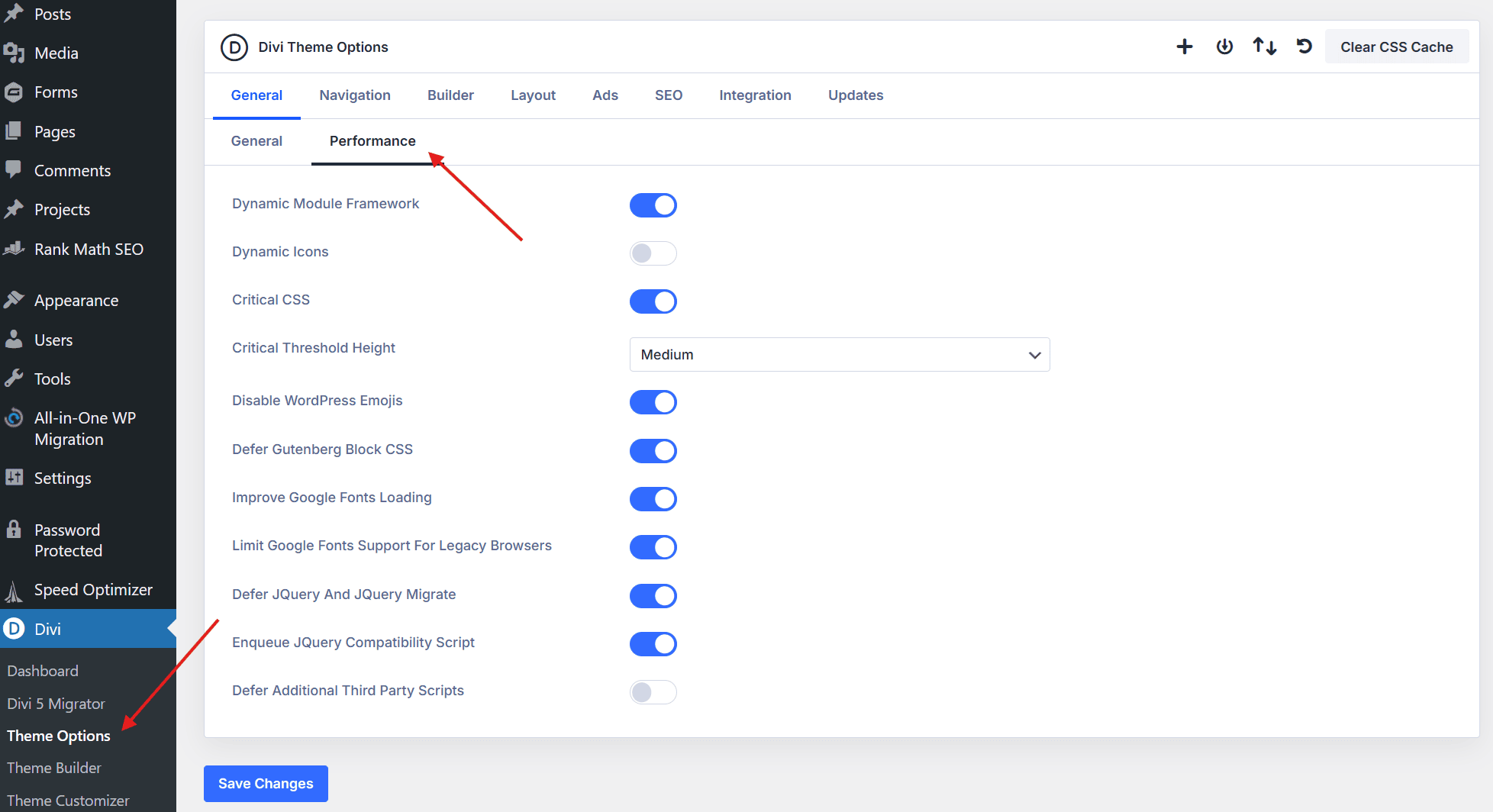
Enable Dynamic Module Framework to load Divi modules only when they are actually used on the page. This helps reduce unnecessary CSS and JavaScript.
Turn on Critical CSS and keep the Critical Threshold Height set to Medium to improve above-the-fold rendering and Core Web Vitals.
Enable Defer jQuery And jQuery Migrate so these scripts load later and do not block initial page rendering. Keep Enqueue jQuery Compatibility Script enabled to avoid issues with plugins that still rely on jQuery.
You can also enable Disable WordPress Emojis, Defer Gutenberg Block CSS, and Improve Google Fonts Loading to further reduce render-blocking resources and unnecessary requests.
Beaver Builder optimization
Go to Settings > Beaver Builder > Advanced.
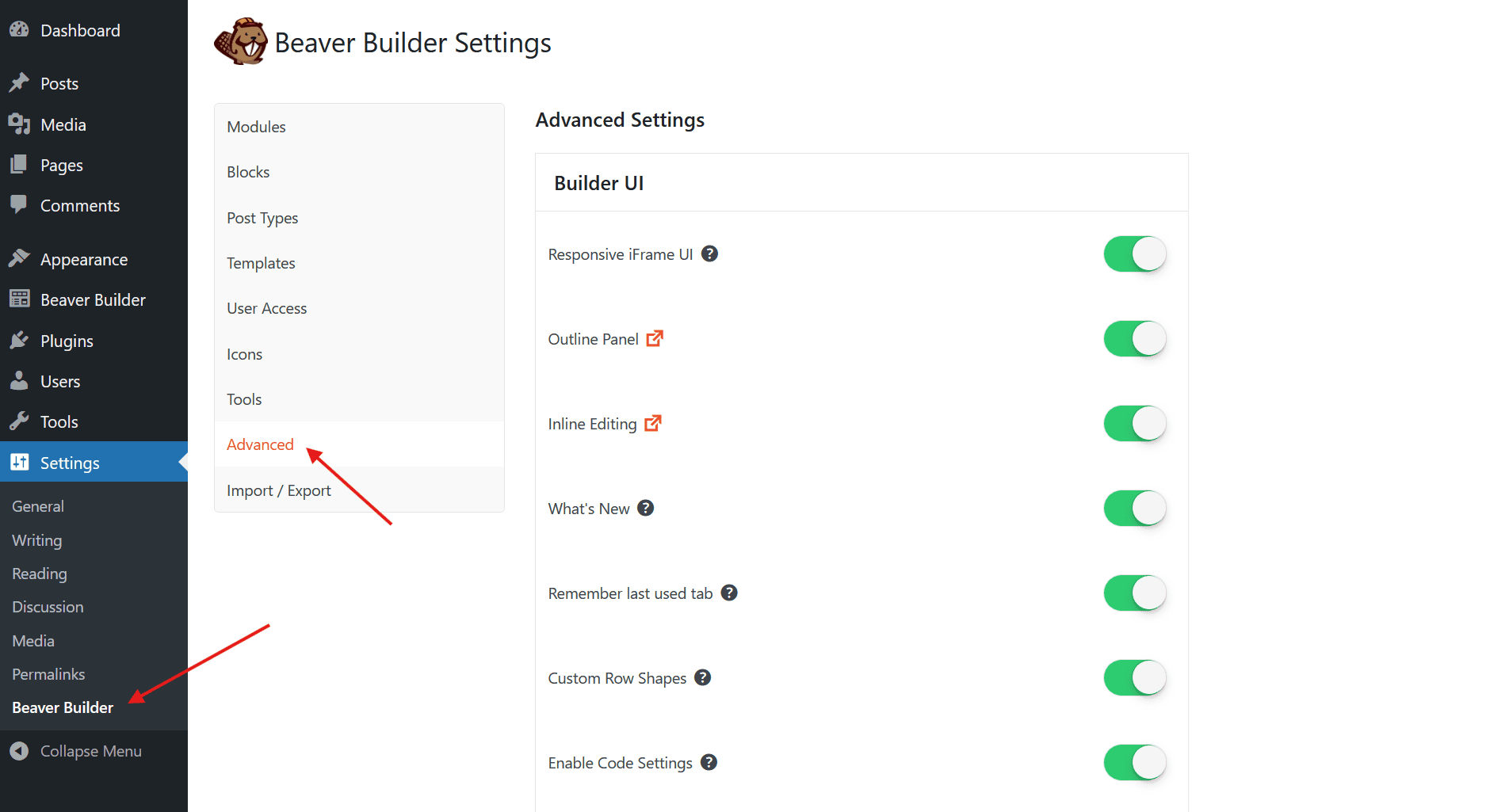
Enable Small Data Mode to avoid saving empty or unused options to the database. This reduces post meta size significantly and helps keep the database lean on sites with many Beaver Builder layouts.
Under Assets, disable Google Fonts if you are already loading fonts locally via a theme or optimization plugin. This prevents duplicate font requests and unnecessary external calls.
Disable Font Awesome if your site does not rely on Beaver Builder modules that require it, or if icons are already handled by another icon system. This removes an extra CSS file and font assets from the front end.
Enable Prefer GD for image cropping to improve image processing performance on the server, especially on shared hosting environments where ImageMagick can be slow.
Under Frontend, keep Render CSS/JS assets inline disabled. Loading Beaver Builder assets as files allows better browser caching and generally results in better performance.
Keep Force Module Wrapper Divs disabled. The newer markup removes unnecessary wrapper elements, resulting in cleaner HTML and a smaller DOM.
Choose the right addons and extensions
Theme builder addons are tempting. One plugin gives you 50 new widgets. Sounds great, right?
Wrong. This is a trap.
A lot of addon packs load all their code on every page, even if you only use 2 out of 50 widgets. That’s a massive waste.
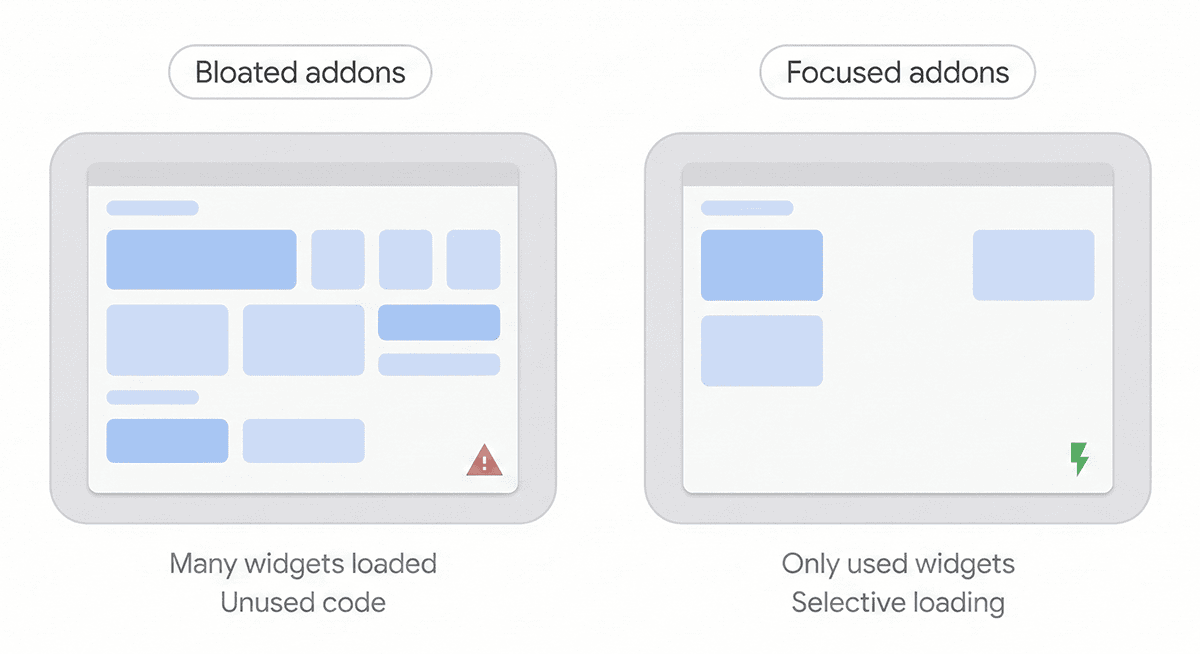
Choose focused, lightweight addons.
For example, instead of installing Ultimate Addons for Elementor with 100 widgets, install specific addons that do exactly what you need.
Or, if you really want to rely on a multipurpose plugin like that, make sure it has an option to disable unused widgets.
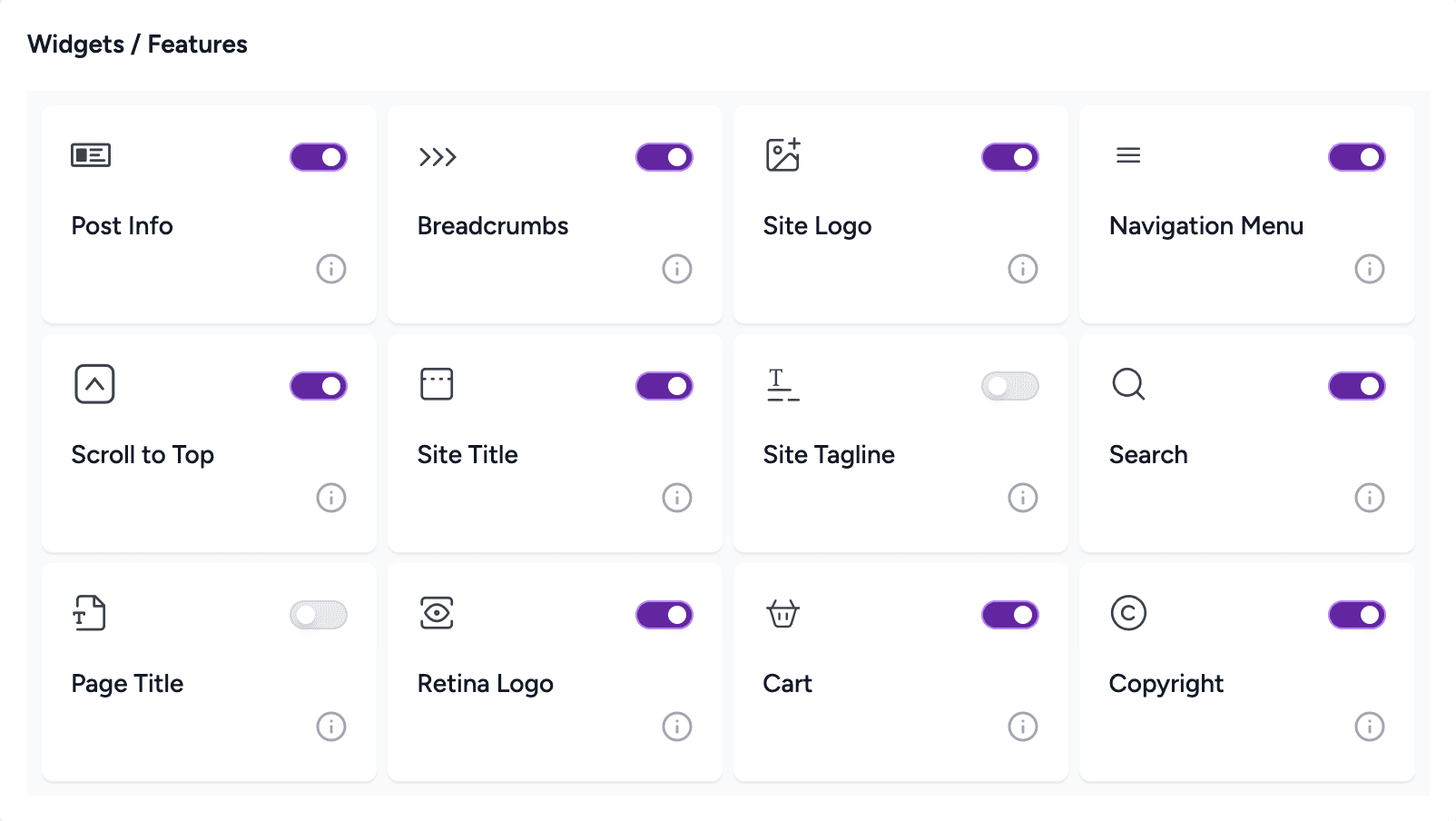
Need a better pricing table? Just install a simple dedicated pricing table addon. Need an advanced slider? Install just a slider addon.
Check the addon’s optimization features. Good addons include options for:
- Selective widget loading (only load code for widgets you actually use)
- Minified assets
- Conditional script loading
- Compatibility with caching plugins
Read recent reviews and check update frequency. An abandoned addon is a security risk and likely not optimized for the latest WordPress and builder versions.
Audit your current addons.
Go through your plugins list and identify which ones extend your theme builder. Deactivate them one by one and check if you actually miss the functionality.
You’ll probably find several you can delete entirely.
Code and caching strategies
Your builder is configured. Your images are optimized. Now you need to handle the code and caching layer.
Use a performance plugin that understands theme builders
Not all caching plugins work well with Elementor, Divi, or Beaver Builder.
FastPixel is specifically designed to handle builder sites. It includes features that work around the unique challenges of builder-generated code. Alternatively, LiteSpeed Cache has good builder compatibility when configured correctly.
Enable page caching aggressively
This is your biggest performance win. A cached page bypasses the builder entirely and serves static HTML.
Theme builders and JavaScript
Theme builders are particularly sensitive to JavaScript optimization because they rely heavily on JS for functionality. Start by enabling minification only, test your site thoroughly, then gradually add combination and deferral.
Use critical CSS extraction
This is advanced but incredibly effective. Tools like FastPixel can automatically handle Critical CSS for above-the-fold content, dramatically improving your Largest Contentful Paint (LCP) score.
Monitor and maintain performance
Builder sites have a tendency to slow down over time. You add a new section here, another widget there, and suddenly your scores have dropped.
Run weekly speed tests. Use PageSpeed Insights or GTmetrix to check your homepage and your most important landing pages.
Focus on your Core Web Vitals scores:
- LCP (Largest Contentful Paint) under 2.5 seconds
- INP (Interaction to Next Paint) under 200 milliseconds
- CLS (Cumulative Layout Shift) under 0.1
Builder sites often struggle with CLS because of dynamic loading elements. Make sure you set explicit height and width for images and sections.
Test on mobile devices. Theme builders make it easy to create desktop designs, but mobile performance is what actually matters for rankings.
Your mobile scores should be at least 80+. If they’re below 70, you have optimization work to do.
Create a performance checklist for new pages. Before publishing any new page built with your theme builder, run through this list:
- Are all images properly compressed and sized?
- Have you removed any test sections or unused widgets?
- Is the page as few different widget types as possible?
- Does it pass the mobile PageSpeed test with a score above 80?
Set up performance monitoring. Tools like Google Search Console will alert you when your Core Web Vitals drop below acceptable thresholds.
Don’t wait for a crisis. Regular monitoring lets you catch performance regressions early before they impact your rankings.
Conclusion
Theme builders aren’t inherently slow. They’re just easy to misuse.
When you combine smart builder practices, aggressive image optimization, proper caching, and careful addon selection, you can build beautiful sites that also load fast.
The key is discipline. Every widget, every animation, every addon needs to justify its existence by adding real value to your visitors.
Start with the fundamentals: clean up your pages, optimize your images with ShortPixel, configure your builder’s performance settings, and implement proper caching.
Then test, monitor, and maintain. Performance optimization isn’t a one-time task. It’s an ongoing commitment to keeping your site fast as you grow and add new content.
Your visitors won’t notice the work you put in. They’ll just know your site feels fast, smooth, and professional. That’s exactly what you want.