How to Optimize Images on a Locally Hosted Website

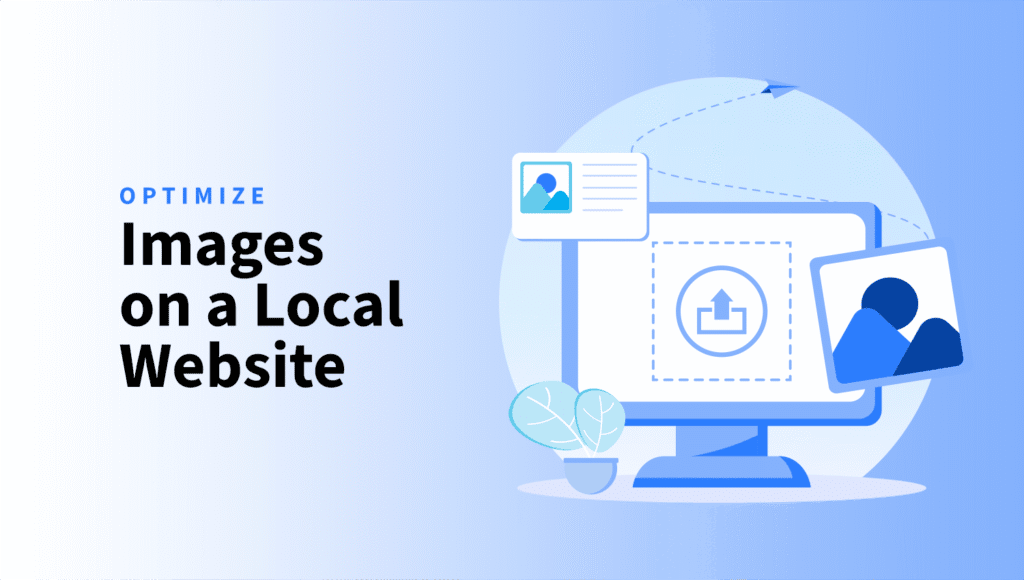
Working on a website that’s still on your local machine? Maybe you’re building on a staging server, or perhaps you’re working with a non-WordPress website altogether. Either way, you still need optimized images, but you can’t just install a plugin and call it a day?
That’s where ShortPixel Archive Optimizer comes in. It lets you optimize images in bulk without needing a WordPress website or even a live website at all.
Who Is This Guide For?
This workflow is perfect if you’re in one of these situations:
- You’re developing a website locally on your computer
- Your website is on a staging server that isn’t publicly accessible
- You’re working with a non-WordPress website (static HTML, custom CMS, etc.)
- You have images you need to optimize but can’t use a WordPress plugin
Quick note
If you already have a live WordPress website, you can skip all this and just use the ShortPixel Image Optimizer plugin. It handles everything automatically, no manual uploads or downloads needed.
Ready to start?
Here’s exactly how to optimize your images step by step with ShortPixel Archive Optimizer:
Step 1: Create a ZIP Archive of Your Images
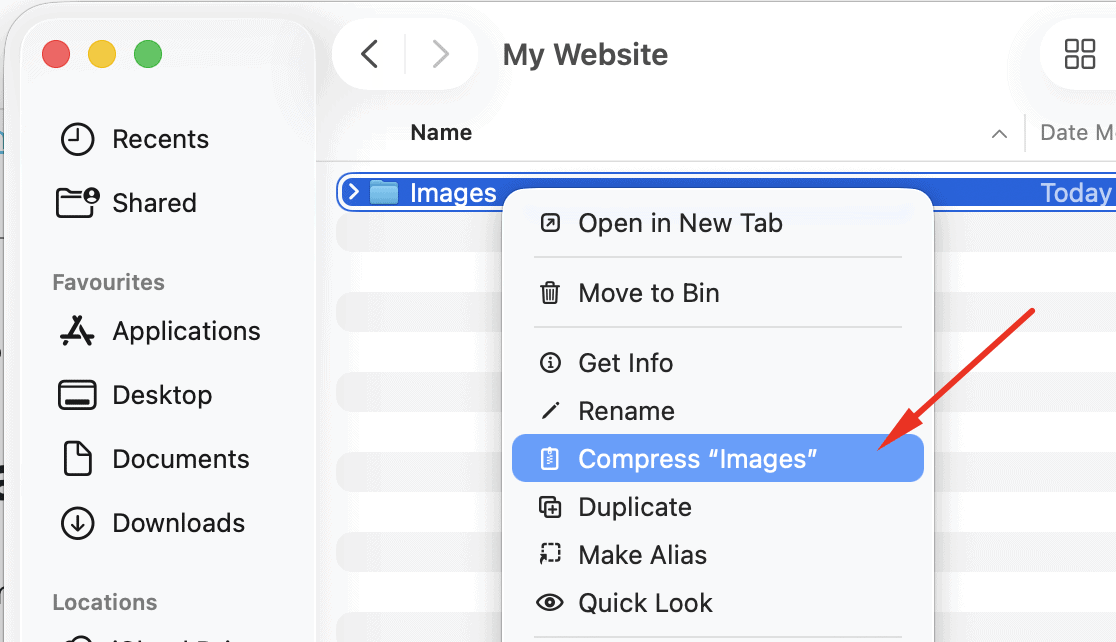
First, gather all the images you want to optimize into a single ZIP file.
If you have multiple image folders, you can simply compress the main folder into a ZIP file that contains all of them. You can also upload your entire website’s folder, the ShortPixel Archive Optimizer will process it and optimize only the images.
Step 2: Login or Sign Up for ShortPixel
Login to your ShortPixel account or create an account if you do not have one already.
ShortPixel gives you 100 image credits per month for free. For most small projects, this is plenty to get started. If you need more, paid plans start at a few dollars for extra credits.
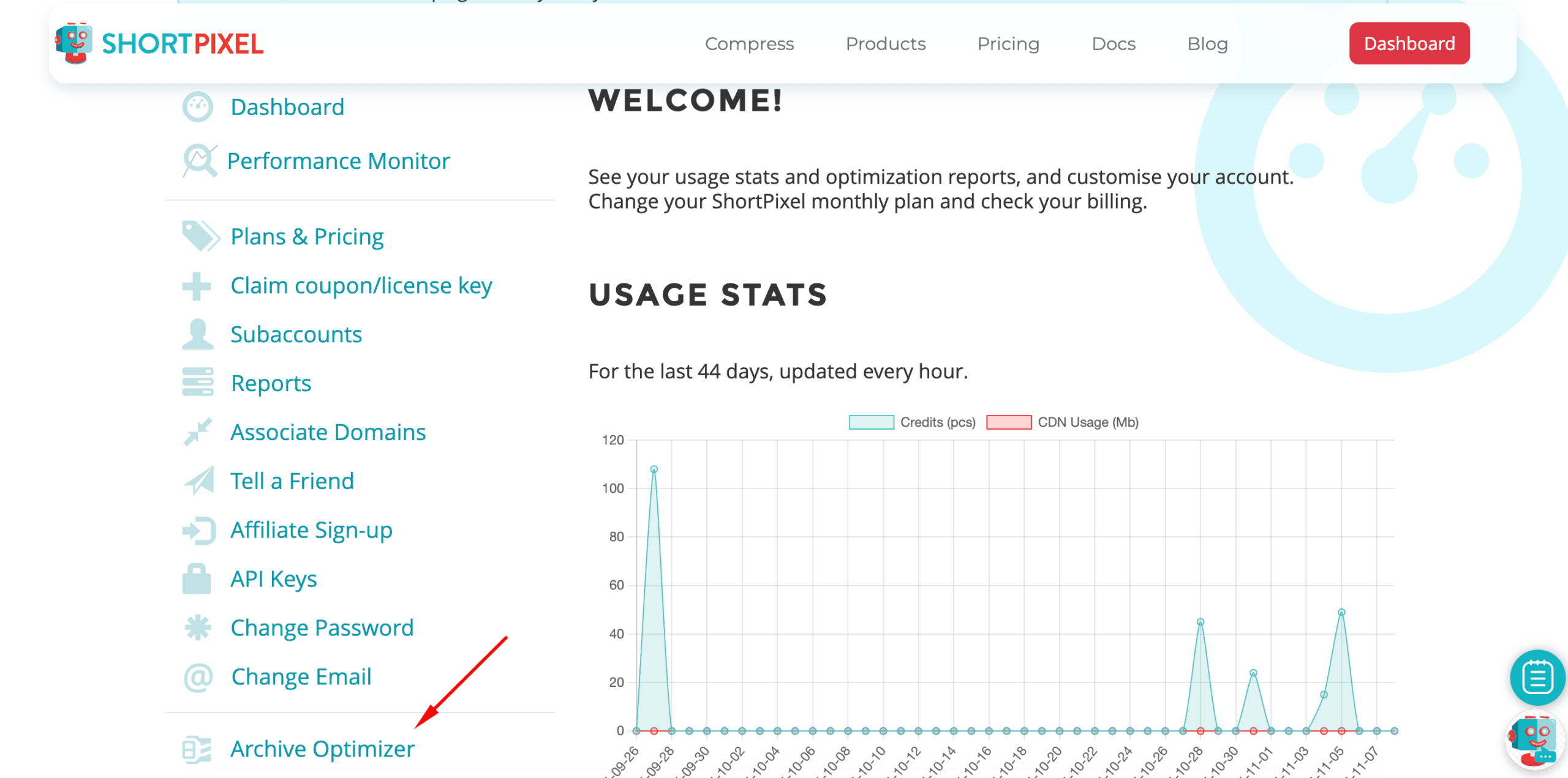
Step 3: Find the Archive Optimizer
Once you’re in the dashboard, look for the Archive Optimizer section in the left side menu.
Step 4: Choose Your Optimization Settings
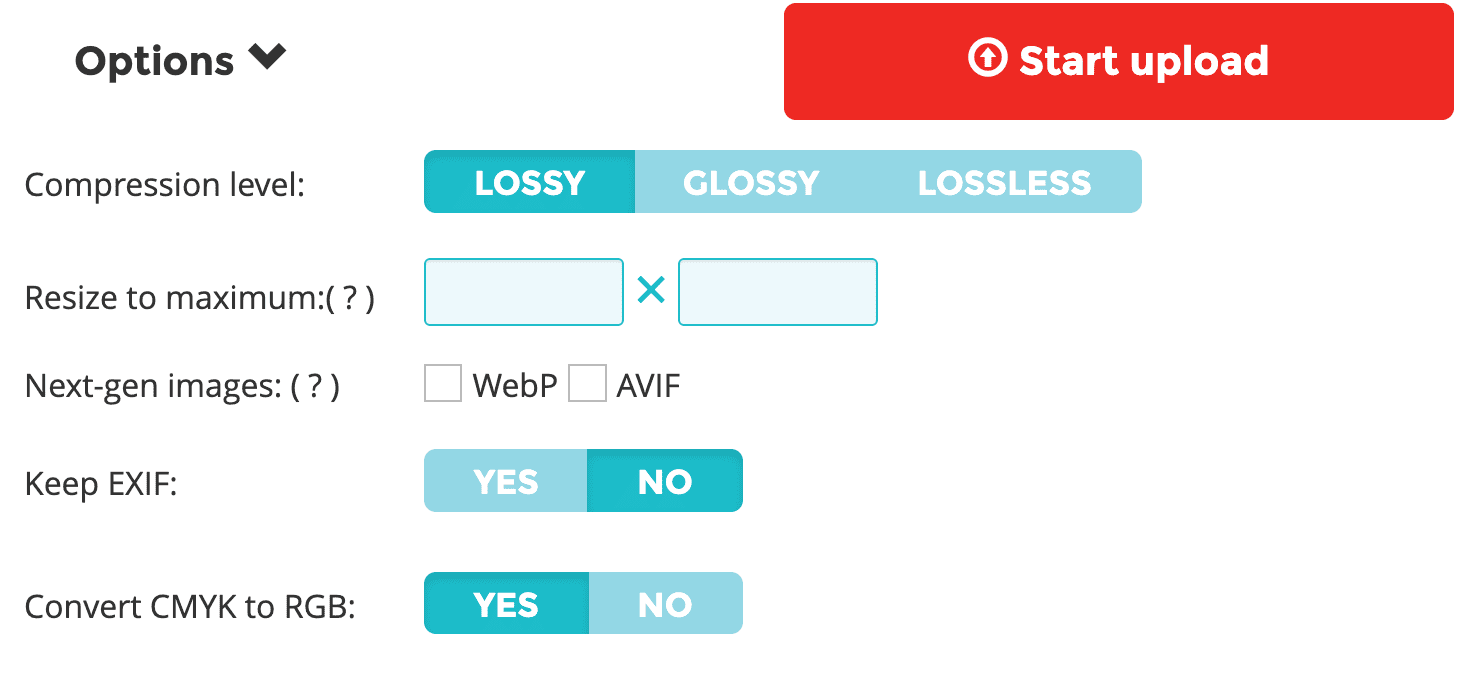
Before uploading your archive, you can choose a specific optimization level or you can leave everything as it is. ShortPixel offers three options:
Glossy
This is the sweet spot for most people. It creates smaller file sizes while keeping your images looking great. You’ll get excellent compression without noticeable quality loss, perfect for websites where visual quality matters.
Lossy
This option pushes compression further, resulting in even smaller files. There might be very minor quality differences if you zoom in closely, but for most web use cases, the images still look perfectly fine. Great if file size is your top priority.
Lossless
This preserves your images exactly as they are, with zero quality loss. The files will be smaller than the originals, but not as dramatically reduced as with the other options. Choose this if you’re working with images that need to remain pixel-perfect (like logos or technical diagrams).
Pick the option that makes sense for your project, then move to the next step.
Optional: Try Modern Image Formats
If you want files even smaller, you can convert your images to WebP or AVIF instead of JPEG or PNG. These are next-gen formats that compress better and improve SEO while looking the same.
ShortPixel can do this conversion during the optimization process if you want to try it.
Step 5: Upload Your Archive
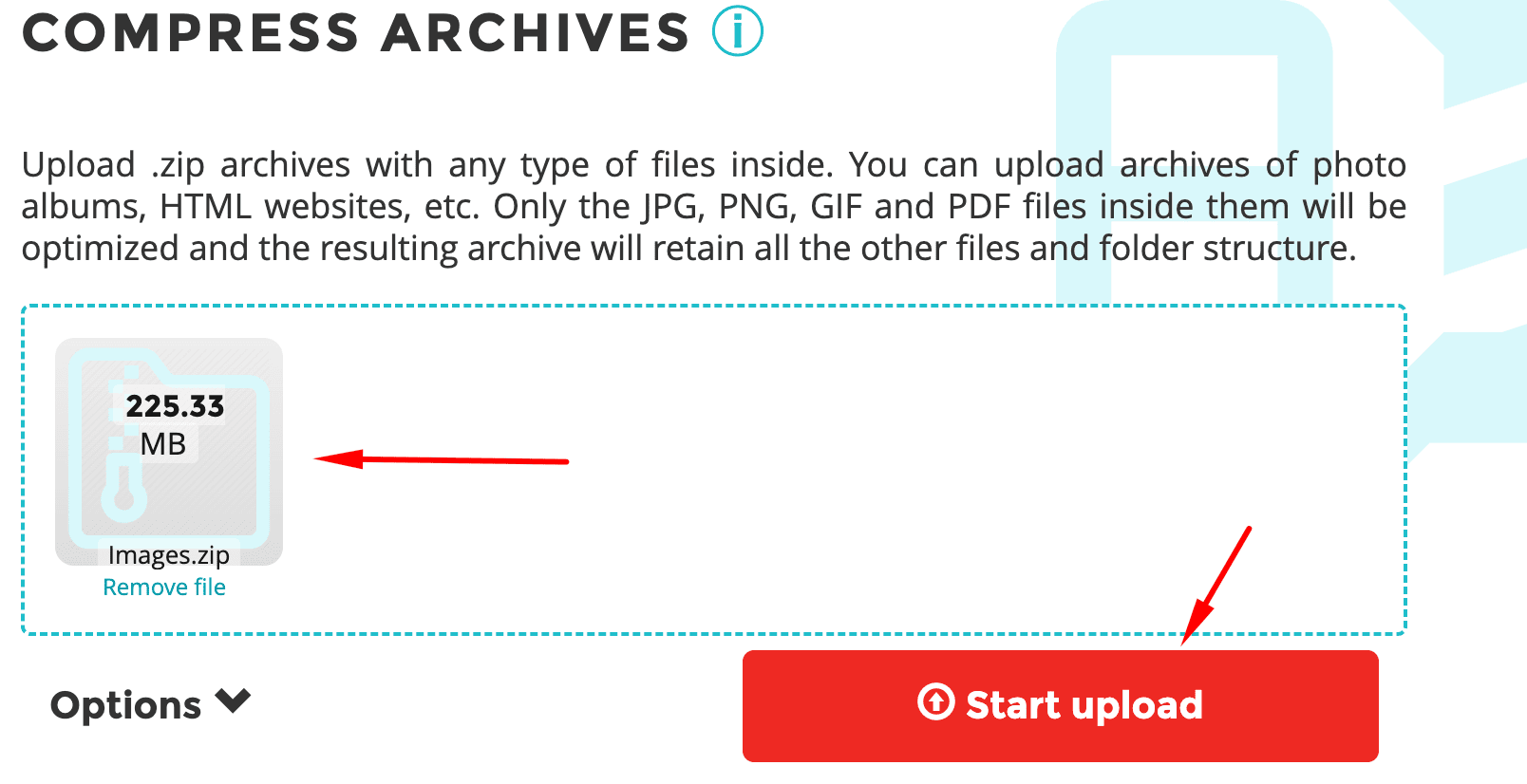
Now for the easy part. In the Archive Optimizer, you’ll see an upload area where you can either drag and drop your ZIP file or click “Upload” to select it manually.
Once the file is ready, click “Start Upload” to begin the optimization process.
ShortPixel will extract the images from your archive, optimize them using the settings you selected, and then repackage everything into a new ZIP file.
You can watch the progress bar as it works, or simply wait. When the process finishes, you’ll get an email notification letting you know that your optimized archive is ready for download.
Step 6: Download Your Optimized Images
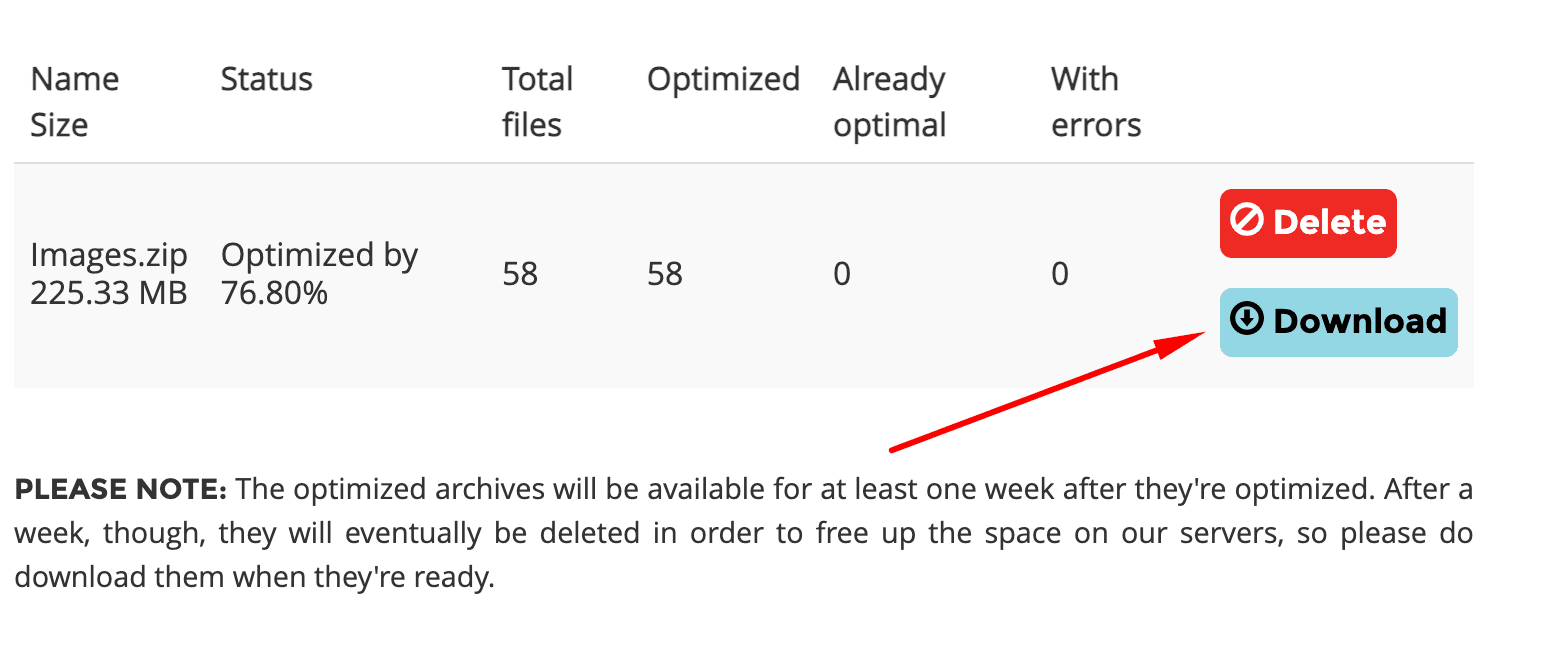
When the optimization is complete, you’ll see a download button appear. Click it to download your newly optimized archive.
The file structure inside the ZIP will match your original upload, so all your images will be in the same folders and have the same filenames, so you can easily overwrite your original folder which had unoptimized images.
Step 7: Replace the Old Images in Your Project
Extract the downloaded ZIP file to access your optimized images.
Now, go back to your local website or project folder and replace the old images with the optimized versions. Since the filenames and folder structure are identical, you can simply overwrite the old files.
If you’re working with version control (like Git), make sure to commit these changes so the optimized versions are part of your project going forward.
You’re Done!
That’s it. Your website now has optimized images that will load faster, use less bandwidth and disk space once you deploy to production.
If you eventually move this website to a WordPress environment, remember that you can switch to using the ShortPixel Image Optimizer plugin for automatic, ongoing optimization. But for local and staging work, the Archive Optimizer is your best friend.
Happy optimizing!
Try ShortPixel for free!
Easily resize your pictures and cut down pixels fast using ShortPixel’s free online tool.