
Use ShortPixel with AI Assistants via MCP #
Connect ShortPixel Image Optimizer to AI assistants such as Cursor, OpenAI Codex, and Claude Desktop using the Model Context Protocol (MCP).
Once connected, you can manage many ShortPixel tasks using natural language. For example, you can ask your AI assistant to check your optimization status, view your remaining credits, optimize images, monitor processing queues, generate AI Image SEO metadata, or change supported ShortPixel settings.
This guide covers:
- What you can do with ShortPixel through MCP
- How to prepare your WordPress site
- How to connect your preferred AI assistant
- Example prompts you can start using immediately
- Security, permissions, and troubleshooting
Who is this guide for?
Site owners, agencies, and developers who want to manage ShortPixel from an AI assistant in addition to the WordPress admin interface.
What is MCP? #
MCP (Model Context Protocol) is a standard that allows AI applications to discover and use specific tools provided by other applications.
With ShortPixel and the WordPress MCP Adapter, your AI assistant can securely access ShortPixel abilities registered on your WordPress site.
The connection works like this:
You (natural-language request) > AI assistant (Cursor, Codex, Claude Desktop, etc.) > MCP (WordPress MCP Adapter) > ShortPixel abilities
Instead of navigating through WordPress settings for every task, you can simply ask your assistant what you want to do.
For example:
How many images are still unoptimized on my site?
or:
Optimize image 1234 using glossy compression.
The assistant translates your request into the appropriate ShortPixel ability and runs it with the permissions of the WordPress user you connected.
Important: Your ShortPixel API key is never exposed to the AI assistant.
Step 1 — What can ShortPixel do through MCP? #
ShortPixel registers a set of abilities with the WordPress Abilities API.
When the WordPress MCP Adapter is active, compatible AI clients can discover these abilities and use them as MCP tools.
ShortPixel MCP abilities fall into four main categories.
Monitor ShortPixel #
| Ability | What it does |
|---|---|
shortpixel/get-stats | Shows optimization totals, average compression, and how many images still need optimization |
shortpixel/get-quota | Shows monthly, one-time, and AI credits and reports whether your quota has been exceeded |
shortpixel/get-media-status | Checks the optimization status of a specific image, including savings, compression, and backup information |
shortpixel/get-queue-status | Shows items waiting, processing, or completed in the Media Library and Custom Media queues |
shortpixel/get-settings | Shows supported ShortPixel settings. Sensitive information such as your API key is never returned |
shortpixel/get-ai-seo-status | Shows AI Image SEO information for a Media Library image, including alt text, caption, description, title, and filename |
These abilities are read-only and are useful for checking the current state of your ShortPixel installation before making any changes.
Optimize and restore images #
| Ability | What it does |
|---|---|
shortpixel/optimize-media | Optimizes a specific image, optionally using a selected compression level or SmartCrop. Uses optimization credits |
shortpixel/run-queue | Continues processing items currently waiting in the ShortPixel queues |
shortpixel/restore-media | Restores a specific image from its ShortPixel backup |
shortpixel/bulk-optimize | Starts optimization for all eligible unoptimized images. Requires explicit confirmation and uses optimization credits |
shortpixel/bulk-restore | Restores images from their ShortPixel backups in bulk. Requires explicit confirmation |
Warning: Bulk restore replaces optimized versions with the original files stored in your ShortPixel backups. Use it only when you intentionally want to undo optimization.
Manage AI Image SEO #
AI Image SEO abilities are available for images in the WordPress Media Library.
| Ability | What it does |
|---|---|
shortpixel/generate-ai-seo | Generates supported AI Image SEO fields such as alt text, caption, description, and title, with optional filename generation. Uses AI credits |
shortpixel/undo-ai-seo | Restores AI SEO fields to their values before generation. Filename changes are not reverted |
shortpixel/bulk-generate-ai-seo | Generates AI Image SEO metadata for eligible Media Library images in bulk. Requires explicit confirmation |
shortpixel/bulk-undo-ai-seo | Undoes AI Image SEO changes across eligible Media Library images. Requires explicit confirmation |
Note: AI Image SEO MCP abilities work with Media Library attachments only. They do not currently apply to Custom Media.
Change ShortPixel settings #
| Ability | What it does |
|---|---|
shortpixel/update-settings | Changes supported ShortPixel settings such as compression, WebP/AVIF generation, AI options, and resizing |
Only approved settings can be changed through MCP.
Sensitive values such as your ShortPixel API key, credentials, and CDN domain cannot be modified through this ability.
How processing jobs work #
Image optimization and AI Image SEO operations may continue after the initial MCP request.
A single call processes work for a limited amount of time. If items remain in the queue, your assistant can continue calling:
shortpixel/run-queue
until processing is complete.
For bulk operations, the assistant uses the bulk queue until all eligible items have been processed.
You can simply ask:
Keep processing the ShortPixel queue until it is empty.
You do not need to call the ability manually.
Step 2 — Prepare WordPress #
Before connecting an AI assistant, prepare your WordPress site for MCP access.
Requirements #
Make sure your site has:
- WordPress 6.9 or newer
- ShortPixel Image Optimizer version 6.6.0 or later installed and active
- A verified ShortPixel API key
- The WordPress MCP Adapter installed and active
- A WordPress user account that you trust for AI access
- A site that can be reached from the machine where your AI client runs
- HTTPS enabled whenever possible
You can check your WordPress version under:
Dashboard → Updates
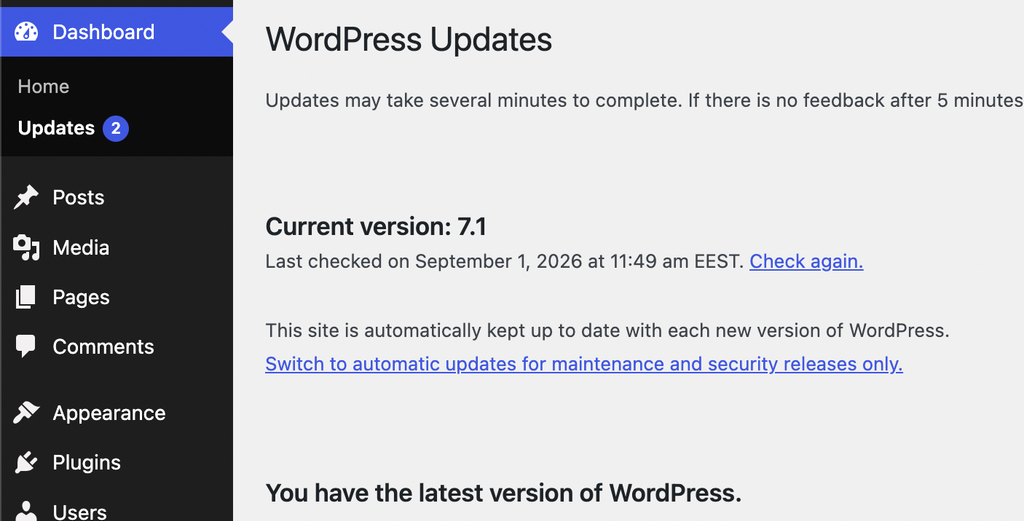
Dashboard → Updates with WordPress 6.9 or newer.
You can verify your ShortPixel API key under:
Settings → ShortPixel
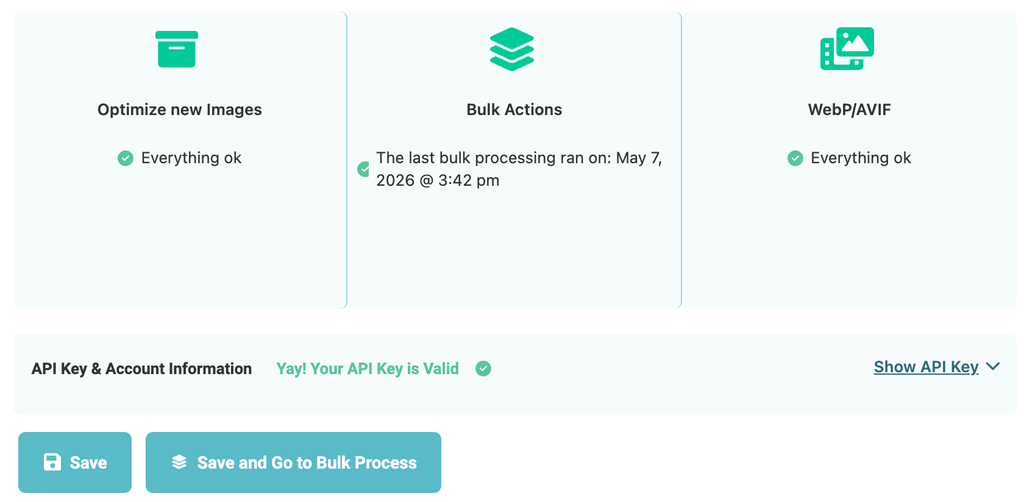
Settings → ShortPixel. The API key must be verified before optimization abilities can run.
Note: On WordPress versions older than 6.9, ShortPixel MCP abilities are not registered. ShortPixel itself continues to work normally through the WordPress interface.
Step 2.1 — Install the WordPress MCP Adapter #
The WordPress MCP Adapter connects WordPress abilities to MCP-compatible AI applications.
To install it:
- Open the WordPress MCP Adapter releases page.
- Download the latest release ZIP.
- In WordPress, go to Plugins → Add New Plugin → Upload Plugin.
- Upload the ZIP.
- Click Install Now.
- Click Activate.
No additional ShortPixel-specific configuration is required.
Once both plugins are active, the MCP Adapter automatically discovers the ShortPixel abilities registered on your site.
Your default MCP endpoint will look like:
https://YOUR-SITE/wp-json/mcp/mcp-adapter-default-server
Replace YOUR-SITE with your actual WordPress domain.
For example:
https://example.com/wp-json/mcp/mcp-adapter-default-server
If WordPress is installed in a subdirectory, include that path as well.
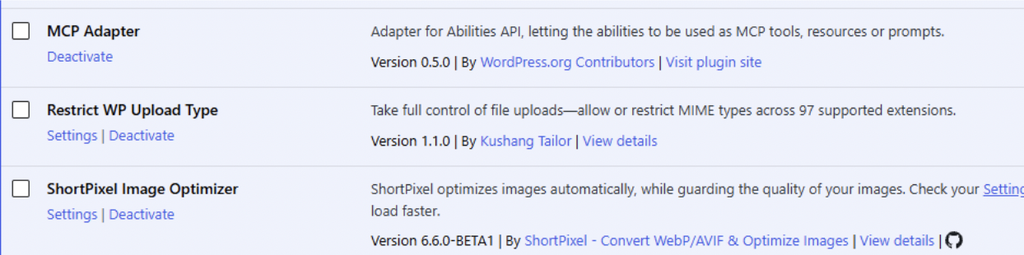
ShortPixel Image Optimizer and MCP Adapter both active.
Step 2.2 — Create a WordPress Application Password #
Your AI assistant needs permission to authenticate with WordPress.
For this, use a WordPress Application Password rather than your normal WordPress login password.
To create one:
- Go to Users → Profile.
- If you want to use a different WordPress account, go to Users → All Users and edit that user instead.
- Scroll to Application Passwords.
- Enter a descriptive name, such as:
ShortPixel MCP — Cursor
- Click Add New Application Password.
- Copy the generated password immediately.
WordPress displays the Application Password only when it is created.
Recommended: Create a separate Application Password for each AI client you connect—for example, one for Cursor and another for Claude Desktop. This makes it easy to revoke access for one application without affecting the others.
Keep the following information ready:
| You need | Example |
|---|---|
| Site URL | https://example.com |
| WordPress username | admin |
| Application Password | xxxx xxxx xxxx xxxx xxxx xxxx |
| MCP endpoint | https://example.com/wp-json/mcp/mcp-adapter-default-server |
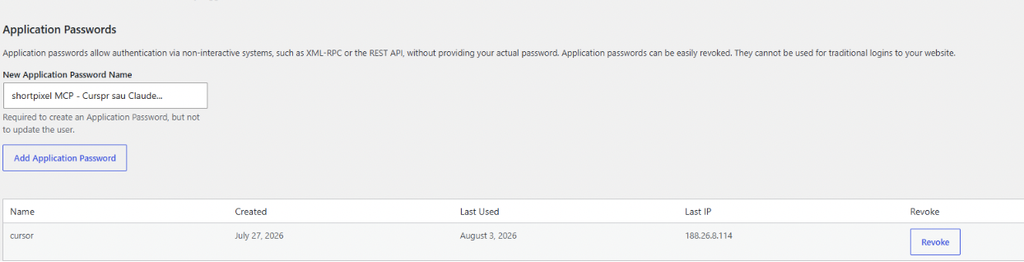
Users → Profile → Application Passwords.
Security tip: Treat your Application Password like any other password. Do not publish it, commit it to a public repository, or include it in screenshots.
Which WordPress user should I use? #
The abilities available to the AI assistant depend on the permissions of the WordPress user connected through the Application Password.
Administrator #
An Administrator can use all supported ShortPixel MCP abilities, including reading and changing supported ShortPixel settings.
Editor #
An Editor can use ShortPixel abilities such as:
- Statistics
- Quota information
- Image optimization
- Image restore
- AI Image SEO
- Queue management
Editors cannot read or change ShortPixel settings through MCP.
Tip: Use the lowest WordPress role that provides the functionality you need.
Step 3 — Connect your AI assistant #
Once WordPress is ready, connect your preferred MCP-compatible AI client.
Use the dedicated guide for your application:
| AI client | Setup guide |
|---|---|
| Cursor | Connect ShortPixel with Cursor via MCP |
| OpenAI Codex | Connect ShortPixel with OpenAI Codex via MCP |
| Claude Desktop | Connect ShortPixel with Claude Desktop via MCP |
All three clients connect to the same WordPress MCP endpoint and authenticate using a WordPress username and Application Password.
The main difference is how each application configures its MCP server.
After connecting, start a new conversation and ask:
What ShortPixel abilities are available on my WordPress site?
Your assistant should discover ShortPixel abilities under the:
shortpixel/
namespace.
For example:
shortpixel/get-statsshortpixel/get-quotashortpixel/optimize-mediashortpixel/generate-ai-seo
Once you see those abilities, your ShortPixel MCP connection is ready to use.
Step 4 — Try these example prompts #
You do not need to remember ShortPixel ability names.
Ask your AI assistant what you want to accomplish in normal language, and it can select the appropriate ability.
Here are some useful prompts to get started.
Check optimization health #
| Ask your assistant | Ability used |
|---|---|
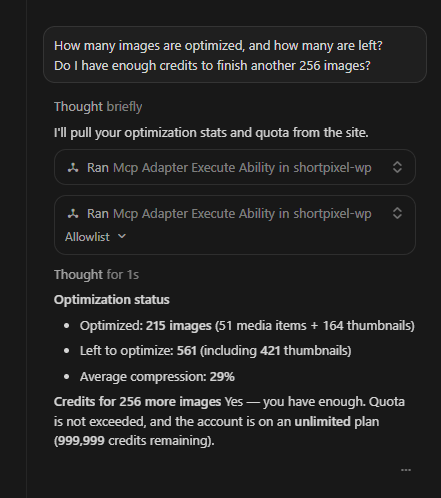
| How many images are optimized, and how many are left? | get-stats |
| Do I have enough ShortPixel credits to optimize all the remaining images? | get-quota + get-stats |
| Is image 1234 optimized, and how much space did it save? | get-media-status |
| What is the ShortPixel optimization queue doing right now? | get-queue-status |
Optimize or restore an image #
| Ask your assistant | Ability used |
|---|---|
| Optimize image 1234 using glossy compression. | optimize-media + run-queue if needed |
| Restore image 1234 from its ShortPixel backup. | restore-media |
| Keep processing the ShortPixel queue until it is empty. | run-queue |
Run bulk operations #
| Ask your assistant | Ability used |
|---|---|
| Optimize all eligible unoptimized images and keep processing until the job is finished. | bulk-optimize + run-queue |
| Restore all images from their ShortPixel backups. I confirm that I want to undo the optimizations. | bulk-restore + run-queue |
Important: Bulk optimization and bulk restore require explicit confirmation before they can start.
Bulk restore should be used carefully because optimized files are replaced with their original backed-up versions.
Manage AI Image SEO #
| Ask your assistant | Ability used |
|---|---|
| Show me the AI SEO status for image 1234, including its alt text, caption, description, and title. | get-ai-seo-status |
| Generate AI alt text and a caption for image 1234. | generate-ai-seo |
| Undo the AI SEO changes for image 1234. | undo-ai-seo |
| Generate AI Image SEO metadata for all eligible Media Library images. | bulk-generate-ai-seo + run-queue |
| Undo AI Image SEO changes across the Media Library. | bulk-undo-ai-seo + run-queue |
Remember that AI Image SEO MCP abilities currently work with Media Library images only.
Review or change settings #
| Ask your assistant | Ability used |
|---|---|
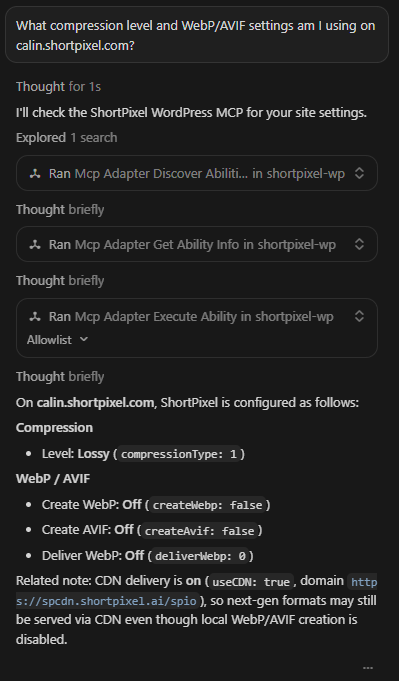
| What compression level am I using, and are WebP and AVIF enabled? | get-settings |
| Enable WebP creation and change compression to lossy. | update-settings |
| Enable AI Image SEO generation for alt text and captions. | update-settings |
Security and permissions #
ShortPixel’s MCP integration is designed so that the AI assistant receives access to specific ShortPixel abilities rather than unrestricted access to the plugin.
Important security points:
- Your ShortPixel API key is never returned to the AI assistant.
- ShortPixel settings that can be changed through MCP use a strict allowlist and validation.
- Sensitive ShortPixel fields such as API credentials and the CDN domain cannot be changed through MCP.
- Every ShortPixel action runs with the permissions of the WordPress user associated with the Application Password.
- Optimization and AI Image SEO operations still respect your ShortPixel credit limits.
- Bulk operations that can make significant changes require explicit confirmation.
- ShortPixel’s MCP abilities do not provide arbitrary PHP execution or direct filesystem access.
The WordPress MCP Adapter can also expose abilities registered by WordPress itself or by other compatible plugins. Those abilities have their own permissions and behavior.
Security recommendation: Create a dedicated Application Password for each AI client and revoke it as soon as that integration is no longer needed.
Troubleshooting #
No ShortPixel abilities appear #
Check that:
- You are using WordPress 6.9 or newer
- ShortPixel Image Optimizer is active
- The WordPress MCP Adapter is active
- Your AI client’s MCP connection is running
- You are connecting to the correct MCP endpoint
Your endpoint should normally look like:
https://YOUR-SITE/wp-json/mcp/mcp-adapter-default-server
401, 403, or permission denied #
Check:
- Your WordPress username
- Your WordPress Application Password
- The role and permissions of the connected WordPress user
Make sure you are using an Application Password, not the user’s normal WordPress password.
The MCP endpoint returns 404 #
First confirm that the WordPress MCP Adapter is active.
If it is, go to:
Settings → Permalinks
and save your permalink settings again.
Then retry the MCP connection.
“API key is not verified” #
Go to:
Settings → ShortPixel
and make sure your ShortPixel API key is valid and verified.
“Quota exceeded” #
Your available ShortPixel credits have been exhausted.
You can either add more credits or wait for the applicable quota to renew.
Ask:
Show me my current ShortPixel quota.
to see the current credit status.
A job does not finish in one response #
This can be normal.
Optimization and AI Image SEO jobs may need several processing cycles.
Ask:
Keep processing the ShortPixel queue until it is empty.
The assistant can continue using shortpixel/run-queue until processing is complete.
AI Image SEO does not work with Custom Media #
This is expected.
The AI Image SEO MCP abilities currently support WordPress Media Library attachments only.
For developers — disable ShortPixel MCP abilities #
Developers can prevent ShortPixel from registering its MCP-compatible abilities without disabling ShortPixel Image Optimizer itself.
Use:
add_filter( 'shortpixel/abilities/init', '__return_false' );ShortPixel will continue to work normally through the WordPress admin interface.
Disconnect or disable MCP access #
You can remove MCP access at different levels depending on what you want to disable.
| Goal | What to do |
|---|---|
| Disconnect one AI client | Revoke the Application Password used by that client |
| Stop MCP access to the site | Deactivate the WordPress MCP Adapter |
| Keep MCP active but hide ShortPixel abilities | Use the shortpixel/abilities/init filter shown above |
Revoking an Application Password does not change the WordPress user’s normal password.
ShortPixel also continues to work normally through the WordPress admin interface after MCP access is disabled.
Next steps #
Your WordPress site is now ready to use ShortPixel with an MCP-compatible AI assistant.
Choose your client and continue with its setup guide:
- Connect ShortPixel with Cursor via MCP
- Connect ShortPixel with OpenAI Codex via MCP
- Connect ShortPixel with Claude Desktop via MCP
Once connected, start with a simple read-only request:
Show me my ShortPixel optimization statistics, remaining credits, and current queue status.
From there, you can use natural language to manage optimization, AI Image SEO, and supported ShortPixel settings directly from your AI assistant.