
Version 5 or higher #
If you have used ShortPixel Image Optimizer on your website and want to remove all the data associated with it, you need to do the following:
- (Optional) Only if you want to restore your original images, go to Settings > ShortPixel > Tools, click on “Bulk Restore” and follow the instructions.
- Remove the ShortPixel backup folder located at
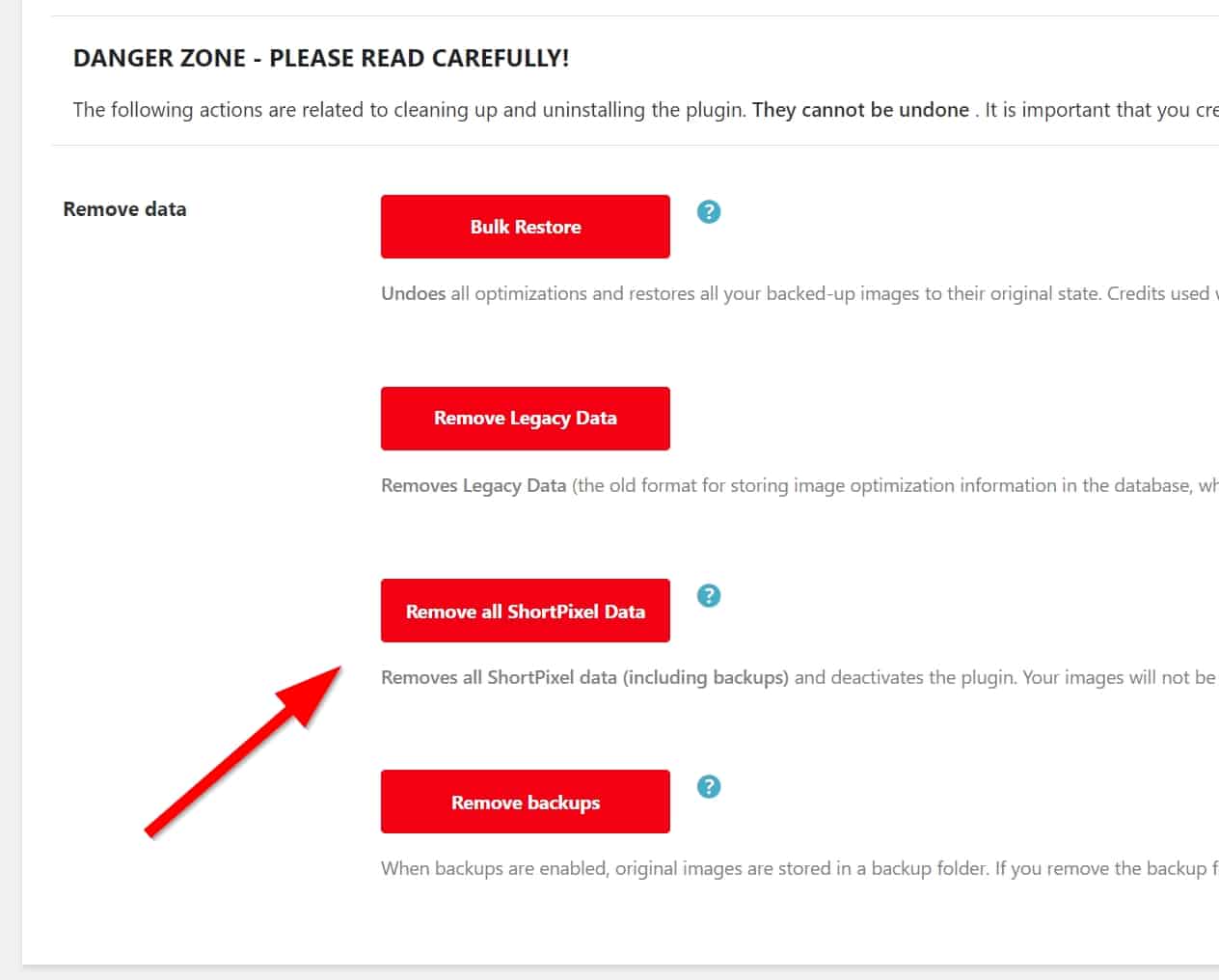
/wp-content/uploads/ShortpixelBackups/. - Go to Settings > ShortPixel > Tools, click on “Remove all ShortPixel Data” and follow the instructions.
- Remove the
shortpixel_metaandshortpixel_folderstables from the database (if found). These tables contain your Custom media folders settings (Settings > ShortPixel > Processing). - Remove the plugin from the Plugins screen.
Version 4.22.10 or lower #
- (Optional) Before deactivating the plugin, go to Media > Bulk ShortPixel, click on “Bulk Restore Images” to restore your optimized images to the originals, and follow the instructions.
- Before deactivating the plugin, go to Media > Bulk ShortPixel, click on “Bulk Delete SP Metadata” and follow the instructions.
- Remove the ShortPixel backup folder located at
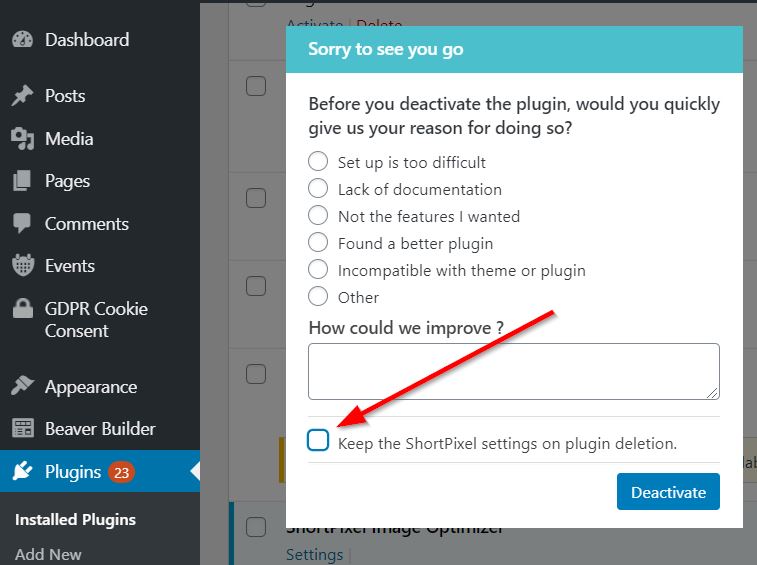
/wp-content/uploads/ShortpixelBackups/. - Deactivate and uninstall the ShortPixel Image Optimizer plugin. Make sure that you uncheck the option “Keep the ShortPixel settings on plugin deletion“.
Remove the
shortpixel_metaandshortpixel_folderstables from the database (if found). These tables contain your Custom media folders settings (Settings > ShortPixel > Advanced).